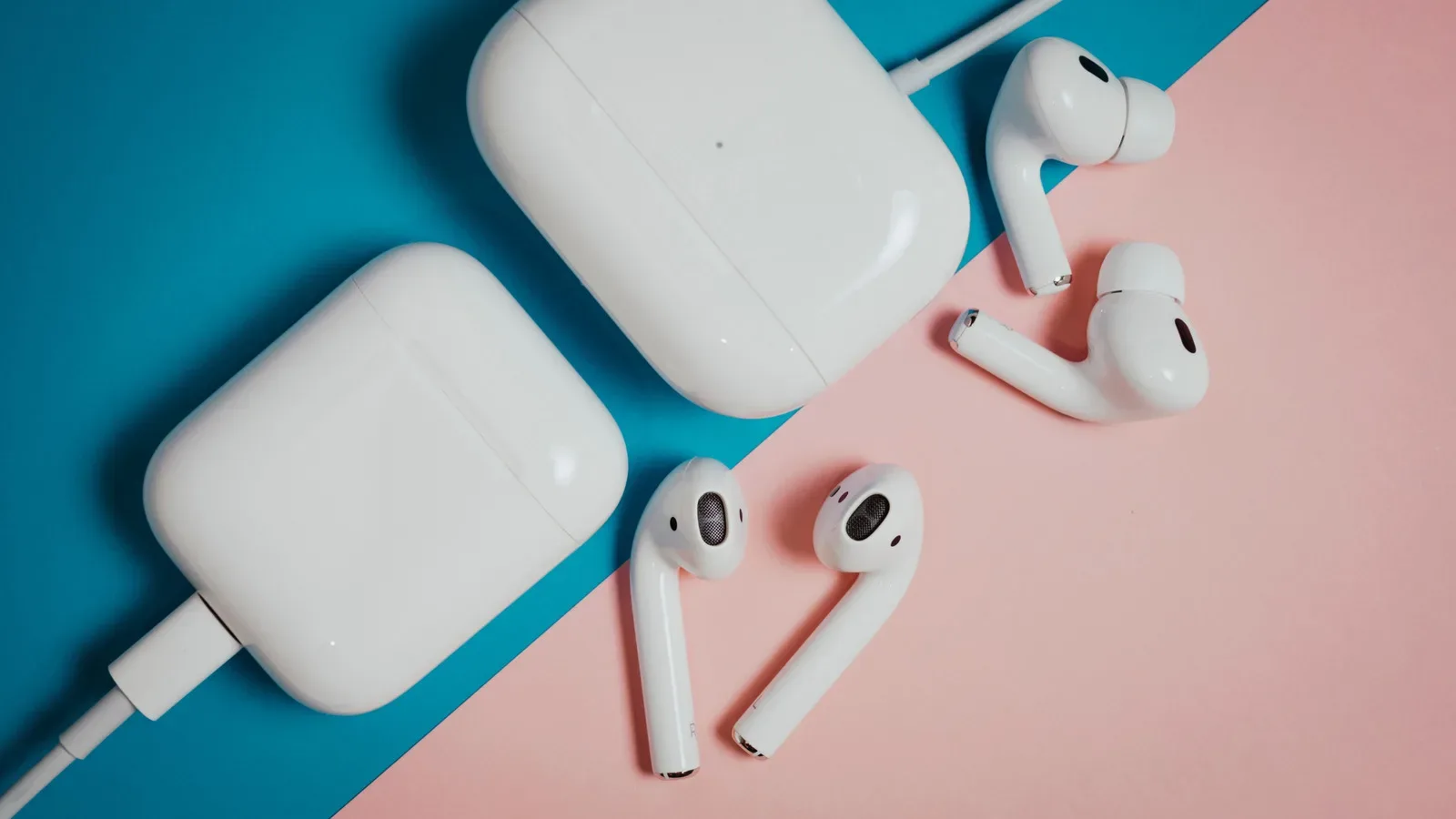
AirPods can be deceptively difficult to identify at a glance. A familiar white case, a slightly altered stem, or a set of removable ear tips can offer a clue, but visual inspection is not a reliable way to separate every generation and configuration. Several models within the standard AirPods and AirPods Pro families look alike, while charging cases can add another layer of confusion.
The most dependable route is to find the model number or, when necessary, the serial number. This matters beyond satisfying a bit of gadget curiosity. The exact identification can help establish which accessories are compatible, check warranty coverage, and determine whether a particular software feature applies to the headphones in hand.
For anyone keeping older personal tech in useful rotation, that small verification step is worthwhile. It is part of the same practical mindset behind finding a productive use for aging hardware rather than writing it off too soon; see our guide to giving an old laptop a smart second life.
Start with the model number
A model number is the best first identifier because it maps directly to a particular AirPods generation or variant. These identifiers begin with the letter A. Do not confuse the model number printed on a charging case with the model number associated with the earbuds themselves: they are different identifiers, and the earbud number is the one to use for determining the AirPods generation.
Find it on an iPhone or iPad
- Connect the AirPods to the iPhone or iPad.
- Open Settings.
- Select the AirPods entry near the top of the Settings list. If it is not shown there, open Bluetooth, locate the connected AirPods, and tap the More Info button marked with a lowercase i.
- Under About, find Model Number.
This is generally the least fiddly method. It avoids reading tiny printing on the hardware and also places the model number alongside the serial number, which may be useful for a later coverage check.
Find it on a Mac
If the headphones have been paired with a Mac, open System Settings and follow the corresponding AirPods or Bluetooth information path. The relevant device details include the model number. This is a useful alternative when the AirPods are not currently paired to an iPhone or iPad.
Find it on the AirPods themselves
Physical inspection remains an option when a paired Apple device is unavailable. On standard AirPods and AirPods Pro, look on the underside of each earbud. On AirPods Max, the identifier is behind the cushion on the left ear cup.
Take care when matching the number. Some product families have more than one number because the charging approach or active noise cancellation configuration differs. ANC means active noise cancellation: a noise-reduction feature that is specifically distinguished for one AirPods 4 configuration in the list below. A case can also have an identifier of its own, so finding a case number does not automatically settle which earbuds are inside it.
Related coverage includes How to Identify Which AirPods Generation You Own.
AirPods model-number reference list
Once the A-number has been found, compare it with this list:
- AirPods 1: A1523, A1722
- AirPods 2: A2032, A2031
- AirPods 3: A2565, A2564
- AirPods 4: A3053, A3050, A3054
- AirPods 4 (ANC): A3056, A3055, A3057
- AirPods 5: A3531, A3532, A3533
- AirPods 5 with Wireless Charging Case: A3439, A3440, A3441
- AirPods Pro 1: A2084, A2083
- AirPods Pro 2 with MagSafe Charging Case (Lightning): A2931, A2699, A2698
- AirPods Pro 2 with MagSafe Charging Case (USB-C): A3047, A3048, A3049
- AirPods Pro 3: A3063, A3064, A3065
- AirPods Max 1 (Lightning): A2096
- AirPods Max 1 (USB-C): A3184
- AirPods Max 2: A3454
Why the charging connector and case type are part of the answer
The list shows why simply calling a pair “AirPods Pro 2” may not be enough for every task. AirPods Pro 2 appears in Lightning and USB-C MagSafe Charging Case forms, each with distinct model numbers. Likewise, AirPods 5 is listed separately from AirPods 5 with Wireless Charging Case.
That distinction is most useful when shopping for an accessory or resolving a compatibility question. A product page that only says it fits “AirPods Pro” is not, by itself, a precise compatibility guarantee. First identify the earbuds, then check whether the accessory is designed for the matching generation and case type. This is particularly important for accessories shaped around the case, where a close-looking product may still be the wrong fit.
It also helps to separate two related but different questions:
- What earbuds are these? Use the earbud model number to identify the AirPods generation or variant.
- What case is this? Treat its model number as case-specific information rather than a substitute for the earbud identifier.
Visual signals can still serve as a preliminary filter. Replaceable ear tips, for example, can point toward a Pro model rather than regular AirPods. But it is not a conclusive test, because the product lines contain models with closely related designs and charging cases. The model number is the decisive check.
Use the serial number if the model number does not resolve it
The serial number offers a second route. Unlike the model number, it is an identifier for the particular unit and can be used for an exact lookup through Apple’s coverage tool. It is especially helpful when printing is hard to read, when the model information is not readily accessible, or when a warranty check is already the reason for identifying the device.
Where to find the serial number digitally
On an iPhone, iPad, or Mac, return to the same device-information area used to locate the model number. The serial number is displayed immediately below the model number. Checking the on-device listing can be safer and simpler than handling tiny earbuds or removing cushions just to inspect markings.
Where to find the serial number physically
- For AirPods and AirPods Pro, inspect the underside of the charging case lid.
- For AirPods Max, detach the left magnetic ear cushion to locate it.
- Many models also print a serial number on each individual AirPod.
- The original packaging can carry the number beneath the barcode, and it may also be present on the receipt.
If the original box has survived a move, decluttering spree, or cable-drawer reshuffle, it can be genuinely useful here. Packaging is not required, but it provides another readable place to retrieve the identifier without relying on a current Bluetooth connection.
Check warranty and exact model information
After locating the serial number, enter it into Apple’s AppleCare and Warranty page. The lookup returns the exact product matched to that identifier. This gives a direct way to validate the model and assess warranty-related status in the same process.
The practical order of operations is therefore straightforward: use Settings when the AirPods are paired, verify the A-number against the reference list, and turn to the serial-number lookup if more confirmation is needed. If the AirPods are unpaired or a device is unavailable, inspect the physical markings instead. Avoid relying solely on outward design, and avoid using the charging-case number as though it were the earbud model number.
A quick identification checklist
- Connect the AirPods to an iPhone, iPad, or Mac if possible.
- Open the AirPods or Bluetooth details and record the model number beginning with A.
- Match that number to the generation and configuration list.
- If the result remains uncertain, find the serial number in the same menu, beneath the case lid, on the earbud, behind the left AirPods Max cushion, or on the original packaging.
- Use the AppleCare and Warranty lookup with the serial number to retrieve the exact matching product.
- Only then buy a case or other fitted accessory, or make assumptions about coverage and feature eligibility.
It is a short job, but an accurate identification prevents a surprisingly broad set of avoidable mistakes: purchasing an ill-fitting case, looking up the wrong device’s coverage, or assuming two visually similar AirPods models share the same software path. For a product line with overlapping names, cases, and configurations, the small A-number does the important work.