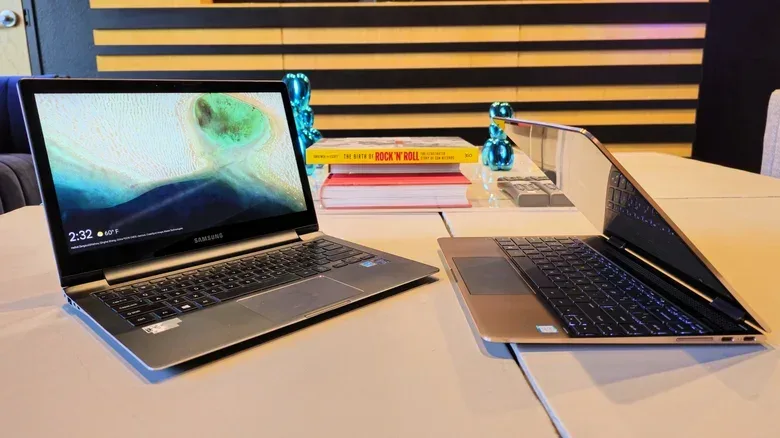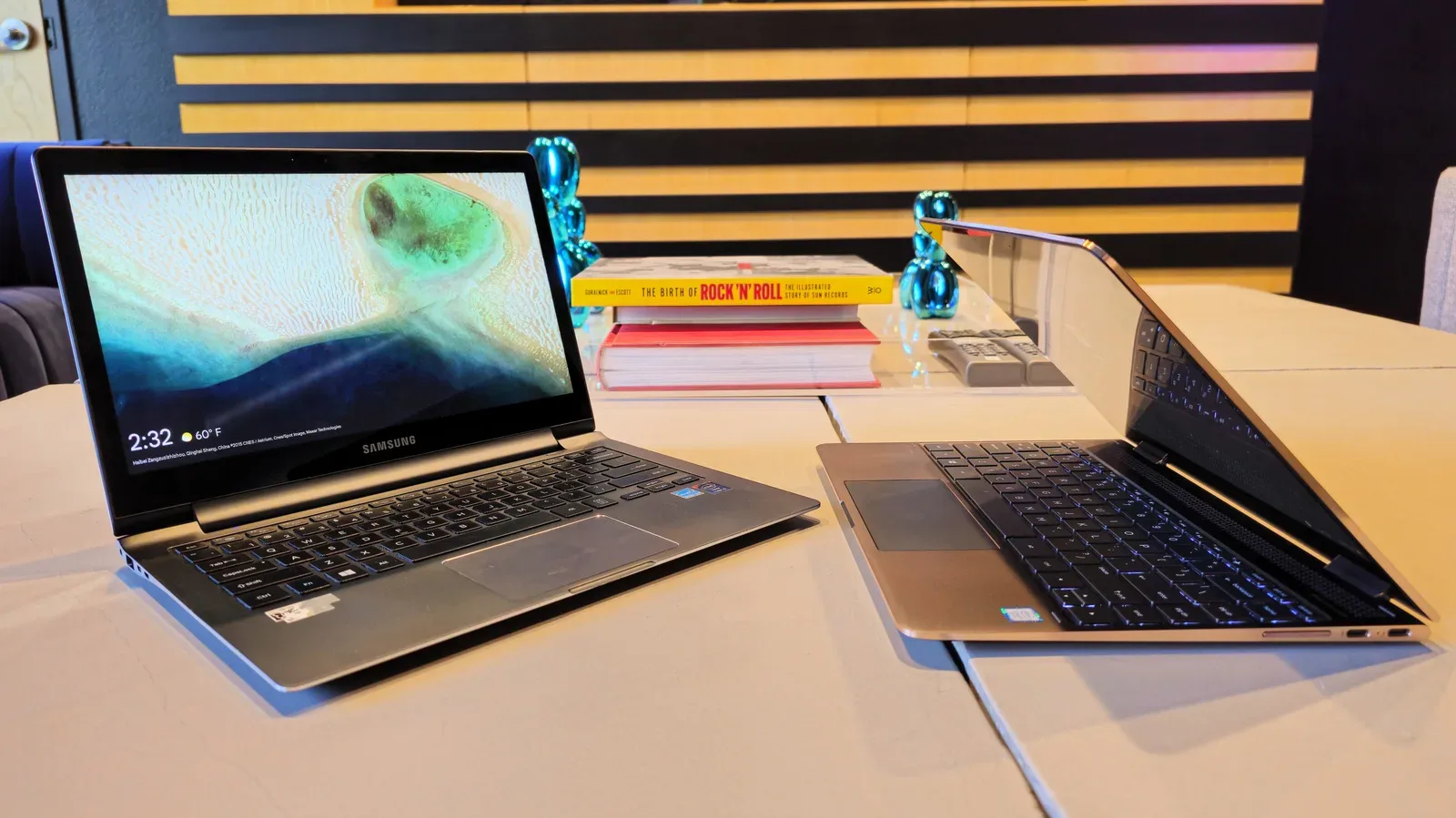
There is a specific kind of guilt attached to an old laptop: it still turns on, its screen still works, and it has faithfully transported documents, tabs and questionable download folders for years—yet it now feels too sluggish for modern daily life. That does not automatically make it e-waste.
An older notebook may be a poor fit for demanding productivity, entertainment or current PC games, particularly if newer software has moved beyond its capabilities. But that same machine can be perfectly capable when assigned one focused job. The key is to stop asking it to be a new laptop and instead give it a role with modest, predictable demands.
Before choosing an afterlife, back up anything worth keeping and remove personal data. From there, five practical paths stand out: install a lighter operating system, run a personal media server, designate it as a deliberately isolated test machine, prepare it for someone with simpler needs, or recover usable components before responsible recycling.
1. Replace the operating system instead of replacing the laptop
Software support can make workable hardware feel obsolete. A laptop can fail eligibility checks for a newer operating system, while its existing system may run poorly. That is not necessarily a verdict on the processor, memory or display. It may simply mean the machine needs software better matched to its age and intended workload.
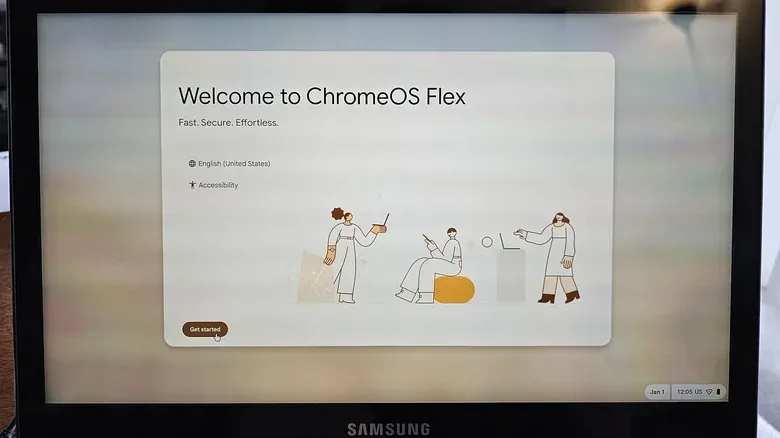
ChromeOS Flex is one option for compatible non-Chromebook laptops. It is a free version of ChromeOS designed for that kind of repurposing. Its web-first approach can make an old machine feel responsive for browsing and other browser-based tasks. The tradeoff is equally clear: someone who depends on local applications, especially local open-source tools, may find a web-app-centered setup too limiting.
Linux is the broader alternative. A Linux distribution—often shortened to “distro”—is a packaged version of Linux that combines the core operating system with a desktop interface and software tools. Fedora is one example, and GNOME is a desktop environment: the visual workspace used to open applications, manage files and change settings.
One useful practical difference is how software is installed. Linux distributions commonly use repositories, which are curated software catalogs that behave much like an app store. That can reduce the routine of searching the web for an installer, sorting legitimate downloads from dubious lookalikes, and navigating installers that attempt to add unwanted extras.
A relatively capable older machine can still perform well with a modern Linux desktop. An example configuration with a 2016 Intel Core i7, 16GB of RAM and a 4K display handled Fedora, GNOME, several applications and numerous Brave browser tabs before it began to show strain. That is not a promise that every old laptop will behave the same way, but it illustrates why a fresh operating system is worth considering before writing off hardware by age alone.
Related coverage includes Five Smart Second Lives for an Old Laptop.
For gaming-minded households, this route is best viewed as a general-purpose revival rather than a magic frame-rate upgrade. A new operating system cannot create hardware power that was never there. It can, however, return an otherwise idle laptop to a useful place in the house for browsing, documents, local apps and lightweight everyday work.
2. Put your library on a home media server
An old laptop can also become the quiet machine that organizes a personal media collection and makes it available around the home. This is the job of a media server: software running on one computer that provides compatible devices on the same network with access to organized media files.
Plex, Jellyfin and Emby are examples of media-server software. Once the files are organized and the chosen program’s setup process is complete, capable TVs, phones and other devices on the home network can stream from the laptop. This role makes sense for a machine that is no longer enjoyable to use interactively but can remain on and perform one background task.
Laptops bring a few practical advantages here. They are compact, may already contain usable storage, and generally offer USB ports for additional storage. Their internal batteries also act as limited backup power if normal power briefly drops. Compared with a desktop, a laptop may use less energy when left on around the clock, making it a sensible candidate for a permanent but modest home service.
There are a few setup habits worth taking seriously:
- Keep the lid open while the server is running, but turn the screen off. This supports airflow while avoiding needless display activity.
- Consider limiting the battery’s charge to 60% and using a cooling pad, both of which are suggested precautions for a machine expected to stay powered for long periods.
- Use USB expansion if internal storage is insufficient, but organize the library before treating the system as a dependable household archive.
- Start with access inside the home network. Streaming away from home is more involved: Plex may require payment for that privilege, while Jellyfin or Emby can require the owner to configure networking themselves.
The practical appeal is not merely nostalgia for physical discs or local files. It is control over a personal collection and the convenience of accessing it on multiple screens without moving the source drive from room to room.
3. Make it a disposable lab for suspicious files—carefully
The most specialized option is to turn an unneeded laptop into an air-gapped analysis bench. “Air-gapped” means the computer is kept off the internet. In this context, the laptop is a sacrificial environment for examining files, applications or storage devices that should not touch a primary computer full of accounts, saved passwords and irreplaceable files.
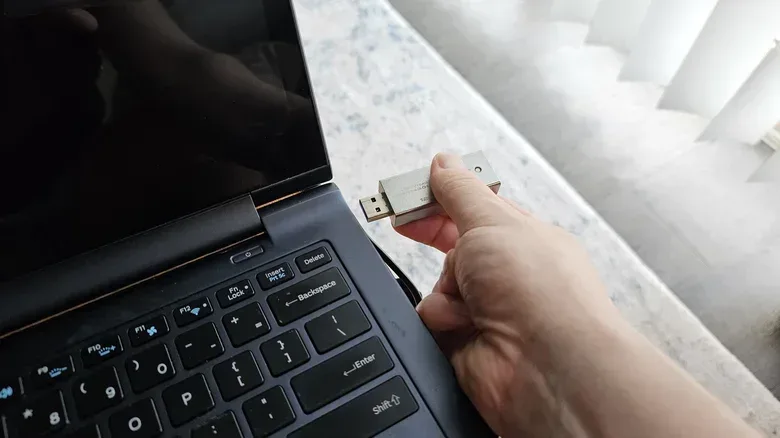
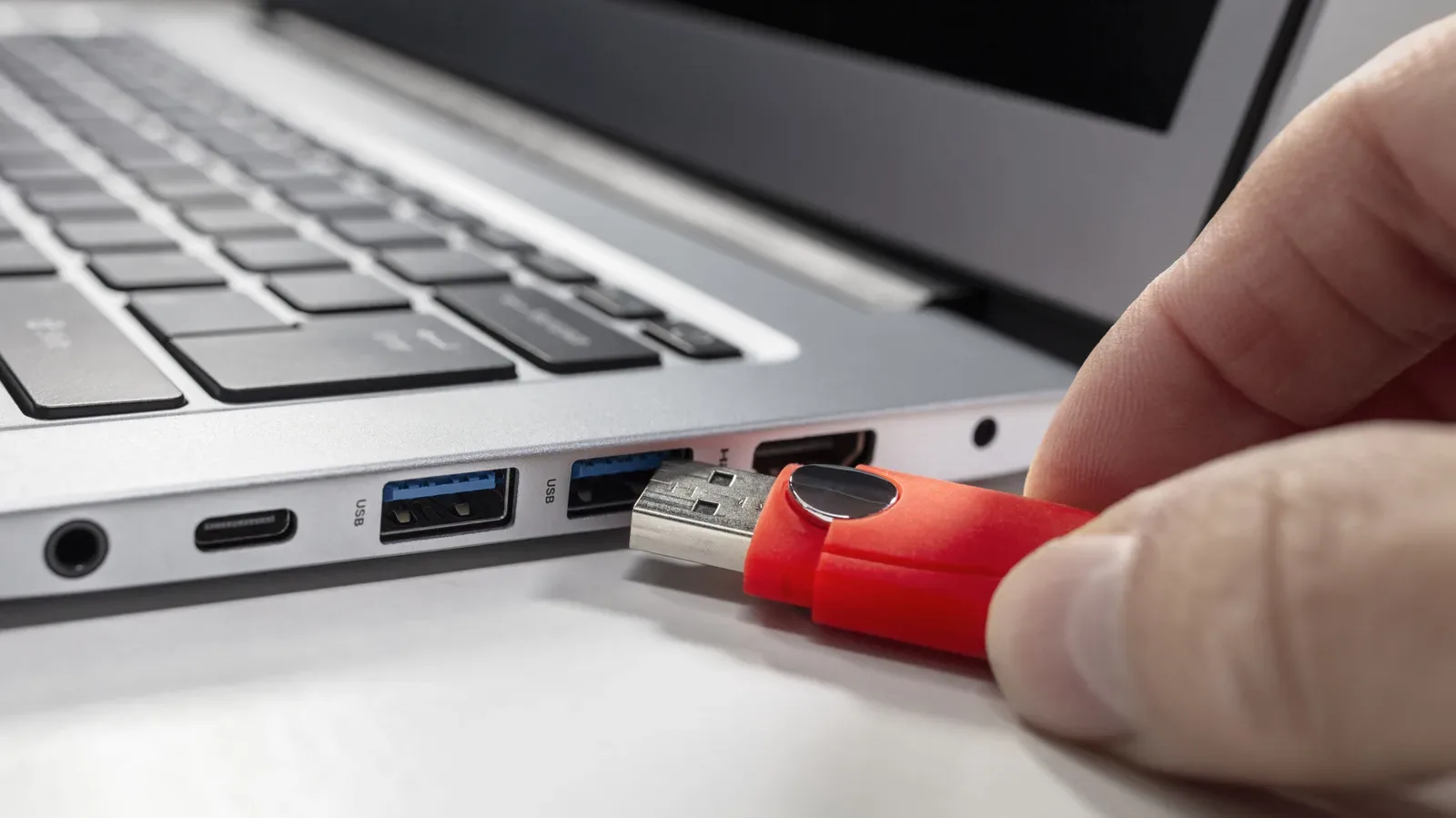
The baseline is important: start with a clean installation of the operating system, use a local account, do not keep personal information on the device, and do not connect it to the internet. A suspicious thumb drive, for example, is far less threatening when tested on a machine whose loss would not become a personal-data disaster.
Virtualization can add another layer of separation. Programs such as VirtualBox and VMware create isolated virtual environments in which software can run with limited ability to affect the main operating system. Tools including Process Explorer and Wireshark can help observe what is happening. Process Explorer is useful for inspecting activity on the machine, while Wireshark is used to examine network activity.
That said, this use case should be approached as risk containment, not risk elimination. The purpose is to observe potentially harmful behavior, which means the laptop itself is at risk. It should be a device you are prepared to wipe repeatedly or lose to a serious failure. The setup described for analysis also calls for disabling antimalware software so behavior can be observed unobstructed; that is precisely why this is not a casual experiment for a personal daily driver.
It may be relevant when evaluating unknown removable media or checking whether a program produced through AI-assisted “vibe coding” behaves as expected. If an AI-generated app is involved, security habits should come before convenience; our guide to security habits for vibe-coded apps offers further context.
4. Give it a clean start and pass it on
Sometimes a laptop becomes surplus because its owner upgraded, not because it stopped being useful. A thin-and-light system with integrated graphics may no longer be the preferred personal machine after an upgrade to hardware with a discrete GPU, yet it can remain quite adequate for web browsing and basic productivity.
That gap between “not enough for me” and “far better than what someone else has” is an opportunity. A family member or friend using a significantly older computer may gain a meaningful upgrade from a fully working notebook that would otherwise sit in a drawer.
The non-negotiable step is preparation. Format the storage drive, install a fresh operating system and give the recipient a system unburdened by the previous owner’s files and accounts. ChromeOS Flex can be particularly appropriate for a user who mainly needs the browser and may not want the complexity of a traditional desktop environment. Its lightweight, browser-focused design can help an older laptop feel faster, while its security model and straightforward interface may reduce support headaches.
There is also a recovery plan if something goes wrong. Chrome Remote Desktop can make remote assistance easier, while ChromeOS includes Powerwash, a feature intended to reset the operating system simply. A predictable reset path matters when the person receiving the laptop is not interested in troubleshooting operating-system problems.
5. Salvage the useful parts, then recycle the rest
Not every laptop deserves another full-time assignment. A machine may be too unreliable, too slow or too damaged to serve comfortably as a server or a gift. It can still contain components worth recovering.
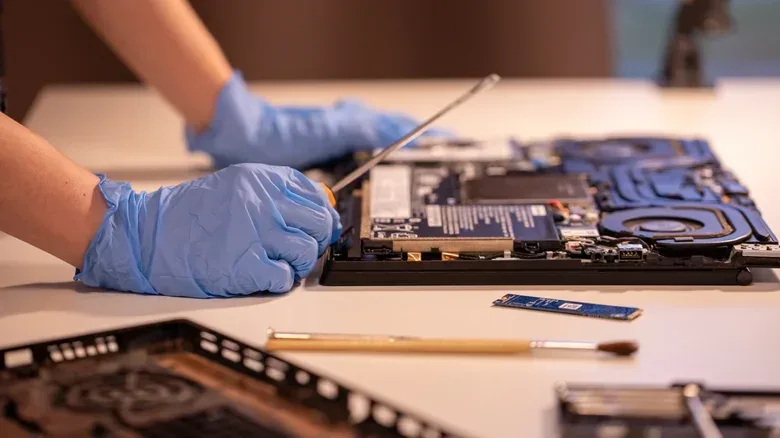
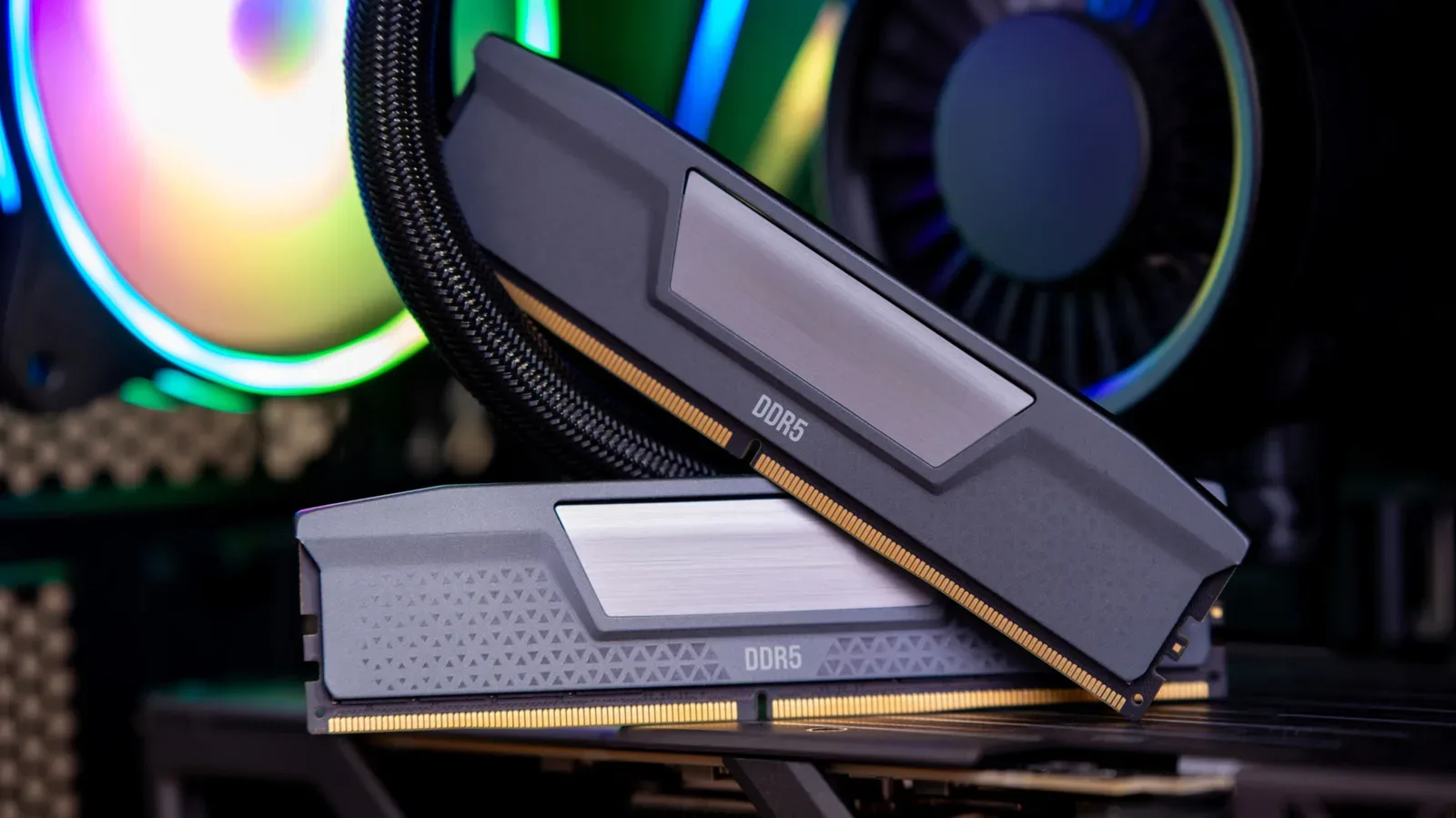
Storage is the first place to look. Many Windows laptops have removable SSDs, and older hard disk drives may remain useful if they are in reasonable condition. Some models also have removable RAM. A healthy drive can expand storage in another computer, or it can become external storage when placed in a USB enclosure.
Do not trust a recovered drive merely because it appears in a file browser. Check its condition before using it for files that matter. CrystalDiskInfo is one tool that can be used to assess SSD or HDD health. This is a simple distinction with major consequences: a drive usable for temporary transfers is not automatically a drive suitable for important data.
Data protection remains the central responsibility. Wipe any drive before selling, donating or reusing it. Drives that will not be salvaged still need to be formatted; for maximum assurance against recovery, physically destroying an SSD is another option. Only after the storage has been addressed should the remaining chassis move on to electronics recycling.
Retail chains including Best Buy and Staples offer electronics recycling at many locations, and local recycling centers may also accept the remainder. The goal is not to extract value from every screw. It is to keep a still-functional machine useful where possible, protect the data it once held, and make sure the parts that have reached the end of the road are handled safely.
Pick the role, not the benchmark
An old laptop does not need to win a comparison with today’s machines to earn its keep. It needs a job appropriate to what it can still do. A lightweight operating system may restore it as a practical computer; a media server can give it a background role; an isolated test bench can protect a main PC; a fresh install can turn it into a welcome hand-me-down; and component recovery can stretch the usefulness of its storage.
That approach has a refreshingly low-tech moral: before replacing a device, identify the task it actually needs to perform. In many cases, the aging laptop has one more save file left.