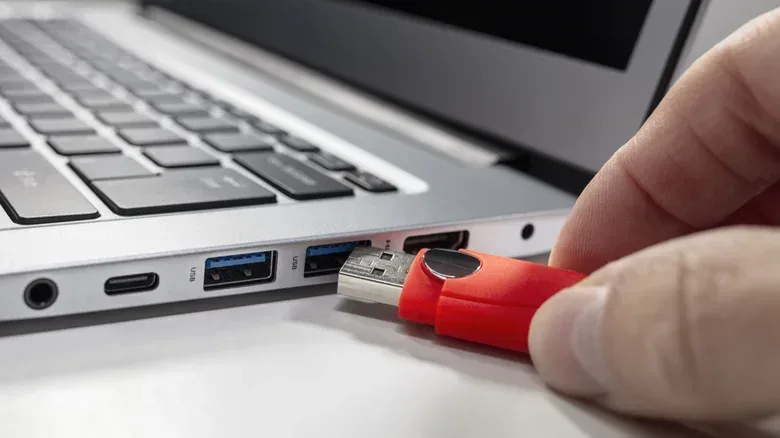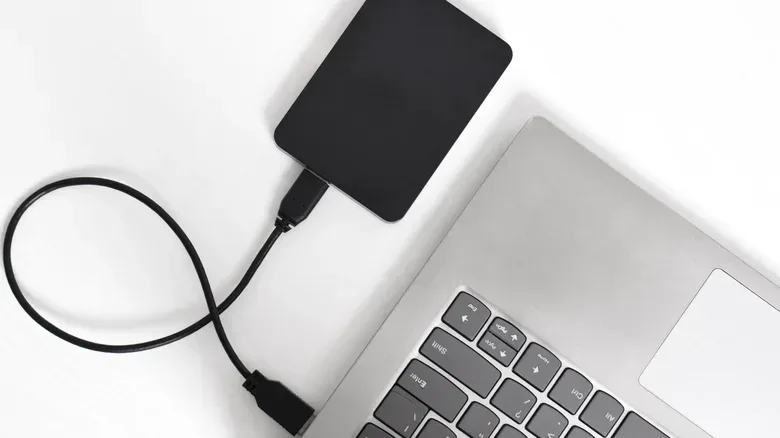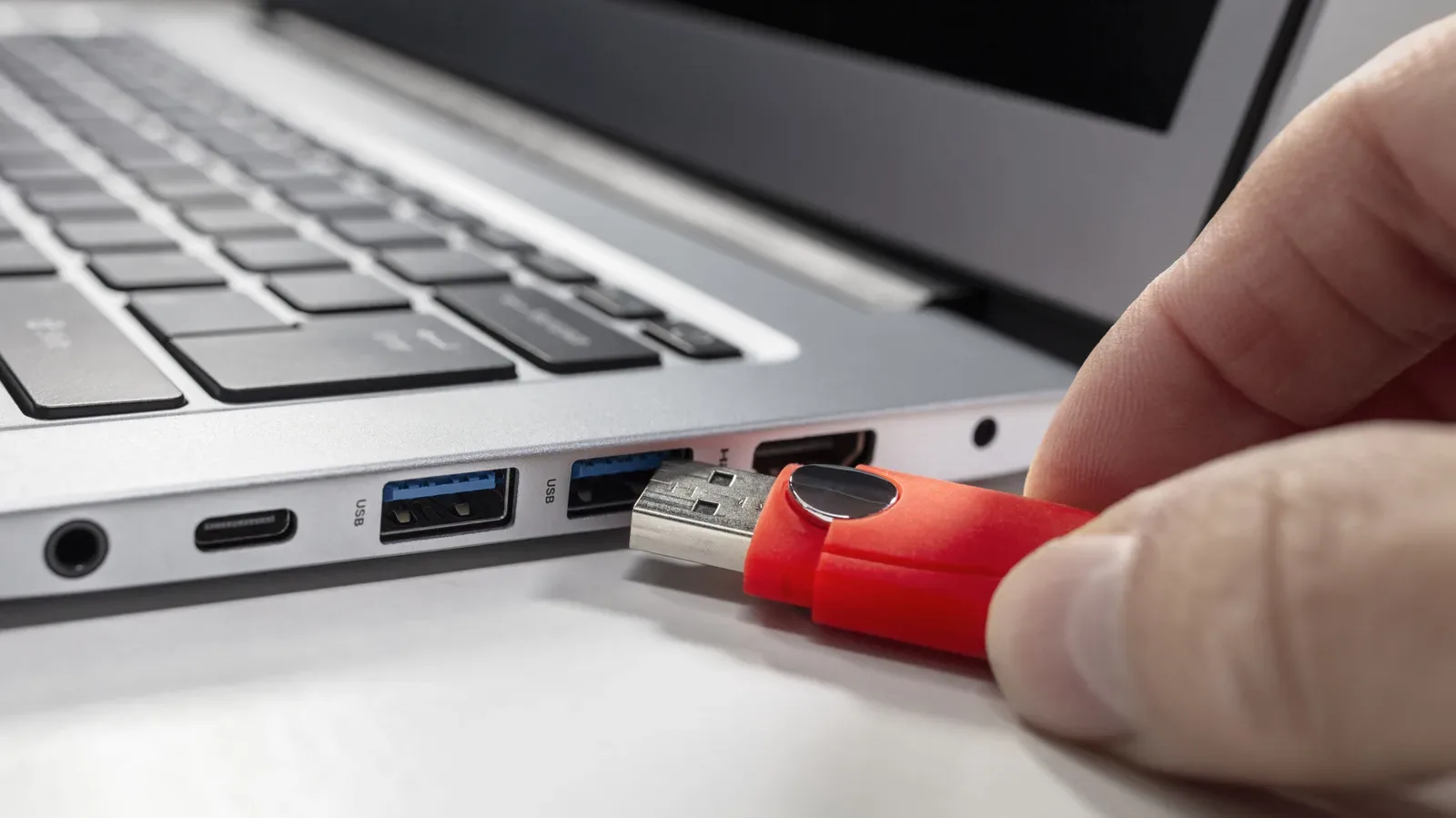
There is a familiar post-transfer impulse: the progress window says the copy is complete, the external SSD or hard drive is sitting there quietly, and the cable is one satisfying tug away from freedom. For plenty of people, that tug has caused no obvious trouble for years. That does not make it a dependable routine.
An external drive can still be involved in work after it appears idle. The operating system may be finishing writes held in memory, updating the drive’s file information, or running another background task that has touched the device. Ejecting—or unmounting, the term commonly used for the same safe-disconnect idea—tells the computer to finish its outstanding business before the physical connection goes away.
It is a tiny pause with an unglamorous payoff: a lower chance of incomplete copies, corrupted files and a drive that returns demanding repair. For anyone moving game captures, save backups, big install archives, clips, project folders or a personal library between machines, that pause is an especially sensible habit.
The completed progress bar is not the whole story
A transfer bar reports on the copy operation the user can see. It does not guarantee that every related task has fully concluded at the exact instant it reaches 100 percent. Computers use caching, which means data can be temporarily held in memory before it is written to the drive. This improves performance, but it also creates a gap between “the copy looks done” and “all information is safely committed to the external storage.”
The system may also be sorting out directory information. A file system is the organizational structure that records what files exist, where they are located and how the drive’s storage is arranged. Think of it less as the files themselves and more as the catalog that lets the operating system locate them correctly. If a drive vanishes while that catalog is being updated, its records can be left inconsistent.
macOS adds a useful illustration of why appearances can deceive. Time Machine backups and Spotlight indexing may continue to engage an attached drive after a user has finished an obvious manual transfer. Time Machine is macOS’s backup feature; Spotlight indexing is the background process that builds information used for finding content. Neither needs a big front-and-center copying window to mean the device is busy.
That is why “nothing seems to be happening” is not a reliable safety test. Proper ejection gives the operating system a chance to say either that the drive is ready or that it still needs a moment. In practice, that is much faster than attempting to determine whether every app and background process has genuinely let go of the disk.
What can go wrong when a drive is pulled mid-write?
Sudden removal does not automatically destroy data. Often, nothing visibly bad happens. The important distinction is between an outcome that was fine and a process that was safe. Disconnecting without ejecting always introduces risk if anything was still being written in the foreground or behind the scenes.
The most immediate problem is an incomplete transfer. If the copy was not actually finished, the destination file may be partial or damaged. More frustratingly, this can be a silent failure: a file may appear to have copied successfully, leading someone to remove the original, only for the external-drive version to prove corrupt later.
That is a particularly nasty failure mode for one-off footage, a backup, or files that are cumbersome to download or recreate. A file existing in a folder is not identical to the file being trustworthy. Safely ejecting is not a substitute for maintaining another copy of important material, but it does reduce one avoidable way that a purported copy can become unreliable.
File system corruption is a separate problem
Even if an individual file is not the victim, the file system itself can be affected. If the drive is removed while its metadata—information about files and their locations—is only partly updated, the disk can be left with incomplete records. This helps explain why Windows may request that a reconnected removable drive be scanned and fixed.
On a Mac, the “Disk Not Ejected Properly” message is a warning, not proof that data has already been lost. It signals that macOS did not receive a proper safe-disconnect sequence. The more serious scenario is the one behind that warning: the drive disappearing during a write, such as an active backup.
In rarer cases, abrupt disconnection can damage a drive’s partition table. A partition table is the map an operating system uses to understand the drive’s sections. If this map is compromised, a computer may view the drive as unallocated or not initialized. That can make it seem unusable until the issue is repaired.
None of this means an external SSD or HDD should be treated like a device that will fail at the first accidental cable bump. It means safe removal is a straightforward way to avoid gambling with the less visible work occurring between computer and storage.
“Idle” is a stricter condition than it sounds
There are circumstances in which removing an external drive without formally ejecting it can be safe: the drive must actually be idle. That means no application is using it, no files on it are open and no transfer is underway. But the computer’s definition of idle matters more than the user’s quick glance at the desktop.
Background work is the complication. The operating system can initiate tasks that are not obvious from the screen, including the macOS backup and indexing examples above. A transfer window closing is useful information, but it is not a comprehensive report on every process that could still be using the drive.
That turns ejection into the pragmatic choice even for people who believe their disk is inactive. Rather than making an uncertain judgment, request safe removal. If the system needs to complete something, it can tell you. If it does not, the delay is generally only a moment.
Windows, macOS and Linux handle the risk differently
The basic risk is shared across the major desktop operating systems: remove a disk during unfinished work and data or file-system information can be affected. The degree of protection and the background behavior differ, however.
During Windows 10’s lifetime, Microsoft made Quick removal the default policy for removable drives. The policy reduces the danger associated with unsafe removal, with a trade-off in performance. It is risk reduction, not a declaration that ejecting is pointless.
Windows users can select a policy per removable drive through Disk Management: right-click Start, choose Disk Management, right-click the removable drive in the lower list, open Properties, select the Policies tab, then choose between Quick removal and Better performance. Better performance carries a clearer reason to make proper ejection routine, while Quick removal should not be mistaken for immunity from interrupted writes.
macOS users have the added reason that Time Machine and Spotlight may remain active after a visible transfer has ended. Those background processes make an orderly ejection important, particularly when a drive is part of a backup routine.
Linux is described as the riskiest of the three in this situation because it relies heavily on write caching for performance. A job can appear complete while the system still needs a few seconds to put the remaining data onto the drive. Unplugging at that point can leave data in memory rather than safely written to external storage.
A low-effort routine for external storage
The practical rule is simple: when finished with an external SSD, HDD or flash drive, use the operating system’s eject or unmount control before disconnecting the cable. Wait for the system’s confirmation, then remove it. If it warns that something is still using the drive, let that operation finish instead of trying to force the issue.
- Do not treat a completed copy bar as conclusive proof that the drive has no remaining work.
- Be especially cautious after backups, where a drive disappearing mid-write is the important danger.
- Remember that files can be corrupted without an immediate, obvious warning.
- Use Windows’ removable-drive policy settings as a risk-management option, not as permission to skip safe removal.
- On macOS, account for background activity from Time Machine and Spotlight.
- On Linux, allow extra care around caching: an apparently finished transfer may still be finalizing.
Some newer drives include hardware protections intended to help with sudden disconnection. Those features are worthwhile safeguards, but they can fail and do not remove the value of letting the OS finish its work. A drive’s resilience should be treated as a backup layer, not the main plan.
The same mindset applies to the broader backup habits that matter when storage holds something irreplaceable. An external drive is useful precisely because it can carry data elsewhere, but a rushed unplug should not become the point where that extra copy turns questionable. The small discipline of safe ejection is far less dramatic than a storage recovery problem—and much less expensive in time than finding a file was never safely written at all.
For more practical device-maintenance reading, see these Samsung Galaxy battery-drain settings worth checking before blaming the battery.