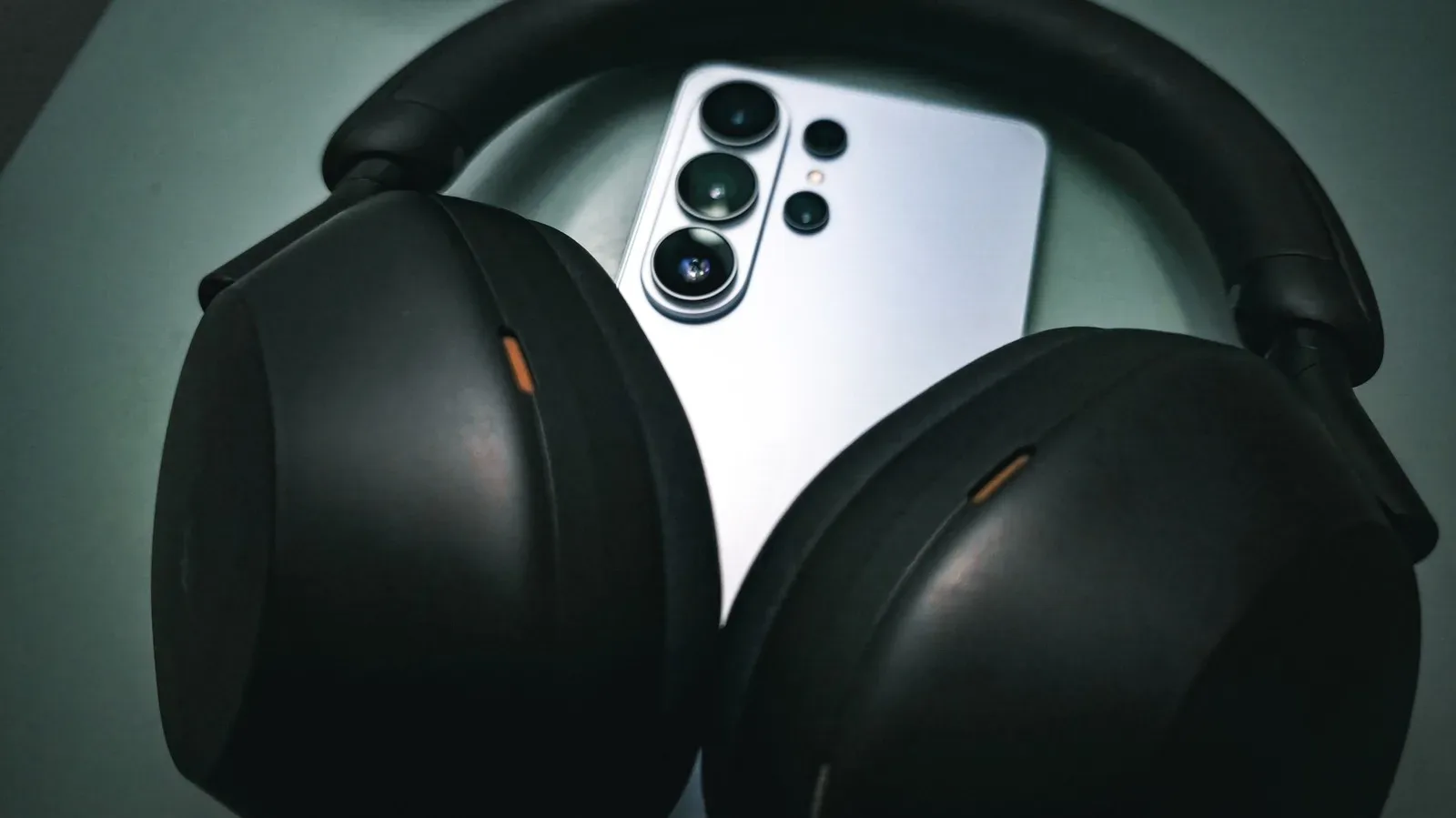
Android audio has a special talent for making a straightforward question—“how do I make my headphones sound better?”—feel like a postgraduate exam conducted inside a cable drawer. There are codecs, DACs, sample rates, lossless tiers, manufacturer toggles and enough acronyms to make a Bluetooth pairing screen look approachable.
The useful news is that most people do not need to pursue laboratory-grade, bit-perfect playback to get a meaningful improvement. A sensible Android setup is less about accumulating maximum-resolution numbers and more about finding the weakest link in the chain: an unwanted sound effect, a Bluetooth codec neither device supports, a poor USB-C adapter, or headphones that simply need some equalization.
For game soundtracks, music libraries, streaming playlists and the occasional late-night session with a handheld, the most practical path is usually simple: choose a good playback device, disable processing you do not want, confirm what connection it is actually using, and tune the headphones to your taste. The deeper audiophile route exists, but it is worth taking only when the rest of the hardware and software can support it.
Start with the signal chain, not a shopping list
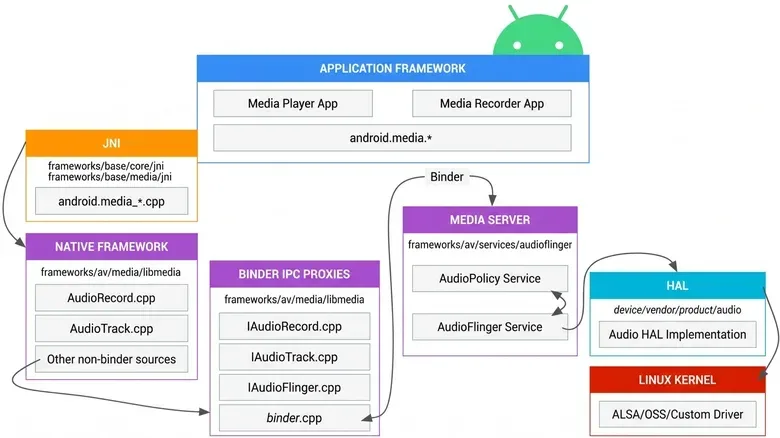
Digital music does not travel directly from an app to a pair of headphones. On Android, playback begins with an app, moves through the operating system’s audio path, passes through AudioFlinger and its mixer, then reaches the hardware abstraction layer, or HAL, that communicates with the phone’s audio hardware or a connected device.
That middle stage matters because mixing is where the phone can combine app audio, lower music volume for a notification, or apply effects. Android commonly processes audio internally at 32-bit floating point before outputting it at 48kHz and either 16- or 24-bit depth. Those figures are already sufficient for the overwhelming majority of normal listening. But they also mean the system may resample or otherwise alter material on its way to the output.
Bit-perfect playback is the term for a signal that has not been changed by mixing, resampling or other processing: the data reaching the output is mathematically the same as the data supplied by the player. It is a meaningful target for listeners who want the cleanest possible path, but it should not become a proxy for whether music sounds enjoyable. A bit-perfect signal does not repair a poorly tuned headphone, block street noise, or make an unsupported wireless codec magically appear.
There is also an important distinction that gets muddied in audio arguments: neutral sound and bit-perfect playback are not the same thing. Neutral describes a tonal target—the balance of bass, mids and treble reaching the listener. Bit-perfect describes whether the digital signal was altered. An EQ adjustment can be very useful for approaching a preferred or more neutral tonal balance, but the moment it is applied, the output is no longer bit-perfect. That is not a failure; it is a deliberate choice.
First move: remove effects you did not choose
Before buying anything or digging through developer options, turn off audio processing you do not actively want. Look in the phone’s audio settings for system EQ, Dolby-style processing, spatial effects and similar enhancements. Check headphone companion apps as well. This does not mean every enhancement is automatically bad—some listeners may prefer one—but it prevents multiple layers from changing the sound without a clear reason.
It also makes later changes easier to judge. If you enable a headphone EQ preset while a phone-wide bass boost and spatial mode are both active, it becomes difficult to know what is improving the result and what is making it worse.
Wired remains the cleanest route
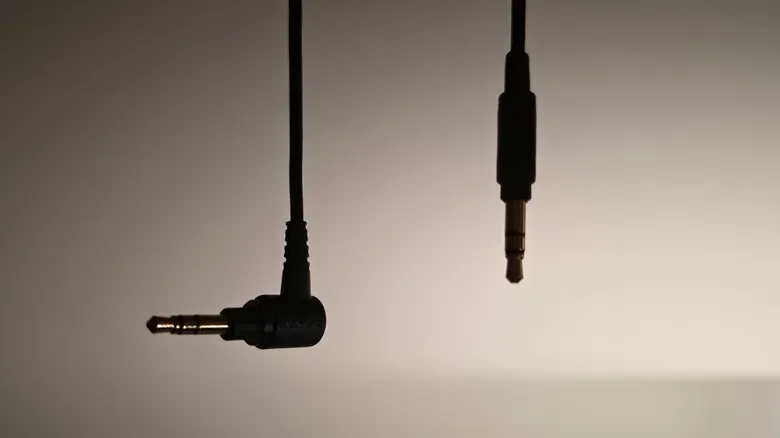
For listeners who want the least complicated path to high-quality playback, wired headphones are still the answer. A cable does not need to compress the audio to fit a wireless connection. That does not make every wired headphone good, of course; its drivers and tuning still determine what it can reproduce. But the connection itself avoids Bluetooth’s bandwidth trade-offs.
Phones without a 3.5mm headphone jack need a digital-to-analog converter, better known as a DAC. A DAC turns the digital signal sent through USB-C into the analog electrical signal headphones use. This does not require a large desktop box. A compact USB-C-to-3.5mm adapter can be a DAC too.
There are two broad adapter scenarios. An active USB-C adapter performs conversion itself. A passive adapter relies on audio hardware built into the phone, where that capability exists. The practical implication is simple: do not assume two physically similar dongles do the same job. Check what the particular Android phone supports before selecting a passive adapter.
For higher-resolution wired playback, the cited target is a DAC capable of decoding up to 32-bit/96kHz. That is not a requirement for good music, nor does it guarantee superior sound by itself. It is a compatibility specification for people using high-resolution files and trying to preserve that capability through the chain. The converter’s quality, the headphones and the recording all still matter.
Android 14 added a route by which compatible apps can ask to send audio through the framework toward the HAL rather than treating the mixer as an unavoidable stop. That opens the door to lossless USB playback, but it is not a switch with a universal result. The phone maker must implement the capability, the app must support it, and the DAC must support the source material’s sample rate. A single incompatible component can prevent the intended path.
That is why a wired setup should be approached as an ecosystem rather than a spec-sheet scavenger hunt. Start with headphones you like, add a known-compatible DAC if needed, then select a player that can use the hardware in the way you want.
Bluetooth: convenience first, quality varies second
Bluetooth has long irritated audio purists because it ordinarily uses lossy compression. Lossy means some information is discarded to make the signal fit the connection; lossless means the decoded file can retain the original data. Wireless compression is not automatically audible or unacceptable. In many everyday environments, a well-functioning Bluetooth connection can sound excellent, and the convenience may be more valuable than chasing an ideal that a commute, office or busy home will immediately obscure.
The standard Bluetooth codec is SBC, or Sub-band Codec. It can reach 320 kbps, though more conservative settings such as 192 kbps can be more stable. AAC is another common codec and reaches 250 kbps in the supplied information. Both can be perfectly serviceable, but they are not the preferred choices for someone assembling a higher-fidelity Android setup.
More ambitious options include Qualcomm’s aptX family and Sony’s LDAC. Compatibility must exist on both sides: a phone supporting LDAC does nothing for headphones that only accept SBC or AAC, and headphones advertising a codec do not force the phone to transmit it.
- aptX has several variants, including aptX LL, aptX HD and aptX Adaptive.
- aptX Lossless, part of aptX Adaptive, can provide bit-perfect delivery at up to 16-bit/44.1kHz under the stated conditions. It may fall back to lossy operation at higher quality levels or amid nearby wireless interference, and support is limited.
- LDAC is available broadly in Android because Sony contributed it to the Android Open Source Project. Its output can reach 24-bit/96kHz, although its internal processing can go higher.
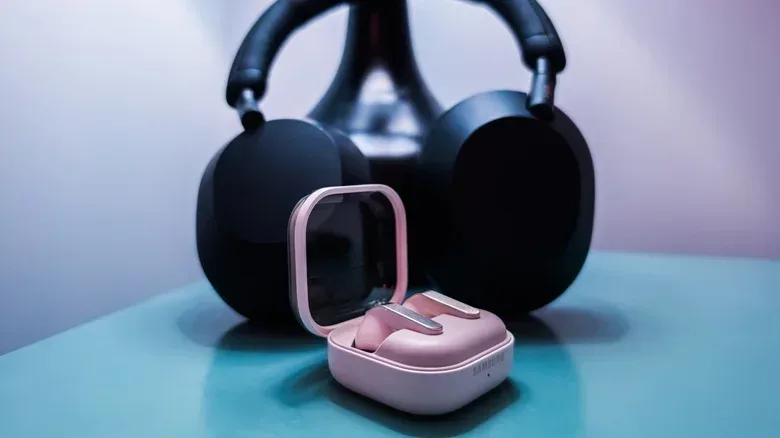
- Samsung Seamless Codec is Samsung’s own option, used for 24-bit/96kHz streaming with compatible products such as Galaxy Buds 4 Pro.
Codec choice therefore is not a leaderboard. It is a compatibility check. A listener with a compatible Android phone and LDAC headphones can investigate LDAC. A Galaxy owner with matching Samsung earbuds can investigate SSC. Everyone else should avoid spending a weekend being annoyed that a developer menu cannot grant hardware support that is not present.
Where to check Bluetooth settings
Begin in a headphone’s companion app, where a high-quality codec option may be available. Then open the connected headphone’s settings in Android by using the gear icon alongside its Bluetooth entry. On some devices, developer settings expose HD audio, codec selection, sample-rate choices, bit depth and LDAC quality controls.
These controls are useful diagnostics, not magic upgrades. Selecting a quality-first LDAC mode can make the connection less stable; a best-effort setting is generally the safer compromise. If a preferred codec produces interruptions, drop back to a more stable setting before declaring the headphones broken. Reliable playback is part of playback quality.
For listeners who want high-resolution wireless sound but do not have matching codec support, some enthusiast models are experimenting with dedicated high-resolution wireless dongles. These work more like the tiny receivers used with wireless computer mice than ordinary Bluetooth. That is a distinct solution, though, and not something to assume a standard pair of Bluetooth headphones provides.
Pick the player based on the result you want
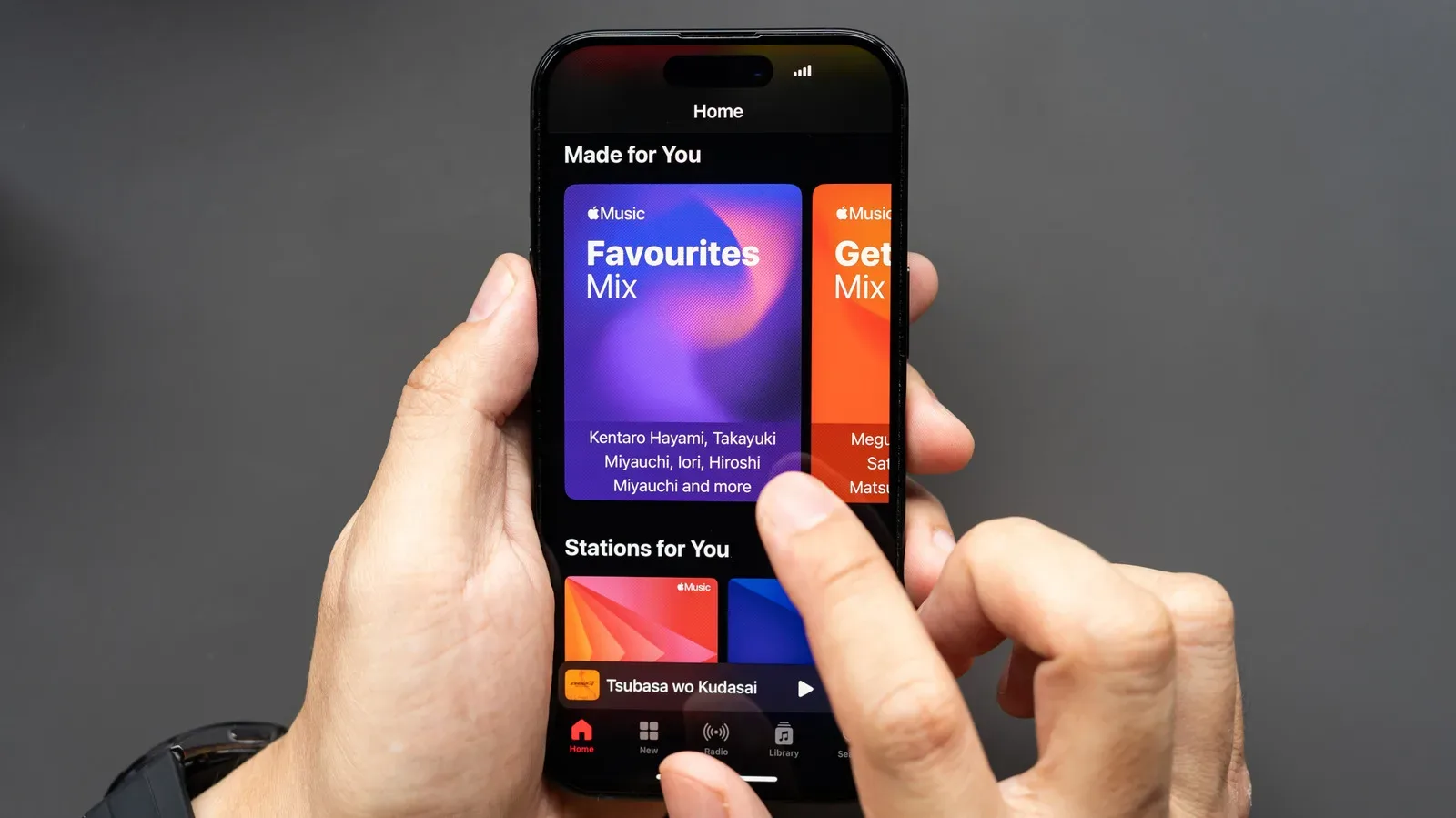
The player app matters because it determines what formats, services, local files and output paths are available. If the goal is simply enjoyable streaming through a normal Android path, major music services including Spotify, Apple Music, Tidal and Qobuz offer lossless audio. Their catalog ceilings differ: Spotify is listed at up to 24-bit/44.1kHz, while Tidal and Qobuz can host tracks up to 24-bit/192kHz.
Those maximum numbers should be read as available formats, not a promise that every track, headphone and listening situation benefits equally. More importantly, Bluetooth remains its own bottleneck. A service hosting a 24-bit/192kHz track cannot turn an SBC connection into a 24-bit/192kHz wireless pipeline.
Tidal and Qobuz are the services identified here as able to connect through a third-party player for bit-perfect playback that bypasses Android’s usual mixer path. Qobuz also offers an à la carte store for high-resolution files, which is useful for people who maintain a local collection.
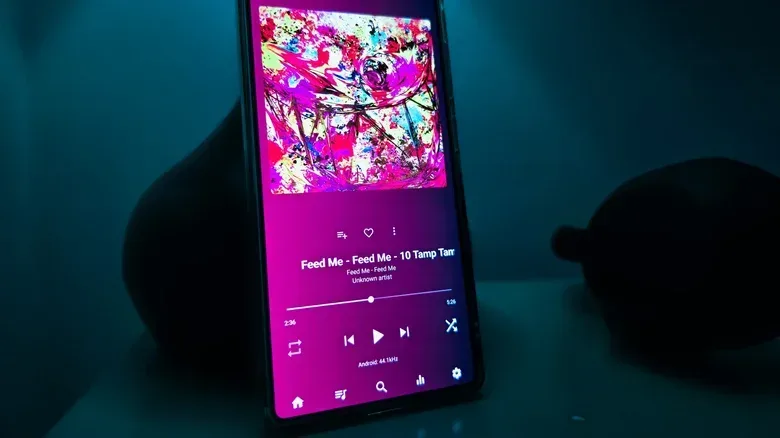
For local playback and more specialist controls, USB Audio Player Pro and Poweramp both offer bit-perfect modes, including methods that work on Android 13 and older rather than relying solely on Android 14’s implementation. Their strengths differ. Poweramp offers extensive DSP controls and a view of the audio chain. USB Audio Player Pro can stream from Tidal and Qobuz as well as sources such as Dropbox, UPnP and DLNA servers, OpenSubsonic servers and network-attached storage. That flexibility may matter more than manually copying a library to the phone.
The pricing cited for the full feature sets is $9 for USB Audio Player Pro and an $8 in-app purchase for Poweramp. Those are purchases best justified by a specific need—such as local high-resolution files, an external DAC, network storage or detailed signal controls—not by fear that a mainstream streaming app is inherently unusable.
Audio libraries are also part of the wider practical problem of device storage. Keeping local albums and large lossless files can change how quickly space disappears, alongside the familiar clutter of software remnants discussed in our look at uninstalled games that still occupy storage.
EQ is often the most audible improvement
Equalization, or EQ, changes the balance of frequency ranges. Boosting low frequencies can add bass; reducing an aggressive treble area can lessen harshness. It is a form of DSP—digital signal processing—which is the broad name for intentional changes made to a digital signal.
This is where the practical listener can part ways with purity-focused audio culture. A technically untouched file played through headphones that do not suit the listener may be less satisfying than the same file with modest, targeted EQ. Preference and hearing vary, and consumer headphones are not all tuned alike. If the goal is a personal sound profile, the honest answer is to use EQ.
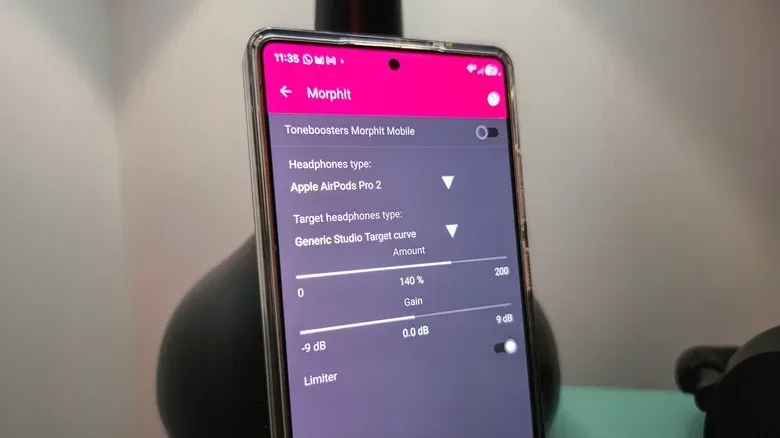
One useful method is to create a preset for each headphone or in-ear model rather than applying a single global curve. AutoEQ can provide headphone-specific settings: find the model, choose a supported EQ application, export the preset and import it where appropriate. USB Audio Player Pro can use a text export through its Parametric EQ, while AutoEQ also provides settings for Spotify’s built-in equalizer. Wavelet is another Android-focused option that can run in the background to apply a consistent headphone EQ.
Use restraint. Change one thing, listen for a while, and keep a way to return to the baseline. A preset is a starting point rather than a commandment. If it makes a favorite album sound thin, sharp or overcooked, adjust or abandon it. The point is not winning a graph; it is making the headphones work better for the person wearing them.
A sensible Android audio checklist
- Decide whether you value wire-free convenience or a wired signal path more. Wired avoids Bluetooth compression; Bluetooth can still be very good.
- Disable unwanted phone and headphone effects. Do this before judging other changes.
- For USB-C headphones, identify whether the adapter is active or passive. Confirm what the phone supports.
- For Bluetooth, verify matching codec support on the phone and headphones. Do not assume a codec is active just because one device advertises it.
- Choose an app for your actual listening habits. Streaming, local files, network storage and bit-perfect USB playback are different needs.
- EQ per headphone model if the tonal balance is not working for you. Preserve a baseline preset so changes remain reversible.
The best Android audio setup is ultimately the one that removes friction without adding imaginary problems. A modest wired DAC and carefully chosen EQ may provide more value than an elaborate codec hunt. Conversely, someone who wants a portable, bit-perfect local-file rig now has routes worth exploring—provided every component agrees. Either way, the useful upgrade is not a number on a box. It is a setup that lets the music, soundtrack or game audio arrive without the phone getting in its own way.