Few modern gaming rituals are more familiar than the storage shuffle: delete a game, make room for the next one, then wonder why the drive still looks uncomfortably full. The catch is that an advertised install size is not necessarily the final footprint, and an uninstall is not necessarily a complete cleanup.
Games have grown dramatically. The original PC release of Tomb Raider required about 100MB of drive space, while Shadow of the Tomb Raider needs 40GB for its base game. That is roughly a 400-fold increase before considering patches, downloadable content, capture files or the background data created to help a game run smoothly.
The practical lesson is not that every large folder is junk. Some leftover data protects saves and settings; other files reduce stutter when a game starts. But knowing what those files do makes it much easier to decide what can go, what should be backed up and why a supposedly removed game can keep acting like a tiny digital tenant who forgot to return the keys.
The store listing is a baseline, not a lifetime total
The storage figure shown on a digital store is useful, but it generally describes the base game rather than every file a player may acquire afterward. Owned DLC is treated as part of a Steam game installation, so expansions and content packs increase the actual total. A drive can also show less usable capacity than its marketed number, making the gap between a listed requirement and free space feel especially sharp.
Launch updates are one reason the initial download and final installation can diverge quickly. A day-one patch is an update made available at or around launch, often addressing issues or adding content absent from the version initially distributed. Its size can be substantial. Fallout 76 arrived on PS4 with a 45GB base install and a 54GB day-one patch. Players on Xbox One and PC were told to expect a 48GB to 52GB first update for The Division 2.
Those examples illustrate an important distinction: the space a game requires to start downloading, the amount downloaded over an internet connection and the space occupied after installation may all be different figures. On consoles with fixed internal storage, a major update can turn a manageable install into a difficult choice between games.
Updates do not stop at launch. Developers may continue to issue them for bug fixes, multiplayer balance adjustments, performance improvements, new features and hardware support. While individual patches may be modest, a game maintained over months or years can grow well beyond the number that first caught a buyer’s eye.
Why an update may demand extra free space
An update does not always simply replace a small old file with a small new one. Steam may need temporary room to construct updated versions of files before it clears the old versions. That means a player can have enough room for the download itself but still lack the working space needed to apply it.
Related coverage includes Why Uninstalled Games Can Still Consume Your Storage.
This is why “I have more free gigabytes than the patch size” is not always enough. The update process may briefly need storage for both the existing data and the replacement data. It is inconvenient, but it is not necessarily evidence that a game has permanently doubled in size.
Extra content includes more than extra gameplay
DLC is the obvious storage addition: new missions, maps, characters or other content have to live somewhere. Less obvious are language packs. A game with full voice acting in several languages may include large sets of dialogue audio. Developers can offer those as optional Steam depots, but players can still end up with languages they do not use occupying disk space.
That makes language selection worth checking when a game’s installed size seems surprisingly high. It is a relatively straightforward category of data to assess: if a language is optional and you do not need it, removing it should not affect the game in your selected language. The exact management options differ by title, so players should use the game’s own Steam settings or content options rather than deleting unknown files directly.
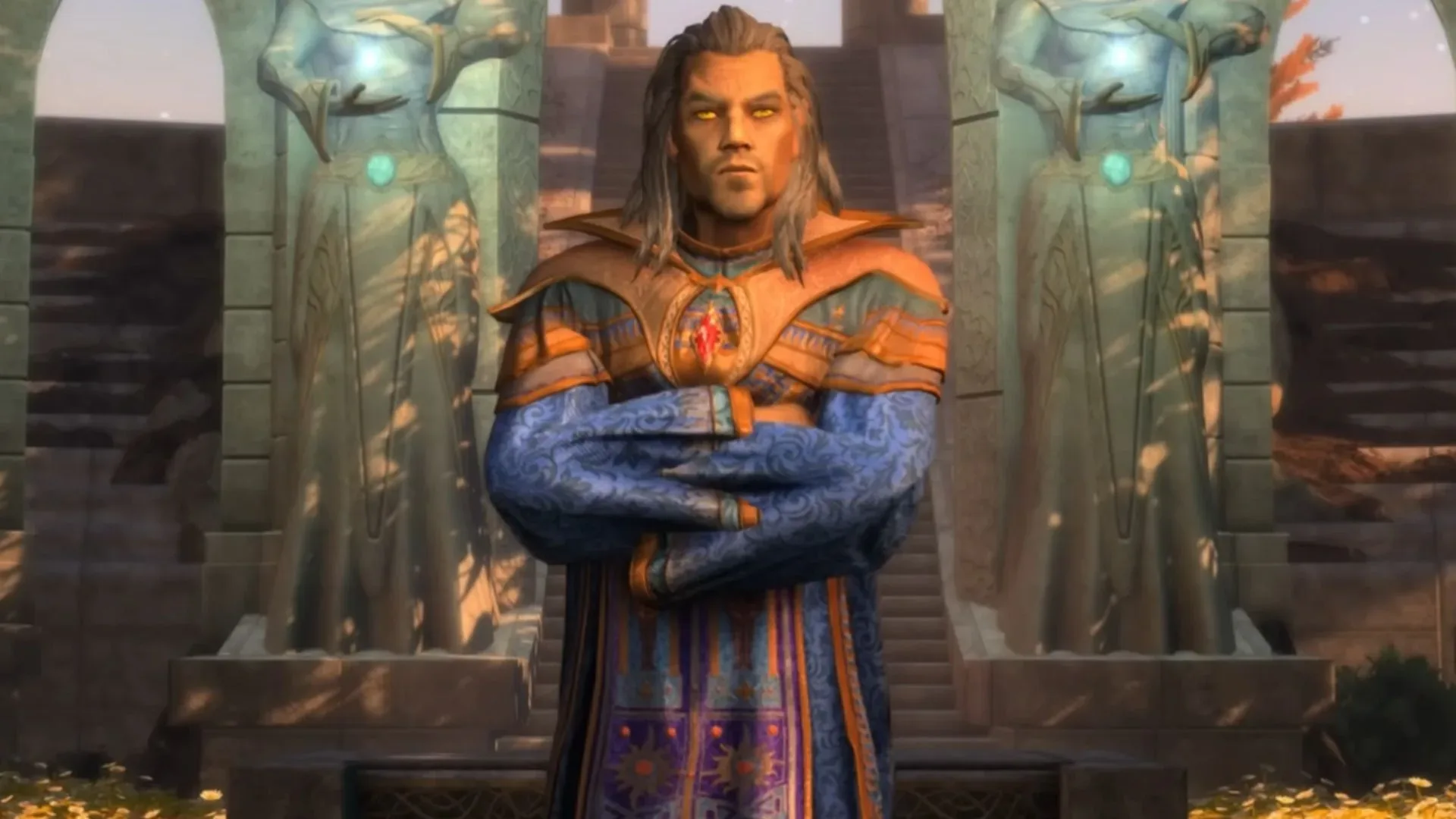
Mods can create a similar mismatch between what a launcher installed and what remains on the disk. Steam Workshop content, manually installed modifications and crash dumps may sit outside the core game files. Mods can be valuable additions, but they also require a little filing discipline. This matters particularly in large community projects; the recent pressure surrounding the Skyblivion conversion mod is a reminder that mod ecosystems are separate layers of work and data, not merely a checkbox inside a base game.
The hidden growth: captures and shader caches
Not every storage culprit belongs to the game installation at all. Screenshots and gameplay clips can accumulate unnoticed, especially when a platform automatically records milestones. On PS5, trophy capture settings can save screenshots and short video clips from recent gameplay when trophies are earned.
Astro Bot provides a clear scale example. It has 63 trophies in total: 44 in the base game and 19 in DLC. If a PS5 is set to create a video for every trophy, that can mean 63 high-definition clips stored alongside the game. They may be fun mementos, but they are still media files on a console where free capacity is often scarce.
PS5 owners can review those files in the Media Gallery. The capture settings can disable trophy videos or restrict them to higher-grade trophies. That is a useful compromise for players who want to preserve major achievements without treating every trophy as the start of an unsolicited documentary series.
On PC, one important background category is the shader cache. A shader is code used to determine how graphics are rendered, including visual effects and lighting. Compiling shaders can take work, so a cache stores prepared data that can help games run more smoothly. Steam can download pre-compiled shaders for a system, storing per-game data in steamapps/shadercache. Windows maintains a DirectX shader cache too, listed under Temporary files in its Storage settings.
Shader caches are not automatically bad or redundant merely because they are hard to notice. Their purpose is performance. Valve describes Steam’s pre-cache updates as small, although some players report shader-cache folders reaching many gigabytes. The key trade-off is simple: removing a cache can reclaim space, but a game may need to build it again when next launched, potentially causing some early-session stutter.
Steam screenshots deserve a separate look. They can accumulate per game in the userdata folder. Unlike shader data, a screenshot collection is usually easier to judge on personal value: keep the images you want, archive the ones worth saving elsewhere, and remove the rest if drive space matters more than a dozen nearly identical victory screens.
Why uninstalling does not erase everything
Steam’s uninstall process removes the files it manages as part of the game installation. It does not necessarily remove files produced elsewhere by the game or player. Save data and settings may be stored in Documents, My Games or AppData. Shader cache folders can remain in steamapps/shadercache, named with the game’s App ID. Workshop files, mods, crash dumps and even empty folders may also survive.
There is a sensible reason saves are often left behind. Deleting a game should not automatically mean deleting progress. Players may reinstall later, and retaining their save avoids an unpleasant surprise. The downside is that users seeking a completely clean removal must take a more active role.
Before deleting save folders, check whether the game supports Steam Cloud or make a backup yourself. Steam Cloud is a synchronization feature that can preserve supported save data online, but support is game-specific. A local backup remains the cautious choice when a save matters.
A careful cleanup order for PC players
- Identify the large folders first. Check Windows storage information before deleting. The aim is to distinguish game files from captures, caches and personal save data.
- Protect progress. Confirm Steam Cloud support for the relevant game or copy save folders from locations such as Documents, My Games or AppData before removing anything.
- Remove leftover shader caches for games you no longer play. The relevant Steam folders are in steamapps/shadercache. They can be rebuilt if the game returns, with possible temporary stutter during the next session.
- Clear Windows’ DirectX Shader Cache when appropriate. It is available through Settings, then System, Storage and Temporary files.
- Prune screenshots and clips. Review Steam’s userdata folder on PC and the PS5 Media Gallery on console. Keep what has value and delete the accidental archive of routine unlocks.
- Review mods and Workshop content separately. Do not assume uninstalling the base game cleaned every associated download.
Manual cleanup requires restraint. Do not delete a folder simply because its name is unfamiliar, and do not remove saves before confirming they are backed up. The most reliable space recovery comes from targeting categories with a known purpose: captures, abandoned mod files, caches for unplayed games and old data that has been safely preserved elsewhere.
Large games make housekeeping more important
There is little sign that game storage needs will suddenly reverse. A PS5 version of Grand Theft Auto VI has reportedly been listed with a 210GB download by the PlayStation Game Size account, although Rockstar has not confirmed that figure. If accurate, it would represent nearly one-third of the roughly 667GB usable storage on a base PS5.
That report should be treated as unconfirmed, not as a final specification. Even so, it captures the larger reality: the difference between a game’s headline download and the total storage burden surrounding it matters more as individual releases become larger.
Storage management is now part of playing games on PC and consoles, but it does not need to become a recurring emergency. Check capture settings, review caches when space is tight, treat saves as irreplaceable until backed up, and remember that an uninstall removes a game’s core files—not necessarily every trace of its time on your drive.