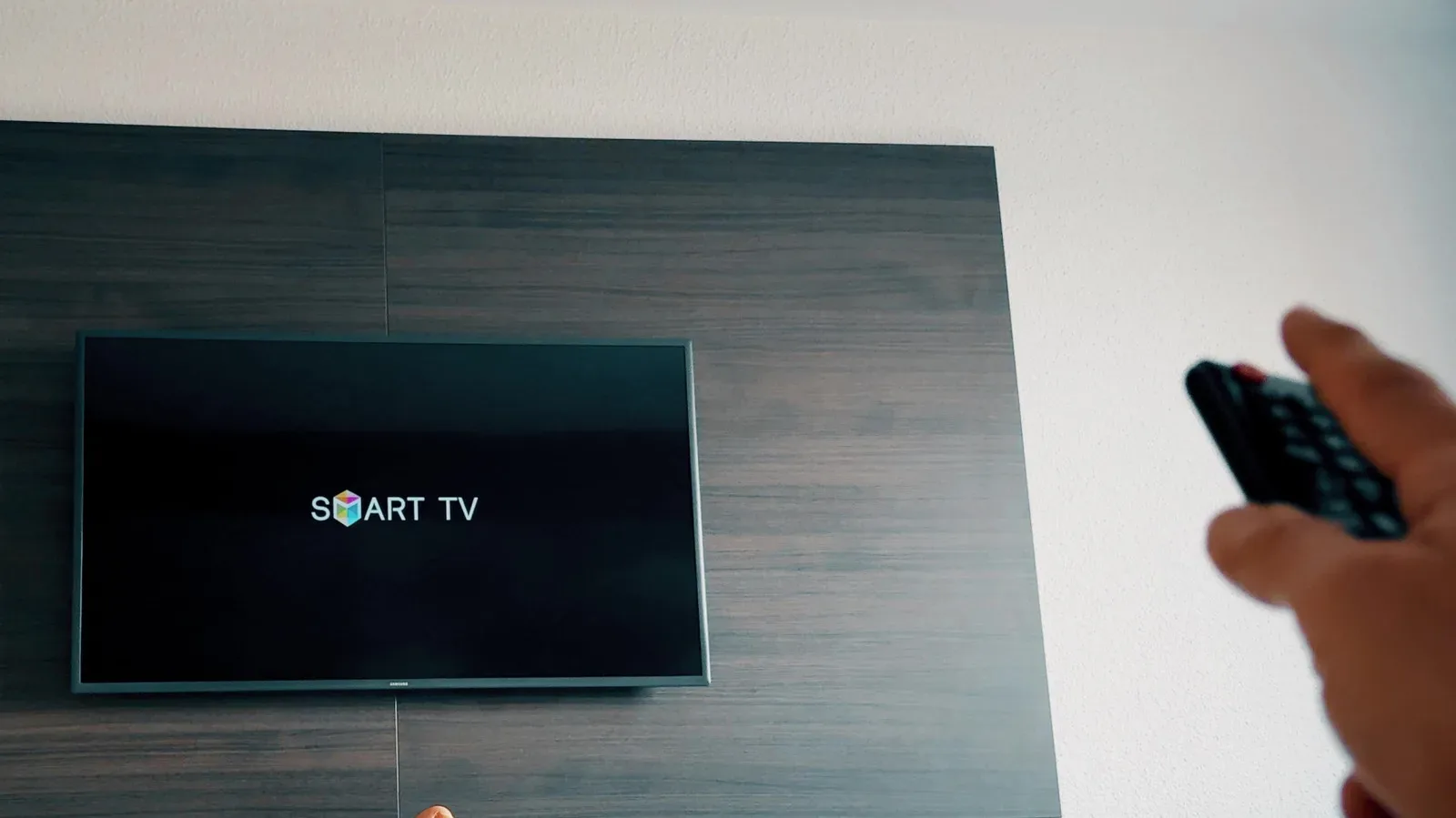
A modern TV setup is supposed to reduce remote-control clutter, not turn the coffee table into a plastic graveyard. Yet one small setting can decide whether pressing the power button on a PlayStation 5 wakes the TV, whether a soundbar follows the television’s volume controls, and whether a streaming box automatically claims the correct HDMI input.
On Samsung televisions, that setting is Anynet+, Samsung’s name for HDMI-CEC. It is usually enabled on newer sets, which is precisely why it can be so easy to miss—until it is switched off accidentally or one component in the chain refuses to cooperate.
HDMI-CEC is useful, but it is not magic. It is a shared control system with different brands, different menus, and occasionally the temperament of a party chat where everyone thinks they are host. Understanding what it does, where Samsung hides it, and when to leave it alone can make a console, streamer, TV, and audio hardware behave more like one system.
What Anynet+ actually does
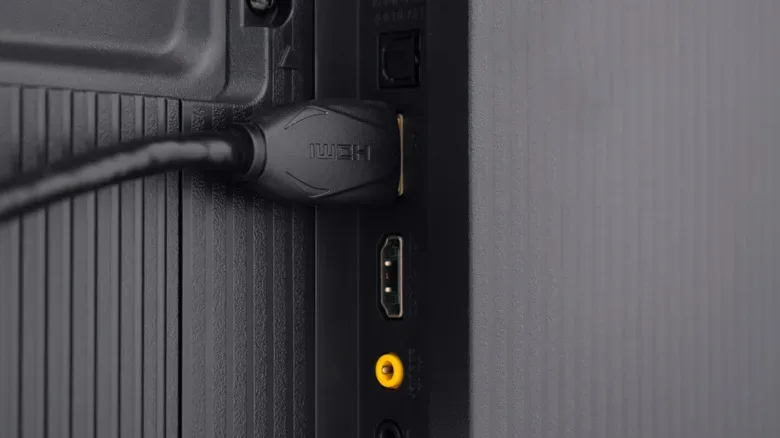
CEC stands for Consumer Electronics Control. It is a control feature included with HDMI connections; it is not the part of the cable responsible for delivering the game image or audio signal. Instead, CEC lets compatible hardware exchange simple commands through HDMI.
In practical terms, Anynet+ can enable several convenient behaviors:
- Turning on a compatible game console or streaming device can wake the Samsung TV.
- The TV can change to the HDMI input used by the device that has just powered up.
- The Samsung remote may control supported playback, navigation, or volume functions on another connected device.
- A compatible soundbar or receiver can power on and off with the television.
- Putting one device into sleep mode may also trigger the TV to enter standby.
That is why a setup can feel abruptly less connected when CEC is disabled. The console may still output a picture once the right input is selected, and the soundbar may still play audio, but every action can require an extra button or a second remote.
Most Samsung smart TVs produced after 2008 support the feature. On many newer models, Anynet+ starts enabled. Still, menu layouts have changed over multiple generations, and the name is easy to overlook among connection options.
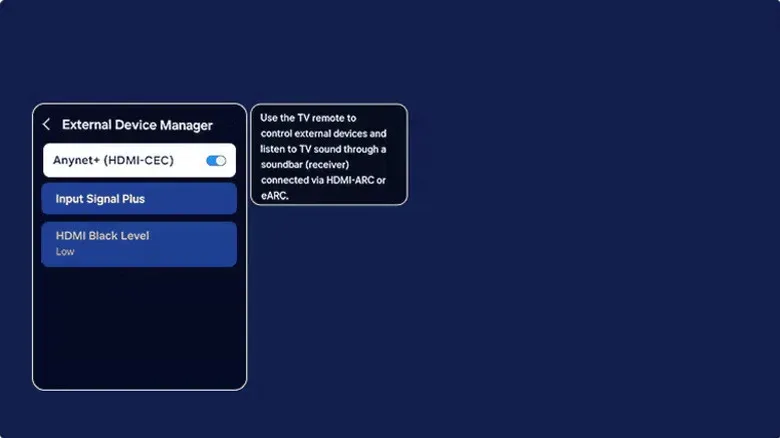
How to turn on Anynet+ on a Samsung TV
Start on the television itself. With the Samsung remote, press Home, then follow this route on many current models:
Related coverage includes How to Enable HDMI-CEC (Anynet+) on a Samsung TV.
- Open Settings.
- Select All Settings.
- Choose Connection.
- Open External Device Manager.
- Find Anynet+ (HDMI-CEC) and turn it on.
Some Samsung TV software versions put the same choice in a slightly different branch. If there is no Connection menu, look here instead:
Settings > General > External Device Manager > Anynet+ (HDMI-CEC)
Samsung has moved the option between model lines and interface revisions, so neither route is universal. If neither path appears on a particular television, the appropriate next step is to consult the manual or the support information for that model rather than assuming the set lacks CEC.
Switching on Anynet+ completes only the TV half of the job. The device attached to the other end of the HDMI cable must support HDMI-CEC, and its own related option must also be enabled.
The same feature wears different brand names
HDMI-CEC is an industry feature, but manufacturers have rarely presented it under one friendly, consistent label. That makes troubleshooting harder than it ought to be. Samsung calls it Anynet+, while LG uses SIMPLINK. Sony may label the feature BRAVIA Sync or Control for HDMI. Streaming players, consoles, soundbars, and receivers can use yet more menu names.
For a PS5, the setting is found at:
Settings > System > HDMI > Enable HDMI Device Link
Enable the relevant setting on both devices before judging whether CEC is broken. A Samsung TV can have Anynet+ turned on while a console declines to send control commands, or a soundbar can be ready for control while the television feature has been disabled. In either case, the result looks much the same: a very ordinary HDMI connection with none of the automatic extras.
For the initial connection process to work properly, the external device needs to be powered on or in standby. It can take as long as two minutes for the devices to establish their initial CEC connection. Give the setup a moment before repeatedly changing settings, unplugging equipment, or declaring the living-room electronics cursed.
What to expect once CEC is working
After the devices recognize one another, the most visible benefit is automatic input switching. Wake a compatible console, and the TV may turn on and select that console’s HDMI input. Turn on a streaming device, and it may similarly take the screen to its input. Shut down or sleep a compatible device, and the television may follow suit.
Remote functions depend on what each product supports. A Samsung remote can often handle a supported device’s basic playback or navigation controls, while television volume controls can work neatly with compatible audio equipment. But HDMI-CEC compatibility is not absolute. Two devices may both carry CEC support and still handle different subsets of available commands.
That distinction matters for gaming setups. A PS5, Xbox, retro console through an HDMI solution, media streamer, and soundbar can all be connected to one display, but they are not guaranteed to interpret every power and input instruction identically. The presence of an Anynet+ toggle is a strong starting point, not a contractual promise that every button will command every box exactly as hoped.
When Anynet+ becomes the culprit
The same automation that makes CEC attractive can become irritating. Samsung TVs normally switch to an HDMI source when that connected device reports it has powered on. If a device sends an unexpected control signal—or sends the correct signal at an unwanted moment—the TV can jump away from what you were watching.
Common signs that warrant checking HDMI-CEC include:
- The television appears to turn itself on.
- The TV repeatedly changes to another HDMI input.
- A soundbar or receiver no longer responds as expected to TV controls.
- The Samsung remote suddenly stops operating functions it previously handled on another device.
- Putting a console or player to sleep unexpectedly changes the TV’s power state.
Before disabling Anynet+ wholesale, work through the simpler checks. Confirm CEC is enabled on the Samsung TV and the connected device. Reseat the HDMI cable at both ends. If practical, try another cable. Restart the television and the external hardware, then install any available firmware updates. Those steps address a surprising number of problems without sacrificing automation entirely.
If a particular device is the repeat offender, consider turning off its CEC setting rather than switching off Anynet+ for the whole setup. That approach can preserve TV-and-soundbar convenience while preventing one console or streamer from seizing the input. It can also be sensible for a game console if an unwanted power command could put it to sleep at a bad time—such as during an online ranked match.
Complex desk and living-room setups can introduce another layer of uncertainty. HDMI switches may affect the chain of communication, and connected hardware has a finite device-management limit. Samsung states that Anynet+ can control up to 12 compatible devices, including no more than three of the same device type, and only one home theater system. Most people will not approach that ceiling without an HDMI switch or an unusually ambitious entertainment center, but it is worth knowing that CEC is not designed as an unlimited command network.
Do not forget the eARC trade-off
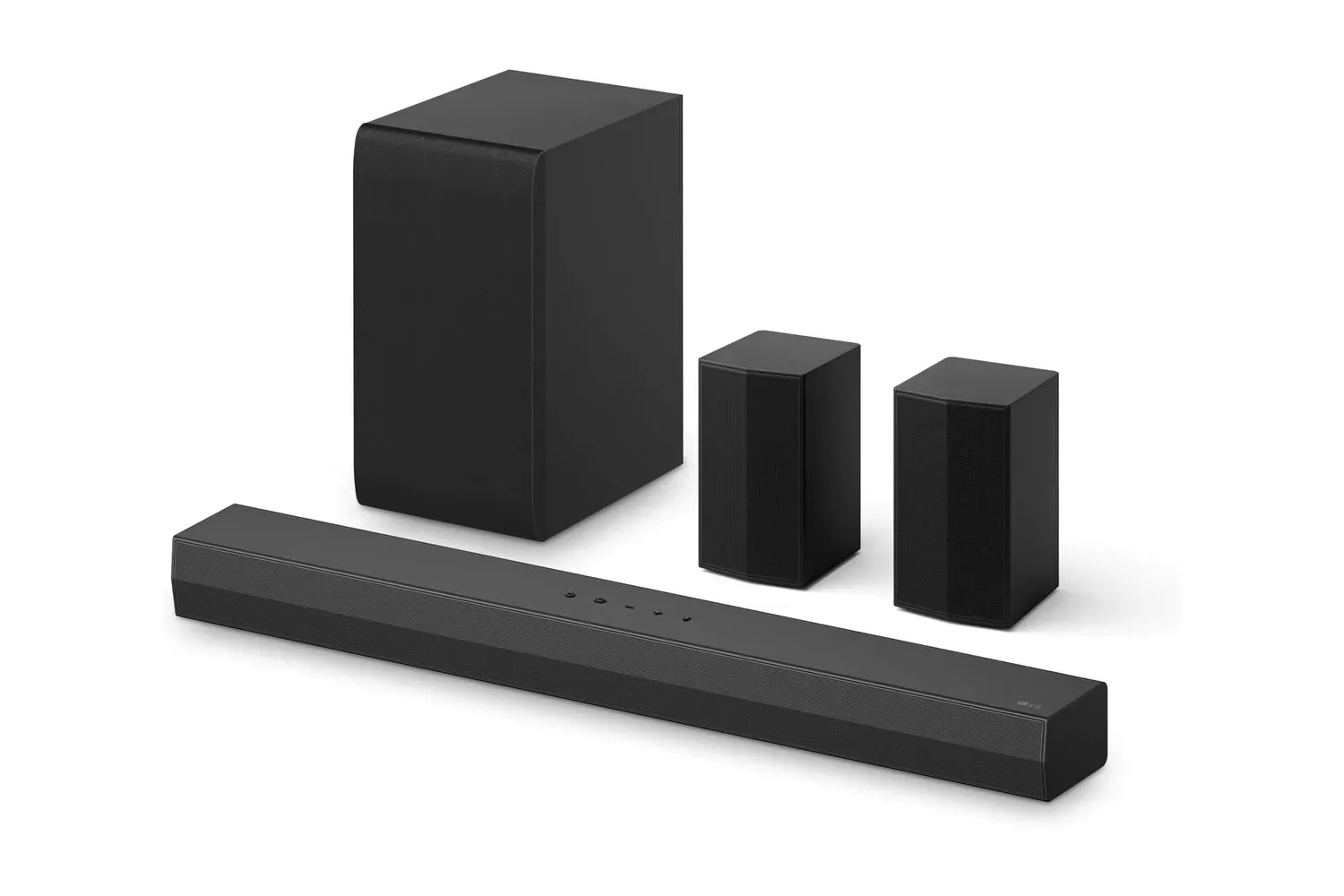
Soundbars and AV receivers introduce the most important reason not to disable Anynet+ casually: HDMI eARC requires Anynet+ to be enabled on a Samsung TV. eARC is the HDMI audio-return feature used to send audio from the TV back to compatible audio hardware.
That means an attempt to stop annoying input switching by disabling CEC can create a separate audio issue. If a soundbar or receiver is relying on eARC, leave Anynet+ on and isolate the troublesome external device where possible. Check the connected device’s CEC option, its HDMI connection, and its firmware before removing the foundation that the audio return setup needs.
A quick setup checklist for console and soundbar owners
- Enable Anynet+ (HDMI-CEC) in the Samsung TV’s External Device Manager.
- Enable the equivalent HDMI-CEC option on the console, streamer, soundbar, or receiver.
- Make sure the external device is powered on or in standby, then allow up to two minutes for initial recognition.
- Test one behavior at a time: TV wake, input switching, audio power behavior, and remote functions.
- If something misbehaves, reseat or replace the HDMI cable, restart the hardware, and update firmware.
- For a soundbar or receiver using eARC, keep Anynet+ enabled and adjust the problematic device rather than disabling CEC indiscriminately.
CEC is most valuable when it quietly disappears into the background: one power action, the correct input, working audio, and fewer remotes to hunt down. For players connecting a console to a Samsung TV, Anynet+ is usually worth keeping enabled—provided the specific devices in the chain agree to play along. If you are also building a display-centered desk setup around a computer, our guide to choosing between USB-C hubs and docking stations covers a separate, but similarly useful, part of managing all those ports and peripherals.