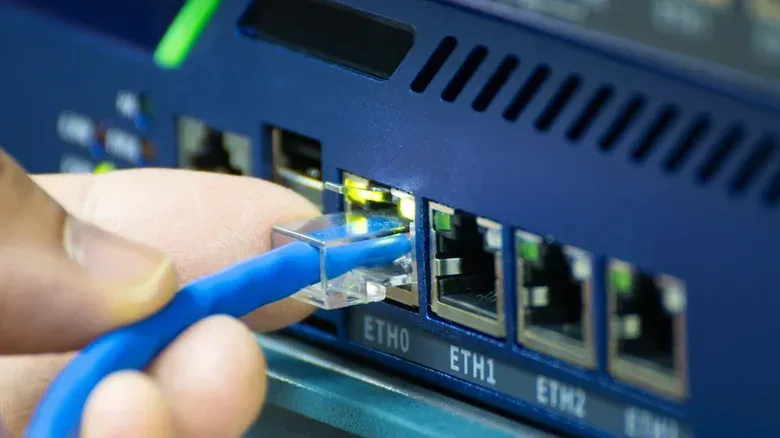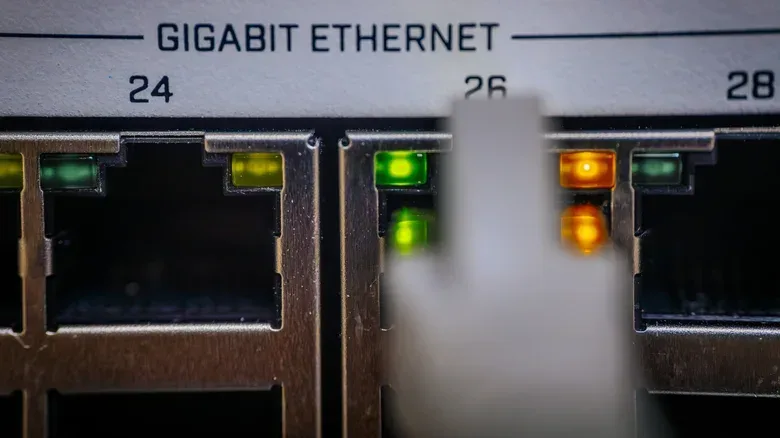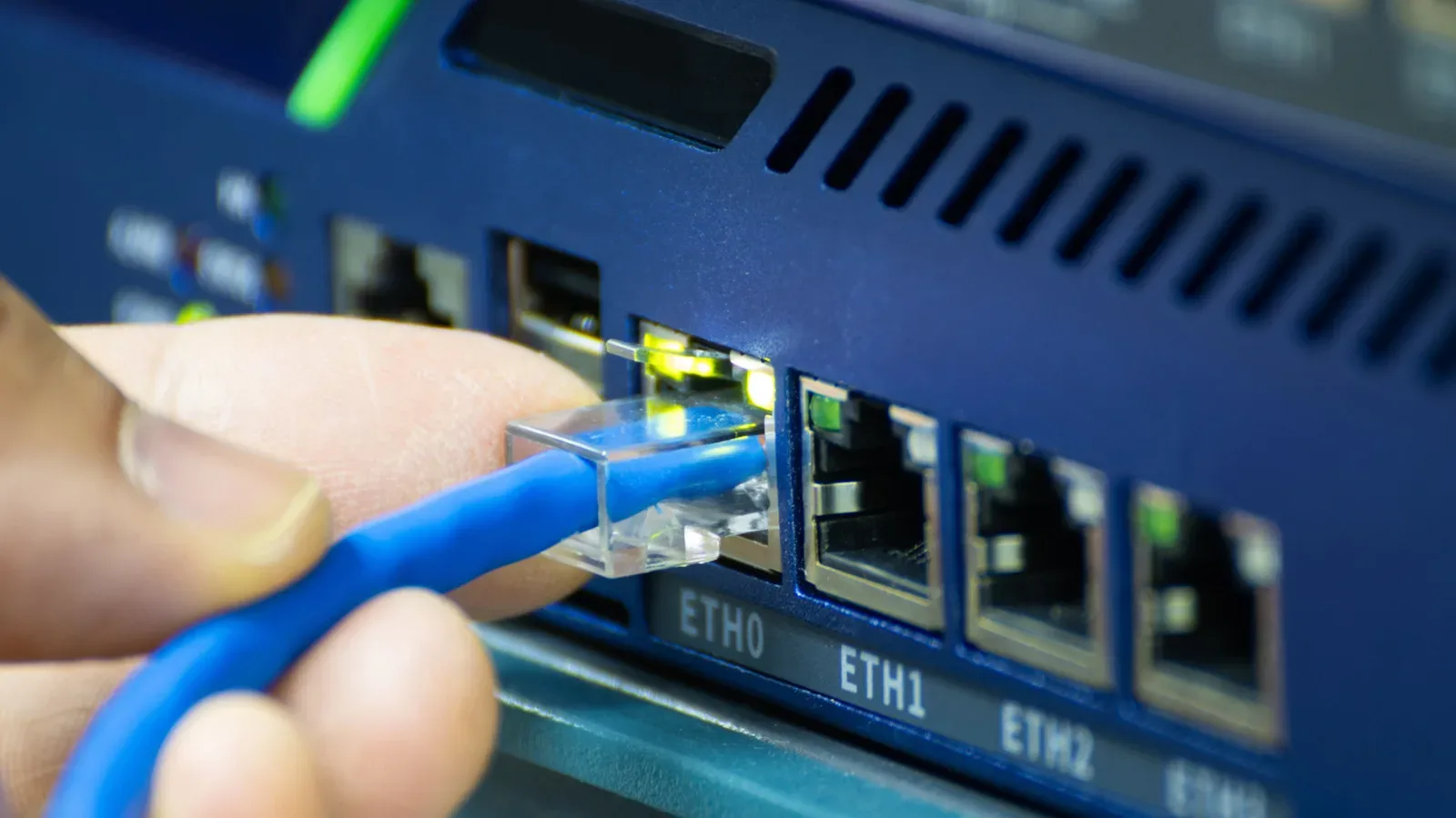
Running out of Ethernet ports is a familiar modern-household problem: the router has a console, PC, television, and perhaps a network-attached storage device competing for a small number of sockets. It is tempting to treat that as a router problem. Often, it is not.
If Wi-Fi coverage is already doing what it should, an Ethernet switch is generally the straightforward way to add wired connections. A switch connects more devices to the existing network; it does not replace the router’s job of connecting the home network to the internet. That distinction matters because replacing a router merely to gain ports can mean buying features that do not solve the actual limitation.
For a gaming room, a living-room setup, or a desk shared by a PC and console, a switch can create a tidy wired hub. The useful purchase is not necessarily the model with the largest number on the specification sheet. It is the one whose port count, speed, feature set and physical design fit the devices already in the home, with sensible room for the next one.
Start by counting ports, then subtract one
The most immediate specification is the number of Ethernet ports. There is one easy detail that can be missed: one port normally links the new switch back to the router. That connection is often called the uplink, meaning it carries traffic between the switch and the rest of the network.
Consequently, a five-port switch ordinarily has room for four wired devices once it is connected to the router. An eight-port switch typically leaves seven device connections. That difference is more meaningful than it first sounds. A five-port option can be a neat answer when only a few devices need wiring. An eight-port model may be the less frustrating choice when the immediate need is already four extra connections, since it leaves capacity for a future console, desktop PC, television, or storage device.
Before shopping, make a list of every device that needs a cable in the intended location. Include the router connection in that count, then leave some unused ports if possible. This is not about buying excess hardware for its own sake. It is about avoiding a setup that is fully occupied the day it is installed.
Match the speed to the slowest important link
Port speed deserves more attention than the port count. Common labels include 1GbE, 2.5GbE, and 10GbE. The “E” stands for Ethernet, while the number refers to the link rate: roughly 1 gigabit, 2.5 gigabits, or 10 gigabits per second.
A 1GbE switch is a sensible fit when the internet connection, router, and wired devices are all operating at Gigabit speeds. It adds ports without creating a mismatch inside an otherwise Gigabit network. Multi-gig hardware becomes more relevant when the home has multi-gig internet service, a newer PC with a 2.5GbE connection, or a fast NAS that supports multi-gig networking.
The key principle is that a switch cannot improve the capability of an attached device, and it should not become the limiting link for the traffic that matters. Connecting a device with a 1GbE port to a 2.5GbE switch does not turn that device into a 2.5GbE device. Its connection remains limited to 1GbE.
The same logic applies upstream. If a router has a 2.5Gbps port but it connects to a 1GbE switch, traffic between that router and switch is capped at 1GbE. That is a bottleneck: a slower segment that limits the rate available across a path, regardless of the faster hardware elsewhere.
For a typical console and television arrangement, that may be perfectly acceptable. For a setup where multiple wired machines routinely access fast local storage, it is a more important design decision. The aim is not “buy the highest number”; it is “avoid placing the lowest number at the connection that carries the traffic you care about.”
Internet throughput and local transfers are different jobs
Internet-plan speed is only one part of the picture. A home network also carries local traffic, which stays within the house instead of traveling to the internet. Moving a large video file to a NAS, making a backup, or accessing files between two wired computers are examples.
Two 10GbE-capable devices connected through the same 10GbE switch can transfer data locally far faster than the household’s internet plan would suggest. The internet speed does not set the ceiling for that device-to-device transfer because the data is not leaving the local network.
That distinction is useful for gamers who also use a NAS for large captures, video files, or backups. It does not mean everyone needs 10GbE. In fact, a 2.5GbE switch can be a more proportionate step for a home with compatible newer hardware, without moving immediately to pricier 10GbE equipment.
Cabling is another practical concern, but a move past Gigabit does not automatically mean replacing every cable in the home. 2.5GBASE-T, the Ethernet standard used for 2.5GbE over familiar twisted-pair cabling, can run over existing Cat5e cable. That can make 2.5GbE a particularly approachable upgrade where the home is already wired with Cat5e.
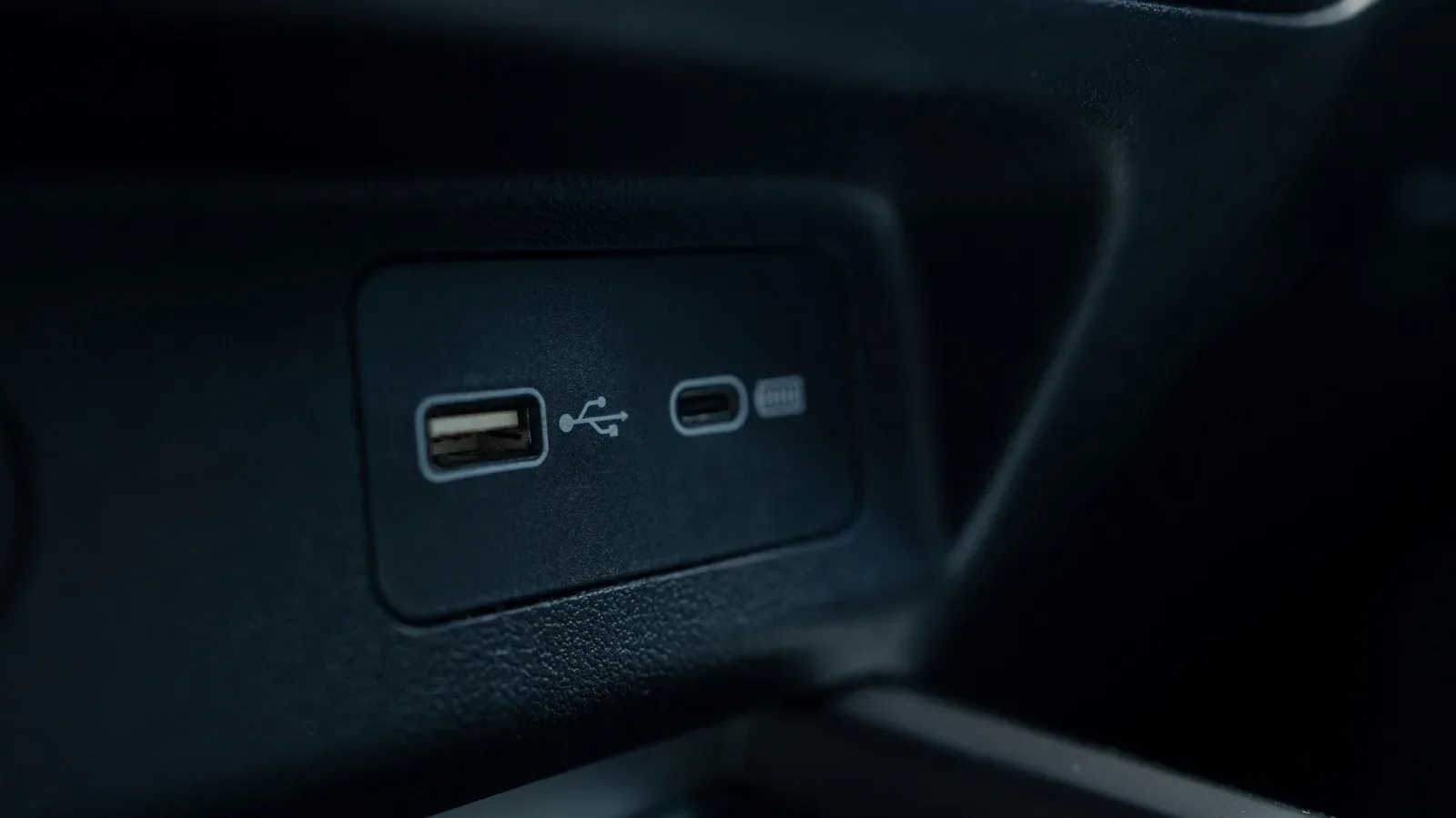
Hardware still needs to match on both ends. Check the router port, the switch port, and the port on the PC or NAS whose performance matters. A fast switch is part of a chain, not a stand-alone speed upgrade. The same device-matching mindset also helps with other connection choices; USB-A and USB-C labels, for example, likewise do not tell the whole performance story by shape alone.
Unmanaged switches are the low-fuss default
For many homes, an unmanaged switch is the right answer. It requires no configuration: connect it to the router, connect the wired devices, and it adds those connections to the network. When the goal is simply getting several gaming or media devices online by cable, that simplicity is an advantage rather than a compromise.
A managed switch, and the related “smart switch” category, adds controls that can be useful in more complex networks. These may include VLANs, traffic monitoring, quality-of-service controls, and other ways to separate or manage devices. Such options generally cost more, and their usefulness depends on having a plan for them.
A VLAN, or virtual local area network, is a way of logically separating devices while using the same physical switching hardware. Traffic monitoring can provide visibility into network activity. Quality of service, often abbreviated QoS, is a category of controls used to manage how traffic is handled. Those functions can make sense for someone intentionally building a more elaborate home network, but they are not prerequisites for a stable wired connection to a console, PC, TV, or NAS.
The practical question is simple: do you need to configure device separation, observe traffic, or manage traffic behavior? If the answer is no, paying for a web settings page that will never be opened has little value. An unmanaged switch is not “lesser” for a simple job; it is often precisely enough switch.
PoE is valuable when a cable also needs to deliver power
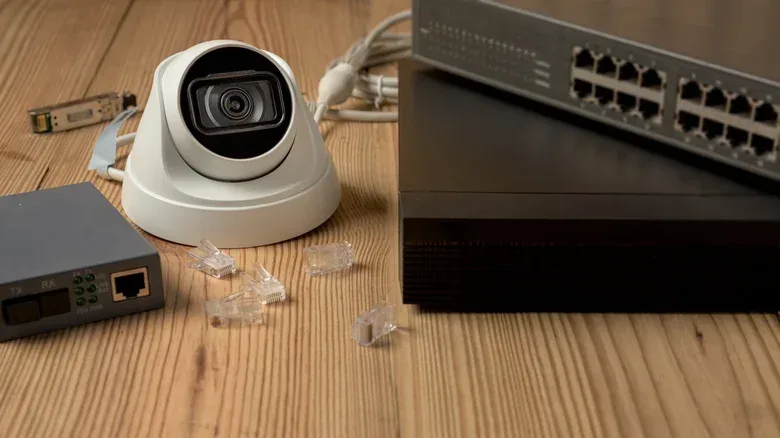
One feature that merits separate consideration is Power over Ethernet, usually shortened to PoE. PoE carries both data and electrical power through the same Ethernet cable. That is especially useful for devices such as security cameras and Wi-Fi access points, where placing a separate power adapter may be inconvenient.
PoE buying requires more than checking whether a switch has PoE-capable ports. Every PoE switch has an overall power budget: the total amount of power it can supply across its ports. A model may have several PoE ports but lack enough total wattage to operate every attached device at its maximum requirement at the same time.
That leads to a three-part check:
- Identify which devices actually require PoE.
- Check the power requirement of each of those devices and what each switch port can supply.
- Compare the combined need with the switch’s total PoE budget.
For a conventional gaming corner containing a console, PC and television, PoE is unlikely to be a deciding factor. For a network that also supports access points or cameras, it can reduce cable clutter and simplify device placement—provided the budget is adequate.
Do not overlook size, noise and location
Switches are not always hidden in a rack or cabinet. They often end up next to a television, behind a desk, or near a console. That makes their physical design relevant.
A small fanless switch can be a better match for a visible living-room or desktop location because it is designed without active cooling. Larger switches with fans and active cooling can make more sense when they are placed alongside other networking equipment instead. Neither approach is universally better; the right one depends on where the hardware will live.
Placement also affects cable planning. A switch near the devices it serves can turn one run back to the router into several short, manageable device connections. Make sure the intended spot can accommodate the number of cables the port plan requires. A technically correct purchase can still be awkward if it leaves a tangle of leads crossing a room or occupying a desk where a compact fanless model would have fit more naturally.
A buying checklist for a wired setup
- Count ports realistically: reserve one port for the router link and leave capacity for future hardware.
- Map the important speeds: check the router, switch and device ports, not just the internet plan.
- Watch for bottlenecks: a 1GbE switch limits the router-to-switch connection to 1GbE even when the router has a faster port.
- Separate internet needs from local needs: high-speed local transfers can matter for PCs and NAS devices even when internet service is slower.
- Choose managed features deliberately: an unmanaged switch is usually sufficient when the requirement is simply more wired ports.
- Evaluate PoE by wattage, not port count: consider device requirements, per-port supply, and the total power budget.
- Fit the switch to its home: fanless compact hardware suits many visible spaces; actively cooled models are better suited to networking areas.
Ethernet switching is one of the less glamorous home-network purchases, which is exactly why the basics matter. A well-matched switch quietly expands a setup and lets wired devices coexist without asking the router to become something it is not. Start with the devices and links that exist today, account for the one connection back to the router, then choose only the performance and management features the network can actually use.