Spotify is built to put something—anything—on quickly. That is convenient when the goal is immediate noise, but it also means the app’s deeper controls are easy to miss. A small pass through Settings can change the practical experience considerably: music can use a higher-quality stream, shuffle can be less prone to perceived repetition, family listening can stop reshaping recommendations, and an ill-advised late-night queue need not become social evidence.
Most of these options are aimed at Spotify Premium subscribers, and availability can vary between the mobile and desktop apps. On mobile, open the profile picture in the upper-left corner, then choose Settings and privacy. On desktop, the shortcut is Ctrl + P on Windows or Cmd + comma on Mac. The desktop version presents a long settings page, while mobile divides controls into subsections.
None of these settings has one correct answer. The useful approach is to decide what matters in each situation: consistency versus sound fidelity, pure randomness versus a pleasing sequence, and social sharing versus privacy.
1. Decide whether volume normalization is helping or hurting
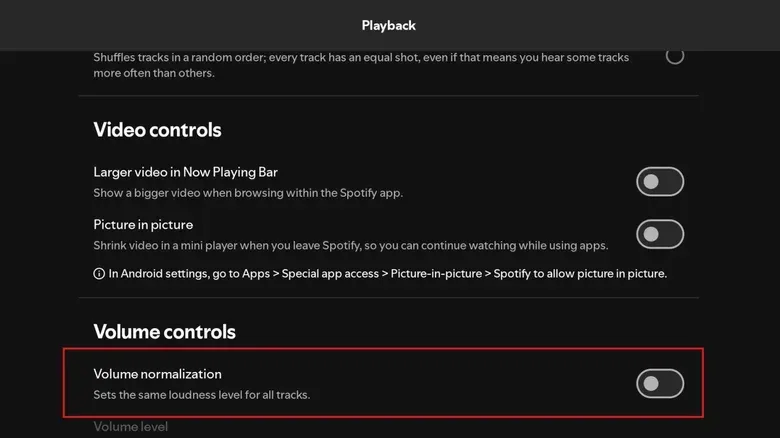
One of the most consequential playback controls is volume normalization. It attempts to make songs play at a broadly similar loudness. Its purpose is simple: moving from a quiet ballad to an aggressive rock track, or between recordings from very different periods, should not force a scramble for the volume buttons.
That is a real quality-of-life benefit. Recordings are not mastered at identical levels, and modern production has often pushed loudness hard. The result can be an abrupt jump when older and newer material appears in the same queue. For car listening, office listening, or any setting where the volume should remain predictable, normalization can be the sensible choice.
The trade-off is audio processing. Adjusting loudness entails compression to some degree, whether quieter material is raised or louder material is reduced. Compression, in this context, means reducing the gap between louder and softer parts of audio. It is not automatically bad—many recordings use it deliberately—but listeners chasing the least altered presentation may prefer to turn normalization off.
Find the option in Playback, under Volume controls. When it is enabled, Spotify offers three modes:
- Quiet, which lowers louder songs more aggressively.
- Normal, which balances changes in both directions.
- Loud, which boosts quieter tracks more strongly.
Spotify warns that the Loud setting can reduce audio quality, which tracks with its more forceful processing. But the broader point is that every normalization choice is a compromise. If consistent levels are more valuable than preserving every bit of a track’s original dynamic behavior, leave it on and start with Normal. If a careful listening session on wired equipment is the priority, turning it off is the cleaner experiment.
2. Use the shuffle mode that matches what “random” feels like
Shuffle inspires an oddly persistent complaint: a truly random system often feels broken. People expect a shuffled library to spread artists and albums evenly. Mathematics has other plans. Random results naturally form clusters. A shuffled deck can produce several cards from the same suit in sequence; a shuffled music library can produce several tracks by one artist near each other.
That mismatch between statistics and expectation is old. Apple confronted it during the iPod era, ultimately adding a Smart Shuffle approach designed to reduce the clumps that made listeners distrust ordinary randomness. It was less random in a strict sense, but more satisfying to many people because it avoided the patterns humans interpret as a malfunction.
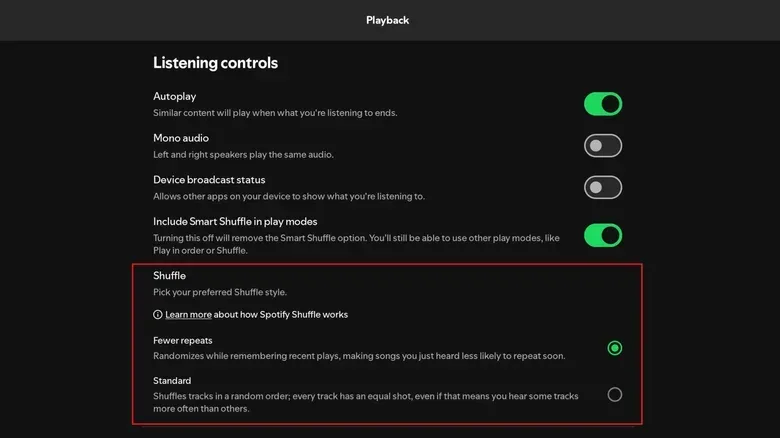
Spotify offers the same basic choice. Under Playback > Listening Controls, its shuffle modes are Fewer repeats and Standard. Standard is the setting for listeners who want a less managed random order. Fewer repeats adds guardrails to reduce the chance of similar songs appearing close together.
The important distinction is between an algorithm that is statistically random and one designed to feel random. Neither is inherently superior. A giant playlist used for discovery may be more enjoyable with Fewer repeats, particularly if it contains multiple songs by favorite artists. Standard makes more sense for listeners who are comfortable letting chance create a strange run of adjacent tracks.
This is also a useful reminder not to diagnose a hidden agenda every time shuffle delivers three songs from the same record. The order may be annoying, but repetition alone is not proof that shuffle has stopped being shuffle.
3. Turn on lossless only where the listening chain can use it
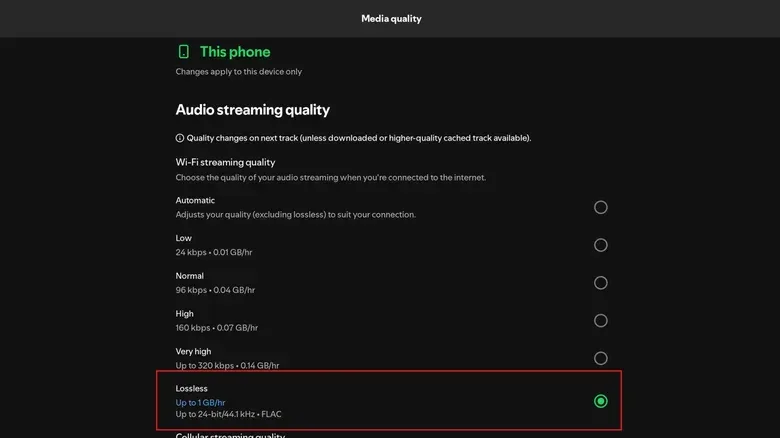
Lossless audio became available to Spotify Premium subscribers in October 2025 at no added charge. The service supports FLAC at up to 24-bit/44.1kHz, replacing the previous ceiling of lossy Ogg Vorbis streaming for listeners who choose the new tier.
The terms need a little translation. Lossless means the audio file is compressed in a way that retains the full audio information when decoded. Lossy formats save bandwidth by discarding some information. FLAC is a lossless format; Spotify’s Very High setting is still a high-quality but lossy option. The figures 24-bit and 44.1kHz describe the digital resolution and sampling rate of the stream.
However, lossless is not a magic “better sound” button in every setup. The rest of the signal path matters. Common earbuds and headphones may not expose an audible difference for many people. A Bluetooth connection can be another limiting stage even if the stream arriving at the phone is lossless. For iPhone users listening via Bluetooth headphones such as AirPods, Bluetooth transmission is limited to 320kbps—the same level associated with Spotify’s Very High quality setting. A wired connection remains the route to true lossless delivery.
Some Android listeners using high-resolution Bluetooth codecs, including Sony LDAC or Qualcomm aptX Adaptive, may see more benefit than listeners on a conventional lossy Bluetooth connection. Even there, it is worth treating the result as system-dependent rather than guaranteed. Better source encoding may help, but Bluetooth is not equivalent to a wired lossless path.
To enable the option, visit Media quality on mobile or Audio quality on desktop. On mobile, Spotify lets users set lossless separately for Wi-Fi streaming, cellular streaming and downloaded music. Each device needs its own configuration.
That separation is practical. Wi-Fi is the obvious place to select Lossless for anyone with compatible equipment. Cellular is a more personal calculation, because lossless uses more data. If a data plan is limited, Very High on cellular and Lossless on Wi-Fi or downloads is a balanced configuration. It avoids treating higher bitrate as a trophy setting while still reserving it for the contexts where it is most likely to matter.
For perspective on how streaming has come full circle for portable music devices, see this look at a project bringing USB-C, Bluetooth and streaming to select classic iPods. Today’s settings screens may be dense, but they put listeners in control of choices that portable players once handled far more simply.
4. Keep children’s songs, sleep playlists and workplace music out of recommendations
A recommendation system can only work with the behavior it sees. The problem is that play history does not always equal personal preference. A parent may play children’s music repeatedly because a child wants it. Someone running music at a gym, shop or other workplace may stream current hits all day without wanting them to dominate home recommendations. An ambient playlist used for sleep or work can rack up hours without representing the music someone wants to discover.
Spotify calls the model informed by this behavior a Taste Profile. If that profile absorbs every practical or shared use of an account, recommendations can drift away from the music the account holder actually wants. It can also affect annual listening summaries.
Spotify has a dedicated exclusion for children and family listening. Go to Settings > Content and display and turn off Include kids and family music in taste profile. The category includes children’s film and television soundtracks, kid-focused covers and educational music. This is especially useful for a household that shares a single account rather than giving a child a separate account.
For other cases, playlist-by-playlist control is available. Open the specific playlist, use its three-dot menu, then select Exclude playlist from your taste profile. This is the appropriate tool for a background Top 40 mix, a sleep soundtrack, a work-focus collection, or any other playlist that serves a function rather than a taste.
There is a subtle practical advantage to doing this early. A recommendation feed is easier to keep aligned than to rehabilitate after months of unrepresentative listening. It also removes the false choice between using Spotify for household duties and preserving a useful discovery engine. One account can do both, provided the account holder marks the listening that should not inform future suggestions.
5. Choose how visible your listening activity should be
Music can be social, but it does not have to be. Spotify’s social controls provide several degrees of visibility instead of a single all-or-nothing privacy setting. That matters whether the goal is hiding a one-off guilty pleasure, avoiding awkward real-time visibility during a difficult week, or simply treating listening history as personal information.
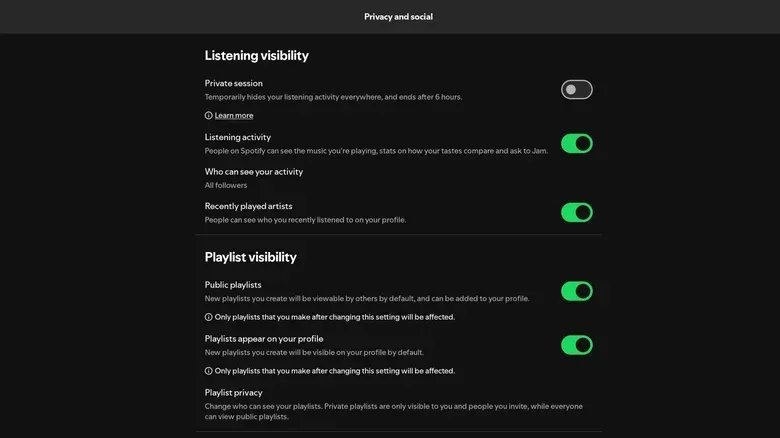
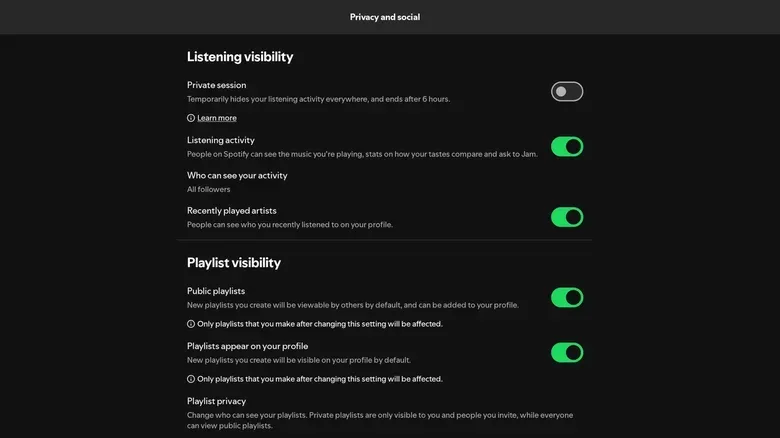
For a temporary blackout, turn on Private session in the Privacy and Social section. Followers and friends will not see activity while it is active. The session ends after six hours or when the app is fully restarted, so it is useful for a temporary period rather than a permanent preference.
For an ongoing change, turn off Listening activity. That permanently hides listening activity and statistics from other people until the control is enabled again. Spotify also offers a Who can view your activity menu with All followers and People you choose options. The visibility category can be enabled on desktop, while selecting the people allowed to see activity is limited to the mobile app.
Do not overlook playlist privacy. A public playlist can appear on a profile even when the owner has carefully managed listening-activity visibility. Open the playlist’s three-dot menu and choose Make private to remove it from the profile. If listening activity remains visible, permitted viewers can still see individual songs currently playing, but they will not be able to open the private playlist itself.
These controls are worth viewing as separate layers: Private session is a short-term shield, Listening activity changes routine visibility, the audience selector narrows who can see activity, and private playlists remove the collection itself from the profile. Setting each layer deliberately is more effective than assuming one privacy toggle covers everything.
A quick setup order for most listeners
- Choose whether volume normalization is useful in your usual listening environment.
- Set shuffle to Fewer repeats if artist clusters annoy you, or Standard if you want less intervention.
- Enable Lossless for Wi-Fi and downloads only if your equipment and data use make it worthwhile.
- Exclude children’s music and any functional playlists from the Taste Profile.
- Review Listening activity, Private session and public playlists separately.
The theme connecting all five settings is ownership. Spotify’s defaults are built for speed and broad convenience, not necessarily for a person’s headphones, data plan, household, workplace or comfort level with being observed. A few targeted changes can make its recommendations more relevant, its playback more predictable, and its social layer far less intrusive.