Smart TVs are built to be the living-room hub: streaming screen, app machine, game-display companion and, sometimes, a device with sensors. That last part can sound more alarming than it needs to be. Most current smart TVs do not have an integrated camera. Cameras have appeared on a limited number of sets and as optional accessories, but their scarcity does not mean guessing is the best privacy plan—especially for a TV bought second-hand, inherited, or connected to unfamiliar peripherals.
The useful question is not whether every smart TV could theoretically see the room. It is much narrower: does this particular television have a camera, what function is it tied to, and what controls are available? Answering those in order avoids both needless panic and the much less funny alternative: discovering a detachable camera has been perched above the screen all along.
For players, the television is often the shared screen for consoles, PCs and streaming apps. Its privacy settings are separate from those on the console or computer attached to it. A camera shutter on the TV will not alter a console’s account settings, for example; likewise, a console privacy setting cannot close a camera physically attached to the television. Treat each connected device as its own menu dungeon.
Start with the model number, not the bezel
The reliable first step is finding the television’s exact model number. It is commonly printed on a label on the set itself, and it may also appear in the system-information area of the TV’s settings. Use that identifier to locate the manufacturer’s documentation and technical specifications for that precise model.
Then search the documentation for “camera.” If the set contains a built-in camera, the specifications should identify it. This is more dependable than treating a vague product image, an unfamiliar bump in the frame or a video-call app as proof.
A mention of video calls is not, by itself, evidence that the TV contains a camera. A smart TV may support video calling by allowing an owner to attach an external camera. The distinction matters because an optional accessory can be unplugged and removed, while an integrated unit calls for built-in controls, a physical shutter if supplied, or a carefully placed cover.
Two examples show why exact documentation matters. Sony TVs support the proprietary Bravia Cam, while older Samsung F-series sets feature integrated camera units. Neither example means every Sony or Samsung TV has a camera. Model-level confirmation is the goal.
Do a brief physical inspection after checking the specs
Once the documentation points to a camera—or if the set’s history remains unclear—look around the display frame, with particular attention to the top edge. A small lens may be visible. Some cameras retract into the frame, in which case a rectangular break or seam in the housing can be a clue.
That inspection should include accessories. This is especially worthwhile with a used TV. A camera mounted above the panel can look like an original part of the display while actually being detachable. In the Bravia Cam example, the camera is a separate unit rather than a lens that must remain embedded in the screen.
- Record the model number from the label or system-information menu.
- Find the matching manufacturer documentation and specification sheet.
- Look specifically for camera language, rather than inferring it from video-call support.
- Inspect the top frame for a lens, a shutter, or a rectangular section that could house a retractable unit.
- Check above and around the screen for attached accessories, particularly on pre-owned televisions.
This process also offers a useful rule for other living-room hardware: a visible capability in software does not necessarily prove that every related piece of hardware is present. An app may support an add-on; it does not automatically mean the add-on is installed.
If there is a camera, use the strongest practical control
Once a camera is confirmed, consult the same model-specific instructions for its physical privacy options. A physical barrier is straightforward because it does not depend on an app permission remaining correctly configured after a software change.
Bravia Cam provides a clear example: it has a cover switch that moves a shutter open or closed. If the camera is an external accessory, disconnecting and removing it is an even more direct option when the feature is not wanted.
For an integrated camera without a supplied shutter, an opaque removable cover can block the lens. Care is needed here. Do not obstruct nearby sensors, and do not cover ventilation openings. The point is to block the camera, not accidentally interfere with another function or the TV’s airflow.
Physical measures should be paired with software housekeeping. Browse the TV’s settings for camera controls and app permissions. The names and locations of these menus vary by smart-TV operating system, so there is no one universal path to quote. The practical task is to identify which apps, if any, are allowed to use the camera and to turn off access that is not required.
- Check for a shutter, cover switch or other hardware privacy control.
- If the camera is an accessory, disconnect it and remove it when it is not needed.
- Where no shutter exists, use a removable opaque cover without blocking sensors or vents.
- Review camera-related controls and application permissions in the TV settings.
- Keep the television software updated as part of reducing unauthorized-access risk.
A TV connected to the internet is an internet-connected device, which means it carries exposure to unauthorized access. That does not mean a camera means someone is watching. It means the camera creates a capability worth understanding and controlling, just as it would on any other connected device.
Camera sensing and video calls are not the same function
What a camera does depends on the feature using it. A video call is an obvious case where camera imagery is central to the experience. Other functions can use sensing more locally, such as picture and sound adjustments based on the viewing environment.
Sony says Bravia Cam’s camera-sensing function for those local adjustments does not send camera images over the network. That statement describes the stated behavior of that particular function, not a blanket promise about every app, every camera feature or every risk to a household network. If a home network is compromised, assurances about a device feature alone do not resolve the broader security problem.
The practical implication is to avoid reducing the privacy discussion to one binary question. “Camera on or off?” is important, but so are these more specific questions: Which function wants camera access? Is an optional accessory plugged in? Does the feature need to be enabled? Which applications have permission? And is the TV running current software?
There is also a policy backdrop, though it is not a substitute for those device checks. As of late October 2026, the Informing Consumers about Smart Devices Act remained in the Senate. Consumer privacy therefore still relies in part on existing protections, including the FTC Act’s provisions addressing unfair or deceptive practices, as well as the representations and controls offered by manufacturers.
Closing the camera does not close every privacy door
A camera is only one possible input on a smart TV. Two separate areas deserve attention: microphone access and automatic content recognition, often shortened to ACR.
Microphone access is exactly what it sounds like: whether the TV or a feature can use audio input. A lens cover does not mute a microphone. If privacy is the priority, microphone controls and permissions need their own review rather than being assumed to follow the camera setting.
ACR is different again. It analyzes what is playing on the television to identify viewing activity. That makes it a viewing-data issue, not necessarily a camera issue. Covering a camera will not stop ACR from analyzing content, and turning off an ACR-related setting will not necessarily block camera access. They are separate systems with separate controls.
This separation is the detail most likely to make a privacy check effective. A person can fully cover a lens and still leave other data-related settings untouched. Conversely, someone who disables content recognition may still have an attached camera available to a calling application. Address the controls one by one.
A sensible privacy pass for a TV used for games and streaming
- Camera: confirm whether one exists; close its shutter, remove the accessory or cover the lens appropriately; review access permissions.
- Microphone: find the independent microphone setting and check which functions or apps can access it.
- ACR: review viewing-activity and content-recognition options separately from camera settings.
- Apps: avoid third-party app controls when considering unauthorized-access risk, and audit permissions for installed apps.
- Software: install available TV software updates.
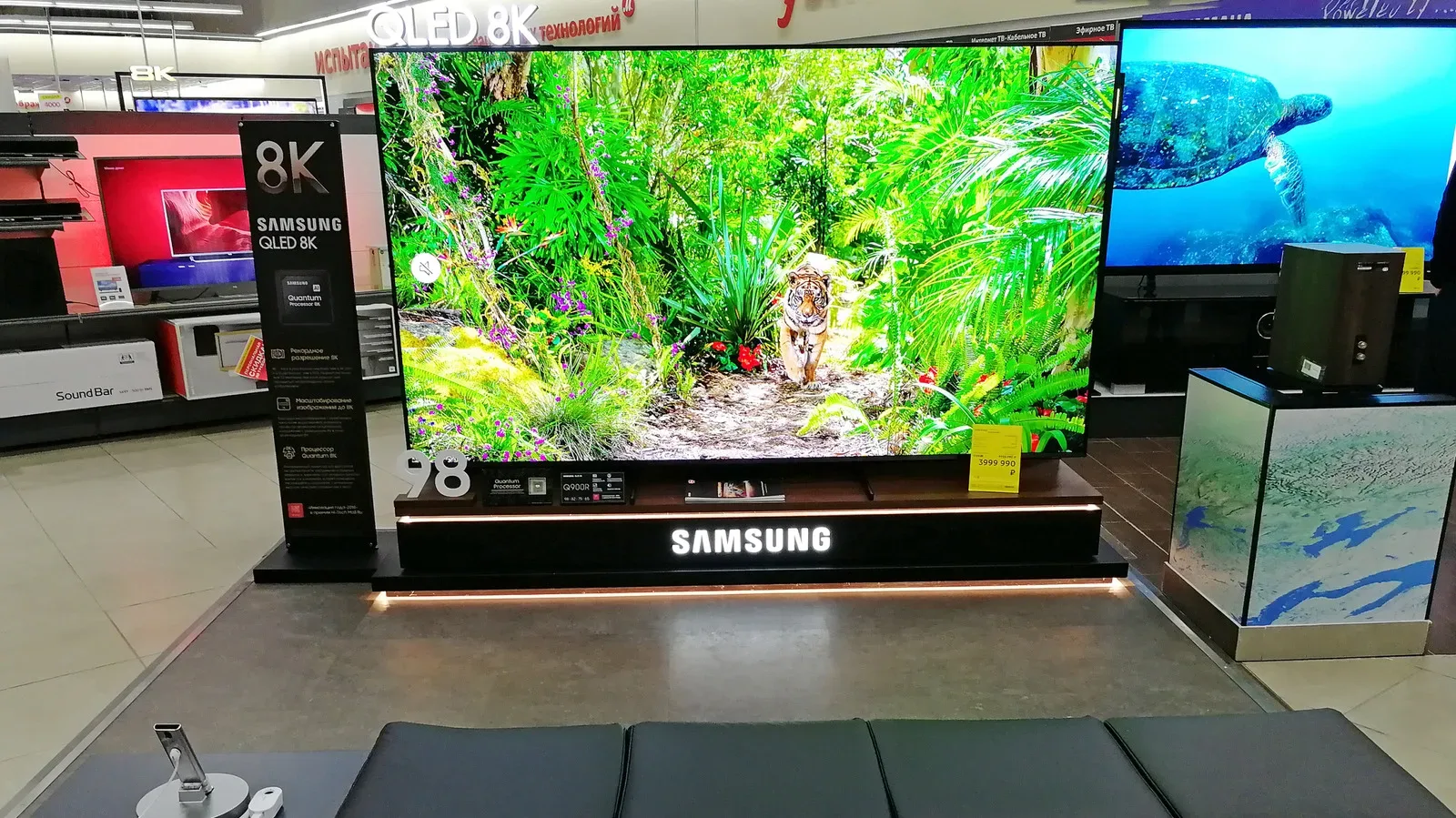
TV technology has always been shaped by what people ask it to do, and gaming is one reason display decisions do not move in a neat straight line. For more on that side of the living-room setup, see why 8K TVs did not simply replace 4K.
The low-drama answer is usually the right one
Most people checking their smart TV will likely find no built-in camera. That is reassuring, but verification takes only a few minutes and is better than assuming. Find the model number, read the relevant specifications, inspect the upper frame and accessories, then use the available physical and software controls if a camera is present.
Finally, do not let a camera check create a false sense that every privacy choice has been handled. Camera, microphone and ACR settings serve different functions. A well-configured TV is not about one magic toggle; it is about knowing which capability each toggle actually governs.