
Cloud storage is built for convenience: files can follow you between a desktop, laptop and phone, syncing can happen automatically, and a share link is vastly simpler than passing an external drive around. For players, creators and anyone with a growing pile of screenshots, video clips and personal files, that convenience is real.
But convenience is not the same thing as a universal answer. Local storage—an external hard drive, external solid-state drive (SSD), or USB flash drive—does not need a working internet connection. Plug it in, copy the material, and the transfer is not at the mercy of mobile data, a slow upload, or a service outage. It also changes the long-term cost calculation: hardware is a purchase, while expanded cloud capacity is commonly a recurring subscription.
The sensible choice is usually less dramatic than “cloud versus local.” The strongest practical setup for important data can combine both: cloud storage for automatic syncing, easy access and sharing; local storage for an offline copy, large files and material that should remain available regardless of an account or connection.
What each kind of storage actually means
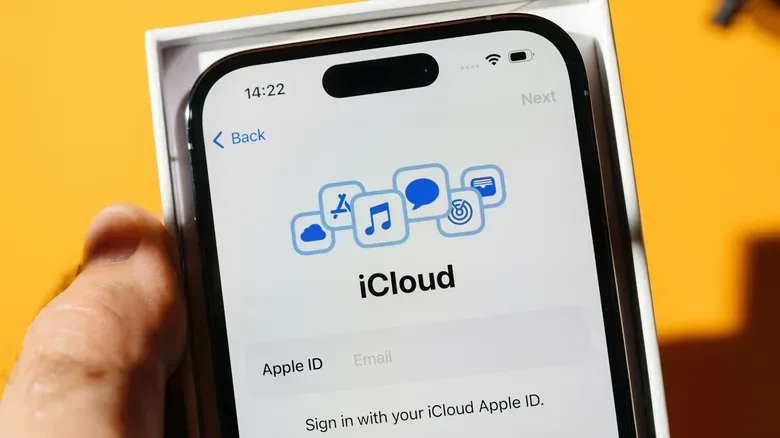
Cloud storage means files are stored by a provider and accessed through an account over the internet. Services such as iCloud and Google Drive can synchronize content across signed-in devices. Syncing is the process of keeping versions of a file available or updated across those devices and the service.
Local storage means data sits on storage you directly connect to or keep with your computer, such as an external hard drive, SSD or USB flash drive. An SSD is a type of storage designed for fast file transfers; in the examples at hand, an external SSD can move gigabytes in minutes. The important point is not the label on the box but the independence: copying files locally does not rely on an internet connection.
Both approaches can support backups, but neither word should be treated as a magic safety label. A backup is a separate copy that can help if the original is lost. A cloud account may make that copy available elsewhere, while a local drive gives you a physical copy under your control. Each can address a different failure: cloud storage helps when a device is unavailable or you need another device; a local copy helps when internet access is poor or unavailable.
Why cloud storage suits connected, multi-device lives
The cloud’s clearest advantage is access. A file uploaded from a home computer can be reached after signing in on another laptop or phone. That matters for people who shift between home, school, work and travel, and it removes the need to remember to bring a particular drive along.
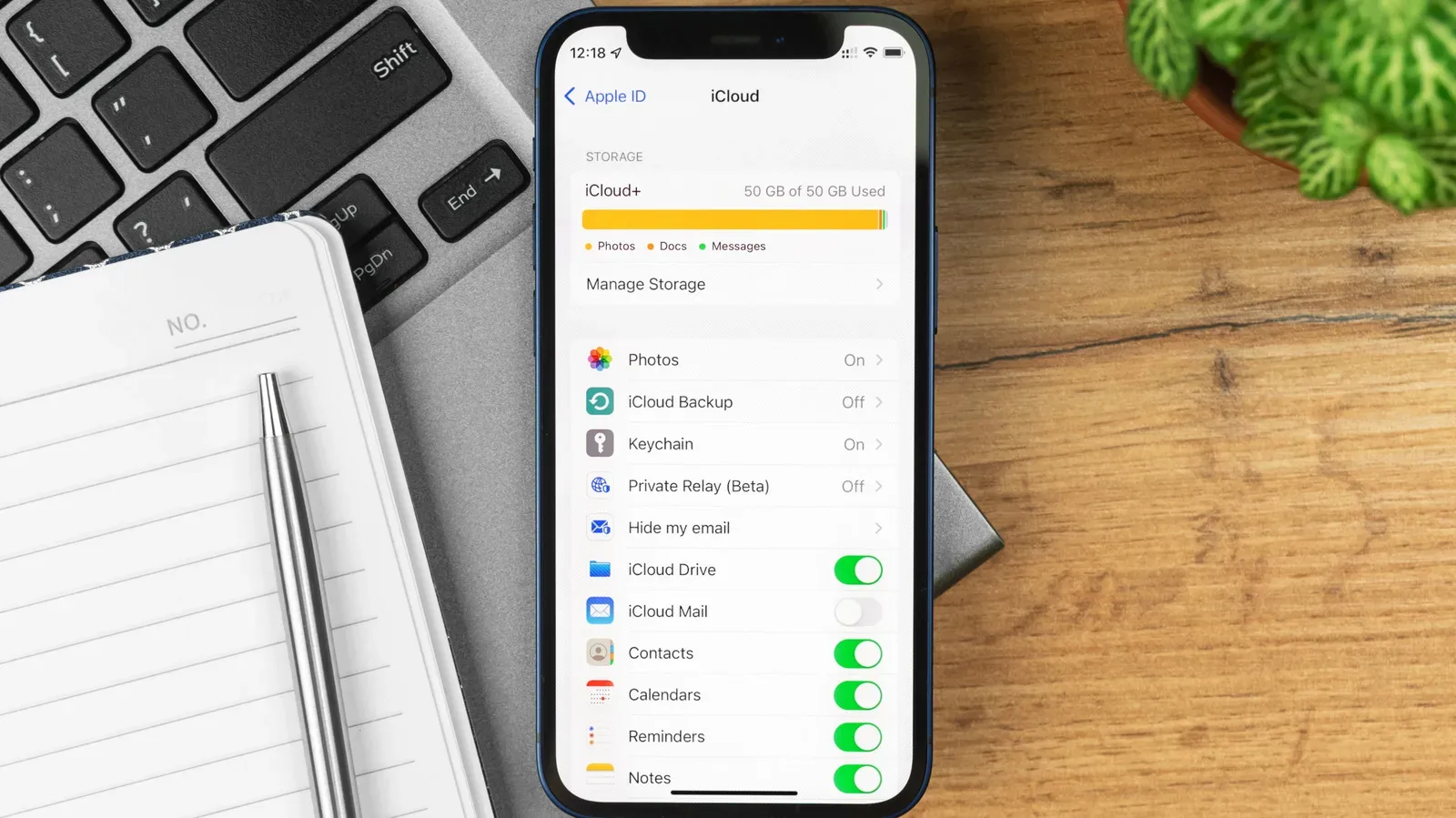
Automatic syncing is the second major benefit. Once it is enabled, iCloud can back up content every day. Photos, videos, contacts and other data can be synchronized without manually selecting and copying every item. That reduction in repetitive work is meaningful: a backup plan that requires constant manual attention is easier to postpone.
Related coverage includes Cloud Storage vs. Local Storage: Which Fits Your Files?.
Cloud platforms are also useful when a file is meant to leave your own devices. Rather than copying data to a drive and handing it over, a user can generate a link for another person to view or download the uploaded file. For documents and spreadsheets, collaboration can go further: multiple people can work in the same file, while tools such as Google Docs allow real-time comments.
For gaming-adjacent work, that can mean a clean way to share a clip, an edited image, a project document or a spreadsheet with collaborators. It does not make uploads instantaneous, especially for large video files, but it makes the handoff and access model much simpler once the material is online.
There is also resilience in how major cloud providers store data. They keep copies across multiple servers and data centers, reducing the likelihood that one problem destroys every copy. That is a significant safeguard against a single storage device being misplaced or physically damaged. It is not an absolute guarantee: the risk is lowered, not eliminated.
Account protection is part of that picture. A password and two-factor authentication can protect a cloud account. Two-factor authentication adds another verification step beyond the password, making it harder for someone else to access files simply by obtaining a password. It is an account-security measure, not an alternative form of storage, but it is essential to the practical safety of cloud-held data.
Where a local drive has the edge
Local storage wins decisively on connection independence. If a drive is in hand and compatible with the computer, files can be copied without Wi-Fi, without mobile data and without waiting for a remote service to respond. That is valuable when travelling, when connectivity is unreliable, or when a needed file is large enough that uploading and downloading would be a nuisance.
Speed is tied to the same advantage. Cloud transfers are constrained by the quality of the internet connection and can be interrupted by a provider outage. An external SSD can transfer gigabytes in minutes, making it a practical place to offload larger files. Screenshots may be easy to sync, but longer video captures and archives can turn a modest connection into the bottleneck.
Local media also changes ownership and payment pressure. A drive is bought once, then remains yours. Cloud capacity is normally rented through monthly or yearly charges. One cited U.S. example prices 2TB of iCloud+ at $9.99 per month. Over two years, that is nearly $240. A 2TB SSD can be found for around $290, with no ongoing charge for its capacity.
Those figures are not a universal verdict—costs, capacities and prices can change—but they illustrate the decision clearly. The cloud can start cheaper in the short term and offer conveniences that hardware does not. A drive may cost more upfront yet avoid a continuing storage bill. The better value depends on whether you need ongoing remote access and automatic syncing, or primarily need space for files you can keep nearby.
The local-storage risks cloud services help avoid
A local drive is not automatically safer merely because it is physical. It can be left behind, misplaced or damaged. If it is the only copy of a file, any of those events can become data loss. A drive also requires deliberate handling: someone must connect it, copy the files and keep track of where it is.
This is where a purely local plan can be fragile for busy users. Manual copying is straightforward, but it is still manual. Content created since the last copy may not be on the drive at all. Meanwhile, automatic cloud syncing can keep routine data moving without that recurring task.
The reverse risk exists too. Cloud access is dependent on a stable connection and a functioning provider service. A slow connection can make a large download impractical at exactly the wrong time. If an account holder stops paying for a subscription, files may be deleted after a period of time. The storage space is an ongoing service, not permanently owned capacity in the way a purchased drive is.
Choose by file type and how you need to use it
A useful way to decide is to classify data by access needs rather than declaring loyalty to one method. Files that need to appear on several devices, be shared with others, or update without manual copying are strong cloud candidates. Files that are very large, are rarely needed away from home, or must remain accessible without internet are natural local-storage candidates.
- Use cloud storage for accessibility: everyday files that need to follow you across devices, along with collaborative documents and material you may need to share through a link.
- Use local storage for offline access: large files and copies you may need when connectivity is poor, expensive or unavailable.
- Use both for irreplaceable material: cloud syncing offers remote access and automated copying; a local drive adds a separate copy that is not dependent on an active subscription or internet connection.
For someone managing gameplay captures or a growing media library, the mixed approach can be particularly practical. Keep current work in a synchronized service when it needs to move among devices or collaborators. Move bulky or older material to an external drive when speed, capacity and offline availability matter more. Keep an additional copy of the files that would be most painful to lose.
Connection quality should be treated as a real part of the storage budget. If a workflow depends heavily on uploading and retrieving big files, weak broadband or reliance on mobile data can make cloud-first storage frustrating. Anyone planning to lean on a phone connection while away from home should also account for its limits; our guide to using a phone hotspot for gaming, work and travel explains why that connection should not be assumed to behave like a fixed home line.
A practical hybrid routine
There is no need to duplicate every byte without a purpose. Start by identifying the material that matters most: personal photos and videos, key documents, contacts, creative work, and any game-related media you cannot readily recreate. Enable cloud syncing for the data that benefits from daily, automatic updates and cross-device reach. Protect that account with a strong password and two-factor authentication.
Then maintain local capacity for the files cloud storage handles less elegantly: large archives, heavy video captures and data you want available without a connection. Periodically copy important material to the drive. The goal is not to replace the cloud with a cable, or replace a drive with a subscription. It is to avoid making one method carry every responsibility.
Cloud storage is best understood as an access and automation tool with recurring costs and internet dependence. Local storage is a fast, owned and offline tool with physical-loss and manual-management risks. Used together, they offer a more balanced answer than either one can provide alone.