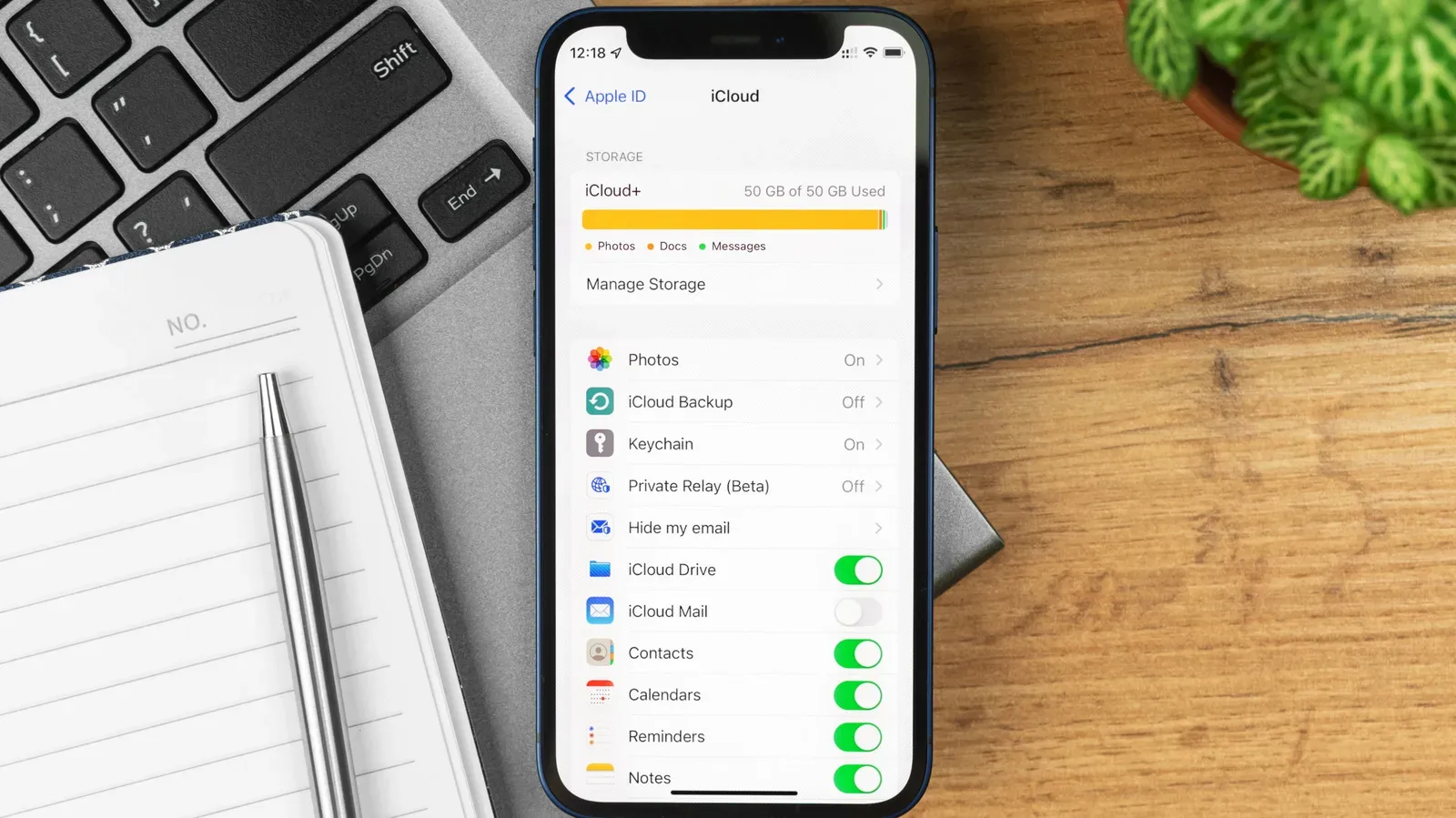
That iCloud storage warning is less like a dramatic boss fight and more like opening an inventory menu to discover that screenshots, old devices and a years-old email attachment have quietly claimed every slot. Apple’s free iCloud allowance is 5GB, and the same pool is shared among a wide range of synced and backed-up data. Buying more space is an option, with a 50GB tier listed from $0.99 per month, but a focused cleanup can often recover meaningful room without changing a subscription.
The important word is careful. iCloud is designed to synchronize data across Apple devices. In practical terms, deleting a photo, file or message from one connected device can remove it everywhere that uses the same iCloud account. A cleanup should therefore begin with visibility, not with indiscriminate deletion.
First, see what is actually consuming the space
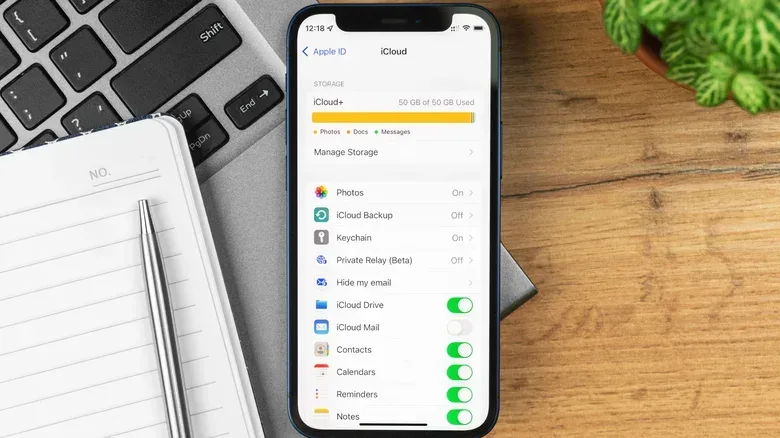
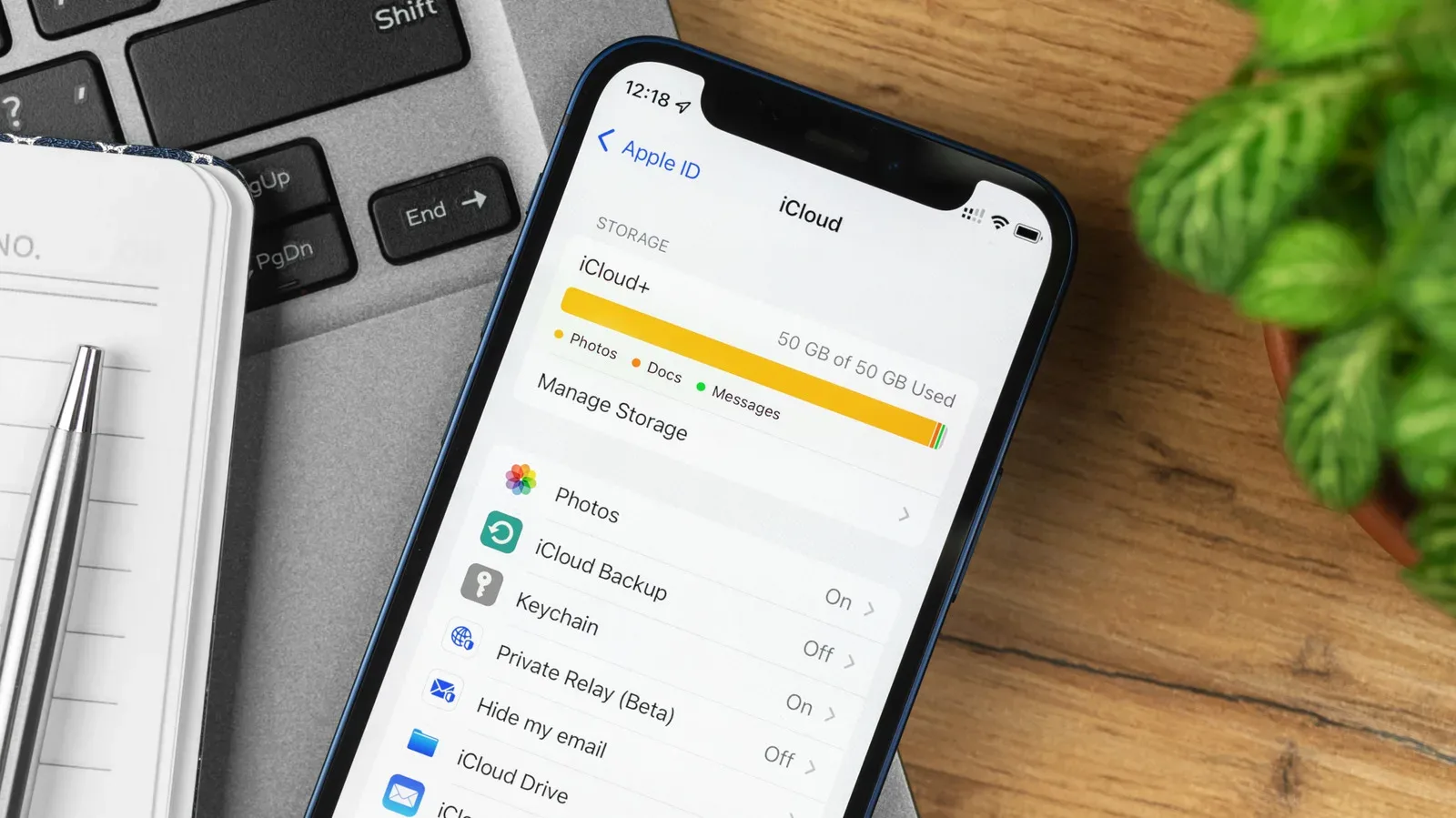
On iPhone or iPad, open Settings > [Your Name] > iCloud > Storage. On a Mac, the equivalent area is in System Settings: open iCloud and choose Manage. The iCloud website can also be used to review stored material.
The storage view ranks the services and apps using the account’s space. Photos, Mail, device backups, iCloud Drive and Messages are likely to be prominent, but the list is worth reading all the way down. A forgotten app that is still saving data to iCloud may not be the single biggest culprit, yet disabling storage for several unused apps can make a real difference on a 5GB allocation.
There is also a Recommended for You section at Settings > [Your Name] > iCloud > Storage. It is a sensible place to start because it surfaces Apple’s own storage-management suggestions rather than requiring users to guess which category to investigate first.
What “using iCloud” can mean
It helps to separate two ideas that can look similar in the settings menu:
- Syncing keeps current data aligned across devices. Photos, Messages, Notes and iCloud Drive files can fall into this category.
- Backups preserve data from a device so it can be restored later. Old backups can remain even after the hardware they belonged to has left the household.
Both use storage, but the cleanup decision is different. Removing a backup for a device no longer owned is usually a straightforward housekeeping decision. Removing synced photos or files is a decision about the content itself, because those items disappear across connected devices.
Photos and videos: start with the largest, most reviewable files
For many accounts, Photos is the main event. Video generally occupies more storage than still images, which makes the video library a particularly efficient place to review. Focus on clips that are duplicated, accidental, no longer useful or already preserved elsewhere, rather than treating the library as a number that needs to be driven down at any cost.
Related coverage includes How to Free Up iCloud Storage Without Paying for More Space.
In iCloud settings, select Photos and then Manage Storage to see the size of the synced library and access available duplicate-management tools. Duplicate detection is valuable because it targets redundant material without requiring a judgment call about whether the underlying moment matters.
Shared Albums deserve attention too. Images held there count toward iCloud storage beginning with iOS 27. That means an account that once seemed safely within its limit can grow without a new photography habit; shared material now belongs in the same storage audit.
Before deleting a large batch, make a preservation plan for anything worth retaining. The available alternatives include transferring iCloud photos to Google for image archiving or copying material to an external HDD or SSD. The distinction matters: moving a copy elsewhere before deletion is different from simply clearing it from iCloud. Verify that the archive contains what you expect before making irreversible choices in the synced library.
Gamers who capture a lot of clips should take this especially seriously. A short burst of saved highlights, multiplayer mishaps and victory screenshots can turn into a surprisingly large collection over time. The most useful routine is usually to keep the clips that have a purpose—editing, sharing or genuine sentimental value—and clear the rest deliberately. That is a storage workflow, not an instruction to stop capturing memories.
Messages and Mail can hide their storage cost in plain sight
Messages are easy to overlook because a conversation may appear to be mostly text. Yet shared video and other media can make a long thread much heavier than it looks. In Messages settings, the Keep Messages option can be changed to 30 Days or 1 Year. Choosing either setting causes older messages and shared video to be removed, so it is a policy change rather than a one-time tidying action.
That trade-off is best made intentionally. A 30-day setting is the more aggressive option; a year keeps a longer history while still limiting indefinite accumulation. Anyone who relies on old threads for personal records, receipts, conversations or attachments should inspect those needs first.
iCloud Mail also consumes account storage. Large attachments are an obvious place to look, but an effective Mail cleanup includes the folders people often leave untouched: Trash, Junk and deleted messages. Until those areas are emptied, content can continue to occupy space. Search or sort methods may vary by device, but the fundamental goal is simple: identify mail with attachments that no longer needs to remain in the account, delete it, then clear the associated holding folders.
Remove stale backups before touching current devices
Old device backups are one of the safer places to recover capacity. Navigate to Settings > [Your Name] > iCloud > Storage > Backups and check the devices listed there. If a backup belongs to hardware that has been sold, recycled, replaced or otherwise retired, deleting it prevents that unused snapshot from occupying iCloud space.
Do not confuse “I rarely use this device” with “I will never need this backup.” A backup can be useful when restoring a device, so verify the device identity before deletion. The point is not to eliminate backups in general; it is to stop paying storage space for devices that are no longer part of the picture.
This is also a reminder that cloud storage housekeeping and home-network housekeeping intersect. Devices, apps and services all sync in the background, often across several platforms. For players trying to make sense of which network privacy setup belongs on consoles and other home hardware, our guide to router VPNs versus VPN apps for PS5, Switch and the wider home network covers a separate but similarly practical configuration question.
Turn off storage for apps you no longer use—after checking the consequence
Under the Saved to iCloud area, use See All to review which apps store data in iCloud. Apps that are no longer installed, no longer relevant or no longer used may be reasonable candidates to switch off. However, the setting may affect how an app functions or whether its data remains available across devices.
That warning is not mere fine print. An app can use iCloud to preserve documents, settings or continuity between an iPhone, iPad and Mac. Review the app’s role before toggling it off, especially for notes, productivity tools and anything holding unique personal data. Storage management works best as an informed reduction of unnecessary data, not as a blind effort to make every switch gray.
The Recently Deleted trap: deletion is not always immediate storage relief
iCloud’s recovery behavior is a useful safety net and a common source of confusion. Items deleted from Photos, Mail, iCloud Drive and Notes can remain in their respective Recently Deleted areas for about 30 days. During that period, they can potentially be recovered, but the storage may not yet be freed.
If the goal is immediate room for a backup, a new photo or an incoming attachment, revisit those folders after the initial cleanup. Select the items that are genuinely no longer needed and use Delete to permanently remove them rather than waiting for the delay to expire. This is the decisive step, so it should happen only after a final check.
A low-risk order for a repeatable cleanup
- Open the iCloud storage breakdown and note the biggest categories.
- Use Recommended for You, then review unused apps listed under Saved to iCloud.
- Check Backups for devices that are no longer owned or used.
- Review large videos and duplicates in Photos, making an archive copy first where appropriate.
- Set a deliberate Messages retention period if indefinite history is not necessary.
- Clear unneeded Mail attachments and empty Trash, Junk and deleted-message folders.
- Inspect Recently Deleted in Photos, Mail, iCloud Drive and Notes, and permanently delete only material already checked.
The wider lesson is that iCloud storage is not one mystery bucket. It is a shared pool with identifiable categories, different risks and different cleanup methods. Start with stale backups and redundant media, treat synced content with more caution, and remember that the recovery folders are part of the storage equation. A short audit now can prevent the next “storage full” alert from arriving at exactly the moment a device needs to back up something important.