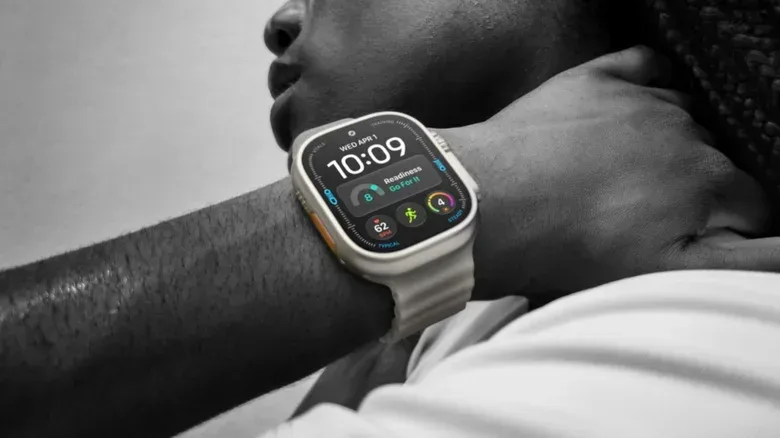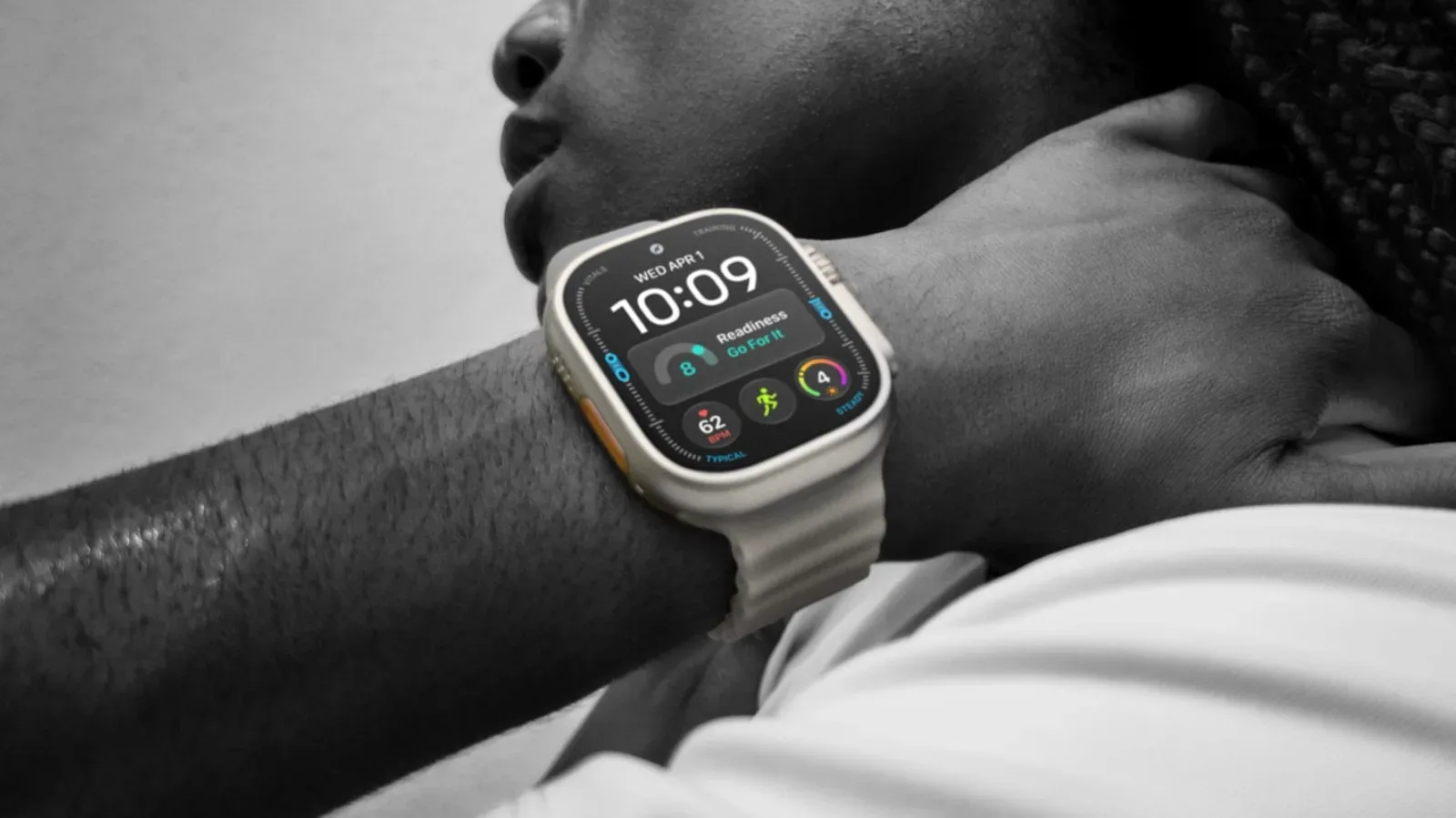
The Apple Watch Ultra 4 has a small hardware advantage that can make a large practical difference: the orange Action button beside its speaker grille. Rather than navigating watch menus or relying on a complication on the display, an owner can use this physical control as a direct route to one chosen function.
That sounds modest. It is also precisely the point. A button is easiest to use when hands are busy, wet, gloved, moving, or when attention ought to stay on a trail rather than a screen. The Ultra 4 is positioned around demanding activities including running, hiking, weightlifting and diving, and its Action button is built around reducing the number of steps between intent and response.
The watch supports a broad set of assignments, but there is one important limitation: the button has one single-press assignment at a time. Choosing it well matters more than trying to make it do everything. A person who tracks runs may want an immediate workout launch; someone navigating outdoors may get more value from a route tool; and an owner invested in home automation may find a Shortcut the most flexible choice.
The good news is that the Ultra 4 includes a Quick Switch menu, so the selected function does not have to remain permanent. A brief hold on the Action button brings up Quick Switch, allowing the single-press behavior to be changed without digging through settings. That makes the control more adaptable than a fixed one-purpose key, especially on a day that includes more than one kind of activity.
What the Action button is for
At its simplest, the Action button is a shortcut. It can reach tasks that would otherwise require opening an app, finding a control, or using a watch-face complication. The Ultra 4 also has an emergency siren function intended to draw attention if its wearer is lost or hurt.
That distinction is worth keeping clear. The siren is an emergency-oriented feature, while the configurable Action button assignment is primarily about rapid access to a chosen task. The value of both is rooted in physical immediacy, but they address very different situations.
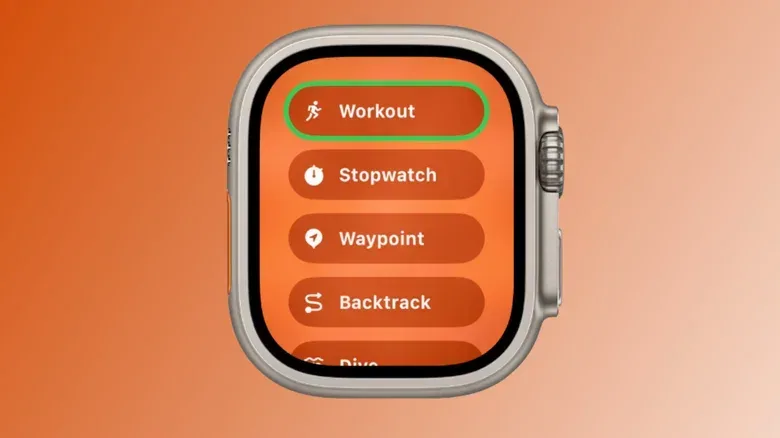
The available Action options include:
- Flashlight
- Voice Memo
- Translate
- Recognize Music
- Workout
- Stopwatch
- Dive
- Waypoint
- Backtrack
- Accessibility
- Shortcut
The best choice depends on what needs to happen quickly and repeatedly. For an everyday wearer, that could be taking a quick voice note or starting translation. For a runner or gym-goer, it could be beginning a specific activity. For a hiker, the more consequential decision may be whether the button should mark a location or begin recording a return route.
Quick actions: light, notes, translation and music recognition
Flashlight, Voice Memo, Translate and Recognize Music are the straightforward group. A press begins the function, and another press stops it. Their appeal is not complexity; it is speed.
Flashlight is an obvious utility option when visibility is the immediate concern. Voice Memo is suitable for capturing a thought when touching through an interface would be distracting. Translate gives the button a practical travel-oriented role. Recognize Music identifies a song, and the Ultra 4’s Audio Intelligence capabilities are intended to make recognition nearly immediate while also supporting automatic Shazam detection.
These options are particularly sensible when the action is brief and self-contained. They do not require a long session, a route plan, or a chain of conditions. Press, perform the task, press again if needed.
They may not be the best permanent assignment for every owner, however. Flashlight and voice notes are useful, but they generally do not carry the same time-sensitive importance as beginning an activity, recording a trail, or launching an automation used every day. Quick Switch is the answer when one of these lightweight utilities is valuable for a particular stretch of time but not necessarily all the time.
Workout and Stopwatch: activity controls with extra behavior
Workout can either open the Workout app or immediately start a chosen activity. That behavior can be adjusted in Settings > Action Button. For people who repeatedly begin the same form of exercise, going directly into that activity is likely the more meaningful configuration: it removes the decision screen from a routine that is already predictable.
Once a workout is in progress, pressing the Action button can activate a secondary function, such as marking a segment. A segment is a distinct portion within a broader session, useful when an activity has intervals or when the wearer wants to flag part of the session for later reference. Pressing the Action and side buttons together pauses the workout.
Stopwatch follows a related but distinct logic. One press starts timing and another marks a lap. A lap is a recorded split within a continuous timer rather than an end to the timer itself. To pause, press the Action and side buttons together. This setup makes Stopwatch a solid match for repeated timing tasks where individual intervals matter.
Dive also starts with a regular Action-button press. Pressing the Action and side buttons at the same time invokes a secondary function specific to the diving app. The exact usefulness of that secondary command will depend on the app’s context, but the control pattern is consistent: the Action button delivers the primary command, while the paired-button press provides an additional in-session option.
For all three modes, there is a practical lesson: learn the paired Action-plus-side-button gesture before relying on it. It is the pause command for Workout and Stopwatch, and it has a separate app-specific role for Dive. A physical shortcut is only a shortcut if its operator can use it confidently.
Waypoint versus Backtrack: two different outdoor navigation jobs
The most important distinction among the navigation assignments is between Waypoint and Backtrack. Both work with the Compass app, but they solve different problems.
A waypoint is a saved point of interest. Setting the Action button to Waypoint lets the wearer drop locations that are then visible in the Compass app and on the Waypoint watch face. This is useful for remembering a meaningful point: a trail junction, a meeting spot, a campsite, or another location worth returning to or identifying later.
Some waypoints can also be added automatically. The watch may record the location of a parked car and the last place where a cellular signal was available. Those automatic points are useful context, but the Action-button assignment adds intentional, on-the-spot marking when the wearer sees a place that matters.
Backtrack does something else. A single press starts recording a precise route that can be retraced later. In plain terms, Waypoint answers, Where is this point? Backtrack answers, How do I follow the route I took to get here?
With Backtrack active, pressing the Action and side buttons together switches between Record and Retrace modes. That makes Backtrack the more directly safety-oriented navigation selection for someone entering unfamiliar terrain. A lone waypoint may identify a destination or landmark, but it does not itself preserve the sequence of travel. A recorded route can be used to work back along the path that was actually taken.
The Quick Switch menu has special value here. An outdoor day may begin with Backtrack while heading into a less familiar area, then shift to Waypoint when the goal becomes logging points of interest. Neither assignment has to win forever; the wearer can change the single-press function as the situation changes.
Accessibility can make the physical button essential
The Accessibility assignment is not merely another convenience option. It can put AssistiveTouch, VoiceOver and nearby-device control behind the physical button.
AssistiveTouch and VoiceOver are accessibility tools, while nearby-device control extends the watch’s role beyond its own screen. The key practical point is that an Action-button assignment can reduce the effort required to reach these tools. For some people, that can make it the most important configuration on the entire list.
It is also worth considering even for users who do not expect to need accessibility features every day. The button’s directness can be useful whenever screen interaction is inconvenient. The correct choice is not about whether a feature looks most adventurous; it is about which action most reliably benefits from being one press away.
Shortcuts turn one press into a routine
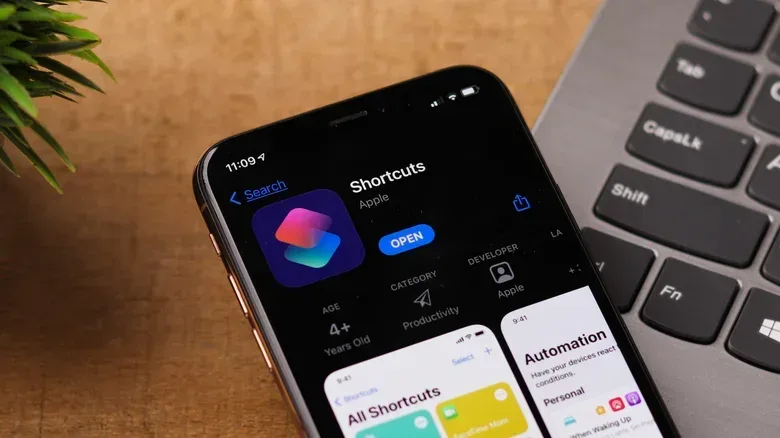
Shortcut is the broadest Action-button option because it can run an automation created in the Shortcuts app on an iPhone. A shortcut can extend across multiple platforms and can control smart-home accessories, meaning the watch button can become the trigger for a larger sequence rather than just a watch feature.
One example is a routine that turns on lights, changes a thermostat setting and starts local news on a HomePod. The significance is not that every owner needs that particular combination. It is that the Action button can initiate a multi-step action that would otherwise involve several separate controls.
That makes Shortcut especially compelling for a repeated departure, arrival or activity ritual. It can also be the least forgiving choice if built carelessly. An automation that communicates with another person, changes the home environment, or triggers several services should be checked closely before it becomes a one-button command. Convenience multiplies the impact of an error as effectively as it multiplies the impact of a useful routine.
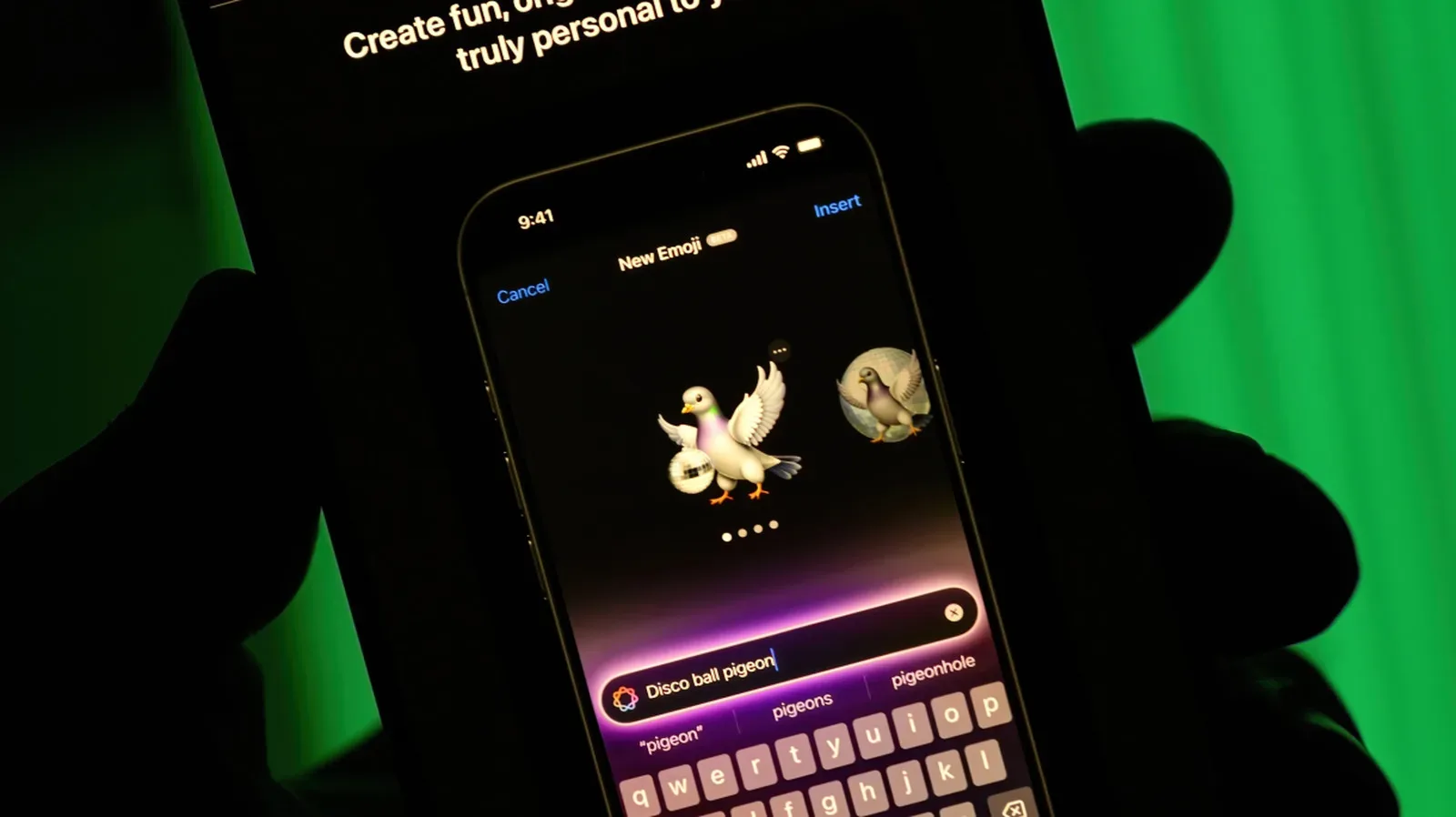
iOS 27 adds a significant creation aid on iPhones with Apple Intelligence: owners can build shortcuts by describing the desired result in ordinary language. This lowers the barrier for people who find the Shortcuts app difficult to manage. It does not remove the need to inspect what has been made. A routine intended to send an arrival estimate to a partner, for instance, should not be allowed to target the wrong person.
Home-focused shortcuts also sit within a larger question of what is actually useful and sustainable in a connected household. For a related look at the limits of another home-energy technology, see why a 1 kW home wind turbine depends heavily on local wind conditions.
How to choose the right assignment
A practical way to select an Action-button function is to ask three questions:
- What do I do often? Daily or frequent tasks gain the most from a dedicated press.
- What is difficult to reach when moving or distracted? Outdoor navigation, workout controls and accessibility commands often have a stronger case than options that are easy to find in a calm setting.
- What has the biggest consequence if delayed? Backtrack may be a better temporary choice for an unfamiliar hike than a convenience automation, while a Shortcut may be best for a dependable everyday routine.
The Apple Watch Ultra 4’s larger, tougher design, up-to-50-hour battery claim, satellite features and GPS accuracy all frame it as a watch for longer and more demanding use than a Series 12, which needs daily charging. The Action button complements that framing by placing a selected command under a tactile control. It is not an unlimited macro key, and it cannot run every command at once. But paired with Quick Switch and thoughtfully made Shortcuts, one orange button can be much more than a way to start a workout.