An Apple Watch is designed to make information hard to miss. That is useful when a glance at the wrist can save someone from digging out an iPhone, but it is less useful when the light of a waking display or an audible alert would be distracting. Theater Mode is Apple Watch’s straightforward answer for those moments: it makes the watch much less conspicuous without necessarily cutting the wearer off from every notification.
Despite its name, this is not a setting limited to cinemas. It is a consideration mode for situations in which a bright wrist display, a sound or a repeated wrist-raise activation could draw attention: a film, a stage production, a meeting, a presentation or a social occasion where someone wants to stay present. Its key compromise is particularly practical. Theater Mode can leave haptic alerts enabled, so notifications may still be felt as vibrations even while the watch stays dark and silent.
The feature arrived with watchOS 3.2. The supplied information indicates that even the original Apple Watch, first sold in 2015, can use it. That long support history matters because Theater Mode is not tied to a new sensor or a premium hardware trick. It is a device-behavior setting built around a simple question: when should the watch intentionally stop asking to be seen and heard?
What Theater Mode changes
When Theater Mode is active, the Apple Watch display is turned off, the device is silenced and visual notifications are disabled. It also stops the display from waking simply because the wearer raises their wrist.
That last part is central to the feature. Apple Watch normally treats a wrist raise as a request to see the screen. In a dark auditorium, however, that small automatic action can create a noticeable flash of light. Theater Mode removes that automatic wake behavior. To view the display again, the wearer must deliberately tap the screen or press one of the watch’s buttons.
In practical terms, the mode changes an accidental glance into an intentional interaction. The watch is still on the wrist, but it no longer reacts visually to ordinary movements. That distinction helps explain why it can be preferable to simply ignoring the device: the owner retains a direct way to check it, while people nearby are less likely to notice it.
Haptics are the important middle ground
Haptics are physical feedback signals, commonly felt as a vibration or tap on the wrist. Theater Mode can retain these alerts. So while a sound and an on-screen notification may be suppressed, a wearer may still feel that a notification has arrived.
This makes Theater Mode different from a setting intended for complete interruption-free silence. It is built for discretion rather than total disconnection. Someone waiting for a potentially important notification can reduce the chance of bothering others yet still receive a private cue.
Related coverage includes Apple Watch Theater Mode: What It Does and When to Turn It On.
That does not mean it is a perfect substitute for every quiet-mode setting. Anyone who does not want to be interrupted at all, including by a vibration, needs to make sure their preferred alert behavior matches that goal. Theater Mode’s value is that it can preserve the option of subtle awareness.
How to turn Theater Mode on and off
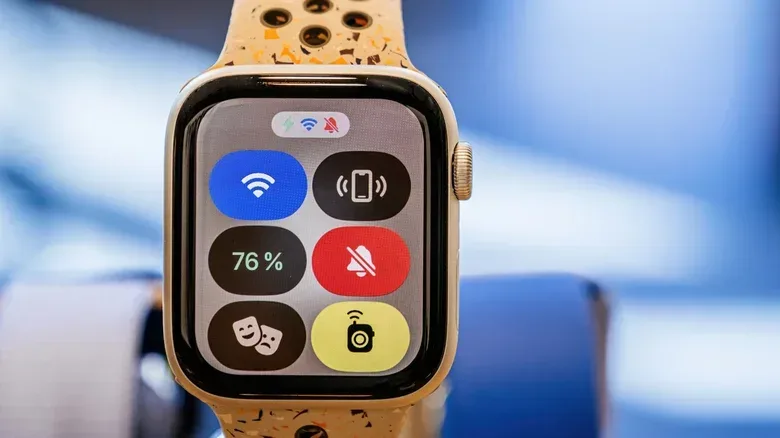
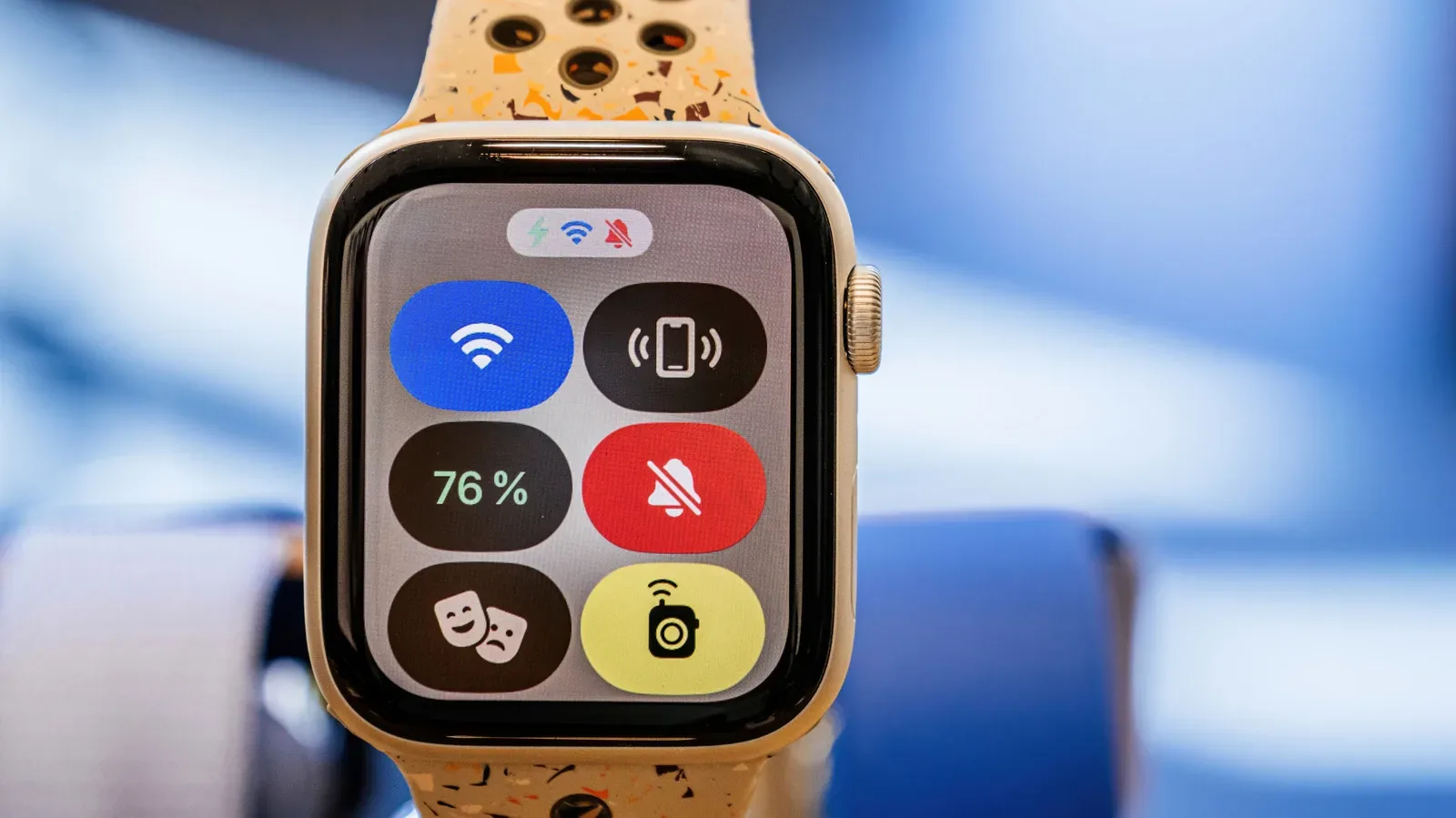
The control is available through the Apple Watch Control Center. The process is short:
- Press the side button, the flat oval button on the side of the watch, to open Control Center.
- Find the Theater Mode control, identified by an icon showing theatrical comedy and tragedy masks.
- Tap that icon to toggle Theater Mode on.
Once it is enabled, the watch should no longer wake its display on a wrist raise. Tap the display or press either Apple Watch button if you need to see the screen.
Turning it off requires returning to Control Center and tapping the masks icon again. This is an important operational detail: the supplied information does not describe automatic end conditions for Theater Mode. Unlike a setting that may be scheduled to stop after a duration or event, Theater Mode needs to be disabled manually.
That manual approach is sensible for a mode whose appropriate duration can vary widely. A movie has a defined runtime, while a meeting may overrun and a social event may have no firm endpoint. The trade-off is that it is easy to walk away with the mode still active. If an Apple Watch seems unusually unresponsive to wrist raises later in the day, Theater Mode is one setting worth checking.
When it makes sense to use it
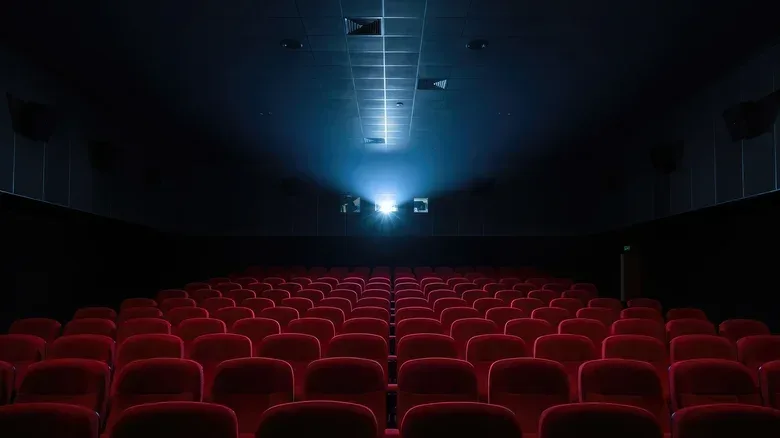
A cinema is the clearest example. Screens and audiences are sensitive to unexpected light, and a wrist display that wakes repeatedly can become visible even when its owner never intended to check it. Theater Mode prevents the raise-to-wake behavior that creates that problem while keeping deliberate screen access available.
Stage performances are an equally natural fit. The same applies to environments where people are meant to focus on a speaker, a discussion or the people around them. Meetings, presentations and formal gatherings can all benefit from a device that does not light up or make audible alerts during routine movement.
There is also a personal-attention use case. A person may want a watch to remain available for subtle notification feedback without having the screen continuously invite attention. That is different from declaring a period fully off limits to notifications. Theater Mode is useful precisely because it gives the wearer a quieter, less visually demanding default.
Theater Mode versus a total notification pause
Theater Mode is sometimes easiest to understand by contrasting it with Do Not Disturb. The supplied information describes Theater Mode as similar in purpose to Do Not Disturb, but not identical. Theater Mode darkens the watch and prevents automatic display wake behavior while allowing haptics to stay active. Its emphasis is on eliminating visible and audible disruption, not necessarily on blocking every private indication that something has happened.
This distinction has a real consequence when choosing a setting. If the priority is consideration for a room full of people while retaining a discreet way to know about alerts, Theater Mode is the more targeted tool. If the priority is no notification interruption at all, a more comprehensive silence-oriented setting may better match that intention.
The name can also cause an overly narrow interpretation. Theater Mode is not an entertainment feature and does not change video playback or create a special viewing interface. It is a behavioral toggle for the watch itself. The masks icon is a reminder of the social etiquette it supports, rather than a sign that it has to be used only in a theater.
A possible battery benefit, with the right expectation
Theater Mode can reduce battery drain because it stops the display from waking at the slightest wrist gesture. A display that does not turn on for routine movement has fewer occasions to consume power for that behavior.
It is best understood as a secondary benefit rather than the reason the feature exists. The main purpose is quiet, dim and distraction-reducing use. Battery savings will depend on how often the display would otherwise wake during a given period. Someone sitting still may notice little difference, while someone moving their arms often may prevent more unneeded wake events.
In either case, the setting offers an unusually clean trade-off: less automatic screen activity in return for needing to tap or press a button when information is wanted. For people who prefer intentional checks over constant ambient prompts, that can be useful well beyond an auditorium.
Biometric readings: check the settings that apply to your watch
The supplied information also notes that users can choose to suppress certain biometric readings, including blood oxygen readings, while Theater Mode is active. Biometric readings are measurements the watch takes from the wearer’s body. Where an applicable setting is available, it can be adjusted in Settings by selecting the relevant reading and choosing whether it remains on or off during Theater Mode.
The important practical point is to review those choices rather than assume Theater Mode automatically has one universal health-measurement behavior. The option described is conditional: it applies to readings and settings that are available on the watch. Anyone who relies on particular measurements should understand the effect of their chosen configuration before enabling the mode for extended periods.
That makes Theater Mode more flexible than a simple screen dimmer. It can serve as a short-term etiquette setting for a film, or as a broader low-interruption mode with choices about which device behaviors continue in the background.
A small control with a clear purpose
For Apple Watch owners, Theater Mode is worth remembering because it solves a familiar problem without demanding an all-or-nothing decision. It prevents automatic screen wake, silences the device and removes visual notifications. At the same time, its support for haptic alerts can preserve a private notification channel.
Its only notable habit to build is manual shutoff. Enable it from Control Center before a quiet event, use a tap or button press whenever a screen check is genuinely needed, then return to the masks icon when normal wrist-raise behavior is wanted again. For other home-screen and display considerations, the difference between connection options can matter too, as explored in this guide to Smart TV Wi-Fi and Ethernet choices.