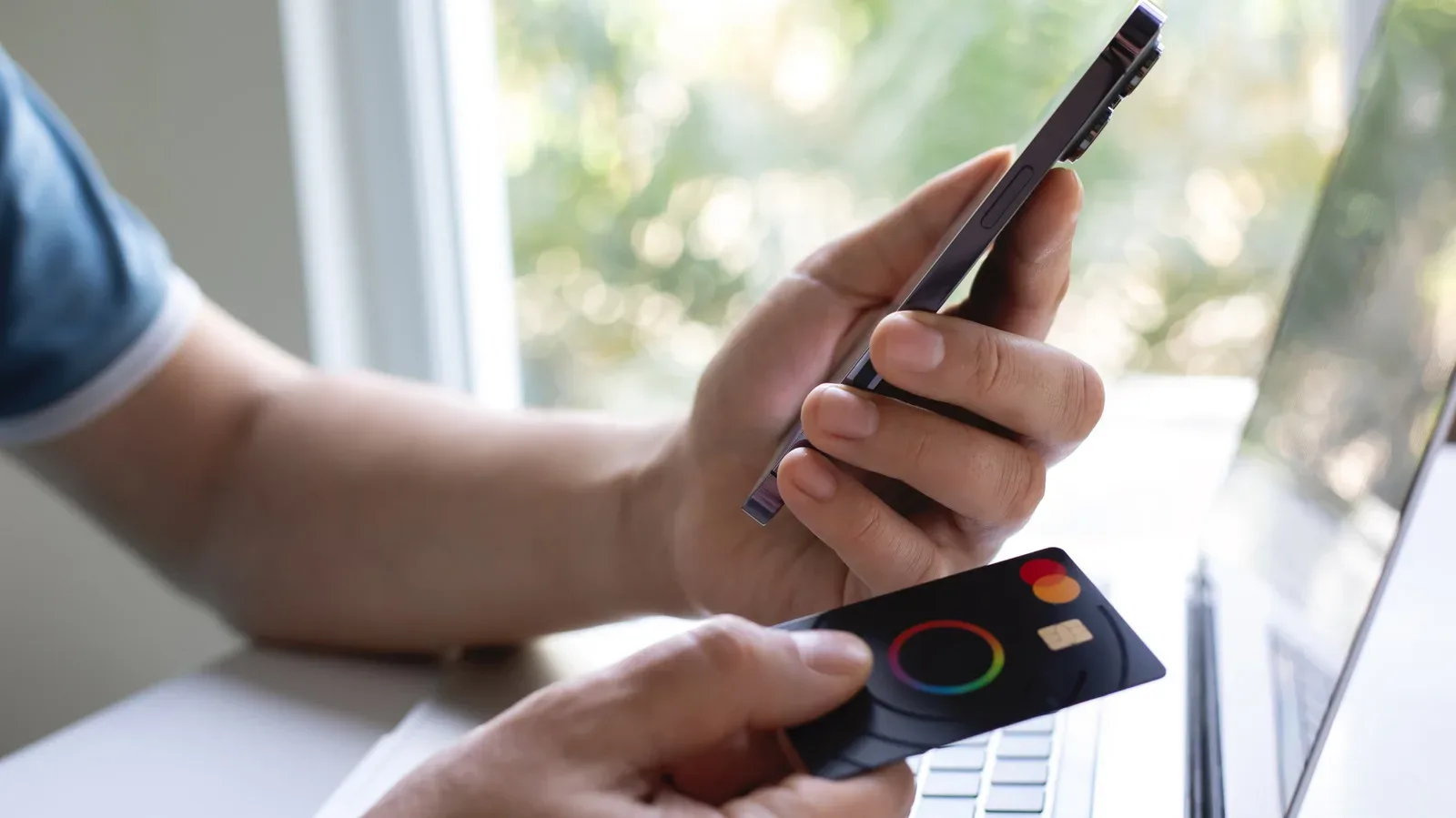
Apple Wallet is built for the sort of everyday moments that move too quickly for troubleshooting: a transit gate, a checkout terminal, an airport line, or the venue door just as the opening act starts. It can keep payment cards, boarding passes, tickets, loyalty items and transit cards close at hand on an iPhone. That convenience also makes a failure feel disproportionately dramatic. A message that a payment cannot be completed can turn a two-second tap into an impromptu side quest.
The useful news is that many Wallet problems have a fairly ordinary cause. A card may have expired, been replaced by an issuer, or lost its connection to the information held by the bank. An iPhone setting, regional configuration, software version, account-security requirement or temporary service disruption can also get in the way. Rather than changing every setting at random, take a methodical route from the most likely fixes to the more situational ones.
This guide focuses on common Apple Wallet and Apple Pay issues without assuming that every failure is caused by the phone. A declined payment may still be an issuer decision, and a pass that refuses to appear in Wallet may simply come from a provider that does not support it. Keeping that distinction in mind saves time—and reduces the temptation to blame the nearest piece of glass.
Start by refreshing the payment card
If one particular debit or credit card has suddenly stopped working in Apple Wallet, remove it and add it again. This is especially sensible when the physical card has recently expired, been renewed, reissued or replaced. Wallet can occasionally retain older card details when an issuer has moved things behind the scenes.
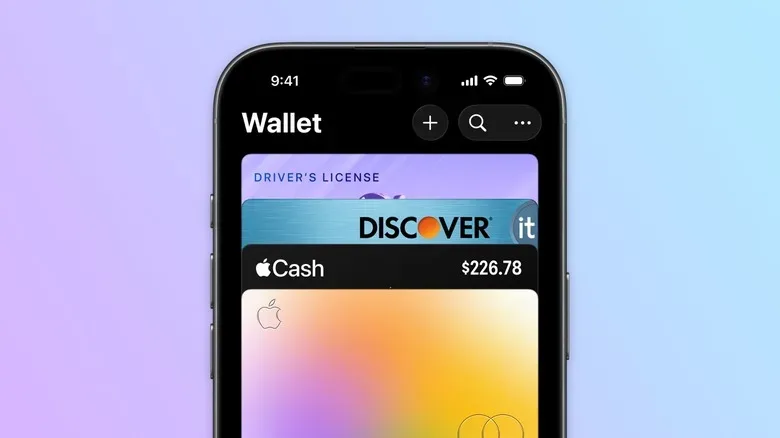
To remove the affected card, open Wallet and select it. Tap the three-dot menu, choose Card Details, scroll to the bottom, and select Remove Card. Then return to Wallet’s main screen, tap the Plus (+) button, and choose Debit or Credit Card to add it back.
Re-enrollment is not always entirely automatic. A bank or card provider may require confirmation through its own app, by text, or via a phone call. That extra verification is a security measure, not necessarily another sign that Wallet is broken. Have the relevant banking app and account-access details ready before you begin.
If the card has never been accepted for Apple Pay, do not keep repeating the same enrollment attempt indefinitely. Confirm that the card issuer supports Apple Pay for that particular card and in the country or region tied to the account. Support can differ among banks, card types and locations.
Separate a declined purchase from a Wallet failure
A declined payment does not automatically mean Apple Wallet itself is malfunctioning. The bank may have declined the transaction because of available funds, fraud controls, spending limits, an account issue, or a merchant-side condition. If the same card fails repeatedly while other Wallet cards work, that points more strongly toward the card issuer or its Apple Pay provisioning than toward the iPhone’s contactless hardware.
Conversely, if no cards work and the issue began suddenly, it is worth moving on to device settings, an iOS update, and service availability. The key is to notice whether the problem follows one card, one merchant, or the entire Wallet setup.
Update iOS before chasing obscure explanations
Software that is out of date can produce strange behavior in features that otherwise seem unrelated. Check for an update by going to Settings > General > Software Update. Installing an available iOS update may resolve bugs, compatibility problems or other issues affecting Wallet. Wallet-related capabilities can also change as iOS evolves, so keeping the operating system current is worthwhile beyond this single troubleshooting job.
Before installing an update, make sure the iPhone is charged or connected to power and has a suitable network connection. If you prefer a belt-and-suspenders approach to your Apple devices, a local backup is a useful precaution; our guide to using Time Machine for local Mac backups explains why having a copy outside cloud storage can be helpful.
After an update, try the card or pass again before adjusting multiple other options. Making one change at a time gives you a clearer sense of what solved the issue.
Check the iPhone’s region and supported services
Apple Pay and Apple Cash are not available everywhere, and participating banks vary by region. This becomes particularly important after international travel, a move to another country, or a device setup that carried over an incorrect locale.
On the iPhone, go to Settings > General > Language & Region and review the Region setting. It should reflect the location in which the device and payment services are being used. The region setting alone cannot grant support where a service or issuer is unavailable, but an incorrect setting can contribute to confusion and setup trouble.
It is also worth consulting Apple’s official list of supported countries, regions and participating banks. This is the quickest way to establish whether a specific feature is meant to work in the relevant location. It is better to verify the basics than to spend an afternoon performing ritual restarts while the real answer is that a particular service is not offered there.
Make sure payment security is enabled
Apple Wallet holds sensitive payment and identity-related information, so iPhone security settings matter. Face ID or Touch ID needs to be appropriately enabled for contactless payments. On a Face ID-equipped iPhone, open Settings > Face ID & Passcode and verify that Contactless & Payments is switched on. Devices using Touch ID have corresponding security and payment options in Settings.
If this option is disabled, Wallet can fail at the exact point where the phone should authenticate a payment. Enable it, lock the phone, then attempt the normal Apple Pay gesture again. Be sure that the phone can recognize your face or fingerprint reliably as well; a payment flow cannot finish if device authentication cannot begin.
Two-factor authentication on the Apple Account is another important layer. It helps protect the account connected to Wallet and may be necessary for certain account functions. If it is not already enabled, sign in to the Apple Account management page and follow the available two-factor authentication setup steps. This will not fix every declined transaction, but it is a sound security measure for an account that may hold payment-related data.
When tickets, QR codes and passes will not add
Not every QR code is an Apple Wallet pass, and not every organization offers an Add to Apple Wallet option. A concert ticket, gym membership, event credential or travel document can be perfectly legitimate while still lacking Wallet compatibility from its provider. In that situation, repeatedly pressing an absent button is unlikely to summon it into existence.
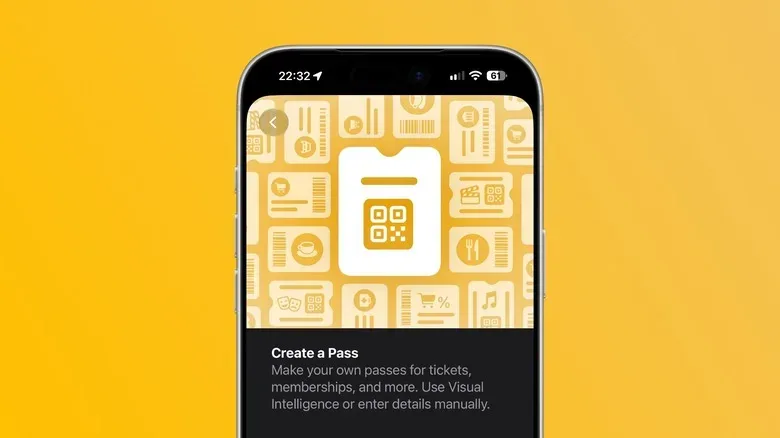
Some third-party tools, including IntoWallet, can create an Apple Wallet-style pass from an existing QR code. These work around the lack of direct issuer support by generating a pass that can be stored in Wallet. Users should be cautious with any service that processes tickets or codes: review what information it requests and consider whether the issuer’s own app remains the safer or required way to present the item.
iOS 27 is described as including built-in pass-generation functionality, which would remove the need to install a separate app when manually creating passes from QR codes. Availability and behavior can depend on the iOS version installed and the specific type of pass involved, so do not assume every QR code will behave like an official airline boarding pass or venue ticket.
Restart the iPhone and check for a wider outage
A restart is not glamorous, but it remains a sensible late-stage step after checking the card, settings and software. Restart the iPhone, unlock it, and test Wallet again. This can clear temporary processes that are behaving poorly without requiring a more disruptive reset.
If the issue is widespread—especially if Wallet or iCloud appears unavailable, cards will not load, or setup cannot complete—the cause may be outside your phone. Check Apple’s System Status page for reported interruptions affecting Wallet, Apple Pay, iCloud or associated account services. During an outage, removing cards, changing region settings or reinstalling apps may accomplish very little. Waiting for the service to recover is often the only genuine fix.
For travel days, large events and any situation where payment is essential, treat the physical card as a backup rather than a relic. Digital convenience is excellent; redundancy is better.
A quick order of operations for Wallet problems
- Identify whether one card, all cards, or a specific pass is affected.
- Remove and re-add a card that was replaced, renewed, expired or suddenly stopped working.
- Complete any bank or card-provider verification required during re-adding.
- Check for an iOS update in Settings.
- Confirm the iPhone’s region and that the service and issuer are supported there.
- Verify Face ID or Touch ID payment authorization, including Contactless & Payments.
- Ensure two-factor authentication protects the Apple Account.
- For tickets and QR codes, confirm issuer compatibility before seeking a pass-generation workaround.
- Restart the iPhone.
- Review Apple’s System Status page for an outage, and use a physical card if necessary.
That sequence covers the most probable friction points without turning troubleshooting into a full device rebuild. If a card remains unusable after it has been removed and re-added, while the iPhone is updated, properly configured, and not affected by a known outage, the card provider is the most appropriate next contact. Wallet can carry the card, but the issuer still controls whether that card is authorized for payments.