Cloud storage is useful, but it is not the only way to keep a Mac’s files safe. For players with screenshot folders, recorded clips, save-related documents, mod archives, emulator setups, creative projects and the usual mountain of everyday files, subscription storage can become crowded surprisingly fast. macOS includes a long-running answer to that problem: Time Machine, the built-in tool for creating local backups.
The key distinction is simple. A cloud service is designed around remote access and syncing, while Time Machine is designed around recovery. It copies the contents of a Mac to a backup destination, usually an external hard drive or SSD, then keeps updating that record over time. If a file is deleted, damaged or replaced by an ill-advised revision, Time Machine can help retrieve an earlier copy. It can also be used to bring back an entire Mac environment after a drive failure or while moving to another Mac.
That does not make cloud storage obsolete. Anyone who needs a document on several devices, or who wants files reachable while away from home, may still value it. But for large local libraries that do not need to live online, Time Machine can reduce the pressure to buy more space merely to have a safety net. Apple’s free iCloud tier is 5GB, and even its 50GB plan at $0.99 per month can be restrictive once photos, videos, device backups and desktop-sized files all compete for room.
For a gaming household, local backup has another virtue: it separates the recovery plan from the upload queue. Massive capture folders and project files can take time to move anywhere. A dedicated drive beside the Mac is a straightforward place to maintain a recoverable copy, provided the drive itself is treated with care.
What Time Machine actually saves
Time Machine can back up apps, photos, video, documents and other data stored on a Mac. The initial run may take a while because it has to build the first complete backup. Later runs are generally shorter because the tool records changes rather than starting from zero each time.
Its most valuable feature is version history. Time Machine does not merely retain the current state of a file. It preserves earlier versions as files change, giving users a way to step back through time. That is helpful for more than catastrophic hardware trouble. A spreadsheet can be restored before an accidental overwrite; a draft can be recovered before a bad edit; a folder can be returned after an accidental cleanup that became a little too enthusiastic.
By default, Time Machine backs up hourly. In macOS, users can change that cadence to daily or weekly. The setting is found at System Settings > General > Time Machine > Options. That same Options area can exclude folders or volumes that do not belong in the backup. Exclusions are worth considering for files that are easily re-downloaded, temporary material or content whose size would make a backup drive fill faster than intended.
Backup frequency is a trade-off, not a universal contest with one winner. Hourly protection offers more restore points for an active machine, while daily or weekly backups may make sense for a Mac that sees lighter use. The important part is choosing a schedule that will actually run and keeping the destination drive available often enough for that schedule to be meaningful.
Choose a drive with recovery in mind
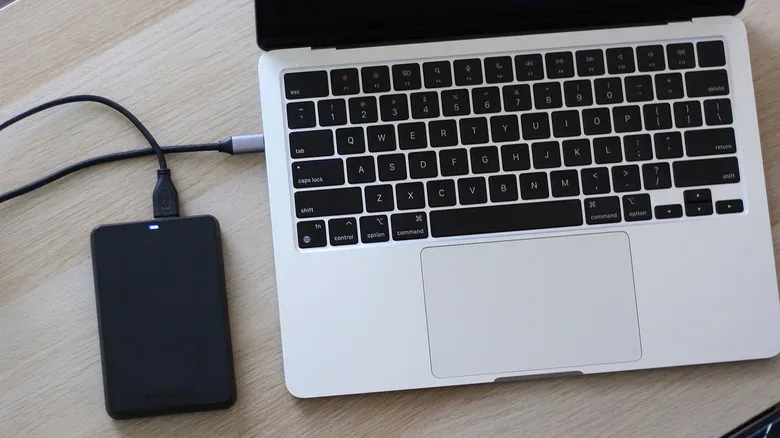
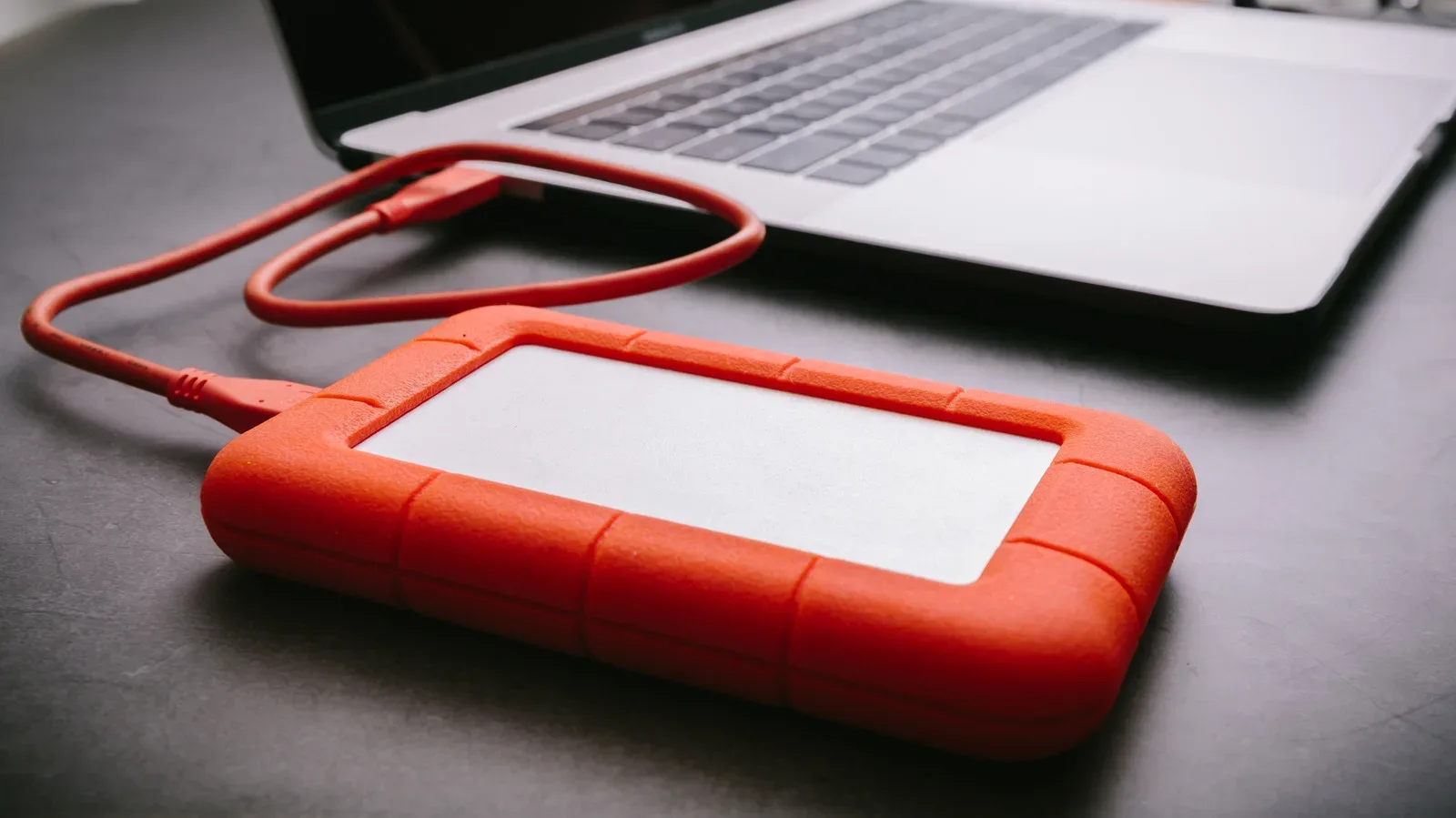
Time Machine can work with part of a Mac’s internal drive if the drive is partitioned, but an external drive is the safer choice. A backup stored on the same physical storage as the original data may not help much if that internal drive fails. An external destination creates useful separation between the Mac and its backup.
Apple recommends a backup drive with at least twice the capacity of the Mac’s internal storage. That guidance gives Time Machine room to keep multiple versions over time rather than immediately having to discard the oldest history. Capacity needs will vary with how much data is actually in use, but buying too little space can shorten the useful window for recovery.
Both conventional external hard drives and portable SSDs can serve the purpose. SSDs have substantially faster transfer speeds, which can be appealing for large initial backups and frequent updates. An older hard drive that is still serviceable can also be a sensible dedicated backup device. For long-term archival storage, a traditional hard drive may have an advantage in one particular scenario: SSDs can lose data if left unpowered for an extended period.
The drive needs to use the APFS file system for Time Machine. That decision comes with a compatibility consequence. An APFS-formatted drive is not natively usable with Windows. If the same physical drive must also carry ordinary files, it would need to be partitioned on the Mac, although mixing general storage and backups is not the recommended setup. A dedicated backup drive is simpler to manage and removes the temptation to delete or rearrange backup data to make room for something else.
Before committing a drive, consider its job. Is it a regularly connected Time Machine destination, a long-term archive, or a general transfer disk shared between systems? One device can sometimes be divided between roles, but a drive with one clear responsibility is less likely to become a chaos goblin full of mystery folders and irreplaceable backups.
Set up Time Machine in macOS
The setup process is short once the external drive is connected. Open System Settings, select General, then choose Time Machine. From there, select Add Backup Disk, choose the connected external drive, and click Set Up Disk.
- Connect the external hard drive or SSD to the Mac.
- Go to System Settings > General > Time Machine.
- Select Add Backup Disk.
- Choose the desired external drive and select Set Up Disk.
- Decide whether to encrypt the backup, then finish by selecting Done.
If the selected drive is not already formatted as APFS, macOS can present a prompt to format it. That can be completed in a click, but formatting erases the drive’s existing contents, so any files worth keeping should be moved elsewhere first.
Encryption is an important choice rather than a decorative checkbox. An encrypted backup is protected with a password, which is valuable if the portable drive is lost or stolen. But the password will be needed later to access and restore the backup. Store that credential somewhere dependable. A beautifully encrypted backup whose password has vanished is secure in exactly the least helpful way.
After setup, the first backup begins automatically. The duration depends on the amount of data on the Mac. It might be completed in minutes on a lightly used machine, or take more than an hour when there is much more to copy. That first wait is normal. Subsequent snapshots should be quicker because Time Machine is updating its history.
Finding an older file when something goes wrong
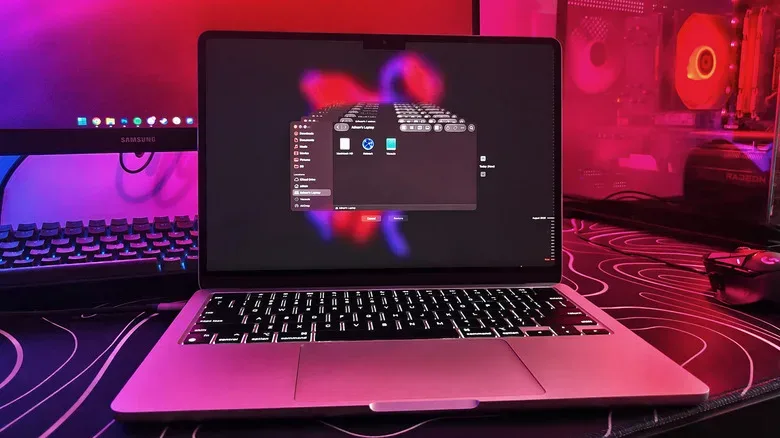
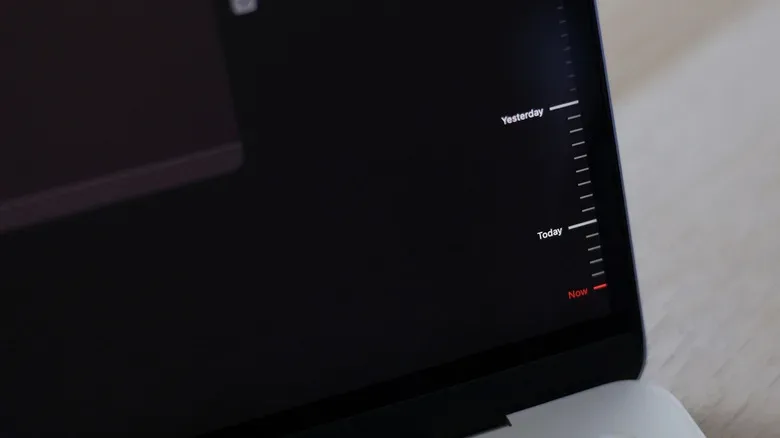
When a file needs to be recovered, connect the Time Machine drive if it is not already attached. Open Finder and look for the backup drive under Locations in the sidebar. Choose Enter Time Machine, select the appropriate backup point, locate the file or folder, then choose Restore.
The history is organized around a rolling retention pattern. With hourly backups enabled, Time Machine keeps hourly restore points for the previous 24 hours. Daily backups cover the prior month, and weekly snapshots extend into the months before that. It is a practical system for both sudden mistakes and slower discoveries. A document changed this afternoon may have an hourly version available; something noticed several days later may require looking at a daily or weekly entry.
Eventually, every backup drive fills. Time Machine handles that by removing the oldest weekly backups to create space for newer ones. This automation means users do not have to constantly curate snapshots, but it also means the recovery history is finite. If a file matters enough to preserve indefinitely, it should not exist only inside an aging backup rotation. Keep a deliberate copy elsewhere as well.
A backup is not the same thing as a sync plan
Time Machine is strongest as a local recovery tool, not a substitute for every cloud feature. It does not inherently mean a file is available from any computer at any time. If remote access and multi-device collaboration are priorities, cloud storage still fills a different role. The practical approach can be a split strategy: retain cloud space for the smaller group of files that need syncing, and let Time Machine handle the broad local safety copy.
That distinction is especially useful when organizing digital collections. Keep an orderly folder structure, avoid relying on a single copy of valuable scans or inventories, and remember that a backup drive needs to be connected for fresh external backups to occur. When disconnected, Time Machine stores snapshots locally on the Mac until the external drive returns. Connect it regularly so those changes can be written to the backup destination.
Players maintaining older software, collection records or reference images can also build a more resilient routine around backups and file organization. For a separate check on preserving and verifying game-related materials, see these photo checks for retro game listings.
Full-Mac restoration makes the tool more than a file vault
Individual-file recovery is only half the appeal. Time Machine can also restore an entire Mac from a backup. That matters when an internal drive fails, or when moving to a new computer while wanting to bring apps, settings and files along. Instead of treating a replacement machine as a blank slate, a Time Machine backup can serve as the basis for returning to a familiar setup.
There are limits to every local strategy: the external drive can fail, be misplaced or suffer the same disaster as the Mac if both live in the same vulnerable location. Still, a regularly maintained Time Machine drive adds a substantial layer of protection without requiring every byte to fit into an online subscription. For Mac owners who mainly need dependable restoration rather than universal access, that built-in utility remains one of the most useful tools already sitting in macOS.