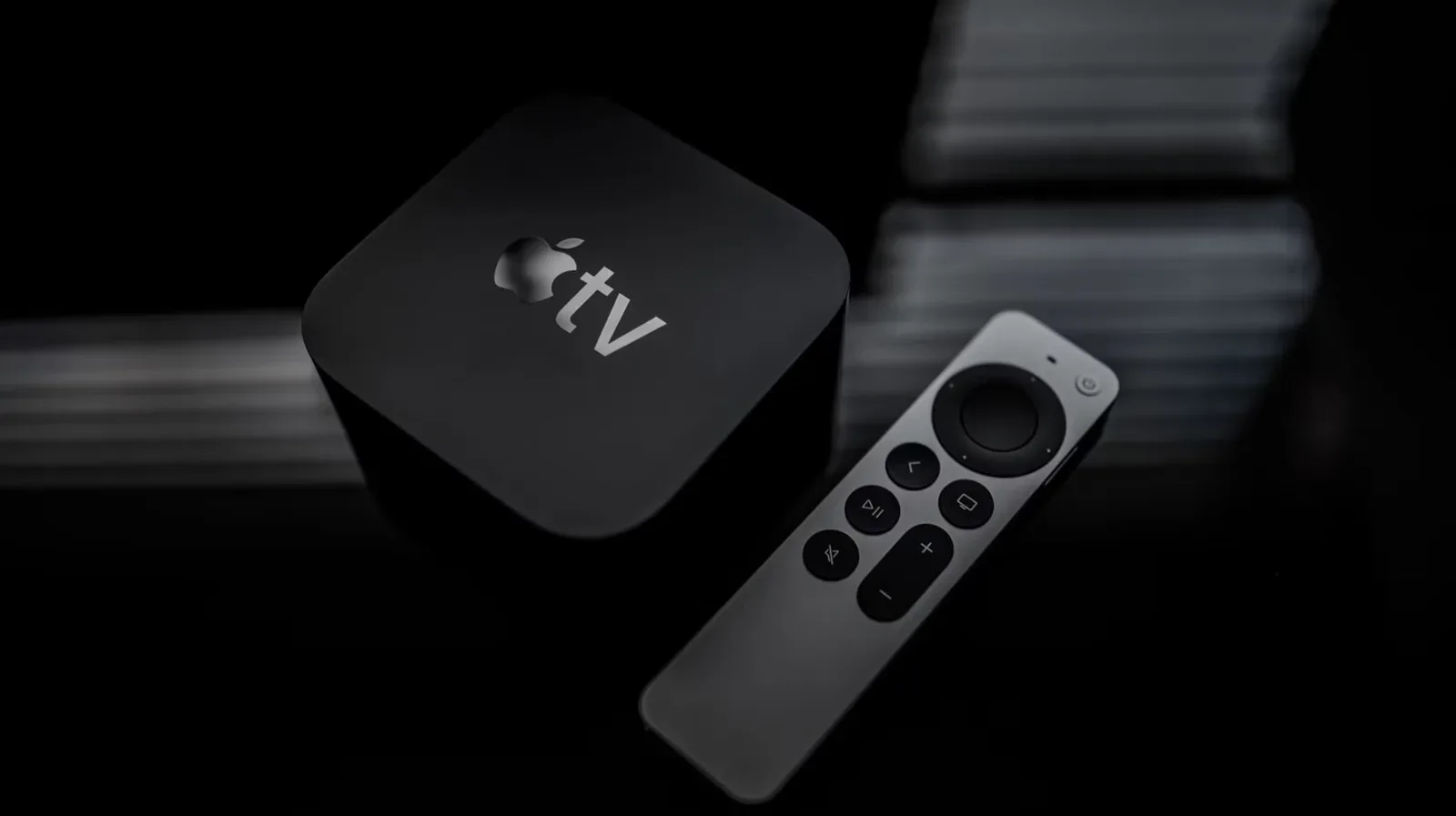
The Apple TV remote is small enough to disappear into a sofa and simple enough that many people use only a handful of its controls: directional navigation, select, back, play/pause and the button marked with a TV. That basic approach works, but it leaves several useful tvOS actions buried behind long presses, double presses and clickpad gestures.
Those shortcuts matter most when the television experience stops being passive. An app locks up during a show, the sound needs to move to another available speaker, a password has an inconvenient capital letter, or a viewer needs to find an exact moment in a video. None of these situations requires a deep trip through every system setting. The remote can handle them directly, provided the relevant button combination is familiar.
Here is a practical rundown of the Apple TV remote actions worth committing to memory, along with what each one is actually useful for.
Know the TV button: tap versus hold
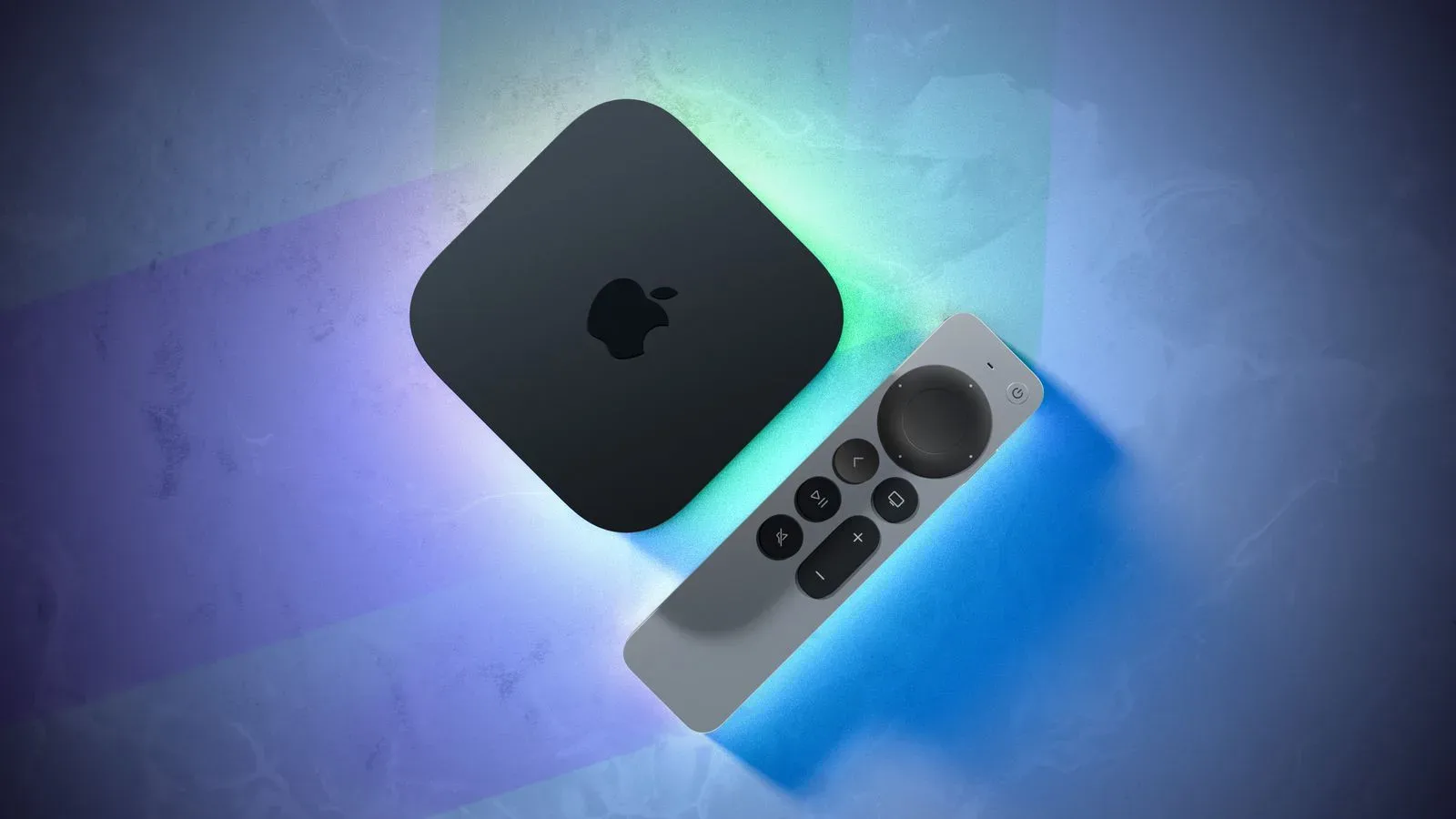
The remote’s button with a TV icon, generally positioned on the right above the volume controls, is the key to two different functions. The distinction is simply how it is pressed.
For more context, explore New York Comic Con 2026 Cosplay Highlights Put Game Icons, Kaiju and Crossovers on One Floor.
- Double-press the Home/Control Center button to open the screen that shows currently open apps.
- Press and hold the Home/Control Center button to open Control Center.
That small difference is worth learning because these are separate jobs. The app view is for dealing with software that is already running. Control Center is the quick-access panel for device and household controls, including audio output, network options, Bluetooth controllers and the smart-home dashboard.
In other words, double-pressing is the “what is open?” action, while a long press is the “what can I change?” action. Thinking of them that way helps avoid the common hunt through menus when the remote already has a direct route.
Close a frozen or misbehaving app
When an Apple TV app glitches, becomes unresponsive or simply seems stuck, force quitting it can be the straightforward reset. Double-press the Home/Control Center button to bring up the open-app windows. Use the clickpad buttons to move between those windows, highlight the troublesome app, then swipe upward on the center of the clickpad.
The interaction resembles app switching on an iPhone or iPad: the app is visible as a card-like window, and an upward swipe dismisses it. The practical benefit is clear when a streaming app has frozen or is behaving strangely. Rather than turning the issue into a broader navigation exercise, the viewer can close that individual app and return to it afterward.
Closing apps also frees computational resources. That is a secondary benefit, but it reinforces why the app window view is more than an emergency tool. It provides a quick visual check of what remains open.
Use Control Center to change where sound plays
Audio is one of the most useful reasons to open Control Center. In homes with multiple available speakers, switching output can otherwise feel like a detour right when a film, match or game stream is about to begin.
Press and hold the Home/Control Center button, then select the Audio Controls icon. The Apple TV will list the available speakers; choose the one you want from that list.
Audio source in this context means the speaker destination for Apple TV sound. It is not a change to the program itself. The video can remain on screen while the output is redirected to a different available speaker. That makes the shortcut particularly helpful for a quick adjustment rather than a full setup session.
Control Center does more than audio
Once open, Control Center also provides quick access to the wireless network, Bluetooth-controller connection options and a smart-home dashboard. The exact reason for entering the panel will vary, but the muscle memory should remain the same: press and hold the TV-icon button.
The Bluetooth-controller option is especially notable for anyone using Apple TV beyond video apps. A controller can be a more natural input method than the Siri Remote for compatible games, while Control Center keeps the connection-related route close at hand rather than hidden in a longer chain of settings.
Turn the clickpad into a precise video timeline control
The remote’s clickpad is not only for moving among tiles and buttons. During playback, it can act as a timeline controller for moving backward and forward through video.
First press Play/Pause. Then slide a finger left or right across the clickpad to rewind or fast-forward. Circular movements on the clickpad can also be used to scrub in either direction.
Scrubbing means moving through a video’s timeline with fine control instead of relying on a fixed skip interval. It is useful when the goal is not merely “go back a bit,” but “find the sentence, goal, scene or on-screen detail that just passed.” The circular gesture offers an alternative way to make those incremental movements.
Owners of older Siri Remote models without the newer clickpad are not excluded from this control style. The touch surface at the top of those remotes can be used for the same kind of playback navigation.
Make on-screen text entry slightly less dreadful
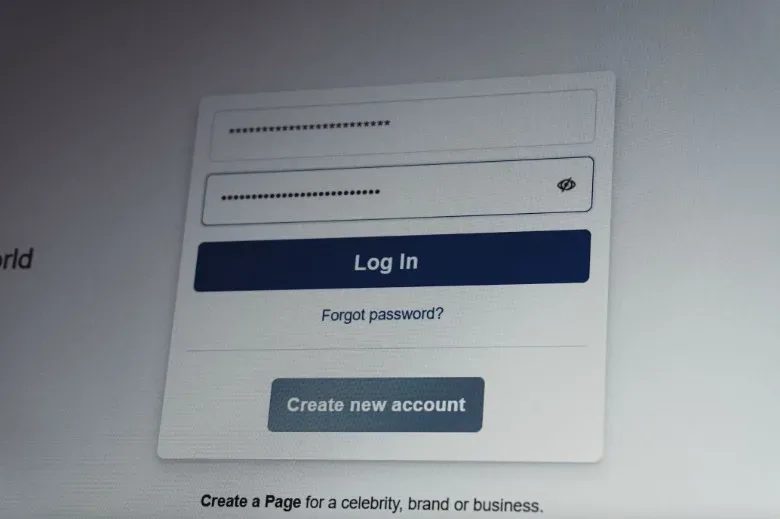
Entering passwords or searches with a TV remote is never likely to become anyone’s favorite activity. Still, there is a concise shortcut when text entry calls for a capital letter: press Play/Pause while typing to switch between lowercase and uppercase characters.
It is a small feature, but small is the point. On-screen keyboards turn every unnecessary movement into friction. Being able to change case without manually navigating to a different keyboard state can reduce the number of clicks required for a password or other short entry.
This is also a good reminder that the Play/Pause button has a context-sensitive role. During a program it controls playback; during text input it can switch the letter case. The remote is using the same physical control for the job currently on screen.
Enable spoken navigation with VoiceOver
VoiceOver is Apple’s spoken-feedback system. When enabled, it reads menus and descriptive text aloud as the user navigates tvOS. It is found in the Accessibility settings.
Its primary purpose is to support people with vision impairments, but the functionality can be useful to anybody who prefers or benefits from audible confirmation while moving through menus. The important distinction is that VoiceOver is not simply a spoken assistant for commands. It is a navigation feature that vocalizes interface information and descriptive text as focus changes.
Because it changes how menu navigation is presented, VoiceOver is best approached as an intentional accessibility preference rather than an accidental toggle to leave on. For the people it is designed to help, however, spoken interface feedback can make the Apple TV menu system substantially more accessible.
Start a screen saver on demand
tvOS includes screen saver imagery and can also use personal cloud photos as screen savers. Normally, a screen saver appears after the Apple TV has been idle. The remote offers a manual shortcut when there is no desire to wait.
Double-press the Back button to bring up the screen saver. On older remotes, that control may be labelled as the Menu button; it is the button identified by a right-pointing triangular symbol.
This is a convenience action rather than a system fix, but it makes the screen saver a choice rather than a timer-dependent event. Whether the display is being left briefly between sessions or the viewer simply wants the imagery visible, the double press provides the direct route.
A compact cheat sheet for the remote
- Double-press TV/Home-Control Center: View open apps; swipe up on an app window to force quit it.
- Hold TV/Home-Control Center: Open Control Center for audio output, wireless, Bluetooth controllers and smart-home options.
- In Control Center: Select Audio Controls to choose from available speakers.
- During playback: Press Play/Pause, then slide across the clickpad or make circular motions to scrub the timeline.
- During text entry: Press Play/Pause to switch lowercase and uppercase characters.
- In Accessibility settings: Enable VoiceOver for spoken menu and descriptive-text feedback.
- Double-press Back/Menu: Start the screen saver immediately.
The remote does not need more buttons to offer more control; it needs a few gestures that are easy to forget because they are not printed on its surface. Once the TV-button hold, TV-button double press and Back/Menu double press become familiar, routine Apple TV tasks become much shorter detours.