Few router notifications create instant household paranoia quite like “a new device has connected.” The name may be a jumble of letters and numbers, an unhelpful “unknown,” or something that sounds nothing like the phone, console, tablet or smart-home gear sitting in the room.
The good news is that an unfamiliar label is not, by itself, proof that somebody has wandered onto your Wi-Fi. Router and gateway apps do not always identify devices clearly, in part because devices use privacy and safety features that can make those labels less useful. The bad news is that a genuinely unrecognized device deserves a calm, methodical check rather than a shrug.
The sensible order is simple: inspect the connected-device list, identify your own equipment by its MAC address, block a device only after confirming it is not yours, and change the Wi-Fi password if unauthorized access is possible. Then secure the router’s administrator account, wireless settings and firmware so the same problem is less likely to return.
Start by treating “unknown” as a question, not a verdict
Most internet service provider gateways and separately purchased routers offer a companion app, and many of those apps notify the account owner when something new joins the network. Open that app and find the device inventory. The wording varies by brand, but useful menu labels commonly include Connected Devices and Attached Devices. Some lists separate devices that are connected now from those seen recently, which is helpful context when investigating.
A browser-based router dashboard can provide the same kind of list. This route generally requires the administrative login for the router, modem or gateway. That administrative credential can be different from the password used to connect phones and computers to Wi-Fi. If the dashboard is unfamiliar, the instructions for the specific ISP equipment or router model are the right reference, because menu names and layouts are not universal.
Before changing anything, make an inventory. Look through every listed entry and account for the obvious candidates: household phones, computers, game systems, tablets and any other devices that connect wirelessly. If an app permits renaming devices, use it. A list that says “Sam’s phone,” “living-room console” or “guest tablet” is much more useful next month than a list full of generic hardware strings.
It is worth doing this when there is no active security scare. The next time a notification arrives, the task becomes identifying one new item rather than reconstructing an entire household’s device lineup under pressure.
Use MAC addresses to make the match
The key detail for checking an unclear entry is its MAC address. In this context, a MAC address is an identifier associated with a device’s network connection. Router device lists often show it even when their friendly name for the device is vague or wrong. Matching the router’s listed MAC address to the address displayed by a phone or other device is more reliable than guessing from a label.
Related coverage includes How to Find and Block Unwanted Devices on Your Home Wi-Fi.
That distinction matters. An Android phone belonging to a friend might appear in the router app as an opaque identifier instead of a recognizable Android name. Blocking it immediately could lock out a legitimate guest or household device, creating a needless recovery job. Conversely, a name that appears familiar should not be accepted on name alone if the address does not match anything in the home.
Where to look on phones
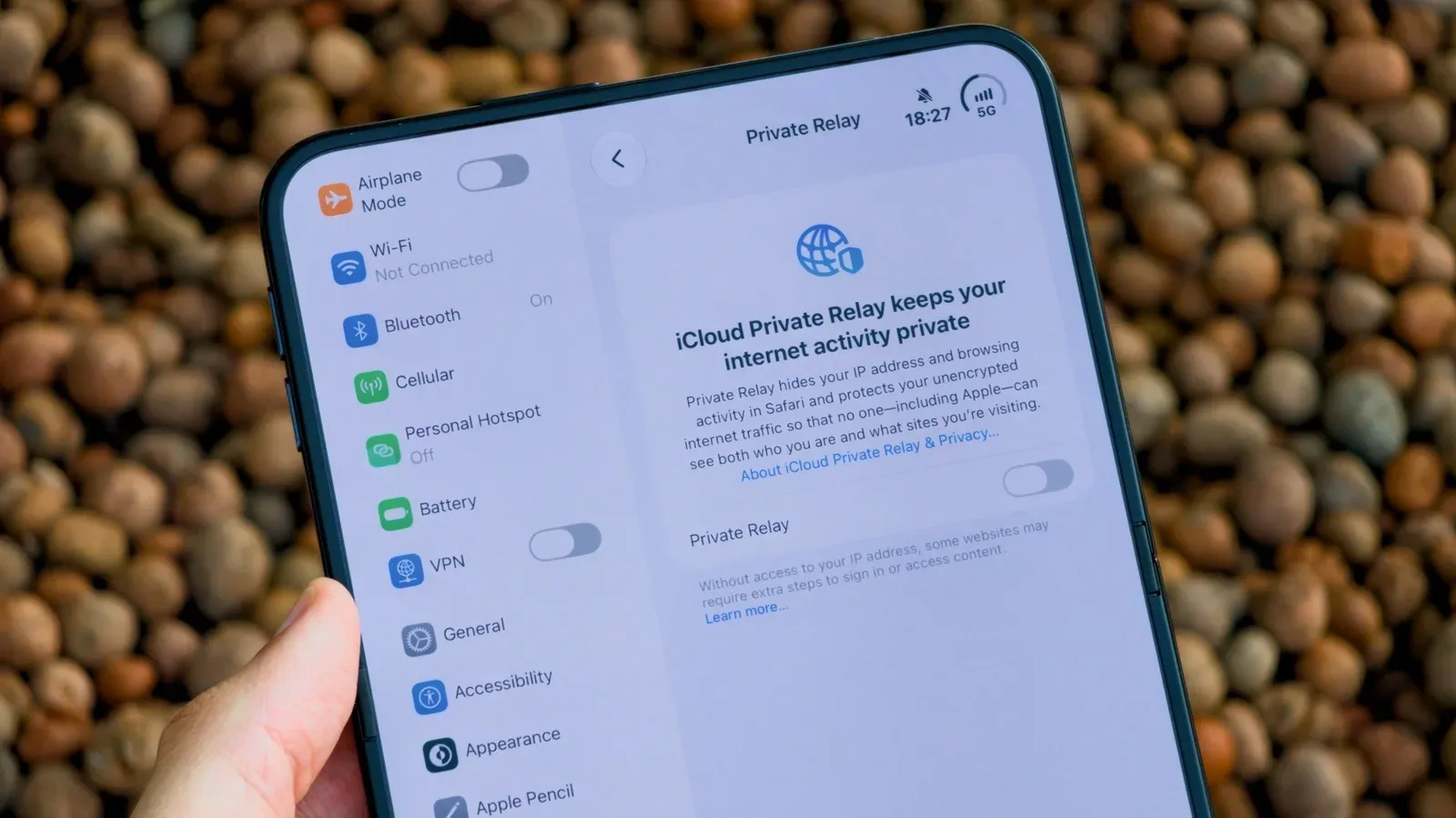
On an iPhone, the Wi-Fi address can be found through Settings > Wi-Fi Network > Wi-Fi Address. On many Android phones, look in Settings > About Device > Status Information or Hardware Information. The exact phrasing may differ among Android models, but the aim is the same: compare the phone’s Wi-Fi/MAC address with the address associated with the questionable router entry.
Work through devices one at a time. If an entry’s MAC address matches a device you control, rename it in the router app if possible. If you cannot match it after checking the devices that should be present, keep it marked as suspicious rather than blocking random entries. The person administering the network needs to remain careful not to block the very phone or computer they are using to access the controls.
That last point is more than a minor inconvenience. It is easy to click the wrong item in a crowded list, especially when multiple devices are shown with similar strings. Verify the selected MAC address and the action being applied before confirming it.
Block, remove and pause are not interchangeable
Once a device is confirmed as unwanted, open its entry in the router or gateway controls and look for a permanent access restriction. Depending on the equipment, the option may be called Access Control, MAC Filtering, Block or something similar. On Netgear routers, for example, the cited path is Advanced > Security > Access Control. Other models place the same concept elsewhere, so use the model-specific instructions when the labels do not line up.
Read each option carefully. Router interfaces frequently offer actions that sound alike but do different things:
- Pausing generally stops a device’s access temporarily; it is not necessarily a permanent denial.
- Removing an entry from a list does not necessarily prevent that device from reconnecting.
- Blocking or an enabled access-control rule is the setting intended to deny that identified device access.
This is a practical distinction, not menu-label trivia. If the goal is to stop a known unwanted device from using the network, select and enable the blocking feature rather than assuming deletion or a temporary pause has solved it.
Still, blocking one device should be viewed as containment, not the complete response. If an outsider joined because they know the Wi-Fi password, they may be able to return using another device. The stronger immediate response is to change the Wi-Fi password once there is reason to believe it has been shared, guessed or otherwise exposed.
Change the Wi-Fi password—and the router administrator password
Give the Wi-Fi network a new, unique password and save it securely. A Wi-Fi password should not be reused elsewhere. The immediate trade-off is expected: every legitimate household device that used the old password will need to join again using the new one. That extra work is preferable to leaving a credential in place when its confidentiality is in doubt.
If writing the password down is the only realistic way for a household to retain it, store the written copy somewhere accessible only to trusted family members. The router itself and a computer screen are poor choices. A password displayed beside the equipment it protects is effectively an invitation to anyone who can physically see it.
There is a second credential that should not be forgotten: the administrator password for the router or gateway settings. Changing the Wi-Fi password does not change that administrative password. These protect different things. The Wi-Fi password controls joining the wireless network; the administrator password protects access to settings such as device controls and wireless security. Refresh both after an unauthorized-device incident, especially if either is old, reused or known beyond the people who administer the home network.
Set the wireless security standard your equipment supports
After clearing unwanted access, inspect the router’s wireless-security settings. If supported, select WPA3 Personal or WPA2 Personal. WPA3 and WPA2 are Wi-Fi security modes for a home network. The word “Personal” here refers to the home-oriented mode that uses a shared network password.
Avoid WEP and the older WPA mode, both of which are outdated. This is a setting worth checking rather than assuming is correct, particularly when a router has remained in service for a long time or settings have been carried forward from older equipment.
Firmware deserves the same attention. Firmware is the software built into the router or gateway that runs its networking functions. Keep it up to date and enable automatic updates where the equipment offers them. If a router is no longer supported, replacing it is the safer course than expecting unsupported hardware to remain a dependable foundation for the network.
These steps turn a one-off device-removal task into basic maintenance: current firmware, a supported security mode and credentials that are not stale. None eliminates the need to review connected devices, but together they reduce the chance that an old setting quietly undermines a carefully chosen password.
Put visitors on a guest network
A guest network is one of the simplest ways to limit password sprawl. Set up a separate guest Wi-Fi network with its own unique password for visitors and relatives staying temporarily. Instead of distributing the household’s primary Wi-Fi credential, give them the guest-network credential.
The benefit is operational as much as technical. If the guest password circulates beyond the intended visitor, it can be changed without forcing every household device to reconnect. It also keeps the primary network password from becoming the default answer whenever someone asks to get online.
For households that regularly host visitors, this arrangement makes an unexpected device easier to interpret as well. A legitimate guest connection has a clear place to go, while unknown activity on the main network is less likely to be explained away as ordinary hospitality.
Should you hide the network name?
Many routers allow SSID broadcasting to be disabled. An SSID is the network name that appears in a device’s Wi-Fi list. Turning off its broadcast hides that name from the ordinary list of nearby networks. When adding a new device, the user must manually enter the network name rather than selecting it from the list.
This may reduce casual visibility, but it is not a substitute for real access controls. Hidden SSIDs can be found with network scanners, and intruders can spoof SSIDs. In plain terms, hiding the sign on the door does not make the lock stronger. Use it only with the expectation that you will still need a unique Wi-Fi password, current security settings, updated firmware and regular device-list checks.
The most useful habit is periodic review. It does not have to be a daily ritual, but opening the router app from time to time can catch an unexpected addition before it fades into a pile of unidentified entries. Rename the devices you recognize; investigate those you do not. When something is truly not yours, block it, change the exposed credential, and make sure the network’s administrative controls are not still protected by an old password.
That workflow is deliberately unglamorous, but it is effective: identify before acting, distinguish a temporary disconnect from a true block, and address the password problem that let an unauthorized connection happen in the first place. iPhone owners who are already auditing their devices may also want to separate network issues from power problems by checking why an iPhone can randomly shut down during a game.