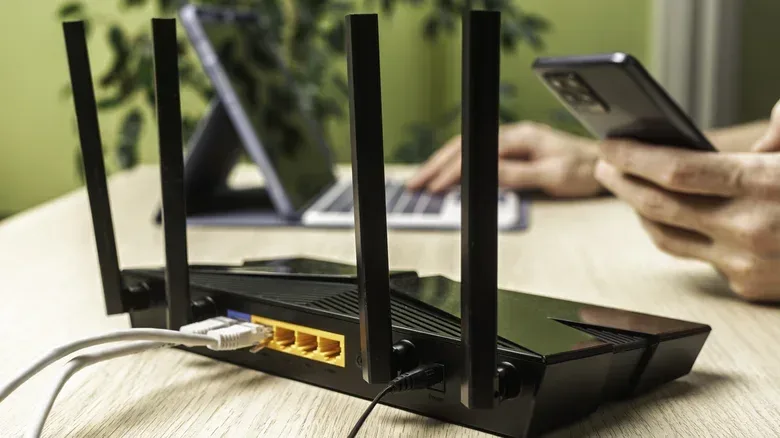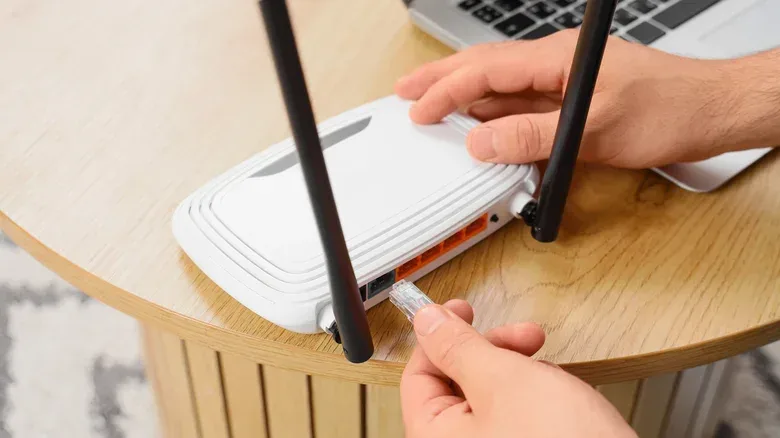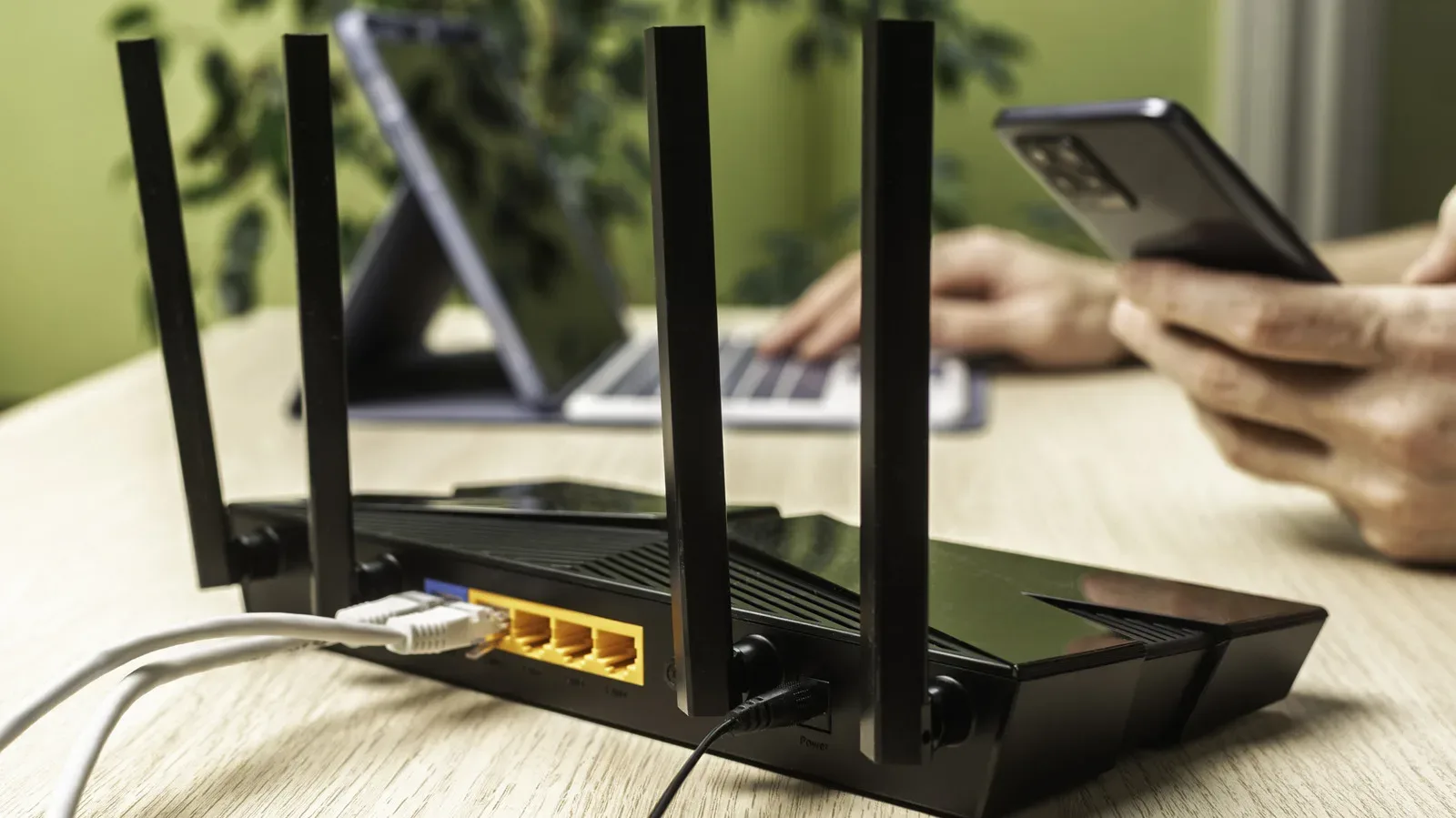
Your router is easy to ignore when the signal is strong, the console downloads are moving, and nobody in the house is complaining about buffering. That is understandable, but it is also how a tiny box quietly becomes the least defended character in the party. It sits between the devices on a home network and the wider internet, making its settings more important than a normal “set it and forget it” gadget.
The useful news is that the highest-impact router hardening work is not a networking degree in disguise. A few deliberate changes can remove old convenience features, separate lower-trust devices from computers and consoles, and make the administration panel less inviting to anyone who gets near the network. Menu names differ by manufacturer and model, so treat the labels below as a checklist of goals rather than an exact map.
Start at the router’s own control panel
Router administration is separate from joining Wi-Fi. The admin username and password unlock settings such as wireless security, guest access, updates, and remote management. The Wi-Fi name and Wi-Fi password are what phones, PCs, handhelds, TVs, and game systems use to get online. Both sets of credentials deserve attention.
From a computer already connected to the home network, enter the router’s local IP address in a browser. Common addresses include 192.168.1.1 and 192.168.0.1, though neither is universal.
- On Windows, open Command Prompt, run ipconfig, and find Default Gateway under the active Ethernet or Wireless LAN connection.
- On a Mac, hold Option while clicking the Wi-Fi icon. The address appears beside Router for the active network.
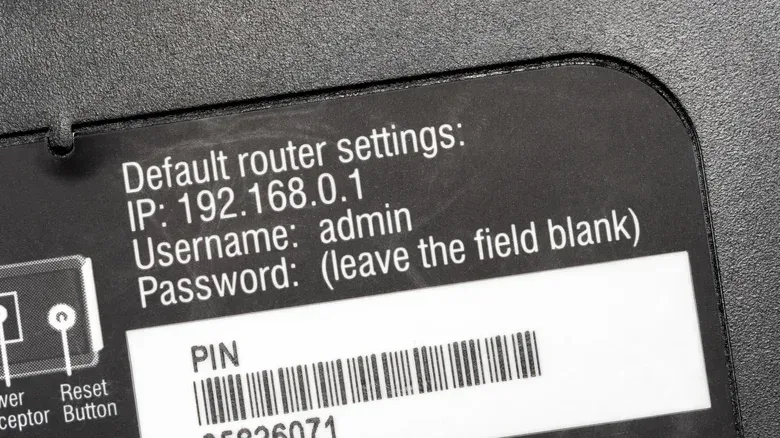
If the admin login has never been changed, its original details may be printed on the router’s underside or rear label. That label is precisely why changing them is worthwhile: a person who can read it should not automatically have the keys to the network’s control room.
Replace defaults—and do not advertise the router model
First, change the administrator password. If the interface permits it, change the administrator username too. “Admin” remains the most obvious username to try, and an unaltered login is needless help for anyone attempting access. Many newer routers now have individually generated default passwords, which is an improvement over the era of widely known generic credentials. It is still sensible to set credentials that are not printed on the hardware.
Next, change the wireless network name, usually called the SSID. SSID simply means the name devices see in their list of available Wi-Fi networks. A factory SSID may include the router’s model or manufacturer, revealing more information than a home network needs to broadcast. Pick a name that does not identify the router, household, or address.
Use a distinct, strong Wi-Fi password as well. The practical outcome is important: changing the router-admin password does not automatically change the password that all devices use to connect, and changing the Wi-Fi password does not protect the admin panel. They solve related but separate problems.
Choose WPA3-Personal when the device roster allows it
In the Wi-Fi security menu, select the strongest available protection standard. For most homes, that is WPA3-Personal. WPA refers to Wi-Fi Protected Access, the security system that protects access to the wireless network; “Personal” is the normal shared-password option for a household.
The complication is compatibility. Older gear may not work with WPA3. The strongest choice is to leave WPA3 enabled and avoid unsupported devices. If that is impractical, a mixed WPA2/WPA3-Personal mode can allow devices to connect using the highest standard each supports, though the mixed arrangement is less secure than WPA3-only.
This is especially relevant for a house with a long tail of hardware: an older streaming box, a legacy printer, a smart plug, or a device that has survived several console generations because it still technically works. Compatibility can be a legitimate constraint, but it should be a conscious exception rather than an invisible downgrade applied to every device.
Use a guest network as a network quarantine zone
A guest network is more than a polite way to share internet access without saying your main password out loud. It can act as a separate lane for devices that do not need access to PCs, shared storage, or other equipment on the primary network.
Typically, devices on a guest network can reach the internet but cannot communicate with each other or reach resources on the main network. That makes it useful for visitors and particularly useful for smart-home products, which can carry security and privacy concerns. It also gives the household a clearer boundary: a new gadget can be online without immediately becoming a neighbor to every other device.
Some routers offer further guest-network controls, including bandwidth limits, scheduled availability, and one-time access that expires after a specified period. The guest password can be easy for visitors to use while the main Wi-Fi password remains more complex. Those are convenience features, but their real value is that they reduce the temptation to hand out the primary network credentials broadly.
Some ASUS models offer multiple guest networks through Guest Network Pro. That can support a more purposeful arrangement: one network for visitors, one for children, and one for smart devices. ASUS also allows security protocols to be configured independently, which is useful for keeping a WPA2-only device separate rather than making the whole home network accommodate it.
A practical split for a game-heavy household
- Main network: PCs, consoles, phones, and other trusted personal devices, protected with WPA3-Personal where possible.
- Guest network: Friends and visiting devices that need internet but not visibility into the main network.
- Device network: Smart-home equipment or older WPA2-dependent hardware that needs connectivity but does not belong on the main lane.
Not every router supports all three groups, and not every guest mode is configured identically. Check the controls before assuming that isolation is enabled. The principle is simple: put the devices you trust least, or understand least, in the place with the least access.
Turn off WPS, the shortcut with an unfortunate legacy
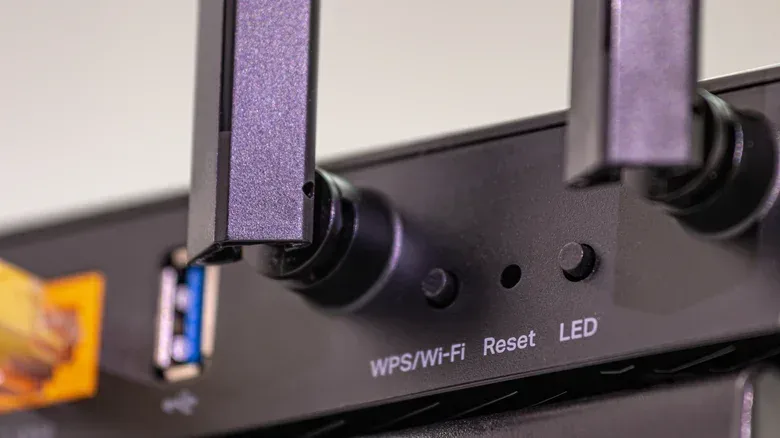
WPS, short for Wi-Fi Protected Setup, exists to avoid typing a network password when connecting a device. It generally works either through a PIN or by pressing a button on the router and another device within a brief window. That sounds friendly. The PIN approach is the problem.
Although WPS presents an eight-digit code, its design effectively treats it as two four-digit values. That severely shrinks the number of possibilities compared with what an eight-digit number suggests, making it easier to crack—especially on routers that do not sufficiently limit repeated attempts.
The physical-button method has a lower risk because it requires access to the hardware. But modern Android and iOS versions do not support it, and some routers may leave the PIN component active even if the button method is the one being used. The straightforward answer is to disable WPS entirely unless there is a very specific, unavoidable reason not to.
There are better ways around awkward password entry on a television or streaming device. Companion apps can often help connect a device, while iOS and Android can share Wi-Fi access with nearby people, including with QR codes. The QR approach avoids reciting or manually entering a long password without reopening WPS’s old shortcut.
Phone-based setup should be treated as a convenience layer, not an excuse to weaken the underlying Wi-Fi credentials. If a phone is part of the way the household gets devices online, keeping it current and protected matters too. That broader relationship between mobile devices and desktop-style computing is also visible in Android desktop mode’s move toward a compact PC setup.
Do not leave the control panel facing the internet
Remote management lets someone administer a router from outside the home, often by visiting the home’s public IP address with a designated port number or by using the router maker’s app. The feature is convenient in the same way leaving a side door unlocked is convenient: access is easier, but the number of possible approaches is much larger.
Disabling web administration from the WAN—the public-facing internet connection—reduces the router’s attack surface. Attack surface is the collection of entry points an attacker could attempt to use. Turning off services that are not needed removes possible doors rather than trying to guard every one perfectly.
On ASUS routers, look in Administration > System and disable Telnet, SSH, and Web Access from WAN. Telnet and SSH are methods for accessing a device remotely; web access from WAN exposes browser-based administration beyond the local network. The exact wording will vary elsewhere, but the desired result is consistent: router administration should stay local unless remote access has a genuine need.
If remote control is needed, access restrictions can limit administration to approved devices. Use care: these restrictions can apply to all router management, not merely remote logins. Add multiple trusted devices, including the one currently in use, before committing the change, or the router may successfully defend itself from its owner.
ASUS also provides Instant Guard VPN, found under VPN > Instant Guard. A VPN, or virtual private network, creates a protected tunnel between the home network and a mobile device that has the Instant Guard app installed. Set up at home, it can support a safer path back to the network when away, while offering the phone additional privacy on open networks. This is a more controlled option than exposing the administration page to the entire internet.
Firmware updates are the maintenance patch notes that matter
Firmware is the software that runs the router itself. Like software on a console, phone, or PC, it can contain flaws discovered after a product ships. Updates can fix known exploits, so checking for and installing them is one of the most direct protective steps available.
On ASUS hardware, firmware controls are under Administration > Firmware Upgrade. Auto Firmware Upgrade and Security Upgrade can be enabled so the router handles updates without a recurring manual check. When automatic updating is not offered, use the manufacturer’s instructions to install updates manually.
Restarting the router periodically can help it continue operating well and may also end temporary malicious access. It is not a replacement for updates, password changes, or safe configuration. Think of a restart as routine maintenance; firmware updates are the actual patch deployment.
For a router that has reached end of life, alternate firmware such as DD-WRT or FreshTomato is an advanced route that can extend its usefulness. It is not a 10-minute task, and it should not be approached casually. If an internet-provider-supplied router lacks controls for updates, guest access, wireless security, or remote-management restrictions, moving to a router you control may provide substantially better security options.
A short priority order when time is limited
- Change the router-admin login, Wi-Fi name, and Wi-Fi password.
- Select WPA3-Personal; use WPA2/WPA3 mixed mode only when older equipment requires it.
- Disable WPS.
- Create a guest network for visitors and, where supported, isolate smart or WPA2-only devices.
- Turn off remote management, Telnet, SSH, and web access from WAN unless there is an essential reason to keep them.
- Enable automatic firmware and security updates, or make a habit of applying them manually.
None of this guarantees that every device on a home network is safe. It does, however, replace a collection of defaults and old compatibility shortcuts with clearer boundaries. In networking terms, that is less exposed surface and more control. In game terms, it is checking the inventory before the dungeon, instead of discovering halfway through that the router was equipped with a cardboard shield.