Alexa can be a remarkably convenient way to control a connected home, queue audio, or manage everyday routines. It can also become the most politely frustrating object in the room when it mishears a command, starts listening because somebody said a vaguely similar word, sends music to the wrong speaker, or simply stops responding.
The good news is that several common Alexa issues have a clear first fix. The important part is identifying which part of the experience has failed. A device that does not understand a person is a different problem from one that is muted. A response going to the wrong room is generally a device-organization issue, while lag and freezing can point to a restart, Wi-Fi problem, or available software update.
This guide separates those problems rather than treating every Alexa malfunction as a reason to unplug everything immediately. That approach is useful in homes where Alexa handles lights, sound systems, televisions, security devices, and Routines. A small error can carry a larger practical impact when several devices depend on a voice command being heard and routed correctly.
Start by defining the problem
Before changing settings, take a moment to notice what Alexa is actually doing. This avoids altering voice settings when the speaker is muted, or rebuilding room groups when the real issue is a weak connection.
- Alexa hears a command but misunderstands it: consider Voice ID.
- Alexa answers with more speech than wanted: use Brief Mode or select the Brief personality style.
- Alexa activates during ordinary conversation: change the Wake Word from the supported choices.
- Audio comes from an unexpected Echo: create groups based on rooms or locations.
- Alexa appears not to hear anything: check for noise, then check whether the device is muted.
- The device is slow, frozen, or entirely unresponsive: restart it, consider the Wi-Fi connection, and ask it to look for software updates.
These are not interchangeable remedies. They address different stages of the process: recognizing the person speaking, listening for a trigger phrase, interpreting a request, choosing a destination device, and maintaining the connection and software that let the device operate.
When Alexa does not understand your voice
If the device responds but repeatedly gets your requests wrong, setting up Voice ID is a sensible first step. Voice ID is the Alexa setting intended to learn a user’s voice. In practical terms, it gives the system a profile to work from rather than leaving every spoken request as an entirely generic interaction.
To configure it in the Alexa app:
- Open the Alexa app.
- Select More, then Settings.
- Choose Account Management, then select your profile.
- Select Voice ID and complete the on-screen instructions.
A spoken shortcut is also available: say “Alexa, learn my voice.”
Related coverage includes How to Fix Common Amazon Alexa Problems.
This fix is particularly worth trying before making broader changes to a smart-home arrangement. If the central issue is that spoken commands are not being understood as intended, it is better to work on voice recognition first than to assume every linked light, speaker, television, or Routine is at fault.
It is also useful to distinguish misunderstanding from failure to hear. If Alexa responds with an incorrect interpretation, Voice ID is relevant. If it does not react at all, loud background sound or the mute control may be the more immediate explanation. That distinction can save a great deal of needless menu-diving.
Make Alexa less talkative without making it less useful
There are two similarly named options for people who want shorter Alexa responses: Brief personality style and Brief Mode. They overlap in purpose but are described differently, so choosing between them depends on how much verbal feedback is wanted.
The Brief personality style reduces filler language while Alexa continues speaking to the user. It is the choice for someone who still wants a verbal confirmation but would rather avoid extended phrasing.
Brief Mode is more aggressive about concision. In some cases, it replaces a spoken response with a short sound cue. That makes it useful for repetitive actions where the user only needs to know the command was received, not hear a full confirmation each time.
Set the Brief personality style
- Open the Alexa app.
- Open Devices.
- Select the relevant device and then select Settings.
- Choose Alexa’s Personality Style and select Brief.
Turn on Brief Mode
- Open the Alexa app.
- Select More, then Settings.
- Choose Voice Responses.
- Turn on Brief Mode.
The voice shortcuts are straightforward: say “Alexa, enable Brief Mode” or “Alexa, change your personality style to Brief.”
The practical implication is simple. Choose the Brief personality when you want Alexa to speak with fewer extras. Choose Brief Mode when a short audible acknowledgment is preferable to a spoken answer. In a space where voice commands are used often, trimming repetitive confirmations can make the interaction feel less intrusive without changing the task Alexa is being asked to perform.
Stop accidental wake-ups by changing the Wake Word
A Wake Word is the trigger Alexa listens for before processing a request. If the device keeps waking during normal conversation, selecting a less commonly encountered supported Wake Word can reduce accidental activations.
It is worth being precise about the limitation: the Wake Word is not freely customizable. It must be selected from the available list. That means the goal is not inventing a unique phrase, but choosing one less likely to arise in everyday speech around the device.
To change it through the app:
- Open the Alexa app.
- Select Devices, then choose the device.
- Open Device Settings and select Wake Word.
- Choose a new option and select OK.
You can also say “Alexa, change your Wake Word.”
Accidental activation is more than a minor annoyance. It can interrupt a conversation, trigger an unwanted response, and make a voice-controlled setup feel unpredictable. Changing the trigger is a targeted response because it addresses the moment Alexa starts listening, rather than changing voice-response settings that only matter after Alexa has already activated.
Put Echo devices into room groups to control where sound goes
Multiple Alexa devices make it possible for audio to turn up in the wrong place. If that happens, use Groups to organize devices by room. A group is essentially a location-based label that helps make the destination explicit when giving a request.
Once groups are configured, a request such as “Alexa, play music in the bedroom” directs the action to the named location rather than leaving the intended speaker ambiguous.
To create a room or device group:
- Open the Alexa app.
- Select Devices.
- At the top of the screen, find Groups.
- Select New Group, then tap Create a room or device group.
- Follow the prompts to customize the group.
This is a setup fix rather than a reset fix. It does not imply that a speaker is broken; it improves how Alexa distinguishes among devices in different parts of a home. The benefit becomes especially clear when several speakers are close enough that a general audio request could otherwise reach an unintended device.
The same organizational principle applies to any connected setup: name and group devices in a way that matches how people actually refer to spaces. Clear room-based groups make spoken commands more specific, which in turn makes results easier to predict.
When Alexa appears deaf, check noise and mute status first
If Alexa does not appear to hear a command, start with the simplest explanations. Loud surrounding sounds can interfere with interaction, so reducing competing noise is a reasonable first check.
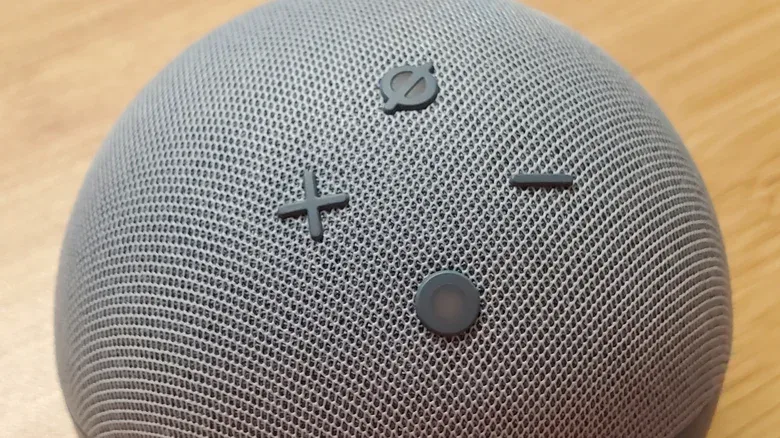
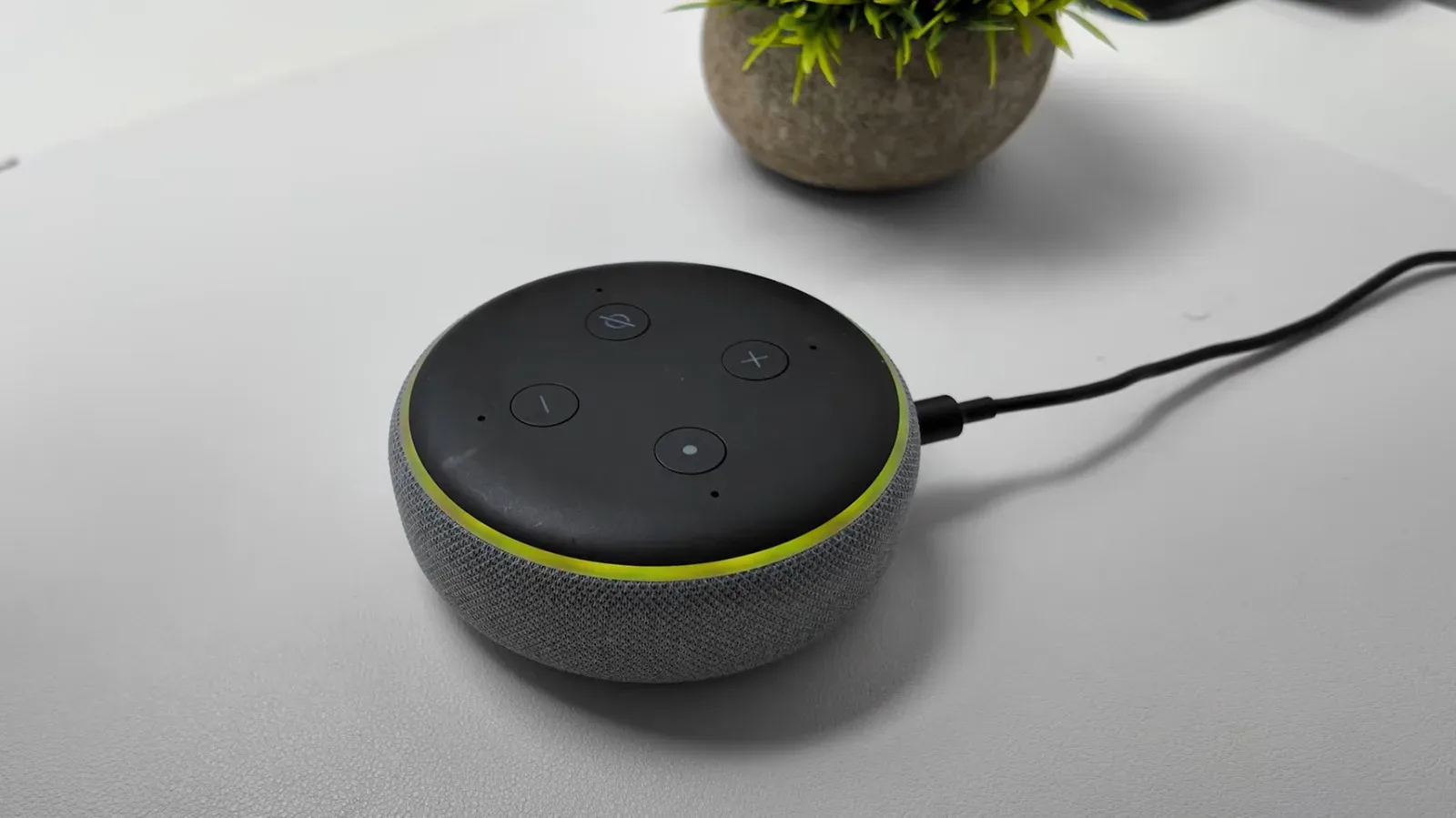
Next, look at the device’s mute status. On speaker-based devices, a solid red ring of light indicates that the device is muted. On screen-based devices, look for a red bar with a mute icon. A muted device will not behave like an attentive voice assistant because the microphone has been disabled.
To correct that, find the mute button—typically positioned on the top or side of the device—and press it to unmute.
This visual check matters because muting can resemble a larger technical failure. If a device was muted accidentally, there is no need to reconfigure Voice ID, change its Wake Word, restart the router, or wait for an update. Unmuting is both the fastest remedy and the least disruptive one.
Use a simple recovery order for freezing, lag, and general bugginess
When Alexa is lagging, frozen, or otherwise unresponsive, work through the most direct recovery path before assuming there is a complicated fault.
1. Restart the Alexa device
Unplug the device for a few seconds, then plug it back in. This restart can also help with general lag or freezing. It is a useful next step once mute status and obvious noise have been ruled out.
2. Consider the Wi-Fi connection
A poor Wi-Fi connection can also be behind a problem. Restarting the router by unplugging it and plugging it back in is an available troubleshooting step. Because Alexa can coordinate multiple connected devices and cloud-driven voice requests, connectivity problems can look like sluggishness, ignored commands, or inconsistent behavior.
That broader lesson also applies to connected entertainment devices. For example, stable networking is a practical concern for software focused on remote play, such as a recent Android remote-play update. The specific tools differ, but a dependable connection remains central when a device depends on communication beyond its own hardware.
3. Ask Alexa to check for a software update
Finally, use the command “Alexa, check for software updates.” If an update is available, the device will update automatically. This step is especially relevant when the symptoms feel like a software problem rather than a one-time interruption.
“Software” here means the system instructions that govern how the device operates. A software-rooted issue is not necessarily visible from the outside: the hardware may be powered and the microphone may not be muted, yet the device can still behave incorrectly. Checking for an update is therefore a sensible final action in this recovery sequence.
A compact Alexa troubleshooting checklist
- Misheard commands: set up Voice ID in Account Management, or say “Alexa, learn my voice.”
- Too much chatter: select Brief personality style or enable Brief Mode under Voice Responses.
- Random activations: choose another supported Wake Word in Device Settings.
- Sound in the wrong room: create room-based groups and name the destination in the request.
- No response at all: reduce loud interference and check for the red mute indicator.
- Lag, freezing, or persistent unresponsiveness: restart the Alexa device, restart the router if Wi-Fi may be involved, then ask Alexa to check for software updates.
Alexa problems are often frustrating precisely because the system is designed to disappear into the background when it works. A well-organized setup should make commands feel routine. When that breaks down, targeted checks—voice profile, response setting, Wake Word, room group, mute status, restart, connection, update—provide a practical route back to a more predictable smart-home experience.