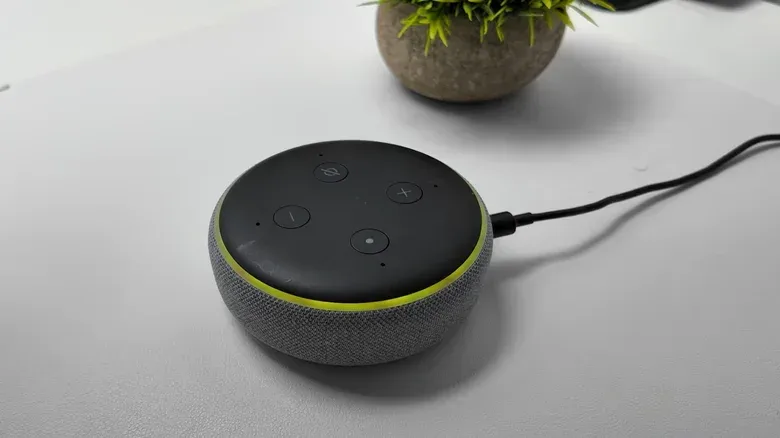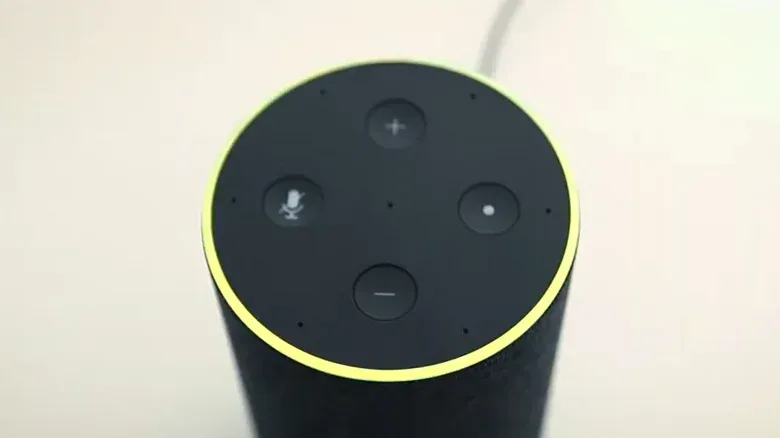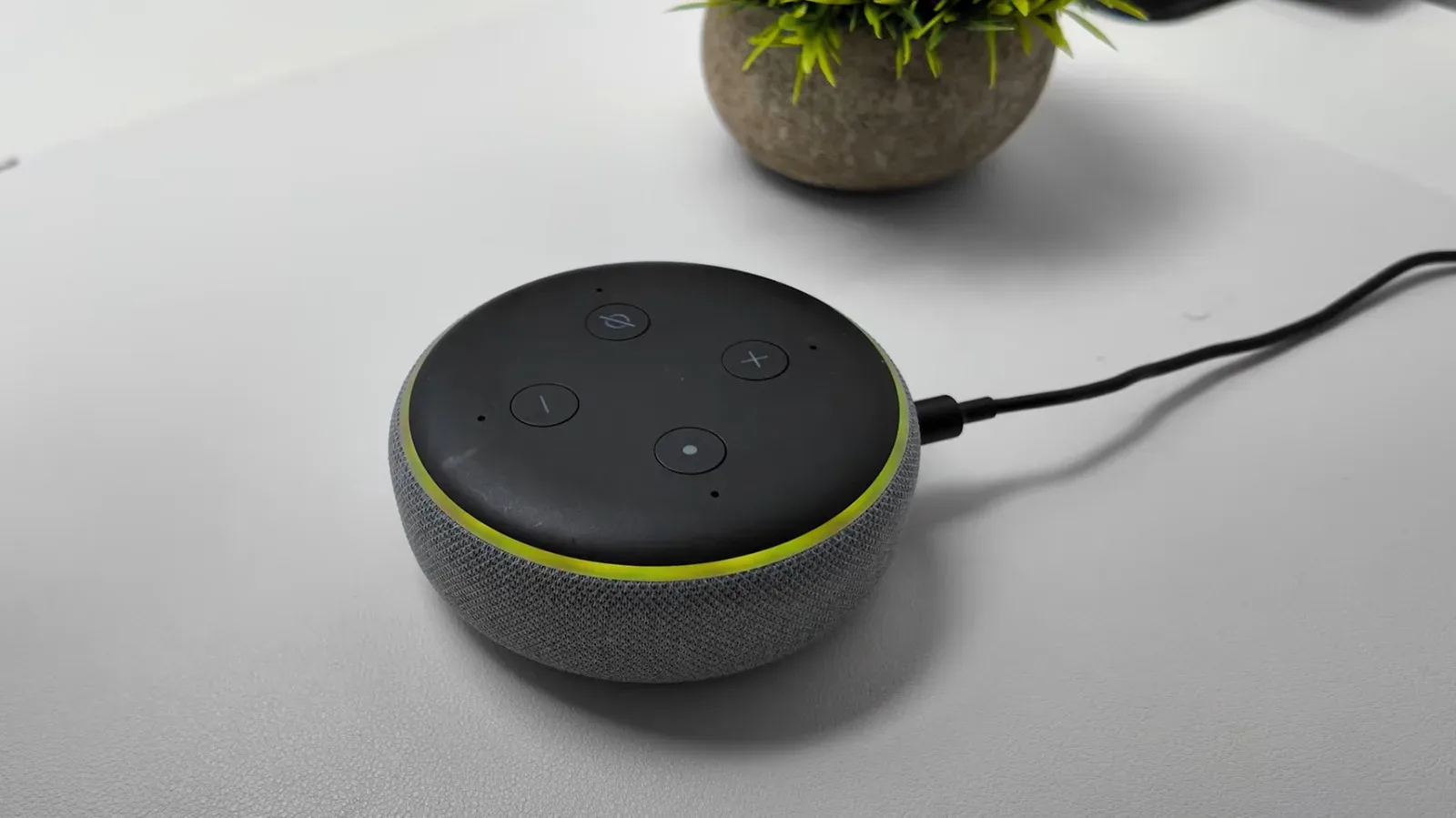
A flashing yellow light on an Amazon Echo is not a fault warning. It is Alexa’s way of flagging that there is something waiting in its notification queue: usually a message, a general notification or, in some cases, a reminder that has been missed.
That distinction matters. Echo light cues can signal setup, calls, microphone status, volume and more, so it is easy to assume any unfamiliar color means the device needs fixing. In this case, the yellow ring is more like a small inbox badge for a voice assistant. The practical answer is not to restart the speaker or hunt for a broken connection; it is to ask Alexa what it wants to tell you.
The system has been part of the Echo experience since 2017 and makes the assistant more proactive. Depending on which services and features are enabled, those prompts can cover news, calendars, shopping activity, price-drop alerts, messages and connected-camera events. The trade-off is obvious: a useful notification can also become a persistent visual interruption if too many services have permission to announce themselves.
First, identify the yellow-light pattern
The cue discussed here is a yellow ring flashing slowly in bursts every few seconds. That means Alexa has a message or notification to share. It is not an indication that the Echo’s microphone has been disabled, that a call is arriving or that Wi-Fi setup has failed; those situations use other colors and patterns.
The simplest way to deal with the yellow indicator is to speak to the Echo:
- “What notifications do I have?”
- “What messages do I have?”
Alexa should read the relevant items aloud. While it does, commands such as “next” and “repeat” can be used to move through or hear an item again. Once the outstanding notification has been addressed, the yellow alert should no longer be demanding attention.
This is an important usability detail: the light does not itself explain the alert’s subject. It is a signal that content exists, not a label for that content. Asking for notifications is therefore the quickest route to both diagnosis and dismissal.
Missed reminders can also lead to yellow alerts
Reminders are a common reason to check the notification queue. If the yellow light relates to a missed reminder, ask:
Related coverage includes What a Yellow Light on an Amazon Echo Means and How to Clear It.
“What are my reminders?”
From there, Alexa can be instructed to turn off, dismiss, snooze or reschedule the reminder. These commands do different jobs:
- Dismiss clears a reminder that no longer requires action.
- Snooze delays it when the task still matters but cannot be handled immediately.
- Reschedule changes the reminder’s timing for a later date or time.
- Turn off is useful when the reminder itself should cease rather than merely be postponed.
The wording may sound minor, but choosing the right action prevents a predictable cycle: dismissing something that still needs doing, then creating a new reminder later; or repeatedly snoozing an alert whose schedule needs changing. The yellow light is doing its job when it brings an overlooked task back into view. It becomes less useful when reminders are left active without a clear plan for them.
How to control Echo notifications in the Alexa app
Clearing one yellow light solves the immediate annoyance. Managing notification settings is the longer-term fix if the same alerts keep returning. On a phone or tablet, open the Alexa app and follow this path:
- Tap More, represented by three horizontal lines.
- Select Settings, marked with a gear icon.
- Open Notifications.
This is the main control area for deciding which features, services and apps can generate notifications. Toggle only the categories that are genuinely useful in the room where the Echo is located. A kitchen Echo may be a good place for package or calendar prompts; a bedroom device may be better suited to a quieter set of alerts. The source material does not specify a one-size-fits-all setup, and there is not one. The better configuration is the one that keeps important prompts noticeable without turning the light ring into permanent background noise.
That principle is especially relevant for connected services. Notifications can be valuable precisely because they are proactive, but an alert is only actionable when it contains something a household actually wants to know. Reviewing the list after a few unwanted yellow-light episodes is more efficient than repeatedly clearing individual notifications by voice.
Reminder notification controls
For reminders specifically, go through the Alexa app’s notification settings and choose Reminders on this Device. Notifications can then be toggled on or off. This setting is useful if reminders are welcome on one Echo but not another.
That device-level control is worth separating from the reminder itself. A reminder is the scheduled prompt; a notification setting determines whether that Echo is configured to announce or visibly flag it. If an Echo is in a shared or quiet space, checking this setting can help tailor how prominent reminder alerts should be.
Skills notifications and permissions
Alexa Skills are voice-activated applications that expand what Alexa can do. The available categories described here include Health & Fitness, Productivity, Smart Home, Sports, Education and trivia games. Since a Skill can be useful without needing to send routine alerts, it is sensible to review its notification permission rather than treating every Skill as an all-or-nothing choice.
To manage those notifications in the Alexa app, follow:
- More
- Skills & Games
- Your Skills
- Settings
- Manage Account Permissions
From there, toggle Notifications on or off and select Save Permissions. “Permissions” refers to the settings that govern what a connected app or service is allowed to do through the Alexa account. In this case, the key practical point is straightforward: notification access is something that can be reviewed and changed, rather than accepted forever after enabling a Skill.
That approach mirrors a broader habit for app-connected devices: check the specific access being granted, then keep the parts that provide a clear benefit. For a related look at how platforms set rules around apps and sensitive features, see our coverage of tighter App Store rules around AI deepfakes and bait-and-switch apps.
Camera and doorbell event announcements
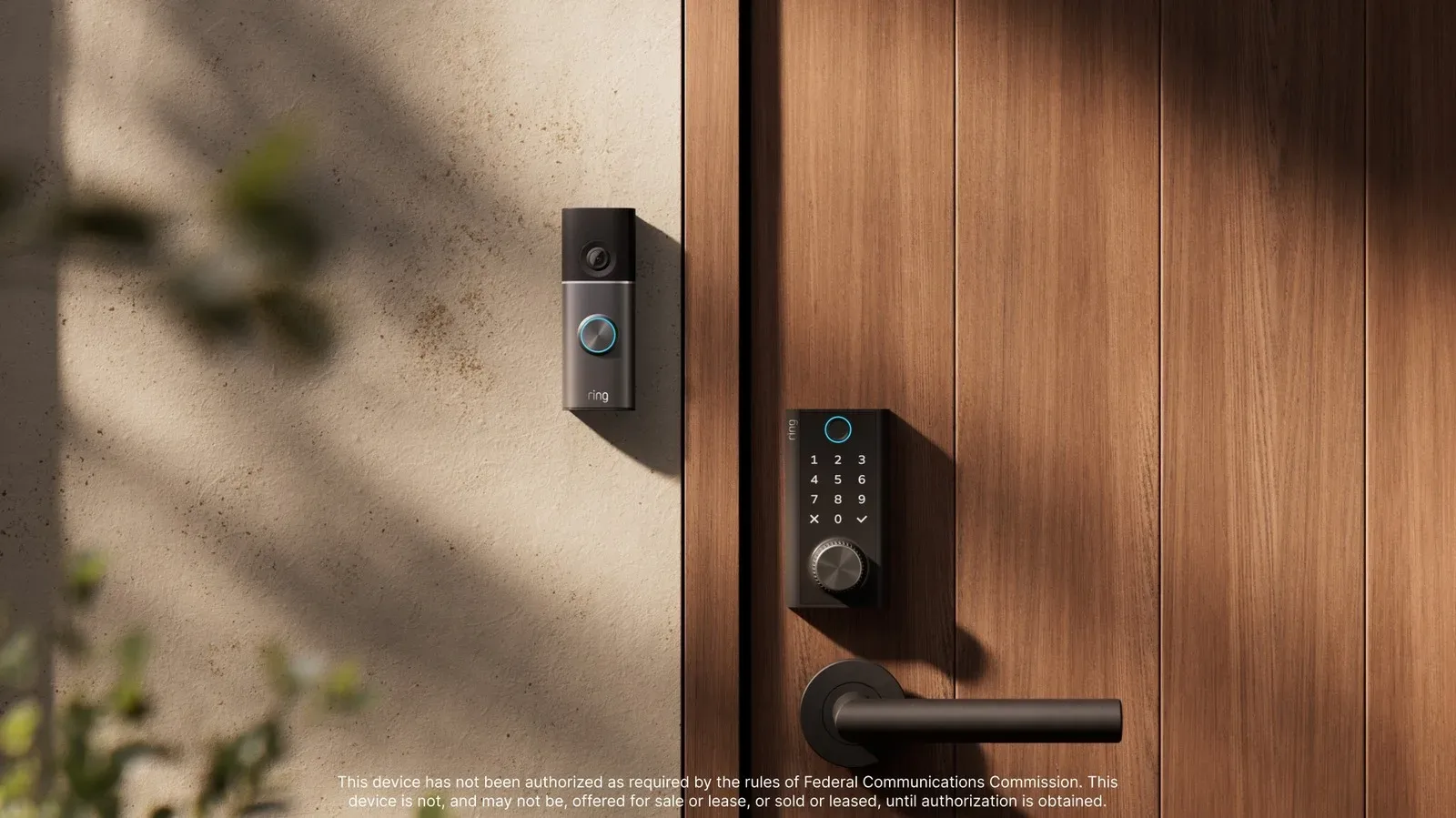
An Alexa-connected smart camera or doorbell may also create notifications when it detects a person, package or another camera event. To change those announcements, open the Alexa app and use:
- Devices
- Select the connected camera
- Device Settings
- Toggle Person Detection Announcements or Package Detection Announcements as preferred
These controls should be considered separately. A household may want person detection enabled but package detection disabled, or vice versa. The useful choice depends on what the alert adds to daily awareness, not simply whether the feature is available. The same logic applies to any setup involving a doorbell interaction through Alexa+: an alert can be useful, but it should be configured deliberately.
A quick guide to the other Echo light colors
Yellow makes more sense in context. Echo devices use a range of lights, and the color alone is not always enough; whether the light flashes, pulses, spins or remains steady changes the meaning.
- Yellow, slowly flashing: Alexa has a message or notification waiting.
- Cyan: Alexa is listening after hearing a request, or is processing that request. The cyan ring can also shimmer when the device receives a software update.
- Teal-blue: Alexa is waiting for a command.
- Two shades of blue spinning: the Echo is starting up or restarting after a completed software update.
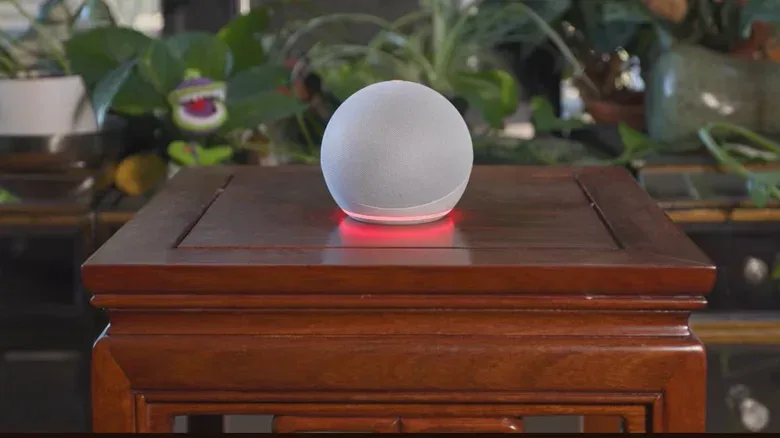
- Red ring: a core function is disabled, most notably the microphone after its on/off button has been pressed.
- Red light bar on a camera-equipped Echo: the device will not share video.
- Orange spinning around the outer edge: setup mode is active or the device is attempting to connect to the internet.
- Green pulsing: an incoming call is arriving.
- Green spinning: a call is active, and the same effect is used during an active Drop In intercom session.
- Purple flash: Do Not Disturb is enabled; during setup, purple instead points to Wi-Fi trouble.
- White: the current volume level is being shown while it is adjusted.
“Drop In” is Alexa’s intercom-style calling function. Its active-session green effect is therefore distinct from the pulsing green signal for an incoming call. Likewise, a red microphone indicator is not a network problem: press the microphone button again to re-enable it. Reading the animation and context alongside the color prevents a lot of needless troubleshooting.
The practical response: clear first, customize second
When the Echo flashes yellow, start with the voice command that reveals the notification. Do not assume it is an error. If the item is useful, act on it; if it is a missed reminder, dismiss, snooze, reschedule or turn it off as appropriate. If the same category of alert keeps producing yellow lights without helping, use the Alexa app to adjust the relevant notification setting.
In short, yellow is an attention cue, not a panic cue. It is Alexa asking for a moment of review. The best fix is usually a short conversation with the speaker, followed by a settings cleanup only when the alerts are no longer earning that attention.