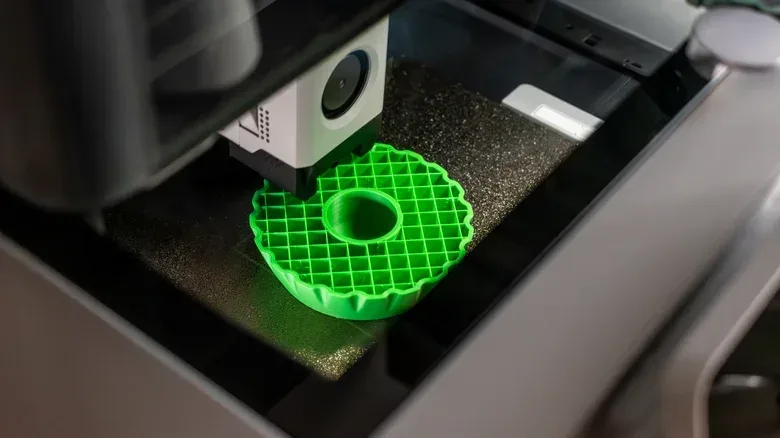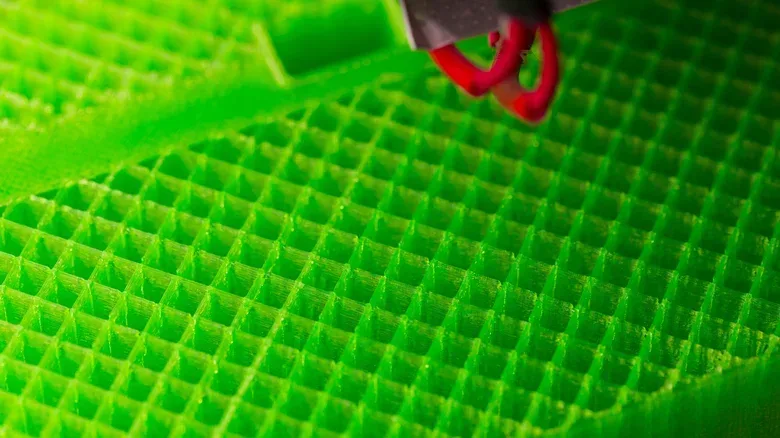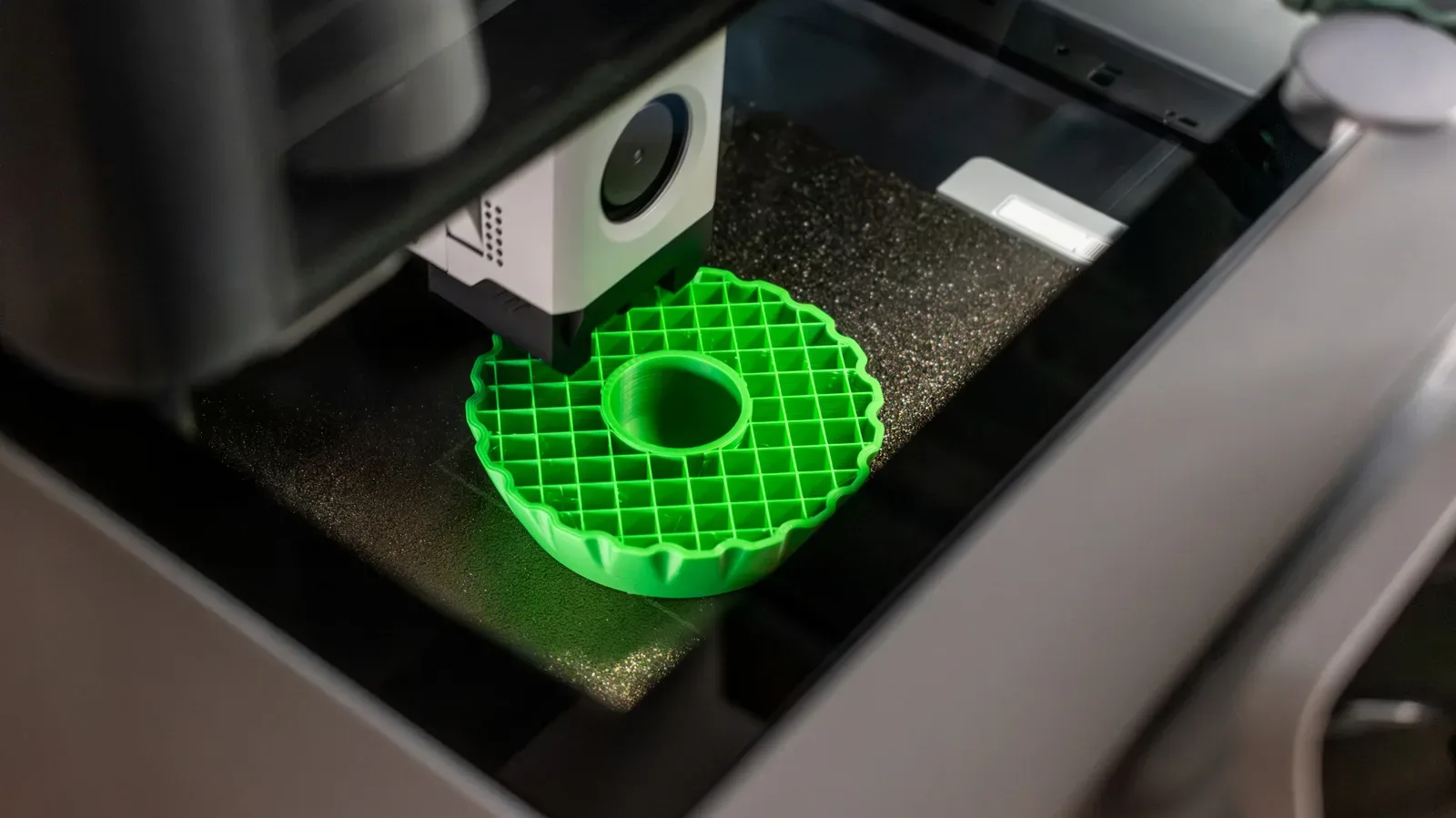
A 3D print can look complete on the outside while hiding a small plastic architecture project within. Slice open a typical filament-printed model in preview mode and it will usually reveal a lattice, web or branching network rather than a completely solid interior. That internal structure is called infill, and it is one of the most useful settings to understand before treating every print like it needs to survive a trip through a boss arena.
Infill is not automatically “more is better.” It is a compromise among the support required while printing, the rigidity wanted in the finished piece, the filament consumed, the model’s weight and the total job time. A small display object, an enclosure and a part that will carry a load are not asking the printer to solve the same problem. The right setting is therefore tied to what the object must do, not to a universal percentage.
What infill is—and what it is not
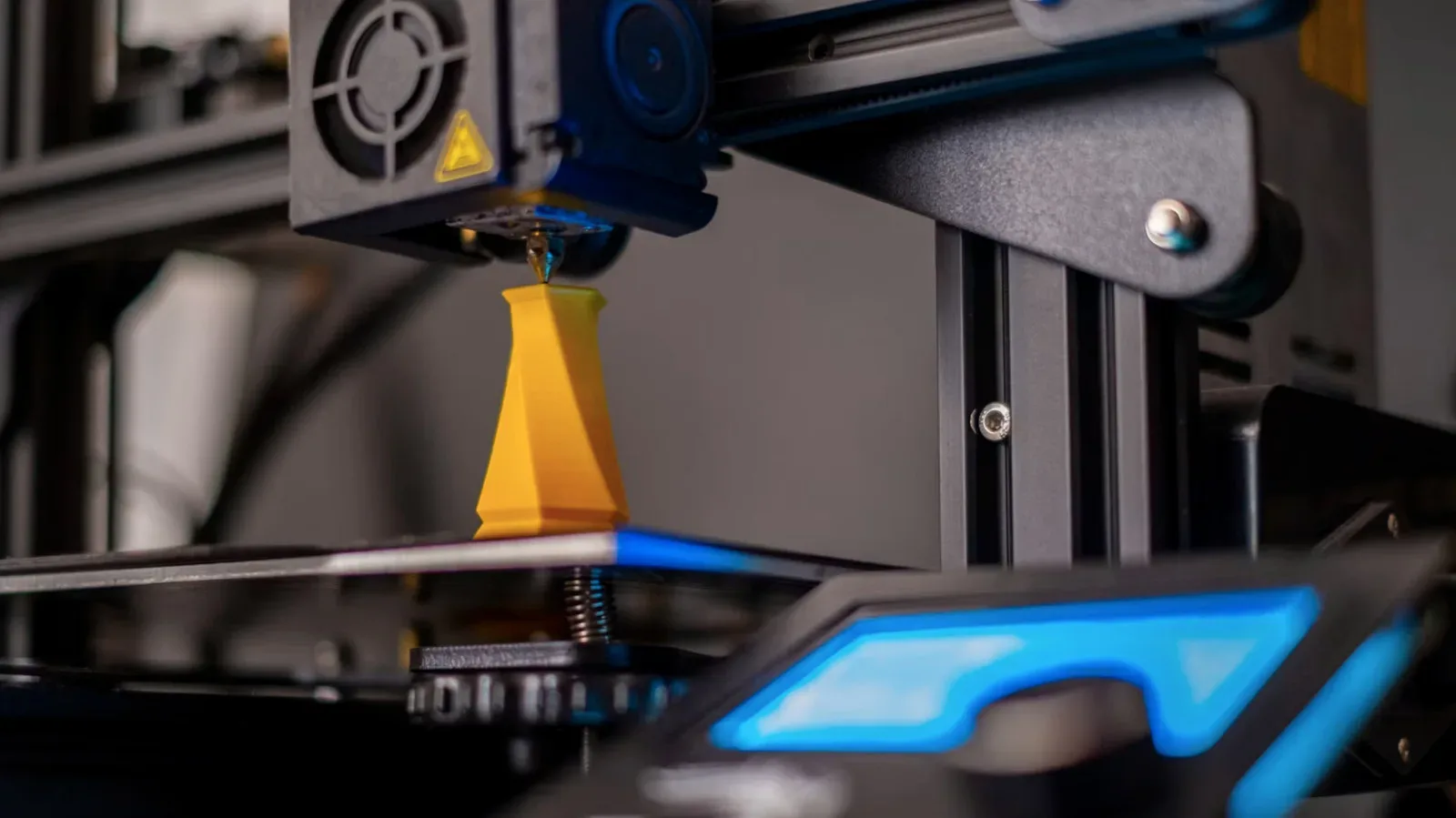
In FDM or FFF printing, a printer deposits melted filament through a nozzle, building an object layer by layer. FDM and FFF are common terms for this filament-based approach. Rather than filling the entire inside of most models with plastic, the printer’s slicer creates an internal pattern.
A slicer is the software that prepares a 3D model for printing. It converts the model into printable layers and tells the machine where to move, when to extrude filament and what internal structure to create. Infill has two basic jobs: it supports layers that need something beneath them, and it can add stiffness or reinforcement without turning the whole print into a solid lump of filament.
That makes infill especially relevant for the filament printers many newcomers use. It can alter a print’s duration, material demand and finished feel with a few settings. It is not, however, a standard feature of every kind of 3D printing. Resin prints generally come out solid unless the model is deliberately hollowed. The familiar crisscrossed interior is principally a filament-printing conversation.
It is also worth separating infill from the outside of the model. A print’s walls—or perimeters—form its exterior shell. Infill occupies the space inside that shell. This distinction matters because a stronger-looking percentage in the infill menu does not automatically create the strongest practical part. Wall thickness, print orientation and filament material also affect the result. For a part that needs more strength, adding perimeters can be more effective overall than simply driving up infill.
Infill density is a percentage, not a strength score
Infill density describes how much of the inner volume the slicer tries to occupy with its chosen pattern. At 0%, the model is hollow inside. Higher percentages create a denser internal network. A slicer can attempt 100% infill, but a fully filled interior is seldom necessary for ordinary prints.
That percentage is easy to misread because it looks like a clean measure of durability. It is not. Think of it more like a setting that controls how much internal plastic is allocated to a design. The number cannot explain the pattern being used, where forces will hit the object, how thick its exterior walls are or whether its orientation leaves it vulnerable in a particular direction.
The same warning applies to other tidy-looking technology labels: one figure can be meaningful without telling the whole story. Our look at why an internet plan’s advertised “speed” is often really bandwidth makes a similar point. In both cases, a single setting is useful context, but the task and the rest of the system determine whether it is actually the right fit.
For normal models, 10% to 15% is commonly presented as enough, while 20% is another reasonable general-use starting point. Those are starting points, not rules etched into the build plate. Guidance also suggests that infill above 30% is rarely required for typical models. The practical lesson for a beginner is reassuring: a print does not need to be nearly solid to be useful.
When 0% infill can work
Hollow does not necessarily mean doomed. A model with a closed base that gradually narrows and closes toward the top can sometimes print successfully with 0% infill. In that scenario, each new layer still has enough material beneath it as the shape converges.
The risk arrives when the printer must create a broad, flat upper surface over empty space. Filament leaves the nozzle hot and soft. If there is no internal structure underneath a large span, the laid-down material can sag. A print may look fine for a long time and then fail at an upper surface because the machine was effectively asked to deposit plastic across air.
This is why the slicer’s layer preview deserves attention before a multi-hour print begins. It gives the user a chance to inspect the planned inner structure, spot broad unsupported areas and decide whether the chosen density or pattern makes sense. It is much cheaper to revise a setting on screen than to discover the issue after time and filament have already gone into the object.
What higher density costs
Increasing infill can provide greater resistance to compression, but every increase has a visible trade-off. More internal plastic means more filament used, a heavier finished object and a longer print. For a decorative figure or a quick test model, those costs may buy very little. For a bracket expected to hold weight or endure repeated impacts, they can be justified—but they still need to be weighed against walls, orientation and material.
Print orientation is particularly important because filament prints are built as stacked layers. A part’s planned use and the direction of force matter when choosing how to place it on the build surface. Material choice matters too. Infill cannot independently compensate for every weakness introduced elsewhere in the setup.
There is a simple way to frame the decision: first ask what demands the object will face. Is it mostly visual? Does it need to protect electronics? Will it support weight? Will it take repeated knocks? Then look at the preview to make sure the geometry has the support it needs. Only after those questions are answered does it make sense to decide whether more interior structure is worth the added time and filament.
The pattern changes the kind of support you get
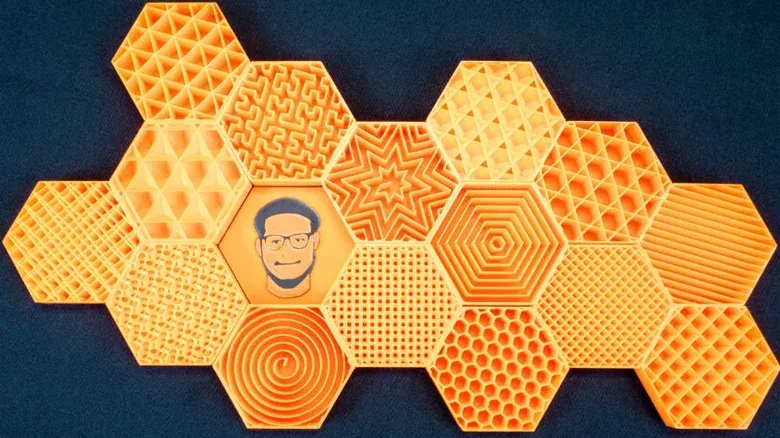
Density says how much internal structure the print receives. The infill pattern determines the geometry of that structure. Slicers offer multiple patterns because different shapes make different compromises between general support, material economy and strength in particular directions.
Grid
Grid is a straightforward general-purpose option. It creates a regular interior arrangement and is a sensible choice when there is no particular reason to optimize for a specialized use. For someone still learning a slicer, a default pattern such as grid paired with moderate density is a practical place to begin.
Cubic
Cubic forms a three-dimensional inner structure. Its appeal is its ability to handle forces arriving from different directions. That makes it relevant when a functional part needs support that is not focused along only one obvious axis. It does not eliminate the importance of walls, orientation or material, but it offers a more multidirectional internal approach than a simple repeated flat-line arrangement.
Gyroid
Gyroid replaces straight segments with continuous curves, producing the distinctive wavy structure that can make a sliced model look as if futuristic pasta was packed into its core. Its continuous geometry is often used for functional pieces where more even, multidirectional strength is desirable. The visual novelty is a bonus; the important consideration is that the pattern is intended to distribute support differently from a basic grid.
Lightning
Lightning infill takes a very different approach. Rather than filling the interior with a uniform repeating structure, it branches mainly where upper surfaces need support. The point is efficiency: less filament and less print time when the goal is to support the model’s visible top areas rather than reinforce its entire inner volume.
That makes lightning infill a poor substitute for a pattern selected to strengthen a part throughout. It can be a smart answer for an object that mainly needs support during the print, but it does not deliver the same general reinforcement as structures designed with strength in mind. The pattern choice should therefore follow the question, “Do I need internal load-bearing support, or do I chiefly need to hold up upper layers while printing?”
A practical first-pass workflow
New users do not need to memorize every infill option before their first project. The default pattern and a moderate density are valid starting settings. The useful habit is changing them when the model supplies a reason—not changing them merely because a larger number sounds safer.
- Identify the object’s job. A display piece, an electronics enclosure and a load-bearing bracket have different requirements.
- Start moderate for ordinary models. A 10% to 20% range is a credible general starting area, rather than an obligation to reach 100%.
- Inspect the layer preview. Check whether wide upper surfaces will be printed over unsupported empty space.
- Choose a pattern for the need. Use a general-purpose default when the application is ordinary; consider cubic or gyroid when multidirectional functional support is relevant; consider lightning when material-saving support for upper surfaces is the priority.
- Strengthen the whole design, not just one menu value. Consider more perimeters, print orientation and material alongside infill when a part must do real work.
The core takeaway is pleasingly unglamorous: infill is necessary when the print’s shape or intended use calls for it, but it is not an automatic race toward solidity. Let the geometry determine the support needed during printing, let the object’s job determine the reinforcement needed afterward, and let the slicer preview expose problems while they are still easy to fix.