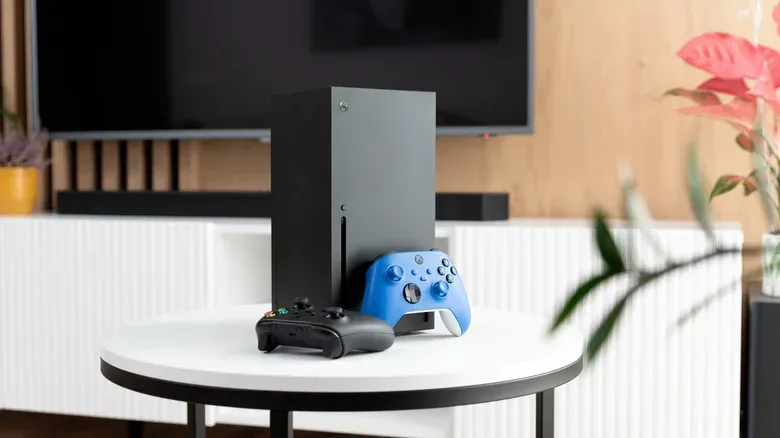
There is a distinctly modern form of gaming disappointment: buying a console built for high-resolution, high-frame-rate output, connecting it to a recent television, then unknowingly routing it through the one HDMI port that cannot deliver the experience you expected. The Xbox Series X will still work. Games will still appear. Nothing necessarily looks broken. That is precisely what makes this setup mistake so easy to miss.
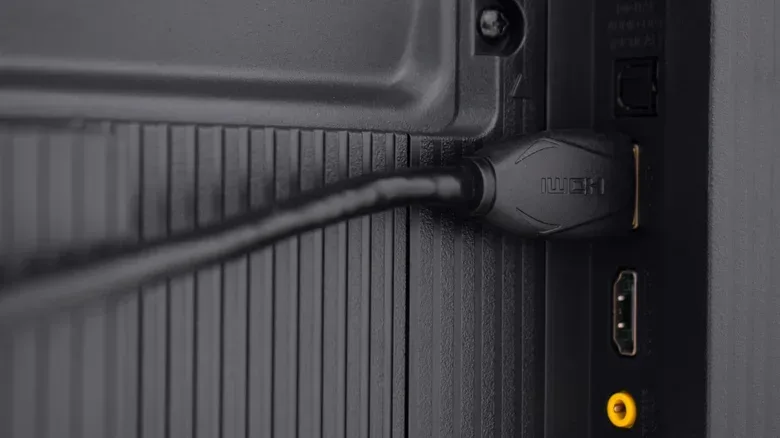
For players using an Xbox Series X, the important question is not simply whether a television supports HDMI 2.1. It is whether the specific input currently used by the console supports HDMI 2.1. On some TVs, particularly earlier or more affordable HDMI 2.1-capable models, only one or two ports provide the full feature set. Put the console into another socket and the TV can quietly limit the signal.
The practical stakes are 4K gaming at up to 120 frames per second, plus Variable Refresh Rate, commonly shortened to VRR. Neither is a guarantee for every game, and 4K at 120fps is especially uncommon. But a mismatched port can remove the option before a game or its settings menu ever gets a say. The good news is that this is usually a manual-check problem, not a reason to panic-buy a new screen or an expensive cable.
The HDMI label on the TV is only the beginning
HDMI is the physical connection that carries video and audio between the Xbox and television. HDMI 2.1 is the newer standard relevant to the Series X’s highest-end video modes. In the situation that matters here, it enables the bandwidth and features needed for the console’s maximum 4K/120fps output and VRR support.
For more context, explore Why GTA VI Matters Even If You’ve Never Played Grand Theft Auto.
That does not mean every HDMI socket on a television has identical capabilities. A screen may advertise HDMI 2.1 support while reserving it for particular numbered inputs. Older Bravia models, for example, can place their HDMI 2.1 configurations on ports three and four, though the exact arrangement depends on the individual model. Conversely, many newer premium OLED and MicroLED televisions have three or four HDMI 2.1-ready inputs, making the port choice less of a headache.
That distinction can be frustrating because a working picture offers no obvious warning. You may assume the console and TV are fully communicating simply because the dashboard is visible. Yet the connection might still be capped below what the Series X and the display could manage together.
A television that supports only HDMI 2.0 is not defective or unusable with an Xbox Series X. It can still offer up to 1440p at 120fps or 4K at 60fps. Those are perfectly viable outputs, and 4K/60fps remains relevant because many games target 60fps rather than 120fps. The key is expectation-setting: HDMI 2.0 is a ceiling that rules out the Series X’s 4K/120fps maximum and the associated VRR benefits described here.
First task: identify the TV model, then the right input
Do not guess based on when the television was bought, its marketing language, or whether it was expensive. Those clues can help, but the model’s documentation is the useful answer. Find the exact model number and check its online manual or official specifications. Look for a port-by-port breakdown, rather than only a general statement that the set supports HDMI 2.1.
The labels printed next to the connections on the back or side of the television may also identify which ports have expanded features. Still, a manual is less prone to confusion than inspecting a cramped panel behind a wall-mounted screen.
A sensible port-check routine
- Find the television’s exact model number. This avoids applying information from a similarly named but differently equipped set.
- Consult the online manual or specifications. Confirm which HDMI inputs support HDMI 2.1 features.
- Move the Xbox Series X to one of those compatible ports. If the manual lists only one or two, those are the ones that matter.
- Recheck the console’s video settings after the swap. This is where available output modes and features should reflect the improved connection.
This approach is deliberately mundane, but it addresses the point where most confusion begins. A television can be “HDMI 2.1 compatible” as a product while a particular input is not. The port number is part of the specification.
Why 120fps and VRR matter—and why they are separate things
Frame rate, measured in frames per second or fps, describes how many images a game produces each second. At 120fps, motion updates twice as often as it does at 60fps. When a game supports that mode and a compatible display path is in place, the presentation can look smoother and respond more quickly than a 60fps mode.
VRR, or Variable Refresh Rate, is a display feature intended to smooth out changes in a game’s frame delivery. Games do not always produce a perfectly fixed number of frames at every moment. VRR lets the display’s refresh behavior vary to better match those fluctuations, reducing the visual disruption that can occur when the game and display are out of step.
Both features depend on the complete chain: the game must support the relevant mode, the console must be configured to use it, the television must support it, and the selected HDMI port and cable must allow it. HDMI 2.1 does not force every title to run at 120fps. It makes the connection capable of carrying the modes that make that target possible.
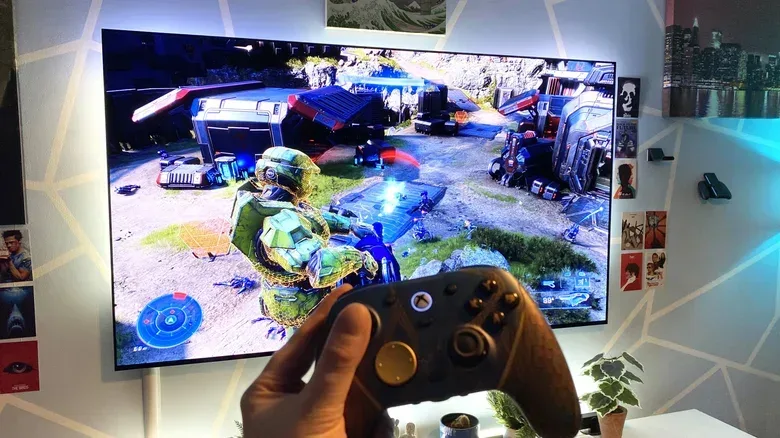
The performance trade-off matters just as much as the headline number. Very few Xbox Series X games reach both 4K resolution and 120fps. Halo: The Master Chief Collection, following its Series X upgrade, is one example that can output at 4K/120. Major first-party releases including Indiana Jones and the Great Circle, Forza Horizon 6, and Doom: The Dark Ages are limited to 60fps on the console.
Elsewhere, a 120fps option often asks players to accept a lower resolution. Modern Call of Duty releases from Black Ops Cold War through Modern Warfare 4 support 120fps, but may use dynamic resolution, with image clarity frequently falling to 1080p or 1400p. Dynamic resolution means the rendered resolution can change as the game tries to sustain performance. It is not a free upgrade where every graphical target stays at maximum.
So the right choice is personal rather than automatic. A player who prioritizes response and fast-moving action may prefer 120fps. Someone focused on image detail may prefer a 4K/60fps mode. HDMI 2.1 is valuable because it preserves the choice where a title offers one, not because it turns every Series X game into a native 4K/120 showcase.
The supplied Xbox cable is usually the correct cable
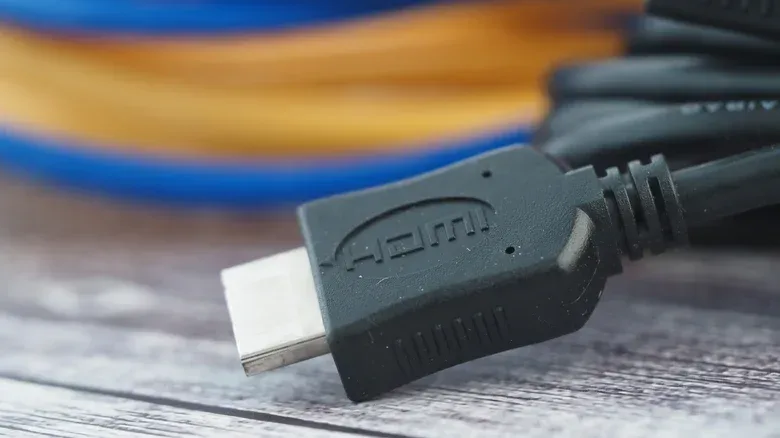
The Series X includes an Ultra High Speed HDMI cable, and for most owners it should stay in the setup. It is HDMI 2.1 compliant, so replacing it with a vaguely labeled “premium” cable does not inherently improve the picture, increase frame rate, or unlock an extra mode. A high price tag is not a video feature.
There are, however, practical reasons to buy a replacement. The included cable is six feet long. If the console has to sit farther from the TV, a longer cable may be necessary. A wall-mounted set can create a different problem: a conventional connector may be difficult to fit cleanly into a rear-facing port when the screen sits close to the wall. In that case, a cable with a thinner connector can make installation much easier.
In either scenario, the purchasing checklist is short: choose a cable that is certified for HDMI 2.1. The objective is compatibility and a cable shape or length that suits the room, not a luxury badge. If the original cable reaches the right port without strain, it already fulfills the job.
What this means for a real Xbox setup
It is easy to turn display settings into a specification scavenger hunt, but the practical takeaway is reassuring. Start with the parts already in the room. Confirm the TV model. Verify the HDMI 2.1-capable inputs in its manual. Connect the Series X to one of them using the included Ultra High Speed cable. Only consider a replacement cable if length or connector clearance creates a genuine installation problem.
After that, calibrate expectations around the games themselves. A compatible 4K/120 connection gives the console its best route to high-refresh output and VRR, but it cannot override a game designed around 60fps. Likewise, a 120fps mode may involve a resolution reduction that some players will notice and others will happily trade for smoother motion.
The potentially expensive part of this problem—a new television or a boutique cable—is often not the answer. Sometimes the fix is simply moving one plug a few inches to the HDMI input that was meant for the job all along.