Your PlayStation 5 can produce a sharp, colorful image while quietly missing some of the features you bought the console and display to use. That is not necessarily a console fault. It may simply be connected to an HDMI input that cannot carry the mode you want, using a cable that is not up to the task, or passing through equipment that limits the signal.
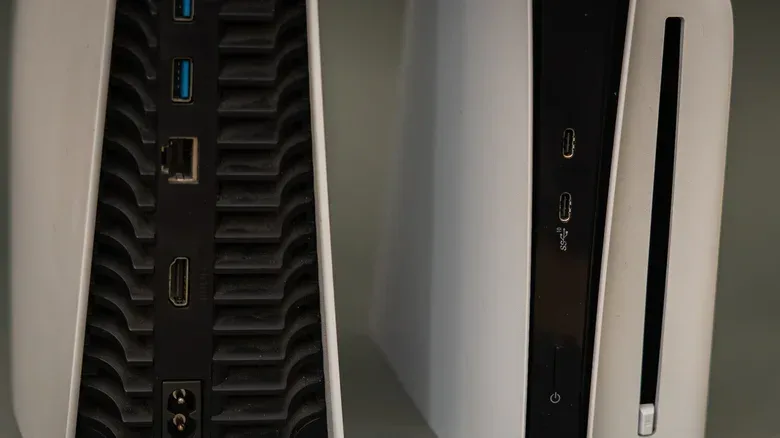
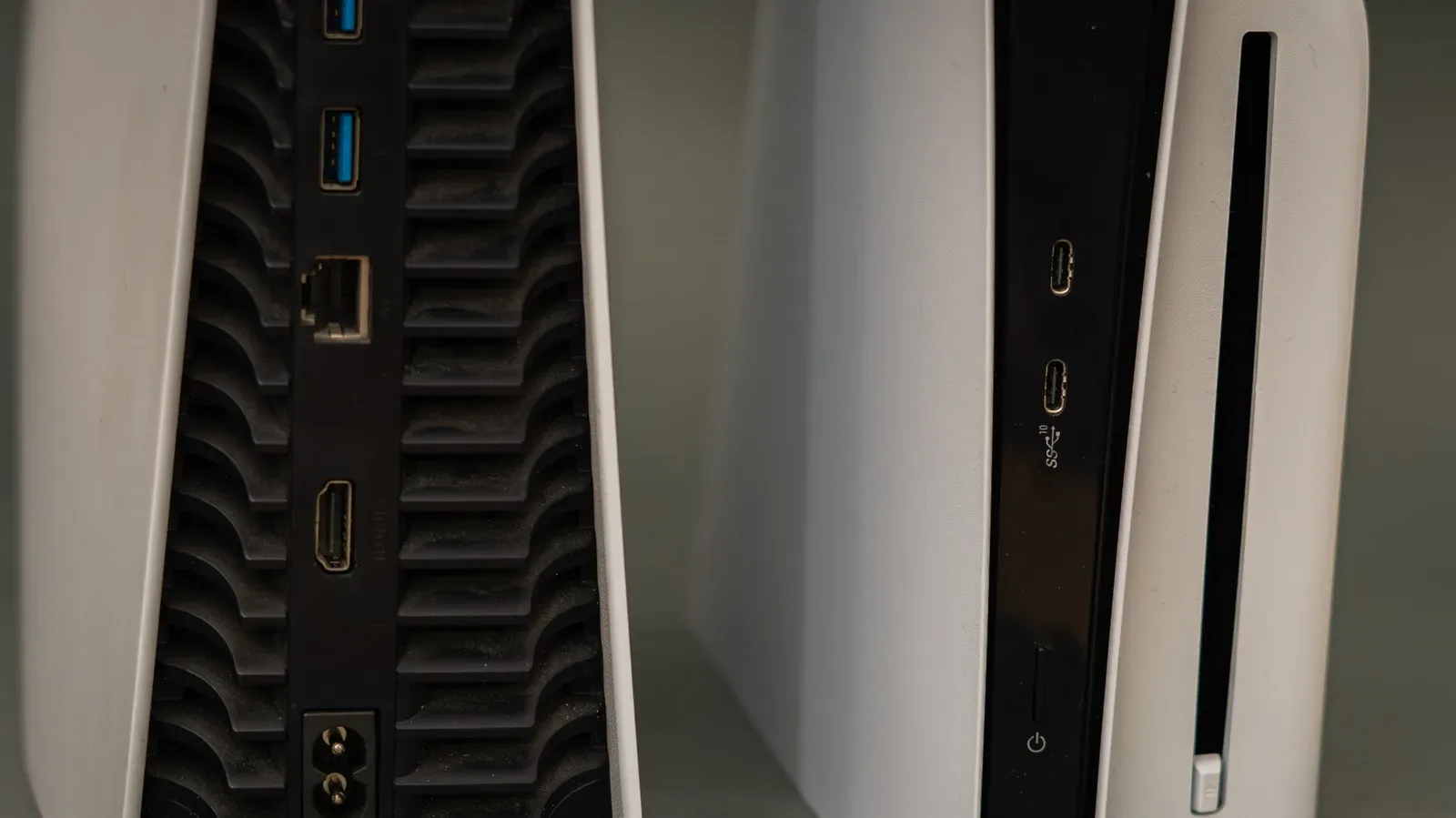
The mildly confusing part is that TVs and monitors often have several HDMI ports, but not every port necessarily offers the same capabilities. Labels may be tiny, difficult to see after installation, or absent from the rear panel entirely. A port called HDMI 1 is not automatically older or weaker than HDMI 2, and an HDMI input with a higher number is not automatically the best choice. Those are input names, not performance grades.
For a PS5 setup aimed at 4K at 120Hz, the key is to identify an input on the exact display model that supports HDMI 2.1 and 4K/120Hz, then make sure the PS5, cable and display settings agree. The same care is worthwhile for Variable Refresh Rate, HDR and low-latency gaming. Think of it as a signal chain: the console, cable, port, any intervening sound equipment and screen all need to support the feature. One restrictive link can hold the whole setup back.
Why a good-looking PS5 picture can still be limited
Modern screens can make an ordinary console connection look impressive, so visual quality alone is not a reliable diagnosis. A PS5 attached to a limited input can still display games cleanly. What may be unavailable is the particular combination of resolution, refresh rate and gaming features the console and display could otherwise negotiate.
Refresh rate, measured in hertz (Hz), means how many times a screen can update its image each second. A 120Hz screen can refresh up to 120 times per second. When a PS5 game supports 120 frames per second output and the entire setup accepts it, motion can appear smoother than on a 60Hz configuration.
That does not mean every PS5 game will suddenly run at 120 frames per second. The game itself has to offer a 120fps option, and it might be listed in its own menus as 120Hz output, High Frame Rate or a similar term. It may not be enabled by default. Also, 4K at 120Hz is not a universal mode for PS5 games. High-frame-rate options commonly reduce resolution to balance performance.
The practical point is simple: a TV or monitor may be capable of more than the current picture suggests, but a compatible input is only one requirement. The game, console output, cable and display must all be set up for the mode in question.
HDMI 2.0, HDMI 2.1 and the 4K/120 question
For PS5 owners, HDMI 2.1 is especially relevant when the target is 4K at 120Hz. A compatible HDMI 2.1 display input is required for that specific combination. Do not assume every HDMI socket on a TV has the same specification just because the TV is marketed as an HDMI 2.1-capable model.
Related coverage includes Your PS5 May Be Using the Wrong HDMI Port.
There is an important qualification. On a compatible display, 120Hz gaming at 1080p or 1440p can work through HDMI 2.0. Therefore, being unable to use 4K/120 does not automatically mean 120Hz gaming is impossible. The limitation may be the 4K/120 combination rather than the refresh rate alone.
Monitor owners should be particularly careful. A high refresh-rate monitor is not, by itself, proof that its HDMI input supports every high-refresh mode available through another connection. A monitor may have capabilities over DisplayPort that differ from what it accepts through HDMI. Since the PS5 uses HDMI output, check the monitor’s specifications for supported HDMI resolutions and refresh rates rather than relying solely on its maximum advertised refresh rate.
If the port labeling is unclear, consult the specifications for the precise TV or monitor model. On many televisions, but not all, the HDMI 2.1 inputs may be the third or fourth ports. That is a pattern, not a rule. The exact model documentation is more useful than guessing from port number or manufacturer.
Do not let the cable or an intermediary undo the setup
The cable matters just as much as the chosen socket. Sony recommends the HDMI cable included with the PS5 or another high-quality Ultra High Speed HDMI cable, the cable category associated with HDMI 2.1 use. Reusing an unknown cable already sitting in a drawer may result in a setup that works at a basic level but cannot reliably deliver the desired signal.
It is also best to connect the PS5 directly to the TV or monitor while establishing whether the target mode works. A soundbar or other device placed between the console and screen becomes another part of the signal chain. If it is unable to pass through the required signal, the PS5 and display cannot reach their maximum shared capability even if their direct connection would have worked.
This direct connection is a useful troubleshooting step, not a declaration that external audio equipment can never be used. It isolates the variables. First determine whether the console, cable, selected display input and display setting work together. Only then is it easier to identify whether intermediary equipment is the reason a mode disappears.
Players who need a longer run between console and display should also keep bandwidth in mind. Our guide to HDMI cable length, bandwidth and black-screen fixes covers why cable choices become more consequential when demanding signals are involved.
VRR and ALLM: two terms worth checking
HDMI 2.1 is not only about the headline 4K/120 figure. It also enables other gaming-oriented capabilities that can materially affect how games feel.
Variable Refresh Rate (VRR) synchronizes the display refresh rate with the system’s output. Its role is to help prevent screen tearing: a visual artifact that can occur when the display refreshes in the middle of a frame being delivered. VRR support must be present on the display and recognized in the connection details before it can benefit a PS5 setup.
Auto Low Latency Mode (ALLM) is designed to tell a compatible TV to switch into Game Mode. Game Mode reduces or disables some picture-processing features to minimize input lag, the delay between an input and its visible result on screen. This does not change a game’s frame rate, but it can remove an avoidable delay imposed by display processing.
These features are easy to confuse because they address different issues. A higher refresh rate describes how often the display can update. VRR aims to keep display refresh behavior aligned with console output. ALLM concerns the TV’s low-latency mode. A display can support some of these capabilities without supporting every possible resolution-and-refresh combination, which is why checking the connected-device information is more useful than assuming one marketing term guarantees all the rest.
Set the PS5 to detect the display correctly
After moving the cable to the input intended for high-bandwidth gaming, review the console settings. On the PS5 home screen, go to:
Settings > Screen and Video > Video Output
For a straightforward setup, use these settings:
- Set Resolution to Automatic.
- Leave Video Transfer Rate on Automatic.
- Set Enable 120Hz Output to Automatic.
Automatic settings allow the PS5 to work from the capabilities the connected display reports. They are a sensible baseline when troubleshooting because manually forcing a target resolution does not create support that the input, cable or screen lacks.
Then select Information for the Connected HDMI Device. This screen is valuable because it reports the display’s supported resolution, VRR and HDR details as detected by the PS5. The Current Video Output Signal section offers another useful view of what the console is actually sending at that moment.
Those two pages turn an opaque problem into a more specific one. Instead of asking whether the PS5 is “working,” check whether the console sees the expected capabilities and whether its current output matches what you are trying to achieve. If 120Hz or VRR is absent from the connected-device information, inspect the chosen HDMI port, cable and display-side settings before treating the console as the likely culprit.
Your TV may require a per-input setting
Even a port explicitly labeled HDMI 2.1 may not expose its full mode automatically. Some TVs and monitors require an input setting to be enabled after the console is connected. Manufacturers use different names for this option; one display may call it Enhanced Features while another uses different terminology.
Look in the display’s input or external-device settings rather than only the general picture menu. The objective is to ensure the selected HDMI input is configured for its enhanced or high-bandwidth mode. Because this behavior differs by model, do not rely on a setting name from another TV, even one from the same brand.
This is also why moving a PS5 from room to room can be more troublesome than expected. The same console and cable can encounter an entirely different HDMI layout, feature set and menu structure on another screen. Port positions and numbers are not standardized across models. A quick check of each screen’s specifications is more dependable than assuming the port that worked elsewhere will offer the same capabilities.
A sensible PS5 HDMI troubleshooting order
- Identify the display model. Check its specifications for the HDMI input that supports 4K at 120Hz, if that is the target.
- Connect the PS5 directly to that input. Temporarily remove a soundbar or other intermediary equipment.
- Use the supplied PS5 cable or a quality Ultra High Speed HDMI cable.
- Enable the display’s relevant enhanced-input setting. The label varies by manufacturer and model.
- Set PS5 video output options to Automatic. Use Settings, Screen and Video, then Video Output.
- Check Information for the Connected HDMI Device and Current Video Output Signal. Confirm what the PS5 recognizes and sends.
- Check the game’s own video options. A 120fps mode must be supported by the game and may need separate activation.
This order avoids an expensive and often unnecessary assumption: that a working PS5 requires repair merely because it is not delivering the expected mode. A connection can display an excellent picture while a mismatched port, cable, display setting or intermediary device blocks features further up the capability ladder. Verify the chain first, and the problem may be resolved without replacing the console at all.