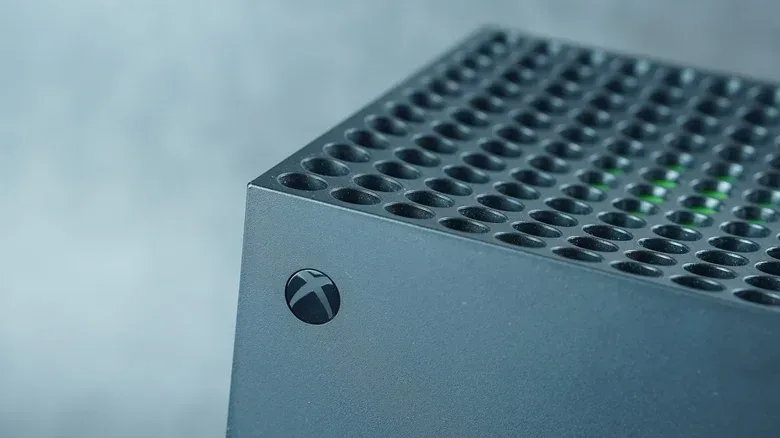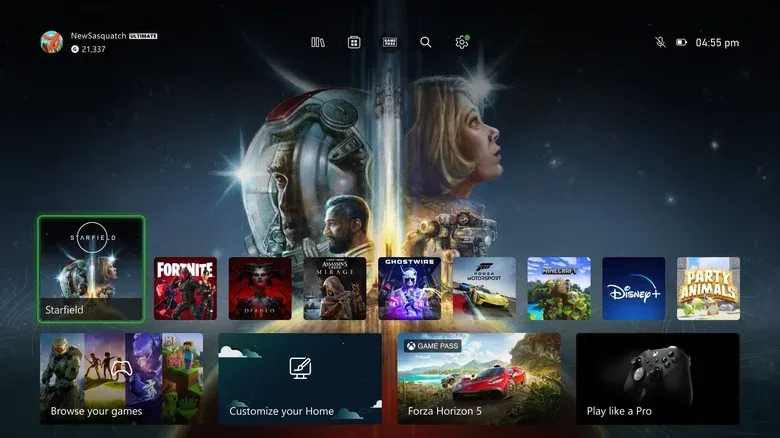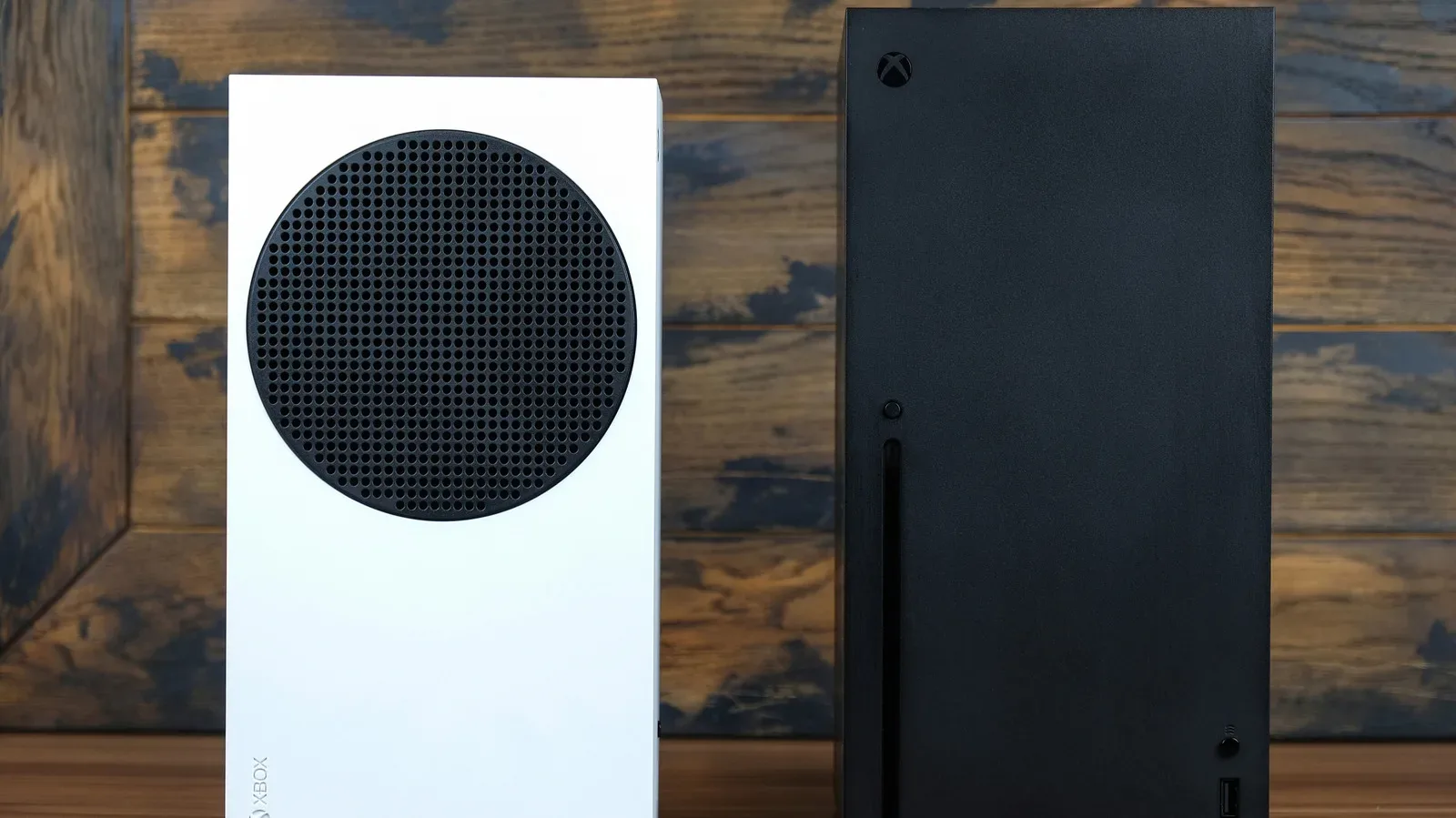
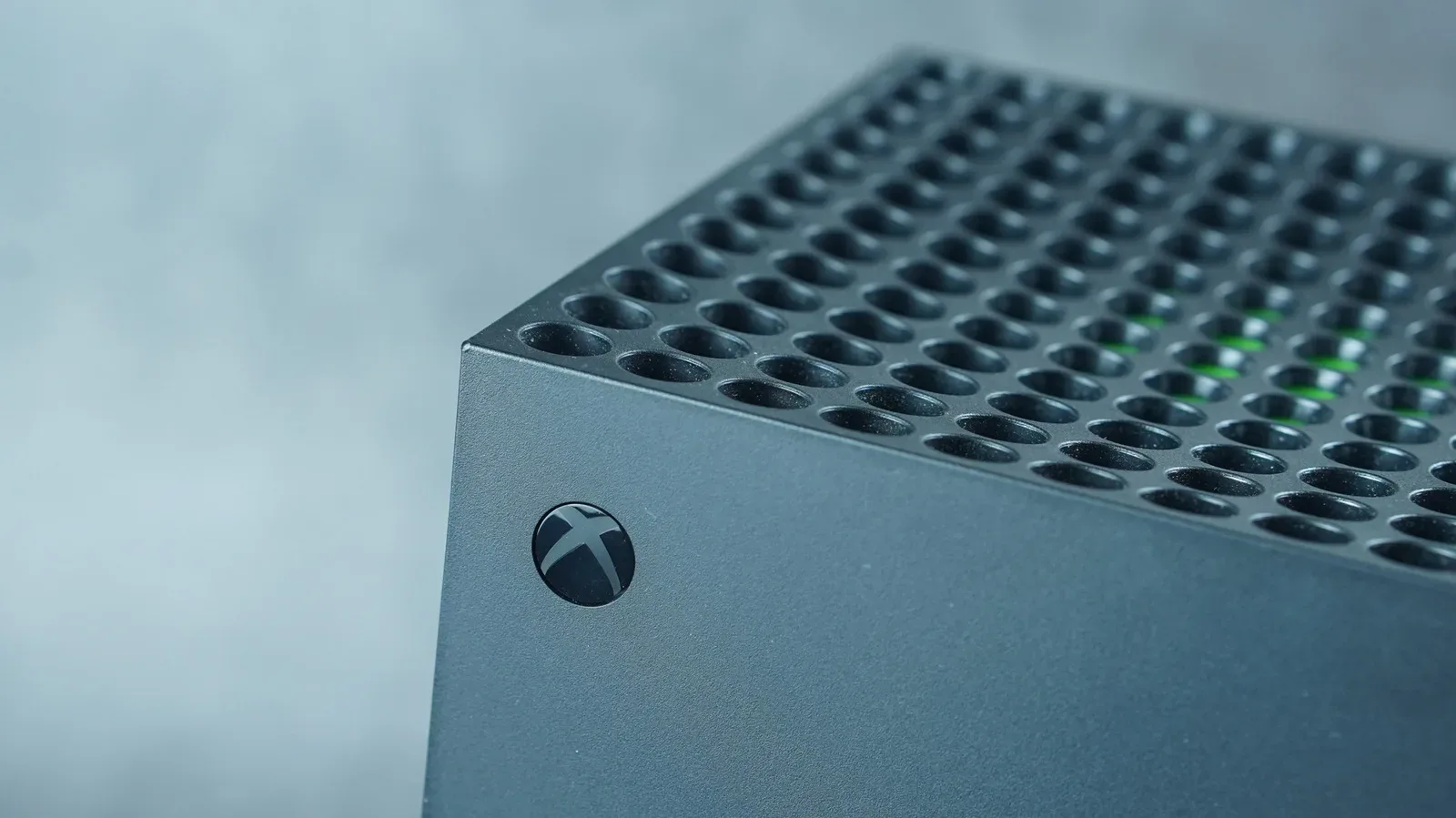
An Xbox Series X that has started feeling sluggish does not necessarily need a dramatic fix. If menus hesitate, a game has repeated loading failures, or connectivity problems keep resurfacing after an ordinary restart, clearing the console cache is a sensible troubleshooting step. It is a low-risk option to try before moving on to a reset.
The key distinction is important: clearing cached data is not the same thing as deleting games, profiles, or save files. A cache is temporary stored data the system uses to avoid repeatedly loading commonly needed elements. That is normally helpful, but temporary files can become corrupted or build up over long periods. In those cases, the cache meant to make routine tasks quicker may instead contribute to odd behavior.
For a related explanation of why cache-clearing can be a useful first troubleshooting move on another living-room device, see our guide to clearing a Samsung TV cache. The devices differ, but the basic principle is similar: temporary data is useful until it is implicated in a problem.
When should you clear the Xbox Series X cache?
There is no mandatory calendar for cache maintenance. You do not need to power-cycle the console every week or month merely because it exists. Instead, use the method when there is a clear reason to suspect the system needs a clean restart beyond the standard restart command.
Potential signs include:
- Menus that feel unusually slow or unresponsive.
- Repeated loading errors in games.
- Connectivity issues that persist after a normal restart.
- General glitches that appear after the console has been used for a long time.
This is troubleshooting, not a guaranteed performance upgrade. A cache clear may resolve a problem caused by temporary system files, but it cannot promise to fix every loading, network, or game-performance complaint. If the underlying cause lies elsewhere, the symptom may remain. That is why it makes sense as an early step rather than a cure-all.
There is at least one specific use case for the process: Epic Games identifies cache clearing on Xbox Series X as a possible remedy for load-failure errors in Rocket League. That does not mean every game error has the same fix, but it illustrates the kind of situation in which clearing temporary console data can be worth attempting.
How to clear the cache with a full power cycle
The recommended process is a complete power cycle. In plain terms, that means shutting the console down, disconnecting it from power long enough for residual power to clear, then starting it again. It goes further than simply restarting from a menu.
Related coverage includes How to Clear the Cache on Xbox Series X and When to Reset It.
- Turn off the Xbox Series X.
- Unplug the console’s power cord.
- Leave it unplugged for two minutes.
- While the console remains unplugged, press the power button multiple times.
- Reconnect the power cord.
- Turn the Xbox Series X back on.
Afterward, look for the Xbox logo and the full boot sequence. That is a useful indication that the console has completed the intended power cycle rather than simply resuming a quicker startup state.
What “cache” means here
Cached data is information saved temporarily so a device can access familiar elements without loading them anew each time. In general, caching is a performance feature. It is designed to make common processes smoother and faster.
The trade-off is that cached files are still files: they can accumulate, and they can sometimes be damaged or no longer behave as expected. Clearing them removes that temporary layer and lets the system rebuild what it needs during future use. That is why a cache clear can help after glitches, while also explaining why it might not produce an instant, universal speed boost.
What clearing the cache will and will not do
The reassuring part is that this procedure does not affect installed games or save data. It is not a factory reset, and it is not an instruction to erase your library. You should not need to reinstall games or recover saved progress because you performed the power-cycle steps above.
It can, however, change short-term behavior. Since the console is no longer relying on the same stored temporary data, some routines may initially need to load information again. Experiences may vary. One player reported temporarily longer loading times in Microsoft Flight Simulator after clearing the cache, while another reported faster boot times. Those are individual reports, not a reliable forecast for every Xbox or every game.
The practical takeaway is straightforward: judge the result by the issue you were trying to solve. If a game stopped throwing a loading error, menus became responsive again, or a recurring connectivity annoyance disappeared, the cache clear has done useful work. If nothing changes, avoid repeating the process endlessly; it is time to consider the next troubleshooting tier.
Rule out physical heat-management issues, too
Temporary software data is only one possible contributor to a console that seems off its game. Basic physical care matters as well. Keeping the Xbox Series X in an open area gives its fan room to do its job, while routinely cleaning the vents supports efficient heat management.
This is not a claim that every slowdown is caused by dust or placement. Rather, it is a sensible parallel check. A power cycle addresses temporary system data; airflow and vent cleanliness address the console’s ability to manage heat. They are different concerns, so a cache clear should not substitute for keeping ventilation in good shape.
If the problem remains, prepare before resetting
A reset is more consequential than clearing the cache. It is the option to consider when the Xbox still feels markedly unresponsive or games continue to misbehave after the power cycle. Before you reset, connect the console to the internet and allow save data to sync to the Xbox network.
That preparation matters because a more complete reset can erase local material. A synced save has a far better chance of being available again after you sign in, whereas unsynced data can be lost if you choose the most destructive reset option.
To open the reset controls on Xbox Series X, navigate to:
Settings > System > Console info > Reset console
At that point, the two choices serve very different needs.
Reset and keep my games & apps
The Reset and keep my games & apps option is the more measured reset. It avoids the burden of downloading all your installed games and apps again, although you will need to sign back into your accounts afterward.
For a console with persistent system-level weirdness but a large installed library, this is an appealing middle ground. It is more invasive than a cache clear, but it does not force an immediate full rebuild of the software installed on the machine.
Reset and remove everything
The Reset and remove everything option is the factory-reset route. It wipes everything on the console, so it should be approached only after you have made sure important save data has synchronized. The obvious downside is the time required to download games again and re-establish the console setup. More seriously, unsynced data may be lost.
Still, if the cache clear and less disruptive options have not improved a severely degraded experience, starting from a clean slate may be worthwhile. The choice is ultimately a balance between inconvenience now and the possibility of resolving issues that temporary-file cleanup did not touch.
A sensible troubleshooting order
For most Xbox Series X owners, the least disruptive path is also the most logical:
- Try a normal restart first.
- If trouble continues, perform the two-minute unplugged power cycle to clear cached data.
- Check that the console has unobstructed airflow and that its vents are routinely cleaned.
- If the issue persists, let saves sync online before opening the reset menu.
- Use Reset and keep my games & apps before choosing a complete wipe when that option fits the problem.
- Choose Reset and remove everything only with a clear understanding that installed content and unsynced local data are at risk.
This sequence preserves the least amount of disruption at each stage. A cache clear is quick, does not erase games or saves, and may be enough to resolve temporary-file issues. A reset is available when it is needed, but it should not be the reflexive first response to every slow menu or failed load.
In short, the Xbox Series X cache is a useful system convenience, not clutter that must be purged on a rigid schedule. Clear it when symptoms give you a reason, confirm the console goes through a full boot, and assess whether the original problem improves. If it does not, sync your saves and escalate carefully rather than jumping blindly to a factory reset.