There are few more reliable ways to ruin a carefully planned viewing session than a smart TV deciding that the opening minutes of a show are the ideal time to freeze. Apps crash, menus drag their feet and artwork arrives one thumbnail at a time. Before treating the remote like an underperforming controller—or assuming the television needs replacing—Samsung TV owners have a low-stakes maintenance option worth trying: clearing cached data.
Cache is temporary data stored locally to help an app work more quickly. Streaming apps can retain files and images so they do not need to fetch every small element again immediately. That convenience can become clutter over time, particularly on a TV used for a broad rotation of streaming services. Clearing the cache removes those temporary files and can recover some storage space, potentially helping apps and system menus respond more smoothly.
It is not a universal cure for every streaming problem. A connection issue, an app-specific fault or another underlying problem may remain after the cleanup. But it is a sensible, non-destructive troubleshooting step when a Samsung TV has started stuttering, buffering, freezing or taking an unusually long time to open apps.
What clearing a TV cache actually changes
Temporary cached files are not the same thing as installed apps, system software or the TV’s core picture and audio configuration. On the Samsung TV menu paths covered here, using Clear Cache targets those temporary files. It should not uninstall downloaded apps, remove software updates, alter audio/video settings or reset a Wi-Fi password.
That distinction matters because smart TVs have finite internal storage. Many have roughly 8GB in total, with considerably less genuinely available once the operating system, preinstalled software, user-installed apps and their working files are accounted for. Samsung’s operating system can take about 20 percent of total storage. In that environment, old temporary data is not necessarily the whole explanation for poor performance, but it is one piece of housekeeping that users can address without starting from scratch.
Think of the cache as an app’s short-term cupboard rather than its permanent library. It contains useful leftovers: images, locally held temporary materials and similar data that may speed up routine loading. Emptying the cupboard means the app must collect some of those materials again next time. The trade-off is that accumulated clutter is removed.
Symptoms that make a cache cleanup worth trying
A cache clear is most relevant when the problem looks local to the TV interface or a particular app. Common examples include:
- Streaming apps freezing or closing unexpectedly.
- Noticeable hesitation when moving through Samsung TV menus.
- Apps that take too long to begin loading.
- Buffering or slow responsiveness during normal app use.
- A specific service that is acting up while the rest of the television otherwise works normally.
Services such as Netflix, Hulu, Max, Peacock, Prime Video and YouTube all generate temporary data as they are used. Clearing cache is therefore a reasonable first attempt when one of those apps turns a relaxing evening into an impromptu troubleshooting quest. If only one app is giving trouble, clearing that app’s cache is the more targeted approach. If multiple apps and the TV interface are sluggish, system maintenance may make more sense.
Related coverage includes How to Clear the Cache on a Samsung TV.
It is also worth setting expectations correctly. Cache clearing may help performance; it does not promise to resolve every crash, every playback stall or every episode of buffering. The useful practical point is that it is quick, preserves the items people are normally most worried about and can be repeated periodically as cache data accumulates again.
The small inconveniences: cache versus data
There is no major lasting downside to clearing cached files, but the first launch of an app afterward may be a little slower. That is normal. The application has to download fresh temporary materials and images rather than drawing them from files already sitting on the TV. Movie posters, thumbnails and other visual elements may also take a moment to reappear.
That initial slowdown should not be confused with the original issue returning. It is simply the app rebuilding its temporary working set. Later launches should not carry the same brief delay.
The setting to treat cautiously is Clear Data, which is different from Clear Cache. Clearing data can remove saved preferences within an app. Depending on the app, that can include choices related to video playback, layout or subtitle and closed-caption settings. When the goal is a routine performance cleanup, select Clear Cache, not Clear Data, unless resetting those app preferences is intentional.
Samsung TV cache-clearing steps by model generation
Samsung’s menus vary by model year, so the correct route depends on the television. The following paths cover Samsung smart TVs from 2016 onward. Menu labels should be followed exactly where available.
Samsung TVs from 2020 onward
For broader device maintenance and a system-level cleanup, navigate to:
- Settings
- Support
- Device Care
- Start Device Care
For a specific troublesome application instead of the whole system, use this route:
- Settings
- Support
- Device Care
- Manage Storage
- Select the app
- View Details
- Clear Cache
This per-app option is especially useful when a single streaming service is the only offender. It avoids making every other app rebuild its temporary files when the problem appears isolated.
2019 and 7-Series Samsung TVs
On 2019 and 7-Series sets, the maintenance wording is different. To clean the broader TV system, follow:
- Settings
- Support
- Self Diagnosis
- TV Device Manager
- Clean Now
The same TV Device Manager area can also be used to select an individual application and clear its cache. This is the route to remember when an older interface does not display the newer Device Care language.
Samsung TVs from 2016 to 2018
Owners of 2016–2018 Samsung TVs have a more limited option. Individual app caches cannot be cleared through the available menu system, but browser cookies and some browsing data can be removed at:
- Settings
- Broadcasting
- Expert Settings
- HbbTV Settings
- Delete Browsing Data
That is not the same as a per-app cache button, so it is important not to expect identical controls on every generation. The age of the set affects what maintenance options Samsung exposes.
When a cold boot is the better next move
If cache cleanup does not improve things, a cold boot is another practical step that works across Samsung smart TV generations. A cold boot completely shuts down the television’s operating system rather than leaving it in its ordinary standby state, and it also clears temporary cache files.
There are two ways to perform one:
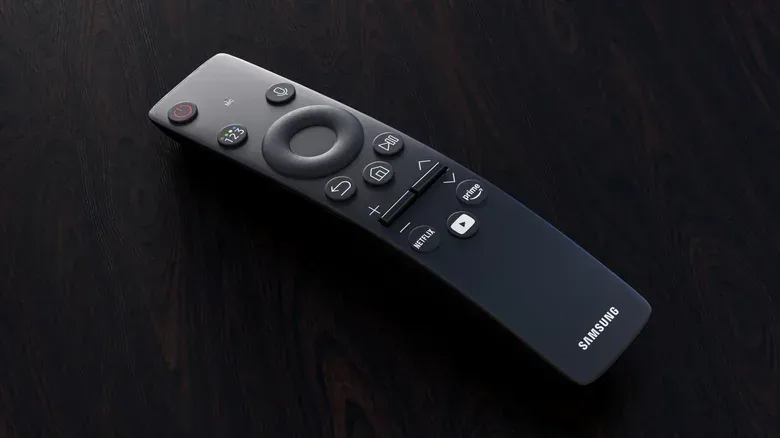
- With the television on, press and hold the power button on the Samsung remote. Keep holding until the TV turns off and then turns back on. The process takes about five seconds.
- Unplug the TV’s power cable from the wall outlet or power strip. Wait 30 to 60 seconds, then plug it back in.
The key difference is that this is a physical reboot of the TV’s operating system, not merely turning the screen off in the usual way. It is a useful escalation when menus and several apps remain unresponsive after the more selective cache step.
Owners troubleshooting a home-theater setup should also separate different symptoms before chasing a single fix. A frozen app or sluggish TV menu is not necessarily the same problem as audio arriving before the picture. For that latter issue, see why a soundbar can get ahead of the picture and what can fix the delay. Identifying whether the trouble is app performance, the TV interface or audio synchronization makes each fix more purposeful.
A low-drama maintenance habit
Because cache files return as apps continue to run, clearing them is maintenance rather than a permanent magical spell. Doing it every few months is a reasonable way to keep temporary storage from quietly piling up—particularly on a heavily used TV with limited internal space and a long app list.
The practical order is simple: use an individual-app cache clear for a one-app failure; use Device Care or the relevant system cleanup for wider sluggishness; then try a cold boot if the issue persists. Start with Clear Cache, reserve Clear Data for cases where app preference loss is acceptable, and allow an app a slightly slower first launch afterward. It may not defeat every streaming gremlin, but it is a much better opening move than shopping for a replacement television halfway through a playoff game.