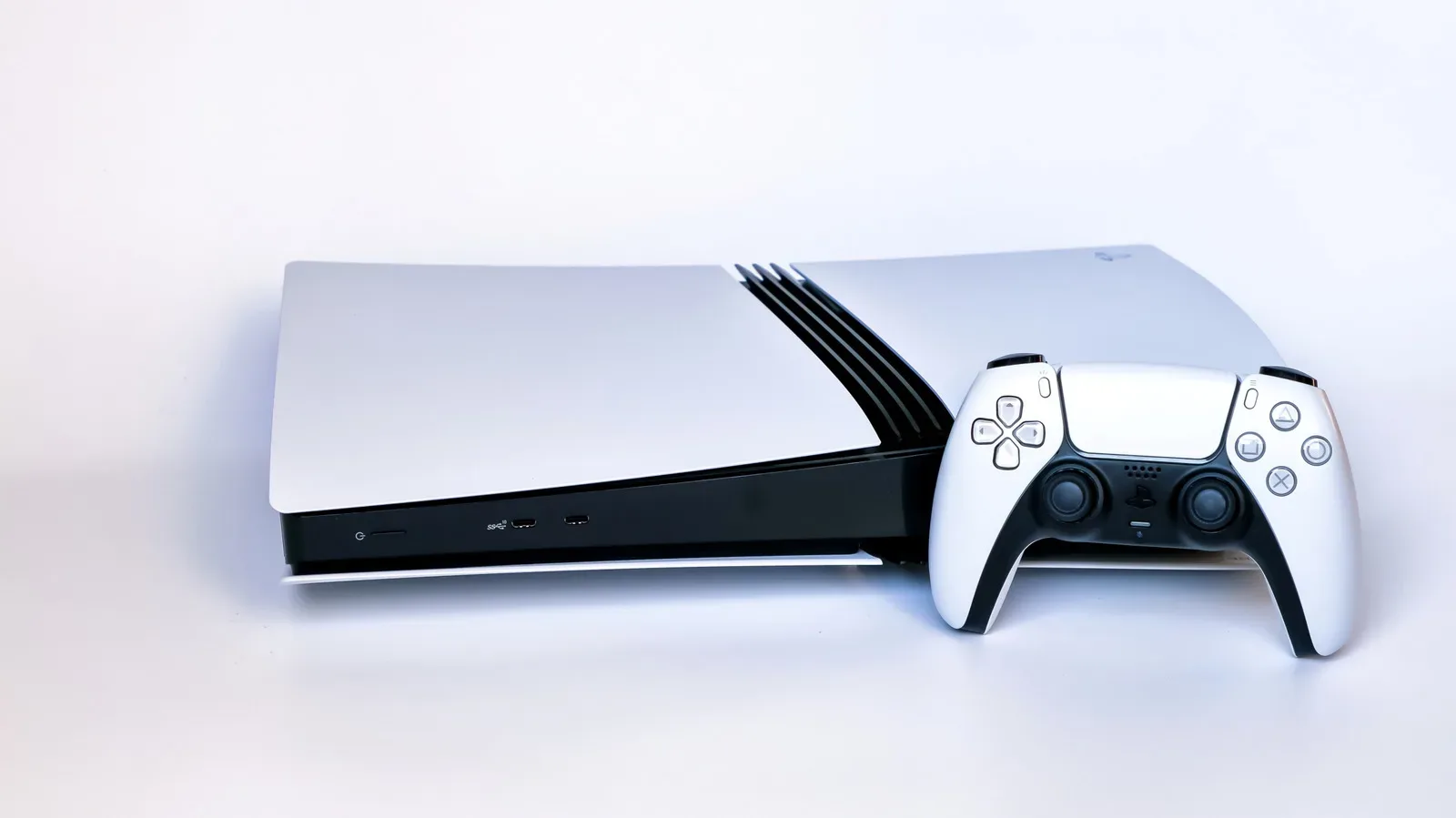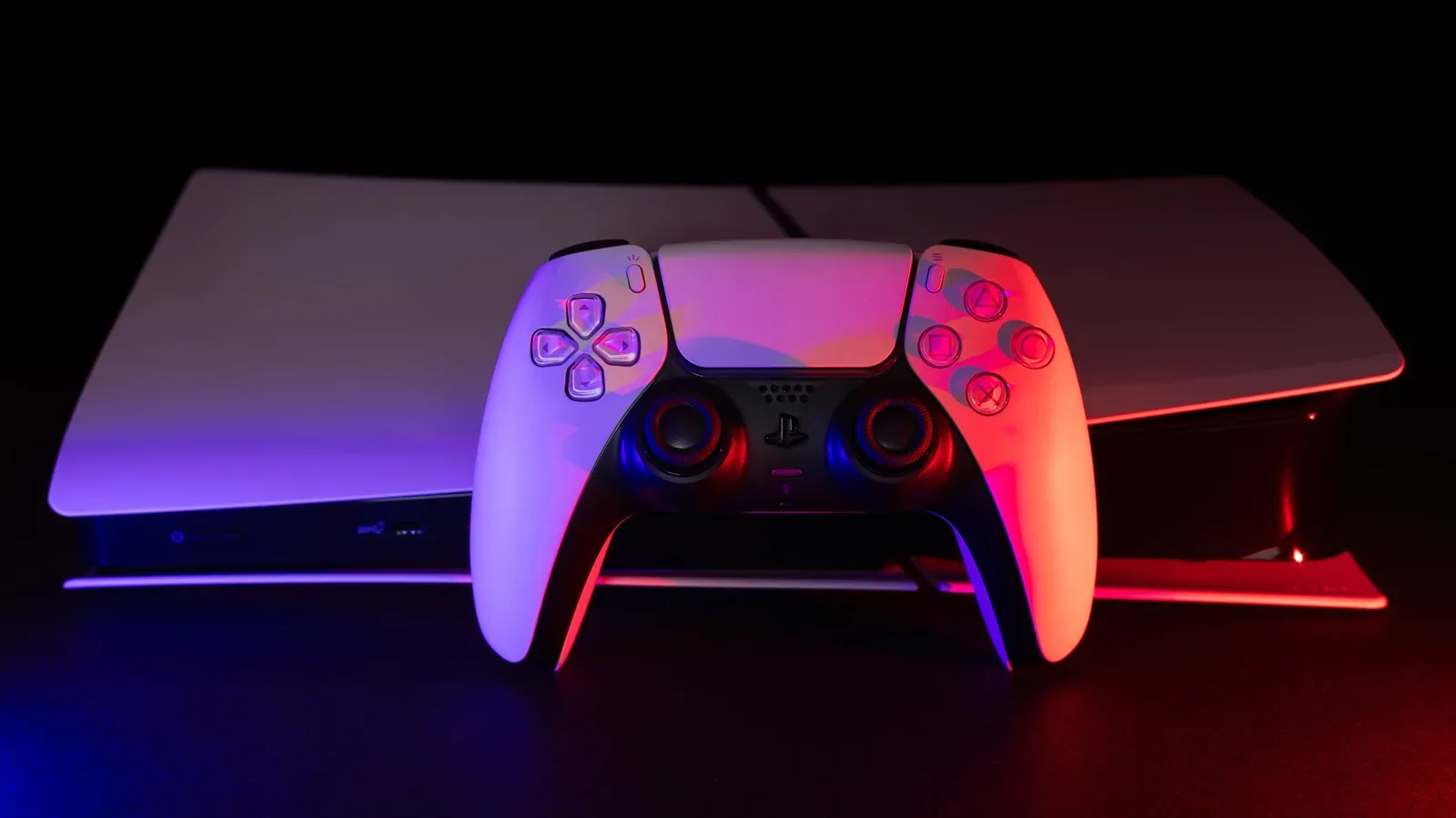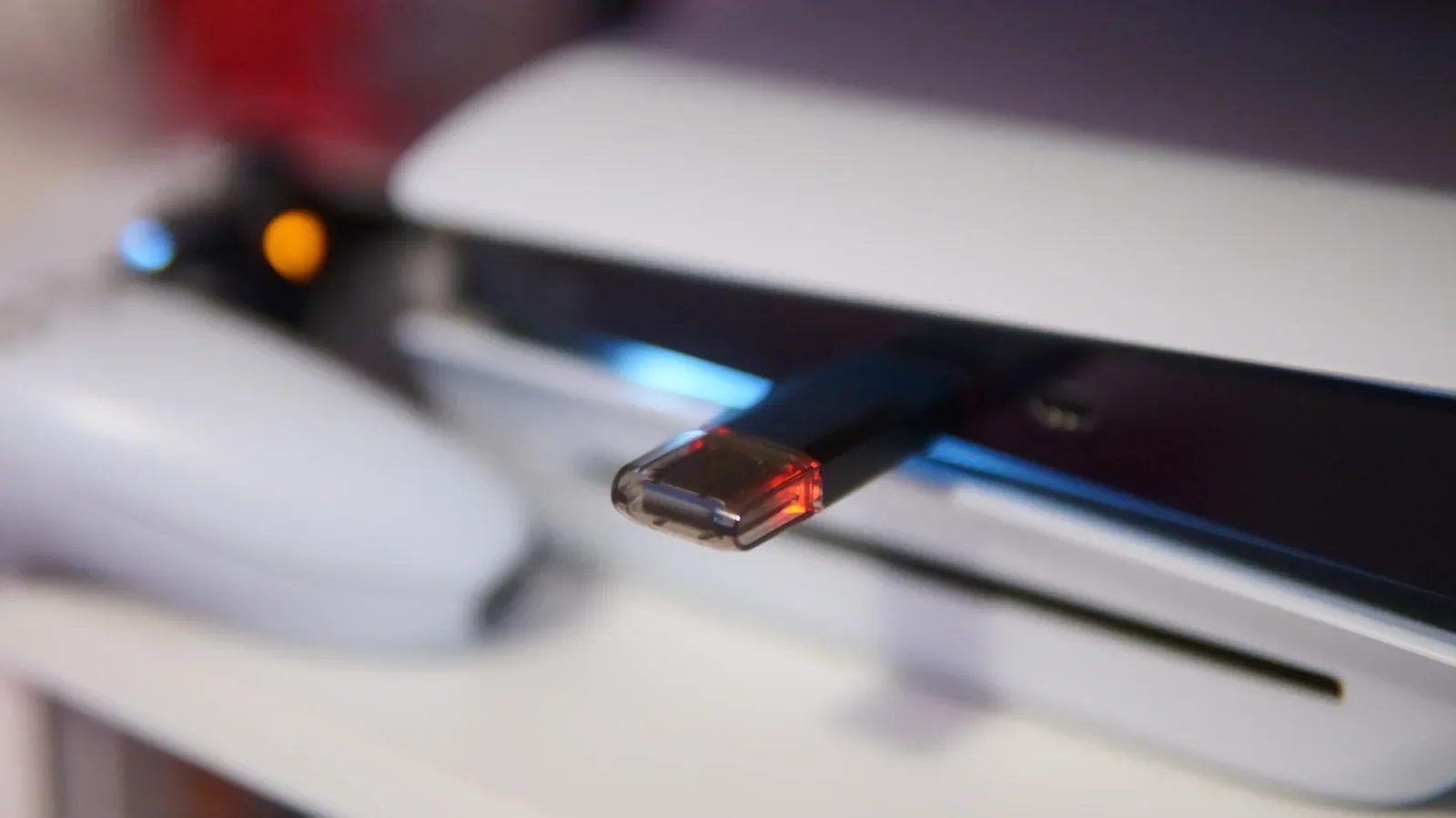
The PlayStation 5’s USB ports are easy to treat as a controller-charging convenience, but they are also a small collection of very different connections with specific jobs. They can help manage a crowded game library, transfer screenshots and clips, attach specialist controllers, connect a PS VR2 headset, create a console backup, and more. The caveat is that USB on PS5 is not one-size-fits-all: port speed, connector type and drive formatting determine what will work.
The most useful starting point is to separate USB-A, the familiar rectangular connector, from USB-C, the smaller reversible connector. Connector shape is not the same thing as speed. In this case, the speed difference matters considerably for storage and PS VR2.
Know which PS5 USB port is which
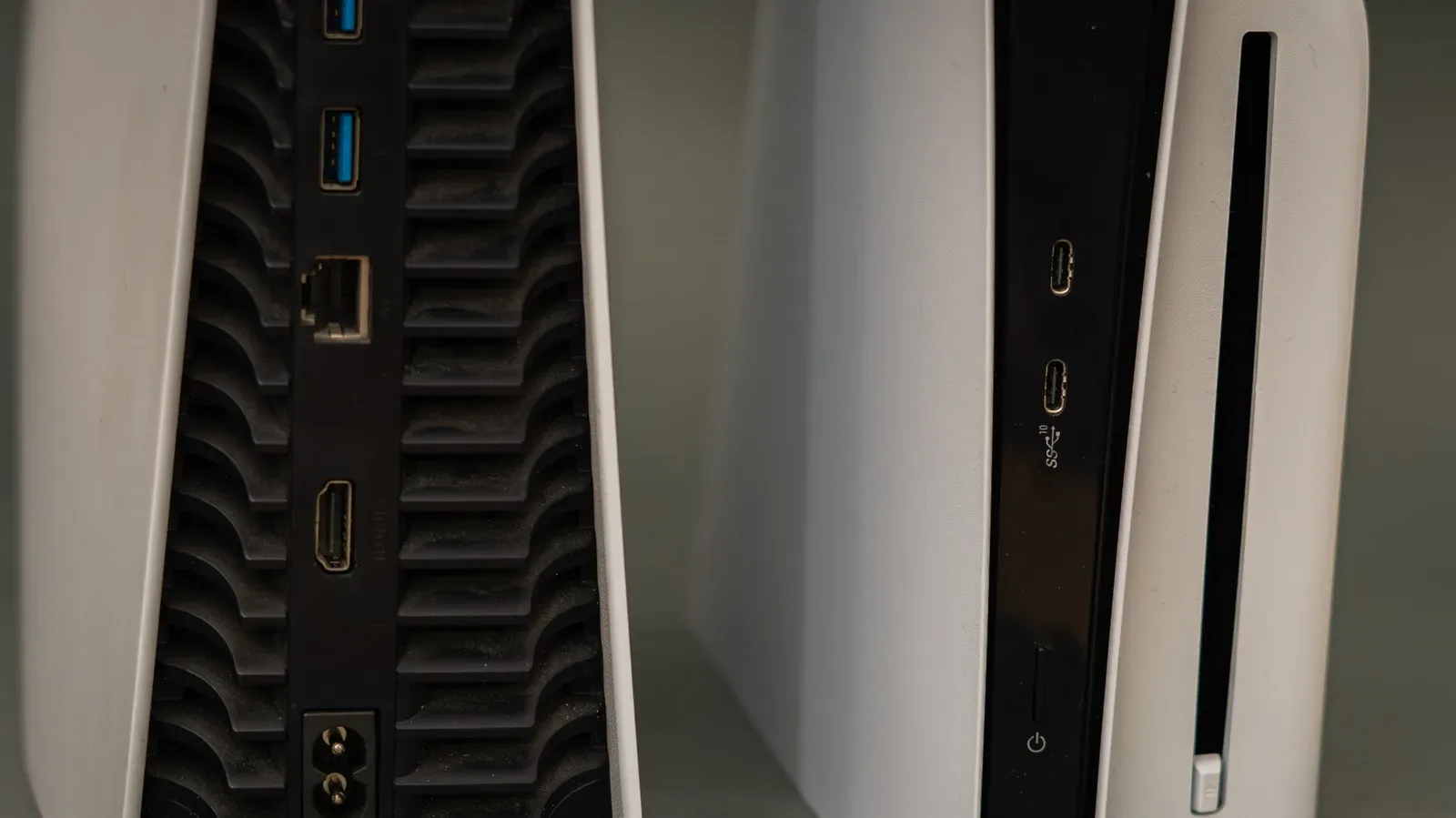
Every PS5 model has two rear USB-A ports rated at 10 Gbps. Gbps means gigabits per second and describes the connection’s potential data-transfer bandwidth. They are the sensible default for jobs that benefit from speed, including a compatible external game-storage drive.
At the front, model differences matter:
For more context, explore Skydance Reportedly Orders Five-Day Office Return Across Games and Media After $110B Merger.
- The original PS5 has a USB-A 2.0 port and a 10 Gbps USB-C port.
- PS5 Slim and PS5 Pro systems use USB-C for the front USB 2.0 port instead.
- The fast front USB-C port is the lower front connection on PS5 Slim and PS5 Pro hardware.
USB 2.0 is the slow option. It remains handy for a controller cable, but it should not be the first choice for a task where transfer performance matters. The rear 10 Gbps ports—and the applicable speedy front USB-C port—are the ports to prioritize when a device needs a faster link.
1. Use external storage as a PS5 library overflow
Modern game installs can make internal capacity feel finite very quickly. An M.2 SSD is the long-term expansion route for PS5 software, but an external SSD or HDD can still be extremely useful as USB Extended Storage. Think of it as overflow shelving for your library rather than a second location from which every game can be run.
PS5 games cannot be played directly from an external USB drive. They need to run from the console’s internal storage or from an M.2 SSD that meets the required specifications. A USB drive can, however, hold PS5 games while they are not being played. Moving a game off the console and returning it later may be preferable to downloading it again, especially on a limited connection or one subject to a data cap.
PS4 games work differently: they can be played from supported external USB storage. That distinction makes an external drive especially practical for players with a substantial PS4 library, while the main internal storage remains available for PS5 games currently in rotation.
External-drive requirements and limits
A drive intended for USB Extended Storage must support at least USB 5 Gbps, also known as USB 3.0, and have capacity from 250GB to 8TB. Only one such game-storage drive can be used at a time. It also cannot be connected through a USB hub, so connect it directly to the console.
With a suitable drive attached, the setup path is:
- Open Settings.
- Select Storage.
- Open USB Extended Storage.
- Choose Format as USB Extended Storage.
Formatting erases the drive’s existing contents. That is not a minor footnote: do not connect a drive containing the only copy of important files unless they have already been saved elsewhere.
There is another important storage rule. A drive formatted as USB Extended Storage for games cannot simultaneously serve as the drive for screenshots and video clips. PS5 game archival and media transfer require separate roles, so the cleanest setup for somebody who does both is two drives: one formatted as USB Extended Storage and one ordinary removable drive for media. A small flash drive can also be useful for occasional transfers to a computer.
2. Move screenshots and video clips off the console
Captures are another legitimate reason to keep a USB drive near the console. Unlike game storage, a drive for screenshots and clips should use exFAT or FAT32 formatting. These are file-system formats—the organizational rules that tell a storage device how files are saved and read. The PS5 distinguishes these standard media-drive formats from its dedicated USB Extended Storage format.
Practically, that separation means a drive already assigned to hold games is not the drive to reach for when clearing out a clip library. A dedicated FAT32- or exFAT-formatted flash drive is a straightforward option for moving footage or images to another device without repurposing game storage.
The PS5 also supports video playback from a USB drive, although that use depends on following the required formatting and folder-naming instructions. It is a narrower use case than transferring captures, but it reinforces the larger point: the console’s USB behavior is shaped by how the drive is prepared, not only by whether it physically plugs in.
3. Charge, wire and re-pair a DualSense controller
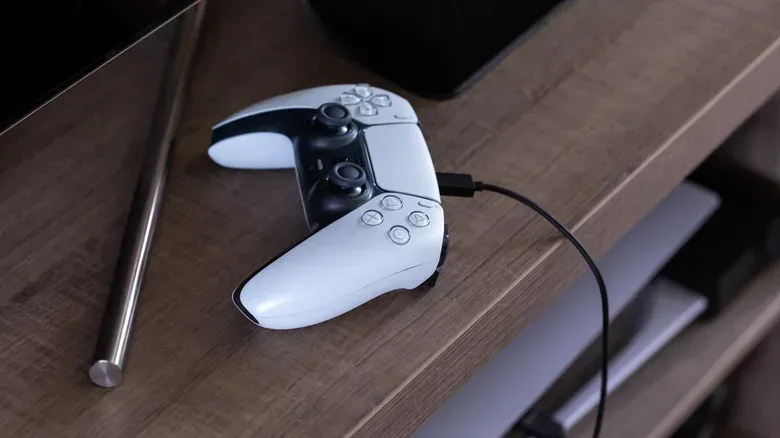
Charging a DualSense is the most visible USB role, and it is also one for which the slow front USB 2.0 port is perfectly reasonable. Keeping a cable there means a controller can be connected without sacrificing one of the faster ports for a job that does not need extra bandwidth.
A cable also offers the quickest path to pairing a controller with the console. That matters after using a DualSense on a PC, bringing it to another console, or moving it between PS5 systems in different rooms. A permanently available front cable can make that occasional housekeeping much less annoying.
Players who charge in Rest Mode should check the power behavior rather than assuming every USB port stays active indefinitely. Go to Settings > System > Power Saving > Features Available in Rest Mode. The 3 Hours option stops USB power after that period, avoiding unnecessary continued power draw. Always continues supplying power beyond that point. PS5 Slim and PS5 Pro systems additionally provide an Adaptive choice that can stop power when the controller is charged.
Leaving a controller plugged in can also be a preference for a wired connection. The relevant decision is less about a universal “best” setting than matching the port and Rest Mode option to how the console is actually used.
4. Connect PS VR2 and understand the older PS VR exception
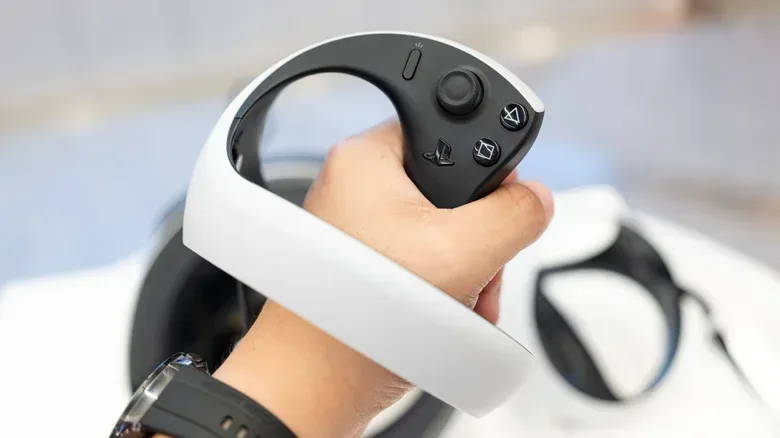
PS VR2 is one of the clearest examples of why the high-speed front USB-C port matters. Its single USB-C cable must connect to the speedy USB-C port at the front of the PS5. On PS5 Slim and PS5 Pro, that is the lower front port. This simplified one-cable arrangement differs from the original PlayStation VR setup.
The original PS VR can work with PS5, but it requires the PS4 camera and an adapter because PS5 lacks the camera’s proprietary connection. The older headset and PS VR2 should not be treated as interchangeable camera setups: the PS5 HD Camera is not required for PS VR2 and does not work with the original PS VR. Sony stopped providing the older camera adapter for free in 2024.
The PS5 HD Camera’s main purpose is showing the player’s face during streams to Twitch or YouTube. For people who do not stream in that form, its purpose is limited. Third-party cameras also do not have native PS5 support, which makes this a category where plugging in a random USB webcam should not be expected to produce results.
5. Add audio gear, specialist controllers and a keyboard
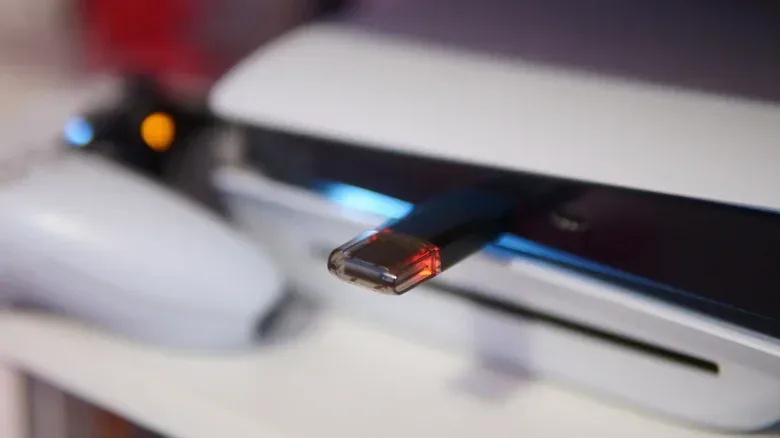
USB is central to a number of accessories that change how games are played or communicated about. A gaming headset may connect directly by cable or use a USB transmitter—often called a dongle—for wireless communication between the headset and console. In the latter arrangement, the headset itself is wireless, but the transmitter still needs the PS5’s USB connection.
Racing wheels and fight sticks are further examples of USB accessories that fit particular genres. The value is not that every game needs an alternative control method; it is that compatible hardware can better suit the kinds of games a player already enjoys.
Keyboard support can be useful even for players who do not want to play with keyboard and mouse. A wired keyboard or wireless keyboard dongle can make messages and in-game chat quicker to write. Some PS5 games also support a keyboard-and-mouse control scheme, but support is determined by the individual game, not by the console port alone.
In Overwatch, for example, a keyboard/mouse mode can be toggled; it disables aim assist and places players in PC lobbies. That illustrates why it is worth checking a specific game’s options before buying hardware for it. Compatibility can come with matchmaking and control-rule changes, not merely a new way to aim.
6. Create a USB backup—but understand what it restores
A USB backup can be useful for anyone without PlayStation Plus or for anyone who wants an additional copy of PS5 data. Use a FAT32- or exFAT-formatted drive that is not formatted as USB Extended Storage, then navigate to Settings > System > System Software > Back Up and Restore > Back Up Your PS5. The console lets the user choose what to include before beginning the backup.
This is a system-level safeguard, not a finely selective game-management tool. Trophies and M.2 storage are excluded. Individual games cannot be selected for this backup, and using Restore Your PS5 requires resetting the system. Those limitations make it important to understand the purpose before treating a backup drive as a substitute for everyday storage management.
There is a more granular exception for PS4 save data. Individual PS4 saves can be copied to USB through Settings > Saved Data and Game/App Settings > Saved Data (PS4).
7. Consider hubs and capture cards carefully
A USB hub can provide additional connections when several accessories need to be attached, but compatibility is not guaranteed for every device. Most notably, USB Extended Storage for games must be directly connected rather than routed through a hub. In other words, a hub may solve a port-count problem, but it does not erase the PS5’s device-specific rules.
A capture card is another potential USB-related addition for players who need more video capture capability than the built-in tools provide and are not simply streaming. This is a separate role from a USB media drive: one is about bringing video out for capture, while the other is about carrying files to or from the console.
The practical approach is to start with a device’s purpose, then choose the appropriate connection. Use the slow front port for low-bandwidth conveniences such as controller charging. Reserve high-speed ports for compatible storage and PS VR2. Keep game archival, media transfer and system backup drives formatted for their distinct jobs. And for unfamiliar USB hardware, connecting it is generally low-risk: the PS5 may report that it is not compatible, or it may simply do nothing. For another concise rundown of the port-by-port possibilities, see this PS5 USB port guide.
Shop the products
Check current price, model and availability at the retailer.