Grand Theft Auto 6 offers several ways to change how the action is framed, but its camera system is more about third-person customization than freely swapping into a permanent first-person view. Players can alter camera height and follow behavior in the settings, select a vehicle camera height while driving, and activate a cinematic driving view. There are also a couple of narrowly focused first-person options.
The important distinction is simple: GTA 6 does not offer a full, always-on first-person perspective through the usual camera controls. Instead, first person is available in limited situations, including a close-look action on foot and when using the in-game phone if the relevant setting is enabled.
Quick answer: changing the camera while driving
While exploring in a land or water vehicle, hold Down on the D-pad. From there, select one of the three available camera-height choices and confirm the selection.
That same D-pad menu also includes cinematic camera mode. It can make a fast drive or chase look considerably more dramatic, though it may make steering more difficult. If the priority is getting through traffic, following a route, or keeping precise control during a pursuit, a regular driving camera will generally be the more practical choice.
Camera settings: what you can customize
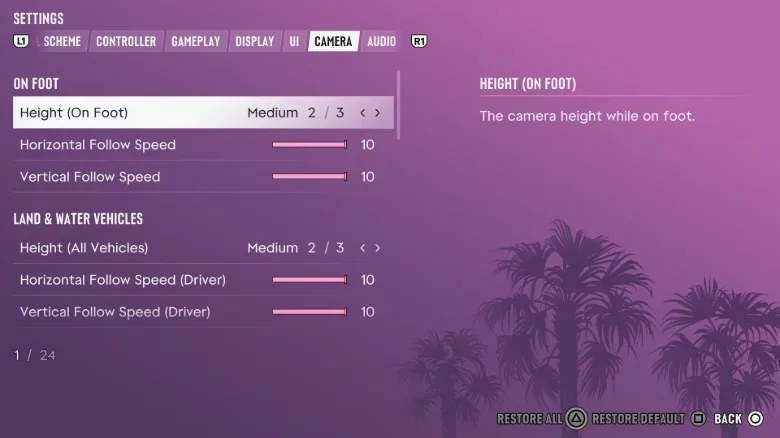
For more detailed adjustments, open the settings menu and go to the Camera tab. The available settings vary depending on whether the character is on foot, using a vehicle, or flying an aircraft.
On-foot camera controls
The Camera tab lets players adjust the height of the on-foot camera, along with horizontal and vertical follow speeds.
- Camera height changes the camera’s placement relative to the character.
- Horizontal follow speed governs how quickly the camera follows movement and turns across the screen.
- Vertical follow speed governs how quickly it follows movement up and down.
“Follow speed” is the rate at which the camera catches up with the character’s movement or direction. A player who wants the view to react more immediately may prefer a quicker follow response. Someone who finds a rapidly moving camera distracting may instead want a less aggressive response. These are personal comfort settings rather than a single objectively best configuration.
Land and water vehicle camera controls
Land and water vehicles have similar camera options. Players can adjust camera height and follow behavior for these vehicles in the Camera settings.
Related coverage includes GTA 6 Camera Controls: How to Change Views and Use First-Person Options.
GTA 6 also separates certain vehicle follow-speed settings based on whether the player is the driver or a passenger. That split matters because the two situations place different demands on the camera. When driving, the view needs to support steering and awareness of the road. As a passenger, the player is not responsible for piloting the vehicle, so the preferred camera response may be different.
For quick changes during travel, use the Down D-pad menu rather than pausing to revisit settings. It provides the three camera-height options for land and water vehicles, making it the useful shortcut when the current view is too close, too distant, or simply not giving a comfortable angle on the road or water.
Aircraft camera controls
Aircraft have their own camera settings. Players can adjust the follow speed and choose whether the camera follows the aircraft during a barrel roll.
A barrel roll is an aerial maneuver in which an aircraft rotates around while continuing its forward movement. Having the camera follow that rotation can make the maneuver feel more visually connected to the plane’s motion. Turning that behavior off may be preferable for players who want a steadier view while flying. Neither approach is inherently right; it is a question of whether immersion or visual stability is more comfortable.
How to use cinematic camera mode
Open the vehicle camera selection with Down on the D-pad, then choose cinematic camera mode.
This view is designed for spectacle. It can make high-speed driving and chases look more like a sequence from an action film, rather than a conventional behind-the-car driving view. The trade-off is control: shifting angles can make it harder to judge lanes, traffic, corners, and the exact direction the vehicle is heading.
In practical terms, cinematic mode is best treated as an optional presentation tool rather than the default view for demanding driving. Switch back to one of the standard camera heights when accuracy matters more than atmosphere.
Is there a full first-person mode in GTA 6?
Not through the camera options described here. GTA 6’s first-person perspective is currently limited to specific actions and contexts rather than functioning as a permanent player-selectable viewpoint.
That distinction prevents a common confusion: changing camera height while driving does not convert the game into first person. The height choices alter the third-person vehicle camera. Cinematic mode is also a separate presentation view, not a first-person setting.
First-person close look while on foot
While on foot, hold the left trigger and click the right thumbstick. This activates a closer first-person look at the surroundings.
This is useful when the normal third-person perspective does not provide enough detail or when players simply want to inspect the immediate area from a more direct viewpoint. It should not be mistaken for a persistent first-person gameplay mode: it is a limited contextual camera action.
First-person view when using the phone
In the Camera section of the settings menu, players can enable a first-person perspective for looking at the character’s phone. With that option enabled, checking the phone while driving shows both the device and the road from a first-person viewpoint.
That can be an immersive visual touch, but it is also a moment that demands caution in-game. Using the phone while operating a vehicle divides attention between the display and the route ahead. GTA 6 may let players see that scene from a first-person angle; it is not an endorsement of doing anything comparable outside the game.
A practical camera setup approach
Because GTA 6 breaks camera preferences into on-foot, vehicle, and aircraft categories, it is worth treating each one separately instead of searching for a single universal setting.
- Start on foot: Set a camera height that gives a comfortable view of the character and nearby space, then adjust horizontal and vertical follow speeds if the view feels too slow or too reactive.
- Set up land and water vehicles: Check the vehicle height and follow-speed options, including the separate driver and passenger behavior.
- Configure aircraft deliberately: Decide whether following barrel rolls makes flying more enjoyable or makes the camera less stable than desired.
- Use the D-pad shortcut while travelling: Hold Down on the D-pad to cycle into the camera height that best fits the immediate situation, or pick cinematic mode when visual flair is the goal.
- Enable phone first person only if wanted: It is a separate setting for phone use, not a gateway to a complete first-person mode.
It is also sensible to make camera adjustments when there is no immediate pressure to drive, fly, or react quickly. Camera preferences can be revisited as needed, while progress protection is a separate concern; see the GTA 6 saving guide for information on managing saves and autosave.
GTA 6 camera controls at a glance
- Change land or water vehicle camera height: Hold Down on the D-pad, choose one of three height options, and confirm.
- Enable cinematic vehicle camera: Hold Down on the D-pad and choose cinematic camera mode.
- Adjust detailed camera behavior: Open Settings, then the Camera tab.
- Use the on-foot first-person close look: Hold the left trigger and click the right thumbstick.
- Enable first-person phone viewing: Turn on the relevant option in Settings > Camera.
The headline feature is flexibility within GTA 6’s third-person presentation: players can tailor camera height, follow response, driver and passenger behavior, and aircraft roll handling. The limited first-person moments offer a closer perspective when looking around or using the phone, while cinematic mode supplies a more stylized angle for vehicle travel.