
Grand Theft Auto 6 includes a straightforward way to reduce or remove motion blur, a visual effect that can make fast camera movement appear smoother but can also look distracting or leave some players feeling dizzy or nauseated.
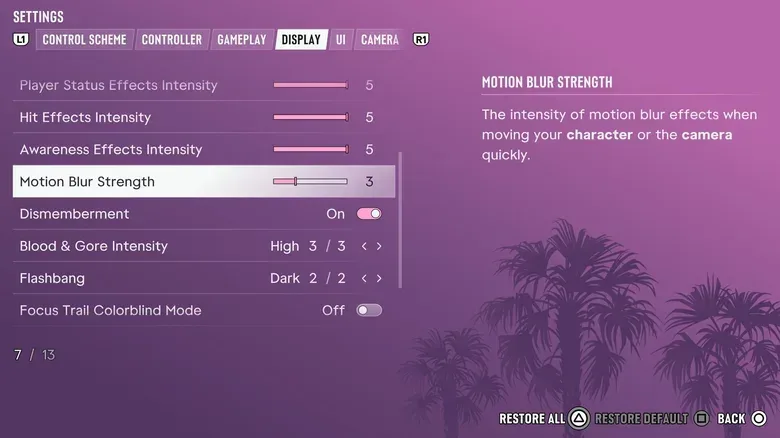
The important detail is that GTA 6 does not limit players to a simple on-or-off choice. Its Motion Blur Strength control is a slider, allowing a smaller amount of the effect for players who do not want the default presentation but also do not want to eliminate it entirely.
That flexibility matters in a game where players can spend long stretches driving, turning the camera through busy scenes, or rapidly changing direction. What looks cinematic and smooth to one person can look smeared to another. The ideal setting is personal, and it can also be influenced by the display being used.
Where to find GTA 6’s motion blur setting
To change motion blur in GTA 6:
- Pause the game.
- Select Settings at the bottom of the main pause menu.
- Move to the Display tab using the right shoulder button.
- Scroll to the Visual Effects section, around the middle of the page.
- Select Motion Blur Strength.
- Move the slider to the value you prefer.
The default value is 3 out of 10. Setting Motion Blur Strength to 0 disables motion blur completely. Raising the number intensifies the effect, while lowering it reduces the amount of blur applied during movement.
Players looking for the clearest possible moving image should begin at zero. Anyone who finds the completely unblurred picture too harsh during camera pans can then try the lowest available amount instead. A slider is useful here because it gives players room to find a compromise rather than forcing an all-or-nothing visual choice.
What motion blur does
Motion blur is a graphics effect designed to add blur when either the camera or objects on screen move quickly. In practical terms, it can soften the visual transition from one frame to the next during a rapid turn, a high-speed drive, or a sudden camera movement.
That smoothing is not universally desirable. Some players prefer a sharper image because it makes scenery, vehicles, characters, and details easier to follow while the camera is in motion. Others feel that blur weakens the impact of highly detailed, lifelike game visuals. There is no universally correct setting: motion blur is a presentation preference, not a measure of skill or a required part of the intended experience.
It can also be relevant for comfort. Motion blur commonly contributes to motion sickness for some players, including feelings of dizziness or nausea. Turning it down is therefore a sensible first setting to check when GTA 6’s movement does not feel comfortable to watch. A change that works immediately for one player may not resolve every cause of discomfort, but the setting is quick to reach and easy to reverse.
Why frame rate may affect the decision
GTA 6 targets 30 frames per second on consoles rather than 60 fps. Frame rate, often shortened to fps, refers to how many individual images the game displays each second. At lower frame rates, a quick camera movement can appear more noticeably stepped or jittery because there are fewer distinct images describing that movement.
Motion blur can help disguise some of that perceived jitter by blending movement visually. That is the trade-off. More blur may make a camera turn seem less abrupt, but it may also make the overall image less crisp. With the slider set very low—or switched off—the picture may look cleaner, while rapid movement may appear more pronounced to some viewers.
This is why “off” is not automatically the best technical choice for every screen and every player. It is, however, the clearest starting point for anyone who dislikes the effect or suspects it is contributing to nausea. From there, players can decide whether zero is ideal or whether a minimal setting better balances clarity with smoother-looking camera movement.
A practical way to dial it in
Instead of changing the slider repeatedly during a mission, make the adjustment while in a safe, low-pressure moment. Set Motion Blur Strength to 0 first, then play normally for a short time while driving and rotating the camera. Those are the moments most likely to reveal whether the change suits your eyes.
If movement now seems overly jarring, raise the slider only slightly and reassess. Because GTA 6 starts at 3 out of 10, players who are unsure where to land have a clear set of checkpoints to compare:
- 0: Motion blur is disabled. This is the option for maximum sharpness and for players who want to remove the effect as a possible contributor to discomfort.
- Low values: A small amount of blur remains, potentially softening quick movement without returning to the default intensity.
- 3: The default strength.
- Higher values: A stronger motion-blur look, for players who prefer that style of image smoothing.
There is no need to settle on a value permanently. Display preferences can change depending on the television, viewing setup, and what a player is doing in the game. A setting that is acceptable for slow exploration may feel very different during extended driving or rapid camera control.
Motion blur and camera choices
Camera perspective can change how noticeable motion blur feels. A view with frequent, fast rotation may make the effect stand out more than a steadier viewpoint. Players experimenting with visual comfort may want to adjust their camera setting and blur strength separately rather than assuming one change will address both.
For a breakdown of the available viewpoints, see our guide to changing camera views in GTA 6. Testing a preferred camera perspective alongside a lower blur setting gives players a more reliable sense of which element is affecting the experience.
What this option means for GTA 6 players
The presence of a strength slider is more useful than a basic toggle because it acknowledges that visual settings are not one-size-fits-all. Some players may value the extra smoothing that blur can provide at 30 fps. Others may prioritize image clarity, especially in a game built around detailed environments and lifelike graphics. And players who feel unwell with the effect have an immediate route to remove it.
In short, the setting is located at Pause Menu > Settings > Display > Visual Effects > Motion Blur Strength. Leave it at 3 for the default presentation, lower it to reduce the effect, or set it to 0 to turn motion blur off entirely. The best result will depend on personal preference and the TV in use, so a brief bit of experimentation is more valuable than treating the default as mandatory.