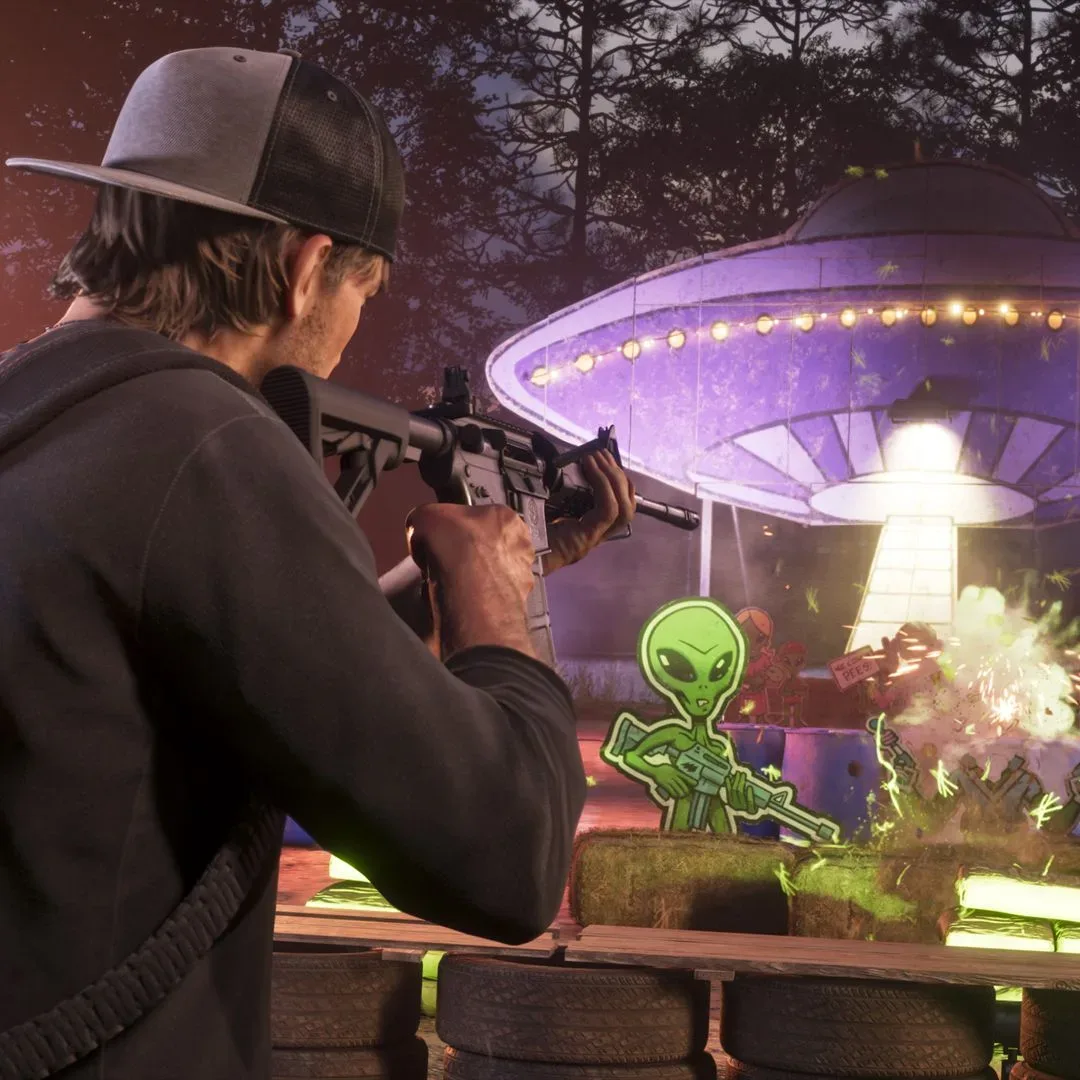

Years of playing Grand Theft Auto V can make even a small button remap feel wildly wrong. A familiar action suddenly becomes a jump, a sprint input moves to the left stick, and the first few minutes of a new session turn into an accidental slapstick routine. GTA 6 includes a way to reduce that adjustment period: the Classic control scheme.
The setting is intended to bring the controller layout closer to the GTA 5 arrangement. It is especially useful for returning players whose muscle memory is built around the older setup, though it is also a reasonable accessibility and comfort choice for anyone who simply prefers those assignments. The game’s settings also contain several HUD options worth checking at the same time, including the visibility of the minimap and character-status information.
How to enable Classic controls in GTA 6
- Press the controller’s Options/Menu button.
- Open Settings.
- Find the control-scheme setting.
- Change the scheme from the default layout to Classic.
That is the essential switch. After selecting Classic, pause for a moment and read the on-screen button prompts before returning to free roam, a mission, or a hectic getaway. A control scheme is more than a label: it changes the inputs your hands will expect for actions that happen constantly.
Default and Classic layouts: the important difference
GTA 6’s default control arrangement changes several inputs that veteran GTA 5 players may instinctively reach for. In the default setup, running is assigned to L3/LS, meaning a press of the left stick. The X/A face button is used for jumping, while melee is moved to Square/X.
The Classic scheme moves the experience nearer to the previous GTA 5-style layout. The provided classic assignments are:
- X/A: Run/Sprint
- Circle/B: Melee
- Square/X: Climb/Jump
- L3/LS: Crouch
Platform labels can look confusing at a glance because the same physical position has different button names. X/A, for example, refers to the lower face button on PlayStation and Xbox controllers respectively. Likewise, Square/X refers to the left face button, while Circle/B is the right face button. The slash does not mean two simultaneous inputs; it identifies the equivalent button across controller families.
Why the swap feels so dramatic
Running, jumping, climbing and melee are high-frequency actions. They tend to be used while navigating the world, reacting to danger, entering vehicles or dealing with close-range encounters. That is why an altered layout can feel more disruptive than it appears in a menu.
“Muscle memory” is simply the learned, automatic response that develops after repeating an input over time. It does not mean a player cannot learn the newer layout. It means the wrong action may happen before conscious thought catches up—particularly when the player is under pressure. Switching to Classic can remove that initial friction for players who have spent a long time with GTA 5’s conventions.
Related coverage includes GTA 6 Classic Controls: How to Switch Back to a GTA 5-Style Layout.
There is no universal best layout. The default setup may make sense to players who prefer left-stick running, while the Classic option is there for those who want their controller response to feel more familiar. The practical answer is to choose the one that lets you concentrate on driving, exploration and objectives rather than the placement of each command.
Check the Dynamic HUD after changing controls
The controller layout is only part of GTA 6’s broader shift in presentation. The game uses a Dynamic HUD, designed to remove non-essential interface elements from the screen so the world is less visually obstructed.
HUD is short for heads-up display: the collection of information layered over gameplay, such as maps, health indicators, stamina meters, money displays and objective markers. A dynamic version does not necessarily keep every one of those elements permanently visible. Instead, it prioritizes a cleaner view and makes certain information available when requested.
With the standard Dynamic HUD, pressing down on the D-pad brings up important information including the minimap, bank balances, and the health, stamina and focus bars. Those elements can be individually toggled on or off in Settings.
This is worth adjusting deliberately rather than treating it as a cosmetic afterthought. Players who value an uninterrupted view of Leonida may prefer fewer permanent overlays. Players who rely on rapid navigation or want constant confirmation of character status may be happier keeping more information visible. Neither approach changes the underlying game; it changes how much of its information is immediately on screen.
A quick HUD setup checklist
- Decide whether you want the minimap visible by default or brought up with the D-pad.
- Review the visibility settings for bank balances.
- Check whether you prefer persistent or hidden health, stamina and focus bars.
- Test the setup during ordinary travel as well as more demanding gameplay, since information needs can change quickly.
The goal is not necessarily to make the interface disappear. It is to make sure it appears in the way that is most useful to you. A clean screen has obvious appeal, but players should not have to repeatedly hunt through an interface for the information they consider essential.
Nearby tasks, destinations and D-pad controls
GTA 6 also offers controls for checking nearby tasks and locations. By default, this uses a hold of down on the D-pad, followed by L1/LB and R1/RB to cycle through available items and set a new destination.
In practical terms, this is a navigation and discovery tool. Rather than leaving task-related information in a fixed position on screen at all times, the system lets players call it up, browse the nearby options and select where they want to go. If that combination does not feel natural, examine the relevant settings while you are already configuring controls and HUD visibility.
This approach fits the Dynamic HUD’s broader purpose: keep the world visually clear until the player asks for information. The trade-off is an extra input sequence. Players who are used to a permanently visible map or marker system may need a little time to build a new habit around the down D-pad command.
Vehicle interaction settings are worth reviewing too
The same settings area includes options affecting how the player interacts with Leonida’s citizens while inside a vehicle. The supplied details do not specify the individual choices available, but the presence of the setting makes it another useful item to inspect before settling into a long session.
It is easy to focus exclusively on sprint and jump when changing to Classic controls, then overlook settings that influence how often-used contextual actions behave. Taking a minute to review each relevant option can prevent confusion later, when an interaction prompt appears in a car and the response does not match your expectations.
Recommended setup process for returning GTA 5 players
- Enable Classic controls from the Settings menu.
- Confirm the core mapping: X/A for sprint, Circle/B for melee, Square/X for climb and jump, and L3/LS for crouch.
- Set the HUD elements you want available, especially the minimap and character-status bars.
- Learn the Dynamic HUD reveal input: press down on the D-pad to show key information.
- Review nearby-task navigation, which starts with holding down on the D-pad and uses L1/LB and R1/RB to cycle choices.
- Check the vehicle-based citizen-interaction options before assuming every contextual action will work as it did in GTA 5.
Classic controls do not require players to reject GTA 6’s newer interface ideas. The most comfortable compromise may be a familiar movement and action layout paired with a customized Dynamic HUD. That keeps the physical controls close to what long-time players expect while allowing the screen presentation to be tailored separately.
For more on one of the game’s other major systemic changes, see our look at GTA 6’s heat system and police escapes. For this particular adjustment, though, the fix is simple: open Settings, select Classic, and give your hands a layout they already know.