An old hard drive is easy to mistake for a solved problem: unplug it, put it in a drawer or garage box, and assume the files will be waiting when nostalgia, necessity or a missing save file brings you back. That assumption is risky. Whether a drive holds personal photos, PC game archives, screenshots, mods, recordings or ordinary backups, it remains a piece of delicate hardware with mechanical parts and electronics that can be affected by where—and how long—it sits.
The practical answer is not an elaborate preservation lab. It is a short sequence of sensible precautions: make more than one copy of the data, protect the drive from static and physical knocks, store it indoors where conditions are stable, and check it periodically rather than treating it as a permanent time capsule.
Most importantly, a stored drive should never be the only home for files that cannot be replaced. A protective case can help the hardware survive, but no case turns one aging drive into a dependable archive strategy.
Start with the data, not the container
Before packing away an old drive, act as though it could fail the next time it is connected. That sounds pessimistic, but it creates the right priority: copy important files elsewhere before concentrating on storage accessories.
A useful framework is the 3-2-1 backup rule: keep three copies of important data, use two different storage media, and keep one copy offsite. In simple terms, files from an old hard drive could also live on a current computer and in cloud storage. For especially valuable material, a second physical backup kept away from home—such as in a safe deposit box or at a trusted family member’s house—adds protection against theft and natural disasters.
“Offsite” means physically separated from the original. It matters because a perfectly protected drive does little good if every copy is in the same building when that building suffers a disaster or burglary. Cloud storage can serve as an offsite copy, though it is still worth confirming that the relevant folders were actually included in the backup.
Do not assume a transfer worked merely because it appeared to finish. Open files from the new copy and confirm that the material you care about is present and accessible. This is particularly worthwhile for irreplaceable videos, photos and old project folders, but the same principle applies to any digital collection. A backup that has not been checked is less reassuring than it looks.
Cloud backups also introduce a privacy decision, since files leave the local drive. Settings and controls around data sharing can have wider consequences, as explored in this look at a seemingly small privacy toggle. The relevant lesson here is not that one storage approach is universally best; it is that users should know where their copies reside and what they are trusting each service or device to retain.
Why idle hard drives remain vulnerable
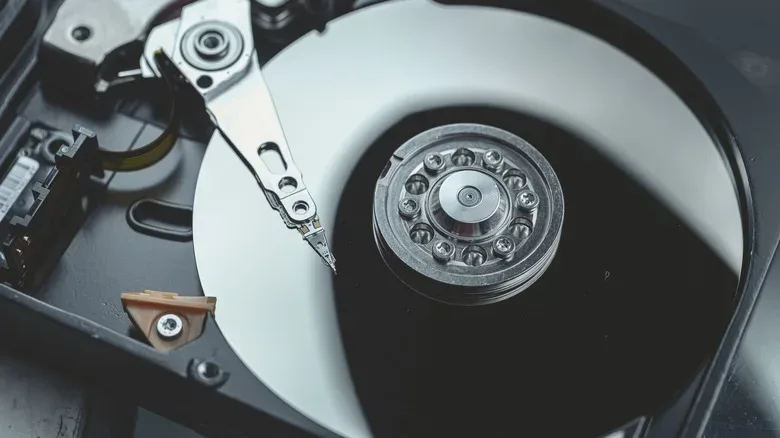
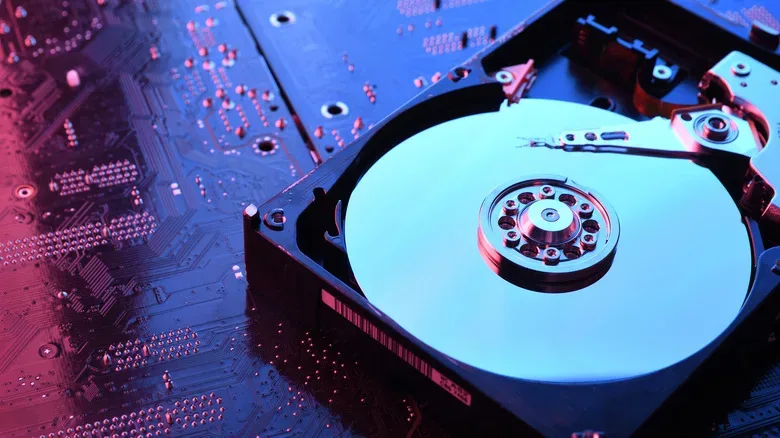
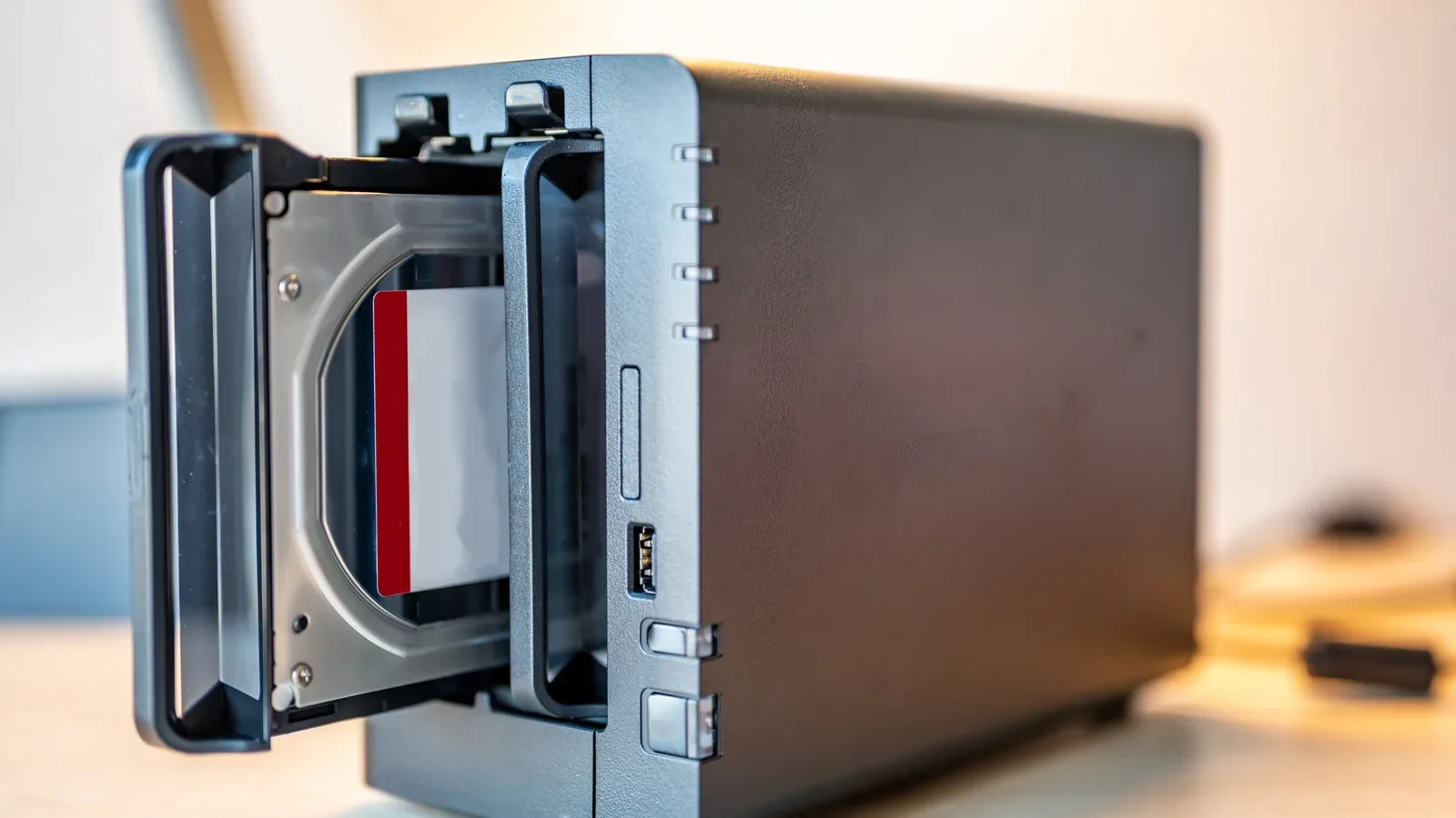
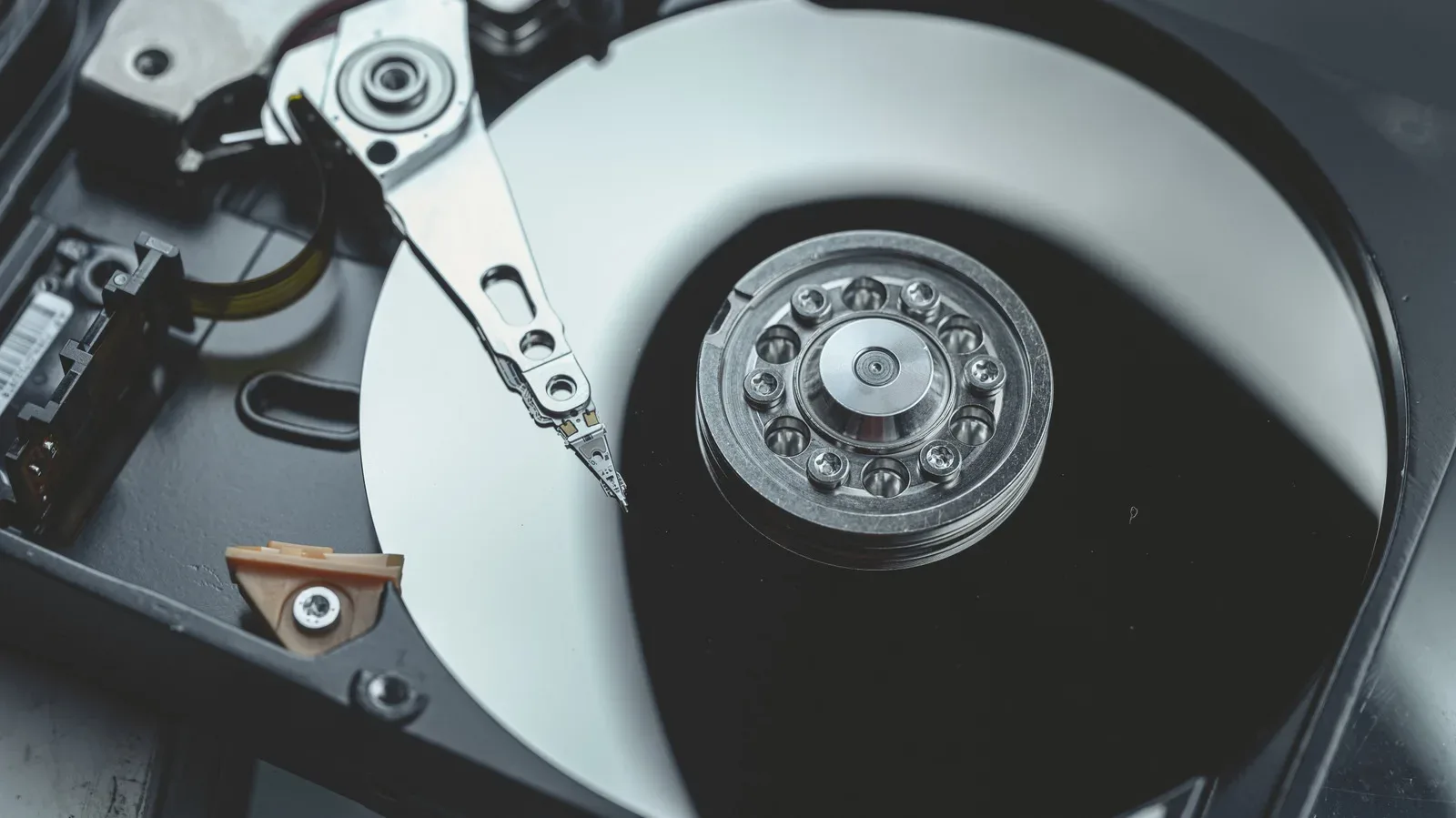
A traditional hard disk drive, often shortened to HDD, stores data on internal platters and relies on moving components. Those mechanics are one reason an HDD deserves more care than a random box of cables. Extreme heat can harm internal components and degrade lubricants. Humidity can contribute to corrosion on circuit boards and connectors. Static electricity can damage electronics, while magnetic fields may interfere with platters and stored data.
There is another complication: leaving a drive untouched is not the same thing as preserving it forever. Mechanical parts can seize after long periods of inactivity, and capacitors on the drive’s circuit board can degrade with time. A drive may look immaculate after years in a drawer and still refuse to cooperate when its data is finally needed.
This does not mean every old drive is doomed, nor does it mean an owner must constantly run every archive. It means storage is risk management, not a guarantee. Reducing environmental hazards and avoiding a single point of failure are far more realistic goals than trying to make a decades-old drive invulnerable.
Terms worth knowing
- Electrostatic discharge: A sudden release of built-up static electricity. Anti-static packaging is intended to reduce this risk around sensitive electronics.
- Humidity: Moisture in the air. For stored drives, the concern is corrosion on connectors and circuit boards rather than a visible spill.
- Capacitor: An electronic component on the circuit board that can degrade over time, even when the drive is not being used.
- SATA: A common connection used by many hard drives and SSDs. A SATA-to-USB adapter can make it easier to connect a bare drive to a computer for a checkup.
- SSD: A solid-state drive. Unlike an HDD, it has no moving mechanical parts, but it should still be handled and stored with care.
Use anti-static protection for basic archival storage
For a drive that will sit in a drawer, anti-static bags are a low-cost first layer of protection. They are useful against electrostatic discharge and offer some defense against dust and moisture. They are not, however, impact protection. A bagged drive can still be damaged by a drop, a heavy object in a crowded box, or rough handling during a move.
That distinction helps avoid a common storage mistake: treating anti-static packaging as if it were a carrying case. It is packaging for electronics, not armor.
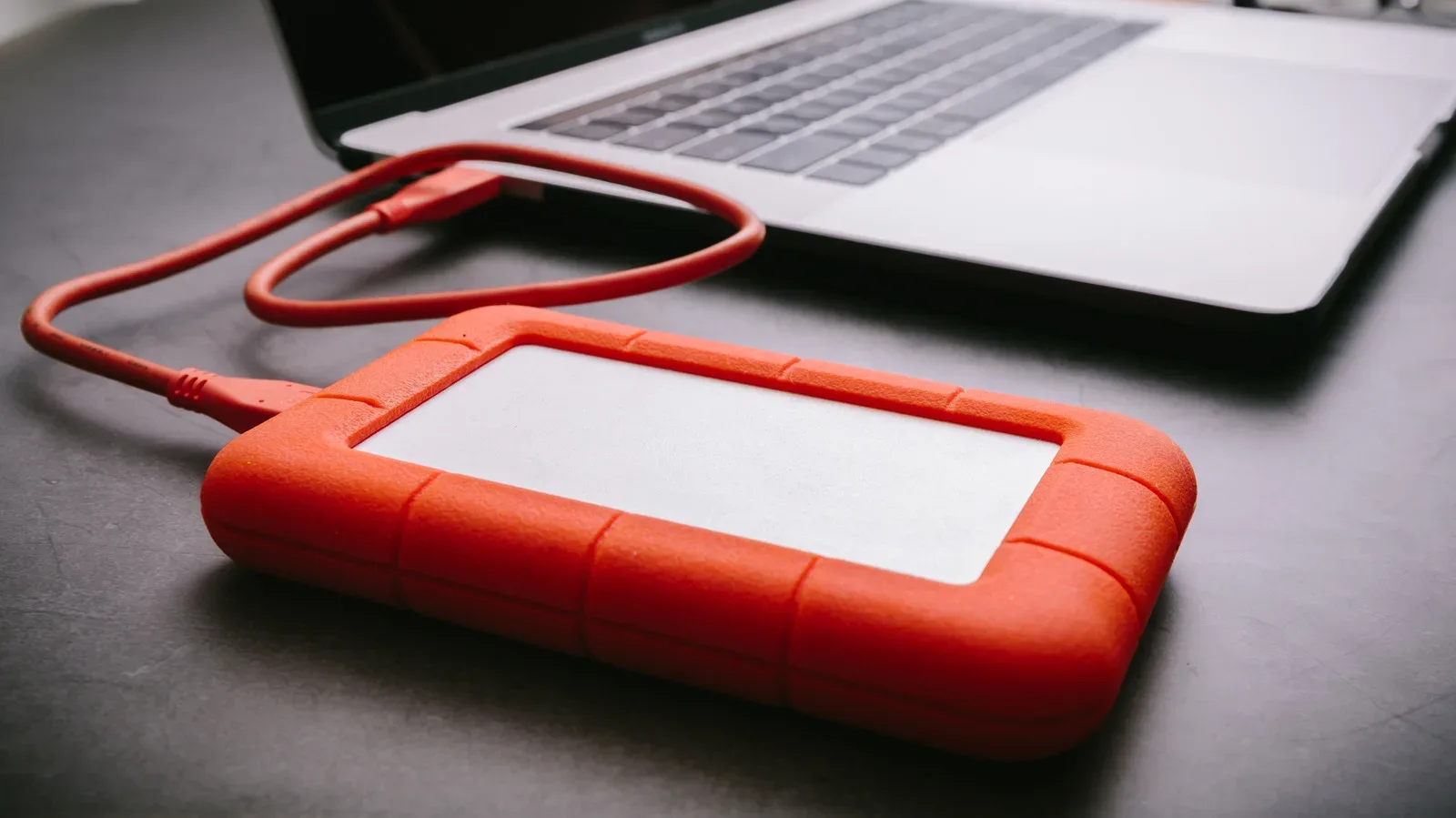
For a sturdier option, a hard-shell protective case with internal cushioning is more appropriate. Such cases can protect against bumps and falls while also providing anti-static, dust-resistant and water-resistant characteristics. A locking closure and reinforced ribs can be useful features because they help the case stay shut and maintain its shape under ordinary storage pressure.
Drive size matters when buying a case. Desktop HDDs are commonly 3.5-inch drives. Laptop hard drives and SATA SSDs are commonly 2.5-inch drives. Selecting a case designed for the wrong size can leave a smaller drive loose or make a larger one impossible to fit safely. Check the drive format before ordering rather than judging by a vague memory of where it came from.
A case can be especially sensible for a small number of disks containing the files with the highest sentimental or practical value. It is a targeted investment in reducing physical risk, not a substitute for maintaining multiple copies.
The best room is usually a boring indoor one
Once the files are copied and the drive is protected, choose a location with stable temperature and humidity. A closet or an under-bed storage box is generally a better fit than an attic, shed or garage. The goal is an indoor space away from direct sunlight and from the weather swings that can make outside-facing or unfinished areas poor long-term storage environments.
The garage-box approach is tempting because it keeps clutter out of sight. It also places potentially important data where heat, cold and humidity may be harder to control. An attic can present similar problems. A drive that is rarely needed should still be stored in a part of the home designed for people and everyday belongings, rather than wherever unwanted items happen to accumulate.
Keep stored HDDs away from loud subwoofers and other sources of significant vibration. At high volume, vibration can theoretically affect a hard drive. It is also sensible to keep them apart from magnetic tool holders, MagSafe chargers and other sources of magnetic fields. The point is not to panic over every modern household device; it is to avoid turning a preventable environmental risk into part of the archive setup.
Orientation is less of a concern for modern drives. Seagate and WD design modern hard drives to operate either horizontally or vertically, so a drive can lie flat in a case or stand upright on a shelf. A secure, protected position in a cool, dry location is more meaningful than obsessing over whether the label faces up.
Build a simple maintenance routine
Archived hardware should not disappear completely from view. Every so often, take a stored drive out, connect it and let it run briefly. This gives mechanical components an opportunity to operate after time spent idle and provides a chance to see whether the drive and its files remain accessible.
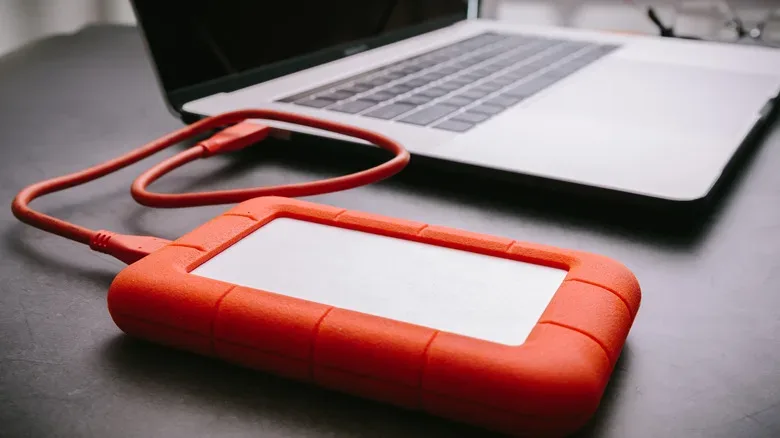
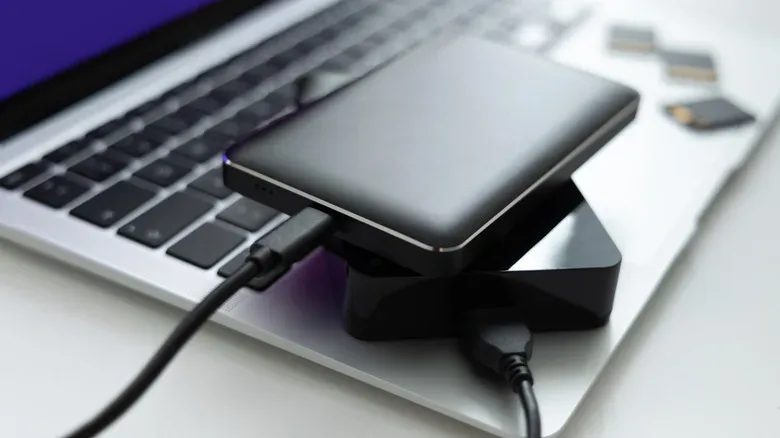
A SATA-to-USB adapter is a practical tool for this task because it can connect an internal SATA drive to a computer without requiring the drive to be installed inside that machine. The adapter does not repair a failing disk or guarantee that it will remain healthy, but it can make routine checks less inconvenient.
When a drive is connected for a check, use the moment to verify more than whether it spins up. Browse the folders that matter, open a selection of files, and make sure the backup copies still exist. If anything appears missing or inaccessible, the drive should no longer be trusted as the sole place for that material. Refresh its backups while it is still readable.
A practical archive checklist
- Identify the files on the old drive that would be difficult or impossible to replace.
- Copy those files to another local location and, where appropriate, to cloud storage.
- For critical data, create another physical copy and keep it offsite.
- Open transferred files to verify the copies rather than assuming the process succeeded.
- Place the drive in an anti-static bag for basic protection, or a cushioned hard-shell case for added protection from impacts.
- Match the case to the drive’s 3.5-inch or 2.5-inch format.
- Store it in a cool, dry, stable indoor location away from direct sunlight, vibration and magnetic accessories.
- Periodically power it on and re-check both the drive and the backups.
What this means for digital game archives
Physical game collections have obvious shelves, boxes and protective sleeves. Digital collections can feel less tangible, yet they may be just as personal: old save data, screenshots from a first completion, clips shared with friends, custom files and years of PC downloads. An unplugged drive full of those files is still a physical object subject to heat, moisture, shocks and age.
The best preservation habit is therefore not simply “save the old drive.” It is to separate the value of the files from the fate of the hardware. Keep the drive protected, store it somewhere stable, and check it from time to time. But make copies before relying on any particular disk. The case is for the device; the backup plan is for the memories.
Shop the products
Check current price, model and availability at the retailer.