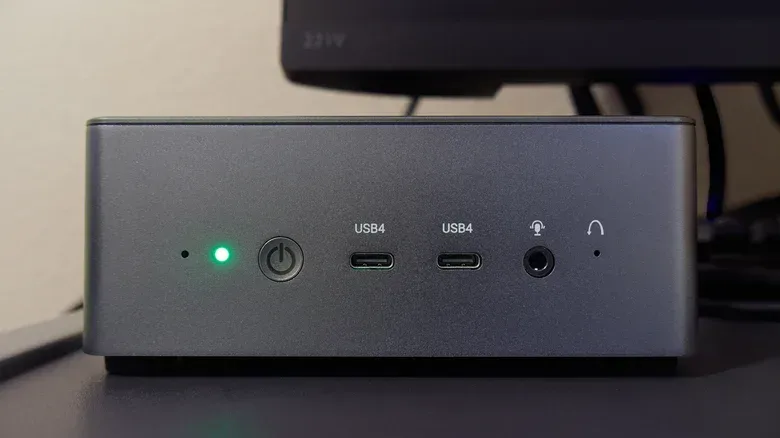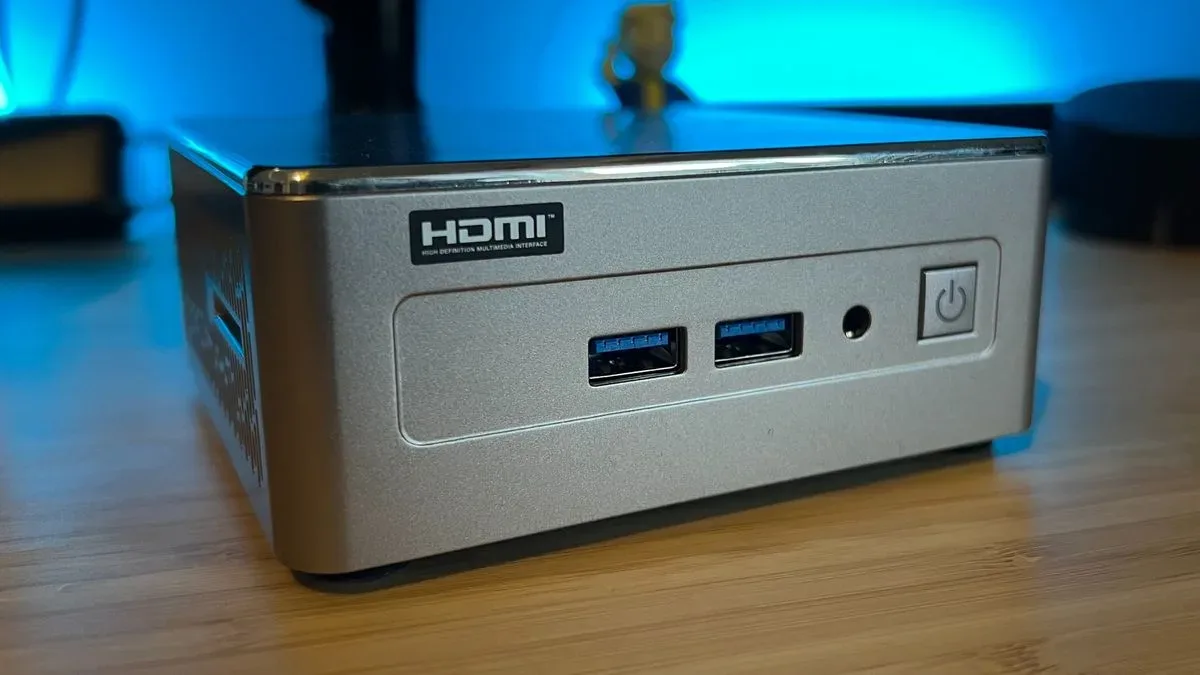
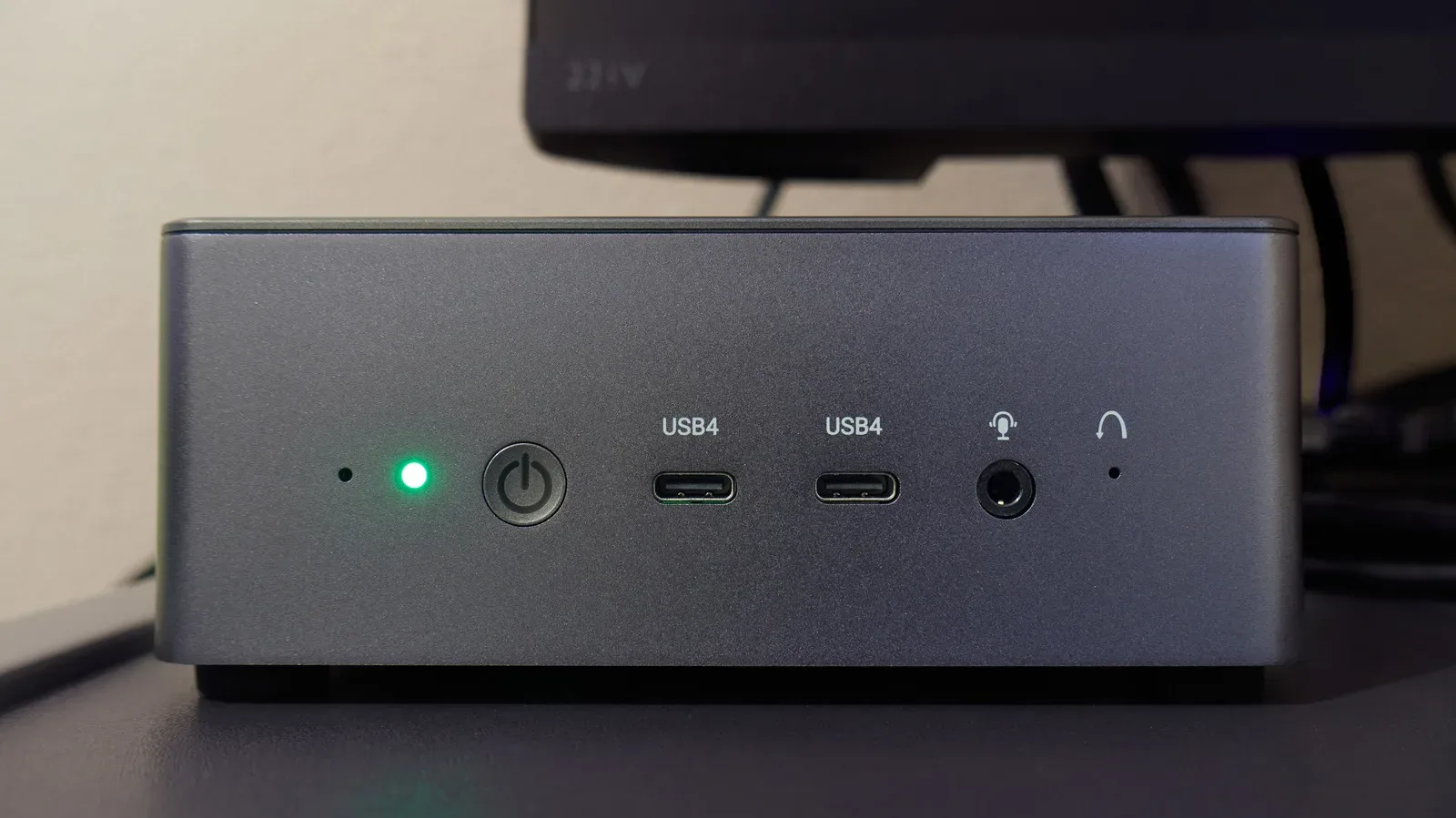
An old mini PC will not suddenly become a high-end gaming rig because it has been granted a fresh purpose and a slightly more optimistic cable arrangement. But compact computers can be remarkably useful once they are relieved of jobs that demand modern AAA performance. Their small footprint, HDMI output and ability to run continuously make them well suited to a handful of focused household roles.
The key is matching the task to the hardware rather than expecting every little box to do everything. Older integrated graphics and processors may be perfectly adequate for 8-bit games or local music playback, while several camera feeds, 4K video conversion and substantial AI models can be considerably more demanding. Storage, controller compatibility, operating-system security settings and ongoing maintenance matter too.
Here are six practical paths for giving an older mini PC a real job again, with an emphasis on what each setup actually requires and where the limits are likely to show.
1. Make a dedicated retro gaming console
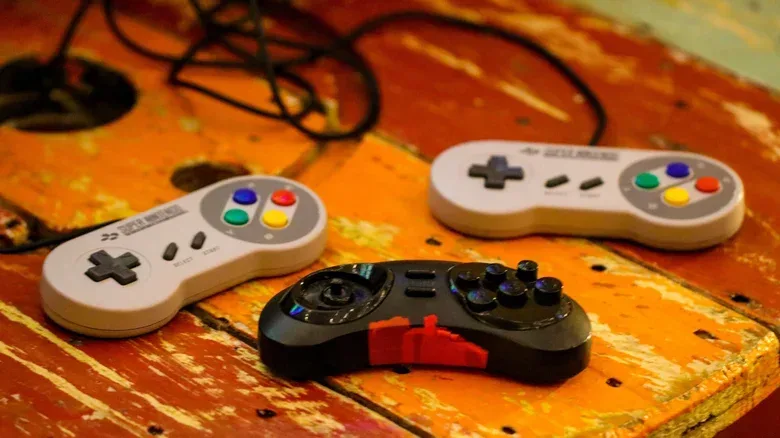
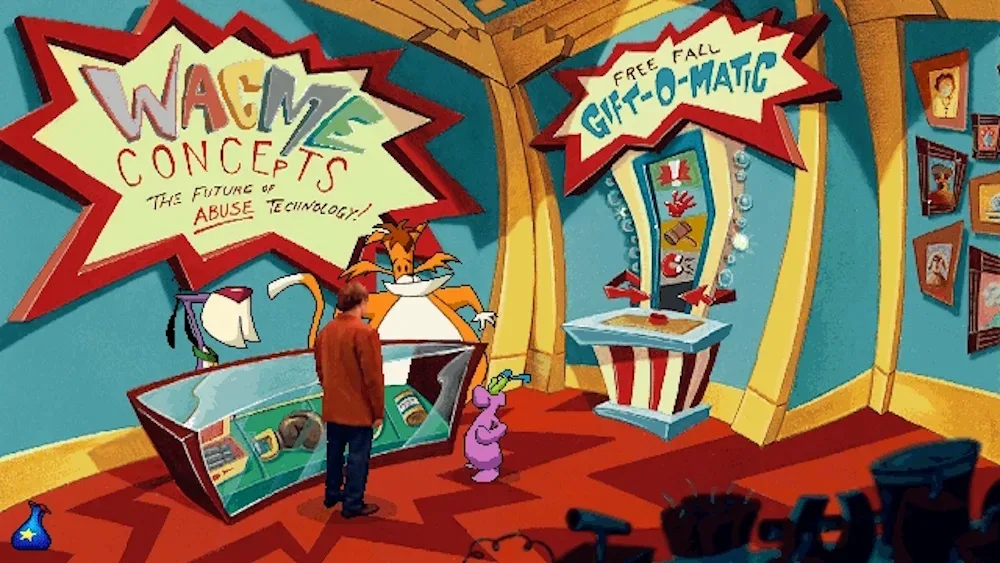
This is arguably the most joyful reassignment: turn the mini PC into a machine whose sole responsibility is putting classic games on a television. Batocera, a free Linux-based operating system, is designed for that console-like role and supports libraries spanning Nintendo, Sega and PlayStation-era games.
A low-risk starting point is to download the Batocera PC image, write it to a USB stick and boot the mini PC from that drive. This allows the operating system to be tried without overwriting the Windows installation. It is a useful distinction for anyone who wants to assess controller support, display behavior and performance before committing the device to its new life.
There can be a security-setting hurdle. Some systems may require Secure Boot to be disabled or Batocera’s signing key to be enrolled before the USB image will boot. Anyone using Windows device encryption through BitLocker should make sure the recovery key is available before changing Secure Boot settings. That is not glamorous retro-gaming preparation, but it can prevent an avoidable lockout from the original Windows setup.
Once the machine is running, the physical setup is familiar: connect HDMI to the TV, pair a compatible controller and add legally acquired games. Batocera presents the library in a controller-friendly interface, so the computer can behave less like a desktop dragged into the lounge and more like a purpose-built console.
Expectations should be era-appropriate. Many older mini PCs should be able to handle 8-bit and 16-bit systems. PlayStation 2 and GameCube emulation can be more difficult, depending on the processor and integrated graphics. A controller does not create processing headroom; it only makes the experience more couch-friendly.
Related coverage includes 5 Practical Ways to Reuse an Old Mini PC.
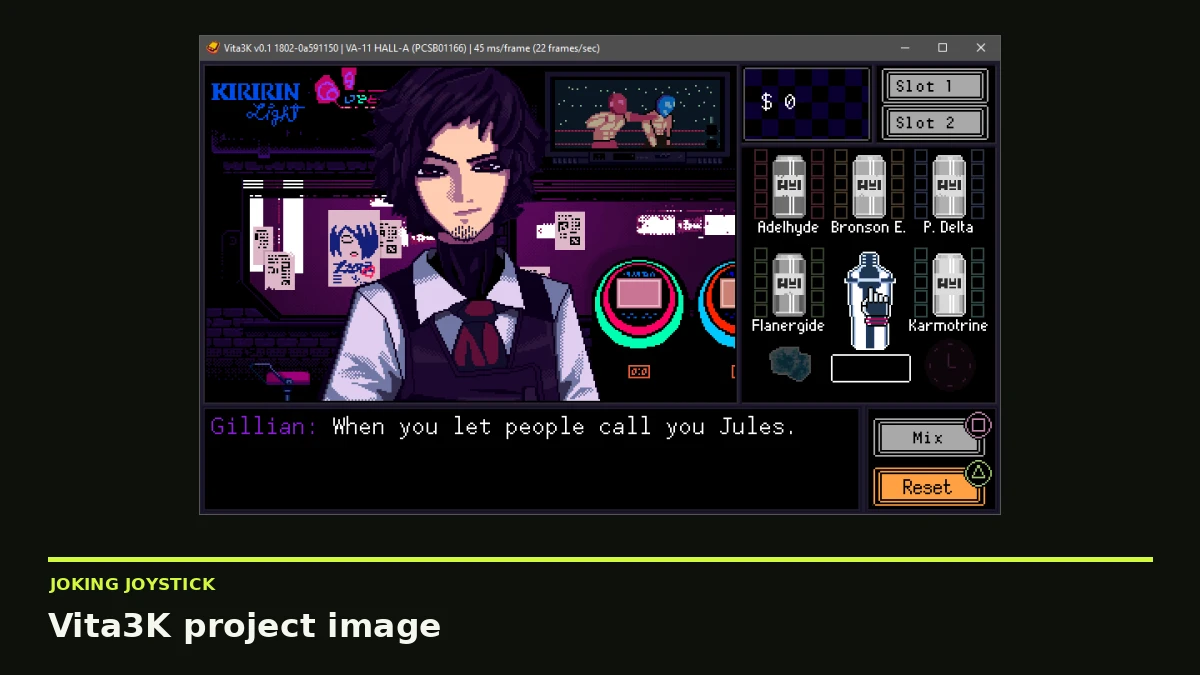
If the mini PC can run the relevant PC games, Steam’s Big Picture Mode is another option for television play. It is not a cure for outdated hardware, but it can provide a clean controller-oriented presentation for compatible games already owned on PC. Readers tracking emulator projects can also see our note on a recent Vita3K rolling development build.
2. Build a local media-center PC
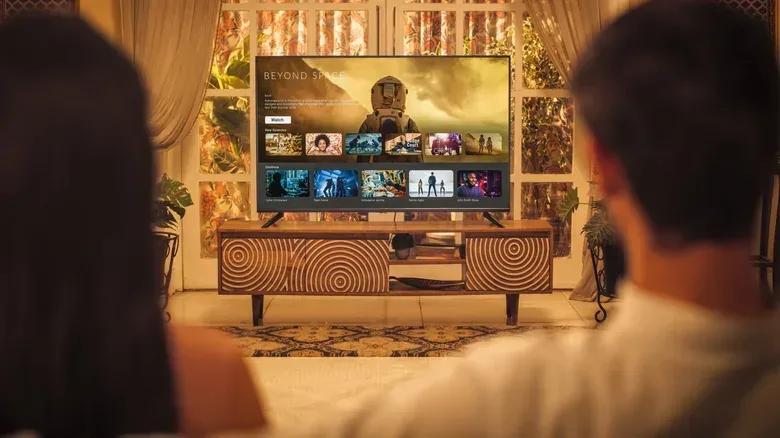
A mini PC beside a television can be a simple home for a personal movie and music collection. Install Kodi, connect the box to the display, and stored media can be browsed and played locally. This arrangement is especially sensible when the goal is direct playback from attached or accessible storage rather than a complicated multi-device streaming operation.
For people who want the same library on compatible TVs, phones and tablets across the home network, Plex and Jellyfin can serve media to those devices. The important technical word here is transcoding. Transcoding means converting a video into another format or quality level while it is being played because the receiving device does not support the original file in the required way.
Directly playing a file in its native format generally asks less of the mini PC. Transcoding is where an aging processor may struggle, particularly with 4K video. So the most realistic use for weaker hardware may be local playback or streaming files that client devices can play without conversion. Treat 4K transcoding as a hardware test, not a promised feature of every retired office PC.
There are also service differences worth understanding before choosing software. Local Plex streaming remains free, but remote personal-video streaming on affected apps requires a Plex Pass or Remote Watch Pass unless the server owner already has Plex Pass. Jellyfin does not charge for remote streaming, though it puts the setup responsibility on the user. Neither approach is automatically the best; the sensible choice depends on whether simplicity, remote access and willingness to configure the system are the priority.
3. Use the same box as a personal file server or NAS
The media-center concept naturally leads to a separate role: network storage. By attaching an external SSD or hard drive and using software such as OpenMediaVault, a mini PC can become a NAS, short for network-attached storage. In plain language, it is storage made available to other devices on the home network.
That can be useful for family photos, documents and backups, and it can reduce dependence on paid cloud-storage services. A small computer is often easier to place than a large tower, which is a practical advantage if the system will remain connected and accessible in a shared space.
However, reusing a mini PC does not erase the cost or fragility of storage. Extra drives may be needed, they consume electricity, and the setup will need occasional maintenance. Most importantly, a NAS is not automatically a complete backup strategy. A single aging hard drive, even one placed in a tidier and more official-looking box, remains a single point of failure. Important material should not exist in only one place.
It is also worth separating the two roles mentally. A media server is concerned with presenting and streaming entertainment files; a NAS is concerned with making storage available across a network. One machine may do both, but dividing the jobs helps clarify what capacity and reliability are needed.
4. Create a touchscreen jukebox
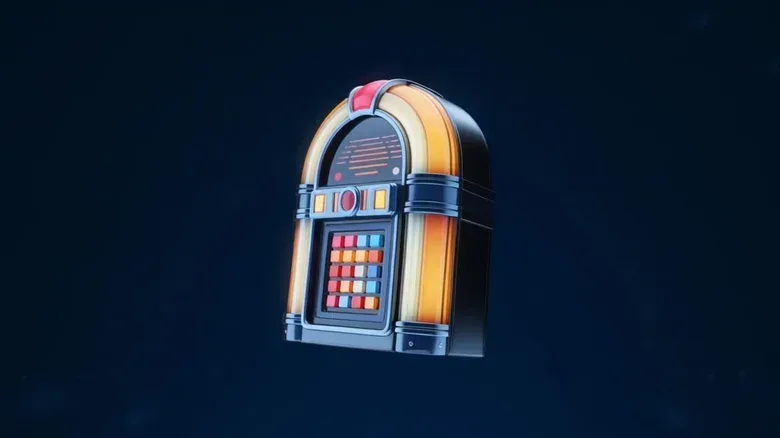
If the goal is more social than archival, the mini PC can become a digital jukebox. Add a touchscreen and speakers and it can act as a music station for a living room, home bar or party space. Instead of everyone passing around one phone to alter the queue, the computer becomes the shared point of control.
On Windows, Jukiora provides a touchscreen-oriented music interface with album art and song browsing. TouchGroove takes a slightly different approach by allowing guests to add songs from their phones using a QR code. That can be particularly handy when the display is visible but people are standing around the room rather than lining up to operate it.
There are two easily missed constraints. First, neither application includes a music library: the owner needs to supply the music. Second, the touchscreen may be the costliest missing ingredient if one is not already available. Jukiora and TouchGroove each offer a seven-day free trial followed by a one-time purchase, but the full project budget depends heavily on hardware already at hand.
This is nevertheless a strong use for modest specifications. Browsing tracks, showing album art and managing a queue are far less computationally punishing than current games or video conversion. The bigger design questions are physical: where the screen will sit, how speakers connect, and whether the machine can be operated comfortably without a keyboard and mouse.
5. Record compatible security cameras locally
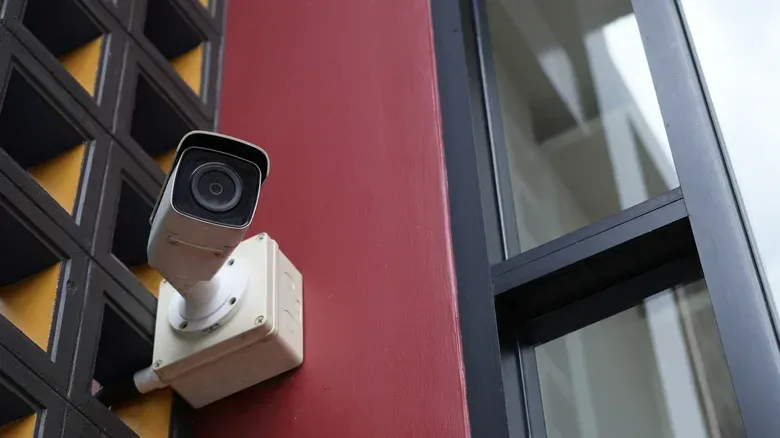
An old mini PC can also take on a more serious responsibility as a home security recorder. Frigate is an open-source network video recorder, or NVR, that works with compatible IP cameras and stores footage locally rather than depending on a camera maker’s cloud-recording service.
Its object detection can identify people and vehicles in recorded camera video. The practical benefit is not merely that the system recognizes a category of object; it is that looking for someone approaching a door or a car arriving at a driveway can become easier than manually searching hours of continuous footage. Retention duration can also be set in line with available storage.
This is the project where compatibility research matters most. Frigate requires a processor with AVX and AVX2 instruction support. Those are processor instruction sets: capabilities built into certain CPUs that software can require for specific work. Many older Celeron, Pentium and Atom chips lack that support, so a mini PC can be unsuitable before camera count or drive capacity are even considered.
For several cameras, hardware-accelerated video decoding and a suitable object detector can make a meaningful difference. Video decoding is the work required to interpret compressed video streams; hardware acceleration moves suitable decoding work onto specialized hardware rather than leaving all of it to the general-purpose processor. Storage needs can rise quickly with retained footage, and the setup also calls for working knowledge of Docker. Docker is a method of packaging and running software in isolated containers, useful but more technical than installing a typical desktop app.
In short, Frigate can be valuable for the right mini PC, but it is not the casual first project for every dusty machine. Check CPU support, plan storage and be realistic about the configuration work before assigning it camera duty.
6. Experiment with local and cloud-assisted AI work
The final option is less about transforming an old mini PC into a modern AI powerhouse than about giving it a contained role in AI experimentation or coding workflows. Hardware remains decisive: limited RAM and an aging processor will not compete with a current workstation. Still, smaller local models offer a place to start.
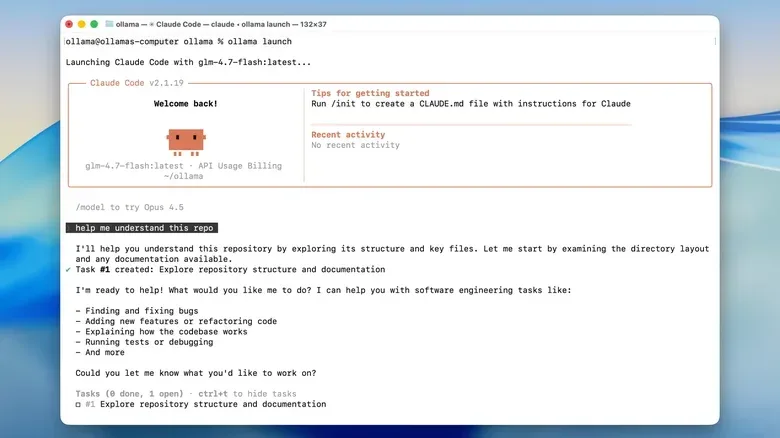
Ollama enables language models to be downloaded and run directly on a computer. That can support tasks such as asking questions, summarizing text or experimenting with a chatbot without sending every prompt to the web. Running a model locally is not the same as guaranteeing fast or sophisticated results, but it gives the machine a self-contained use case and can be explored without a software charge.
Model size is an immediate practical consideration. Meta’s Llama 3.2 1B model is listed by Ollama as a 1.3 GB download. Download size is not a complete performance specification, but it is a useful reminder that local AI still needs disk space and that available memory and CPU capability will shape what feels usable.
For coding tasks, Claude Code can analyze project files, modify code and run commands while cloud-based models perform the intensive AI processing. It is included with Claude Pro, which costs $20 per month in the US when billed monthly, or it can be paid for separately through API usage. Claude Code can also connect with locally hosted Ollama models, although a capable local coding model may be beyond what older mini-PC hardware can run well.
The practical split is straightforward. A cloud-assisted coding tool shifts the heavy model processing away from the aging device, while local Ollama use prioritizes on-device experimentation and keeping prompts off the web. Neither option turns an old low-RAM mini PC into a miracle machine. Both can make it useful enough to learn from, automate a narrow task, or dedicate to a project without occupying a primary computer.
Choose the role before buying anything
The best reuse plan is usually the one that takes advantage of what is already available. A television and controller point toward retro gaming. Existing external drives may favor media playback or a NAS. Compatible IP cameras, sufficient storage and technical confidence may point to local recording. A spare touchscreen and speakers make the jukebox unusually approachable.
Before changing boot settings, installing a replacement operating system or relying on the device for important files, check the basics: processor capabilities, RAM, available ports, storage health, cooling and whether Windows encryption recovery information is safely accessible. Then select one clearly defined job rather than creating an overstuffed do-everything box. A small computer with a narrow, reliable purpose is much more useful than an ambitious project that never leaves the workbench.