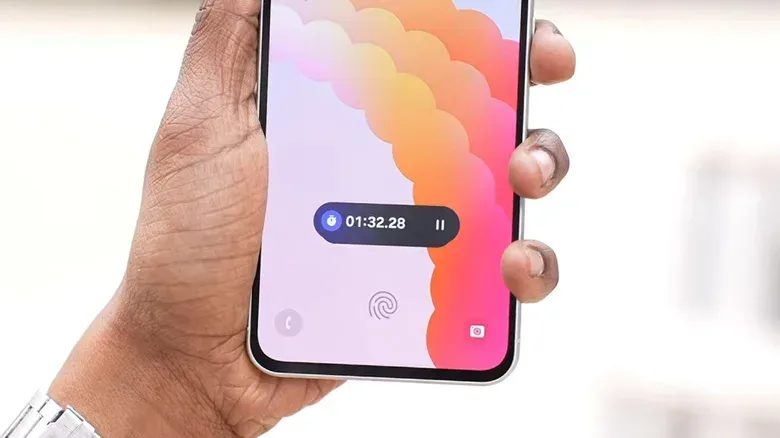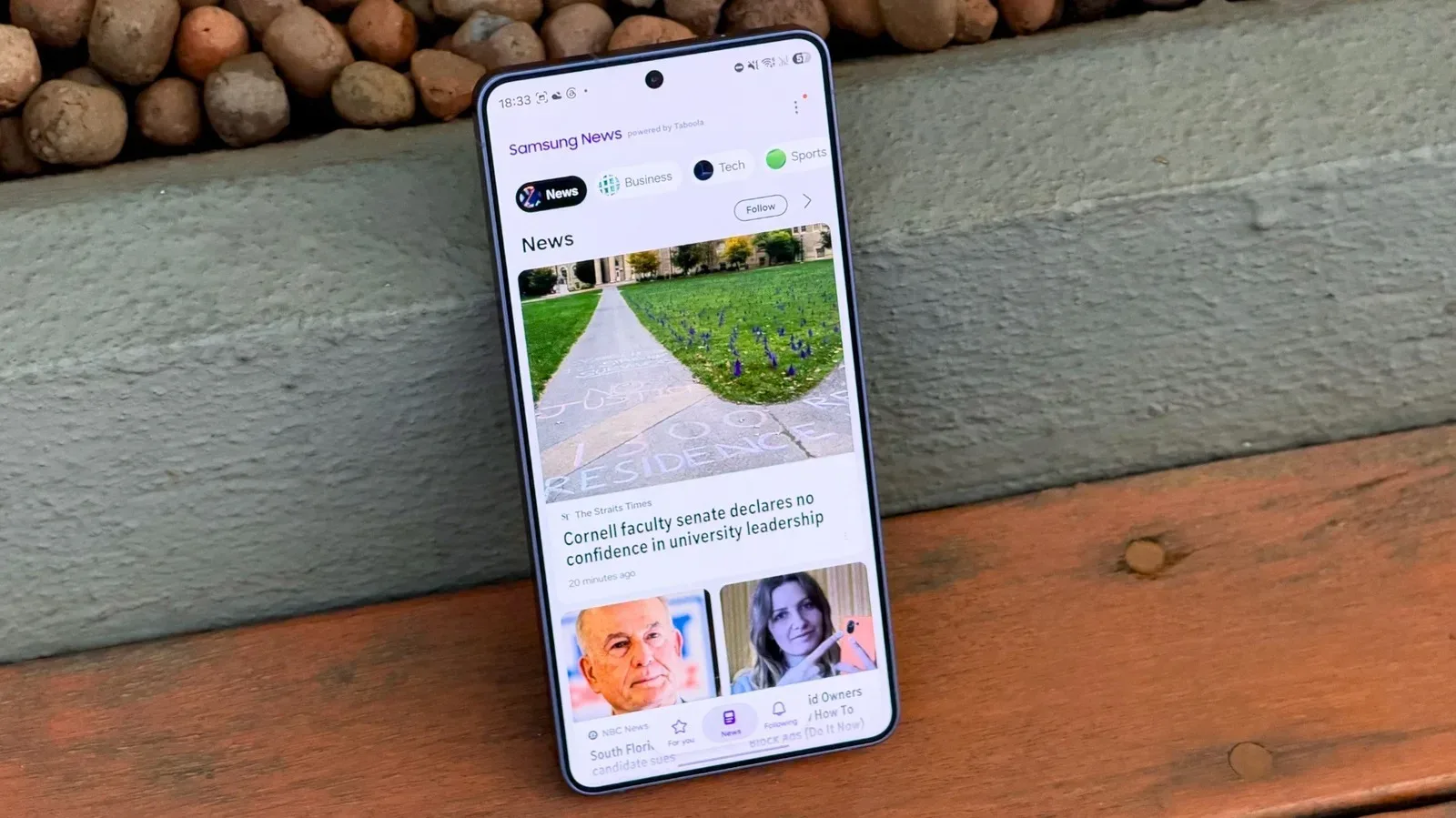
Samsung’s lock screen is capable of doing a surprising amount before you ever unlock the phone. Timers, notes, news updates and media playback controls can appear in the Now Bar, a compact capsule-shaped panel introduced with One UI 7. It is intended to put timely information within reach without sending users on a treasure hunt through their apps.
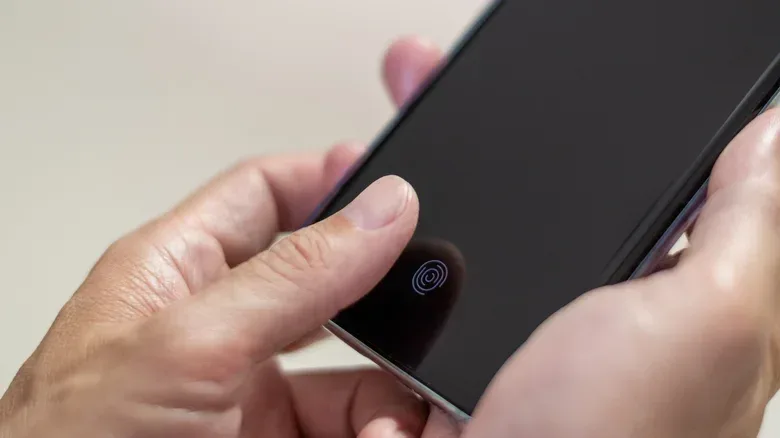
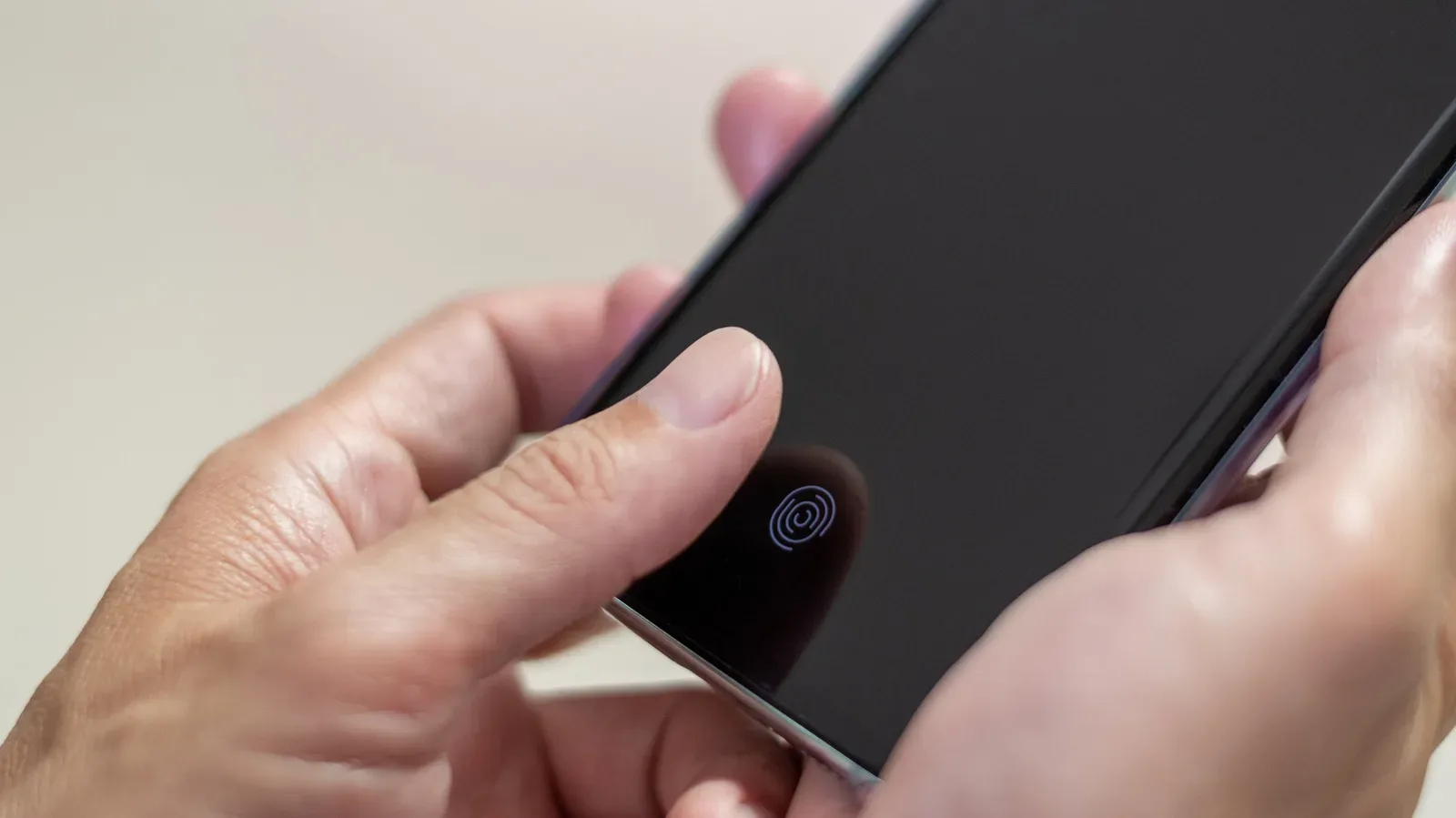
There is one mildly absurd catch: on Samsung phones whose fingerprint reader sits at the bottom of the display, the Now Bar may move upward into the middle portion of the lock screen. That placement is deliberate. The software is making room for the fingerprint sensor so the two controls do not occupy the same physical patch of screen.
For people who like a clean lock-screen layout, or who find that the raised Now Bar gets in the way of other widgets, the obvious question is whether it can simply be dragged back down. The answer, based on the available settings, is no. One UI does not offer independent position controls for either the Now Bar or the fingerprint reader. The system chooses the higher Now Bar position when both are active.
So this is less a hidden-customization puzzle and more a design trade-off: keep fingerprint unlocking and accept the higher bar, remove fingerprint unlocking to reclaim the bottom position, or disable the Now Bar and simplify the lock screen.
What the Now Bar is actually doing
The Now Bar is a lock-screen surface for app information and controls. Depending on which apps are allowed to use it, it can display items such as an active timer, a note, a news update, or media player controls. Think of it as an at-a-glance status area rather than a full notification list: it is designed to provide an immediate action or a small piece of current information.
That distinction matters when deciding whether to keep it. Someone who regularly pauses music, checks a timer, or uses other supported lock-screen activity may find the bar useful enough to tolerate its higher position. Someone who rarely interacts with those items may prefer to reduce visual clutter instead.
The layout problem is specific to devices with a fingerprint reader positioned at the lower part of the screen. On those phones, the bottom edge is already a functional zone for biometric authentication. Biometric authentication means verifying identity through a physical characteristic, in this case a stored fingerprint. One UI avoids putting the Now Bar directly over that zone, then shifts it upward instead.
It is a sensible collision-avoidance rule, even if it can be annoying in practice. A lock screen can also contain widgets and other elements, and a centrally placed capsule may cover information or make a target more awkward to tap. The system is prioritizing a reliable unlock target over a user-selected visual arrangement.
Related coverage includes How to Manage the Now Bar Position on Samsung’s One UI Lock Screen.
Why there is no simple “move it down” switch
The important limitation is that this is not presented as a freeform layout option. Turning on the bottom-screen fingerprint reader and allowing the Now Bar to remain at the bottom would create overlapping controls. Rather than asking users to manage that overlap themselves, One UI moves the bar.
That means changing themes or looking for a drag handle is unlikely to solve it. The supplied options are about enabling or disabling features, not relocating them. If the fingerprint reader remains enabled, the Now Bar can be pushed upward. If the fingerprint reader is removed as an unlock method, the bottom edge becomes available to the Now Bar again.
This may sound like a tiny aesthetic disagreement between you and your phone, but it has a practical effect. Lock-screen controls are most useful when they are easy to see and tap. If the bar blocks another widget or makes the layout harder to scan, a feature intended to save time can begin charging rent in attention instead.
Option 1: Put the Now Bar at the bottom by removing fingerprint unlock
Users who strongly prefer the Now Bar at the bottom can remove fingerprint authentication. The route provided in One UI is:
- Open Settings.
- Select Security and privacy.
- Choose Screen lock and biometrics.
- Delete the stored fingerprints and remove the fingerprint reader as an unlock option.
Once the lower fingerprint reader is no longer in use, the Now Bar can sit along the bottom edge instead of being moved above that sensor area.
This is the cleanest solution for the layout, but it is not automatically the best solution for the person using the phone. Fingerprint unlock is a quick way to secure a device while keeping access convenient. Removing it solely to move a lock-screen capsule changes the phone’s security and daily-use routine, not just its appearance.
Do not confuse “no fingerprint” with “no lock”
Removing fingerprint unlocking does not require leaving the device unsecured. A password or face recognition can still be used as a screen-lock method. A screen lock is the gate that protects access to the phone after the display wakes; fingerprints and face recognition are alternative ways to pass through that gate.
The sensible choice depends on which compromise feels smaller. If fingerprint unlock is central to how you use the phone, a moved Now Bar may be the less disruptive annoyance. If face recognition or a password already fits your routine, and the bottom placement is important to your preferred layout, removing fingerprints may be acceptable.
Before deleting fingerprints, it is worth recognizing that this is a feature-level change rather than a cosmetic adjustment. If you later decide that fingerprint access was more valuable than a tidy bottom edge, you will need to add your fingerprints again through the relevant biometric settings.
Option 2: Keep fingerprint unlock and turn off the Now Bar
The alternative is to retain the lower-screen fingerprint reader and remove the competing interface element. This is the better fit for users who value fingerprint unlocking but do not need a steady stream of Now Bar updates.
The setting path is:
- Open Settings.
- Tap Lock screen.
- Select Now bar.
- Review the apps permitted to appear there and toggle them off individually.
Turning off access for every listed app removes the Now Bar from the lock screen. This approach preserves fingerprint unlocking while clearing the lock-screen real estate that the bar would otherwise occupy.
There is a more nuanced version, too. You do not have to treat the Now Bar as all-or-nothing immediately. Because apps can be switched on or off individually, a useful first step is to disable the categories you never use. That can reduce interruptions and clutter while preserving the controls that earn their place.
Media controls are the key exception
One detail deserves extra attention: the Now Bar is the only route for keeping media controls on the lock screen. If you disable every app’s Now Bar access, those playback controls will disappear as well.
For people who listen to music, podcasts, or other audio while the phone is locked, a practical compromise is to leave the media player enabled and turn off the rest. The bar may still appear when there is active media, but it will not surface the other permitted app updates. It will also remain in the higher position on phones where the fingerprint sensor needs the bottom area, but at least it will appear only when it has a clear job to do.
That is arguably the most balanced configuration for many users: fingerprint unlock remains available, media controls stay on the lock screen, and the Now Bar does not become a permanent roommate for every timer, note, or update.
A quick decision guide
- You want the bar at the bottom above all else: remove fingerprint unlocking, then use a password or face recognition if you still need a secure screen lock.
- You rely on fingerprint unlocking: keep it enabled and accept that One UI may lift the Now Bar above the sensor area.
- You rarely use lock-screen updates: turn off Now Bar access for all apps.
- You want music controls but less clutter: leave the media player enabled in the Now Bar settings and disable the other apps.
- The raised bar blocks widgets: there is no supplied repositioning control, so the practical choices remain changing the authentication method or reducing/disabling Now Bar activity.
The larger lock-screen lesson
This is a small example of a familiar software-design tension: customization has boundaries when the hardware has a claim on the same space. One UI permits control over which apps can use the Now Bar, but it does not expose a way to make the Now Bar and an in-display fingerprint target overlap. The software picks a safe, predictable arrangement rather than letting two tap targets fight for the bottom of the screen.
It also shows why “more customizable” does not always mean “every element can go anywhere.” The Now Bar has evolved through One UI updates since its One UI 7 debut, but the available controls described here are functional toggles, not a lock-screen map editor. For a look at how another mobile platform is approaching interface changes, see the reported iOS 27.3 beta interface and feature changes.
For Samsung owners, the immediate answer is straightforward even if it is not especially glamorous: decide whether faster fingerprint access, persistent Now Bar information, or a precise bottom-aligned layout matters most. One UI can comfortably deliver two of those preferences on affected phones. Asking it for all three is where the lock screen politely, but firmly, says no.