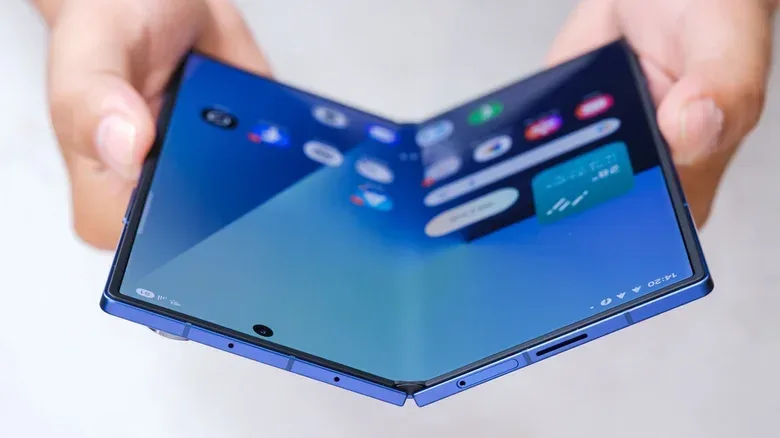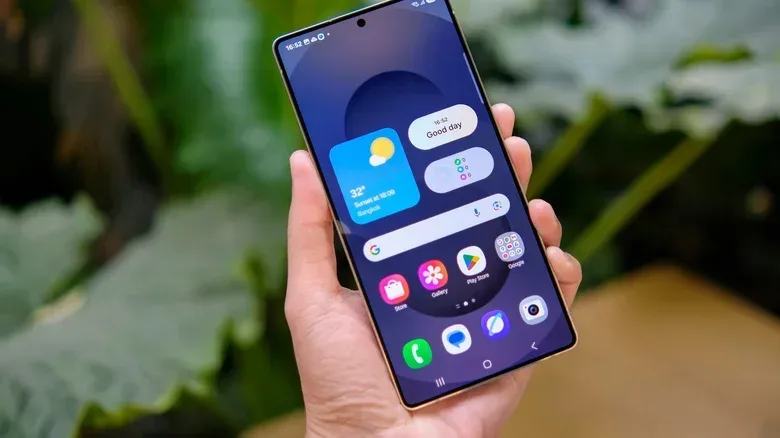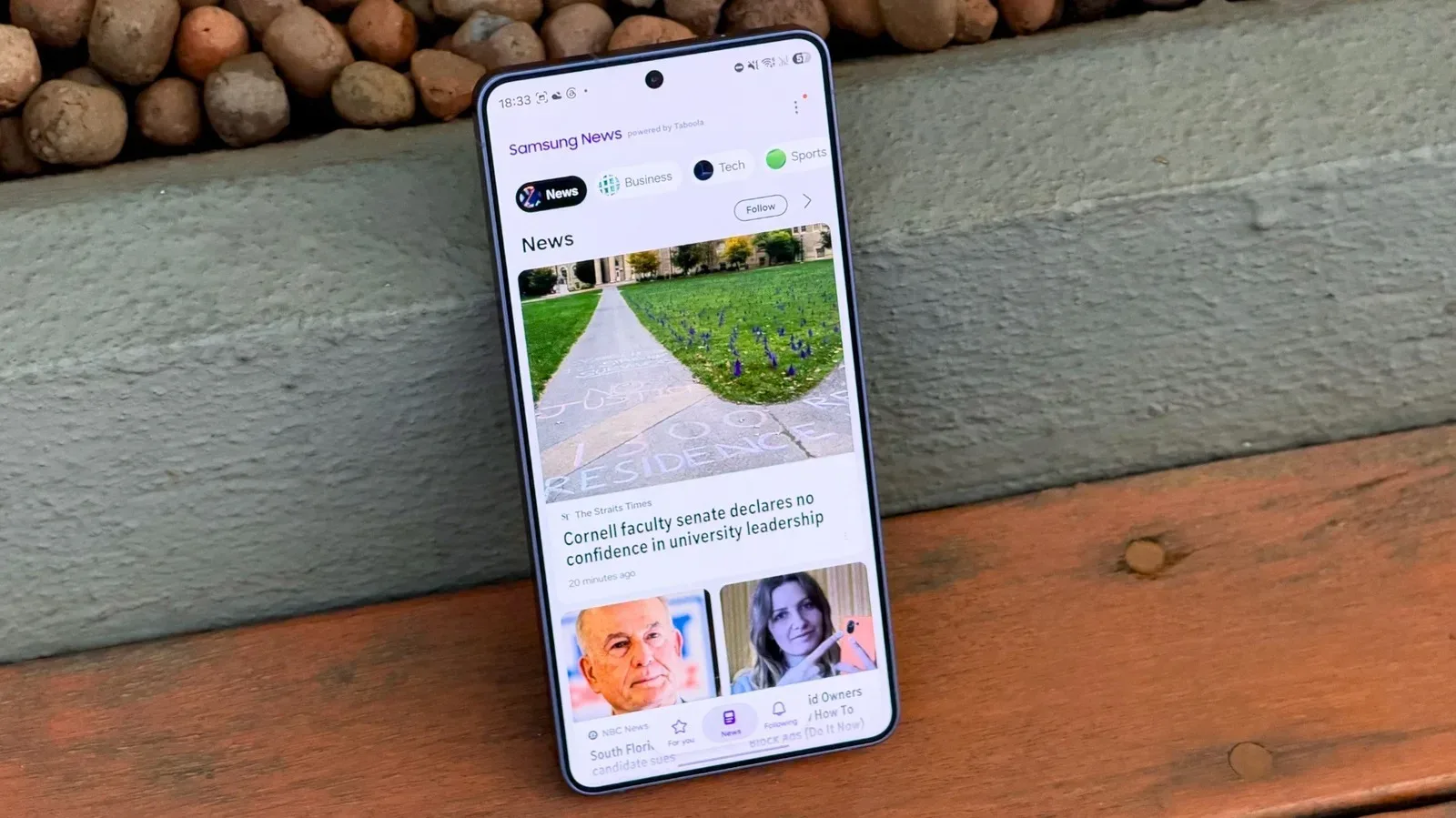
Samsung owners who find One UI too busy, too branded or simply not to their taste have a straightforward answer to the big question: you cannot completely remove One UI from a Samsung phone. It is Samsung’s software layer and includes more than the home screen visible after unlocking the device. But that limitation does not mean every Samsung phone has to look or feel the same.
For most people, the practical route is not attempting to erase the operating environment. It is identifying the part that causes the most friction and changing that. In many cases, that part is the launcher: the app that controls the home screen, app drawer and much of the visual routine around opening the phone. In others, it is the presence of pre-installed Samsung apps that duplicate services a person already gets elsewhere.
Changing a launcher, removing apps where the phone permits it, rolling back updates for some remaining apps and hiding icons can produce a considerably cleaner setup. It is an approach based on altering what is in front of you rather than pretending the underlying Samsung software has vanished.
One UI is bigger than the home screen
It helps to separate two ideas that are often treated as if they are the same thing. One UI is Samsung’s custom software for its phones and tablets. It encompasses features and pre-installed applications that influence the device beyond its opening screen. A launcher, by comparison, is the component that determines how the home screen looks and behaves.
That distinction matters because a replacement launcher can make the phone appear radically different while One UI remains present underneath. The replacement does not uninstall Samsung’s wider software package, nor does it make every Samsung feature disappear. It changes the main interface used to launch apps and navigate the device’s starting point.
That is not a minor compromise. The home screen is where icons, folders and the app drawer are encountered repeatedly. A different layout can therefore have an outsized effect on day-to-day comfort. If the objection is visual clutter or the way the home screen is organized, changing the launcher addresses the most visible portion of the problem without demanding a different phone.
Replacing the launcher is the largest visible change
Third-party launchers can be downloaded through the Play Store like other Android apps. After installing one, it must be selected as the phone’s default Home app. The relevant path is:
- Open Settings.
- Select Apps.
- Choose Choose default apps.
- Set the new option under Home app.
Once selected, the new launcher should replace One UI Home when returning to the home screen. That is the key action: installing a launcher alone does not necessarily alter the device’s daily interface; setting it as the default does.
Related coverage includes You Can’t Fully Remove One UI, but You Can Make a Samsung Phone Feel Different.
Niagara Launcher and Smart Launcher are two popular third-party choices mentioned for Android. The broader point is that launchers are alternatives with different design priorities. Someone who wants a stripped-back starting screen may gravitate toward a simpler arrangement, while another person may be looking for a different app-drawer approach or more direct control over presentation. The choice should follow the annoyance being solved, not the assumption that every alternative is automatically better.
What a launcher change does—and does not—do
- It does: alter the primary home-screen experience and replace One UI Home as the default Home app.
- It does: give users a way to make the device’s most prominent visual layer feel less like the default Samsung setup.
- It does not: fully uninstall One UI from the phone.
- It does not: remove all Samsung features or every pre-installed Samsung app.
This is also why replacing the launcher is usually the sensible first move. It is targeted at a specific layer of the experience and avoids confusing a home-screen redesign with a complete operating-system replacement. The device can retain the parts of its software that remain necessary while the user-facing front door is changed.
Good Lock is the option for people who want to stay within One UI
A third-party launcher is not the only answer. Samsung’s Good Lock provides extensive customization options on One UI 9. It is not a separate launcher, so it does not replace the same layer in the same way. Instead, it lets users reshape the existing environment.
That makes Good Lock especially relevant for a more specific type of complaint: a person may not dislike One UI as a whole, but may want the home screen to be less familiar, more personalized or closer to their own preferred arrangement. In that circumstance, customization may offer enough change without replacing the default Home app.
The practical divide is simple. A new launcher is the more direct choice when the goal is to use a different home-screen system. Good Lock is the more fitting option when the goal is to keep One UI but tune it hard enough that its default presentation no longer dominates the experience. Both approaches can make a Samsung phone feel substantially different, but neither amounts to a full removal of One UI.
Pre-installed apps are a separate source of One UI fatigue
Visual changes do not automatically solve complaints about software clutter. One UI includes Samsung apps covering everyday functions from health tracking to a digital wallet. Those applications may be perfectly usable, but they can feel redundant if a phone owner already relies on alternatives for the same tasks.
The important technical term here is system app. Some Samsung applications are treated as part of the device’s system software. Consequently, they often cannot be deleted completely in the same manner as an ordinary downloaded app. This is the second major boundary to keep in mind: hiding an app, uninstalling its updates and uninstalling it are three different actions.
To review Samsung apps, open Settings, select Apps, and search for “Samsung.” Choose the app in question. Some applications, including Notes, can be uninstalled completely. Where an app does not offer that option, use the three-dot menu in the upper-right corner and select Uninstall updates.
Uninstalling updates does not make the app disappear. It remains on the phone, but it can take up less storage space. It is a space-saving measure, not a full software purge. That distinction is useful when deciding whether the effort is worthwhile: users who mainly want a cleaner interface may get more value from hiding the icon, while people looking to trim an unused app’s storage footprint may prefer to remove its updates when that option is available.
Hide unused icons to reduce visual clutter
Apps that remain installed do not have to remain in sight. One UI offers a built-in way to hide them from both the Home and Apps screens. The path is:
- Open Settings.
- Go to Home screen.
- Scroll to Hide apps on Home and Apps screen.
- Select the apps that should no longer be displayed.
This is not deletion, and it should not be treated as deletion. The app is still present on the device. Yet it can be a meaningful quality-of-life change because it removes a repeated visual reminder of software that is not being used. A leaner app screen can also make the remaining apps faster to locate.
The approach is particularly useful when an app cannot be removed because it is a system app. Instead of battling the platform’s limits, users can keep the application from occupying daily attention. The result is imperfect but practical: less distraction, fewer redundant icons and a home screen that better reflects the tools actually used.
A practical order for reshaping a Samsung phone
The least disruptive plan is to start with what is most noticeable, then work inward only as needed.
- Identify the actual problem. Is it the home screen, the app layout, duplicate Samsung apps or storage used by apps that are not needed?
- Try a different launcher if the home screen is the issue. Set it as the default Home app rather than merely installing it.
- Consider Good Lock if retaining One UI is acceptable but its default customization level is not.
- Review Samsung apps through Settings and uninstall the ones that offer an uninstall option.
- Use Uninstall updates carefully where full removal is unavailable and reclaiming some space is the goal.
- Hide the rest so unused icons no longer fill the Home and Apps screens.
This order recognizes that not all complaints require the same remedy. A new launcher may solve the biggest annoyance within minutes. Conversely, spending time trying to eliminate every Samsung-branded component is unlikely to meet the underlying constraint: some parts of One UI will always run on Samsung hardware.
Samsung users can therefore think of the project as curation rather than removal. The phone’s base software stays intact, but the visible interface, app selection and icon density can be tailored. That same principle of matching settings to a real use case applies across devices; for example, power behavior can be just as important as presentation on a console, as explained in this guide to Xbox Series X Sleep and Shutdown modes.
For a Samsung phone, the realistic target is not a One UI-free device. It is a device where One UI’s default look and the apps a person does not want are no longer the center of the experience. A launcher handles the most obvious change, Good Lock offers a Samsung-native customization route, and app management removes or conceals much of the remaining clutter. That is as close as the platform allows—and, for many users, it is enough.