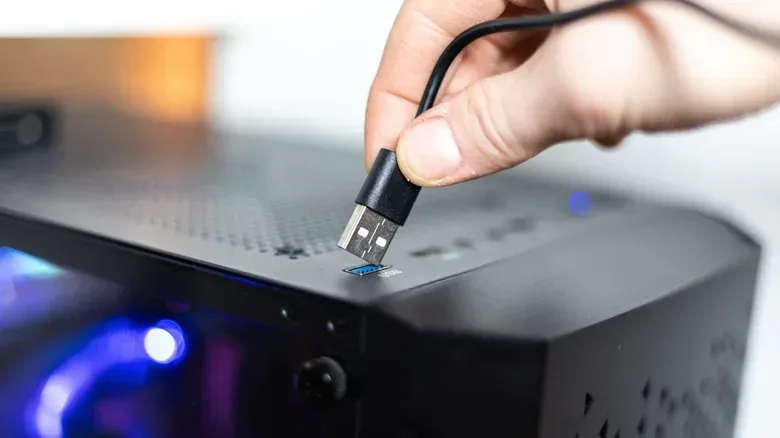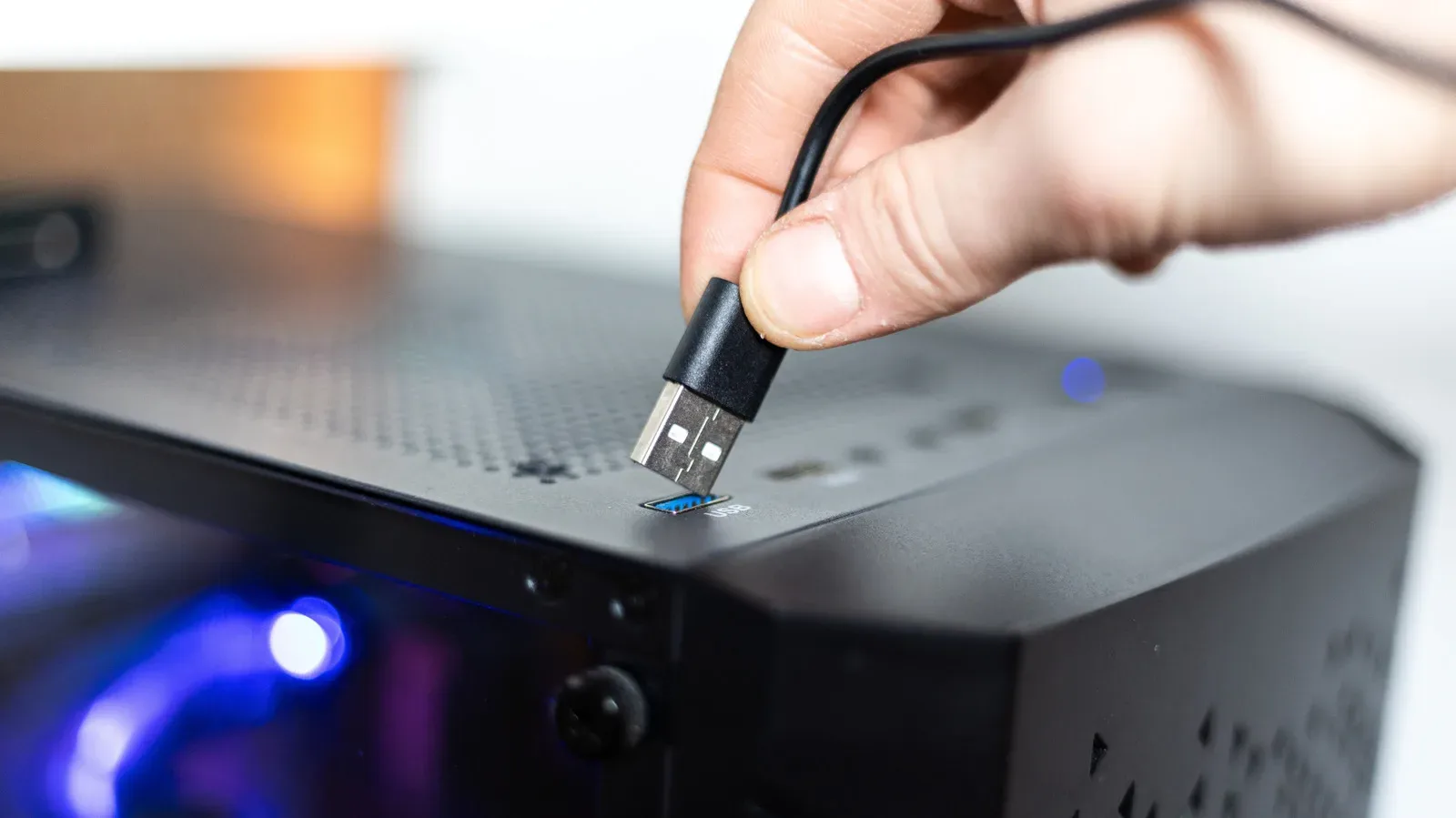
Front USB ports are one of the small conveniences that make a desktop PC feel less like a beige shrine to cable management. A controller, flash drive, headset receiver or phone can be connected without reaching behind the case and conducting a blind port-hunting expedition.
But convenience does not automatically mean identical performance. On many desktop systems, the ports at the front of the case can offer less bandwidth, less available power, or both, compared with certain ports on the rear. That does not make front ports bad, broken or unsuitable for gaming. It means the best port depends on what is being connected and what that device needs to do.
For a mouse, keyboard, wireless headset dongle or occasional flash drive, a front connection is generally perfectly sensible. For hardware that moves a lot of data or is sensitive to connection performance—such as an external SSD, a capture card or a VR headset—the rear I/O panel may be the more appropriate home. The key is to read the specifications for the particular PC or motherboard rather than assuming every USB socket is equal because it fits the same plug.
Why the front and rear ports are not always equivalent
Rear USB ports are commonly soldered directly to the motherboard. In straightforward terms, the path between the port and the system’s controllers is shorter and more direct.
Front-panel ports are physically separated from the motherboard, so the PC case connects them through internal cables and motherboard headers. A header is the internal connector on a motherboard used to attach case features, including front USB sockets. That additional connection path can introduce some signal loss, even when it is minor.
The larger practical issue can be the way front ports are allocated. Multiple visible sockets on the case may be supplied by a shared internal header. If several high-demand devices are connected there at once, they can be drawing from the same available bandwidth and power pool. In that situation, having more plugs does not necessarily mean having a separate full-speed lane for every plug.
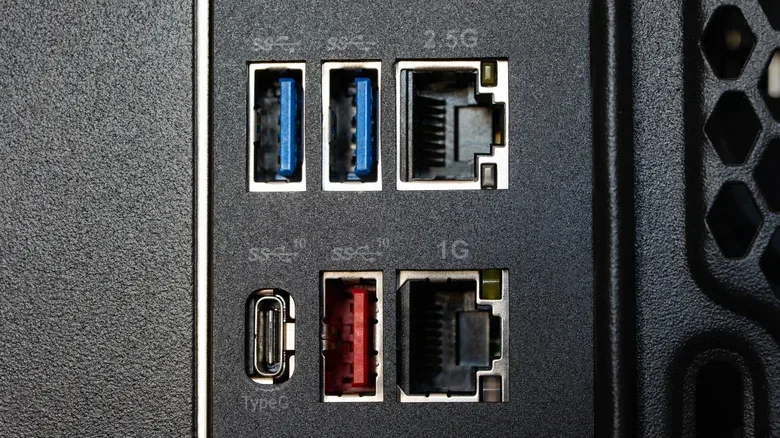
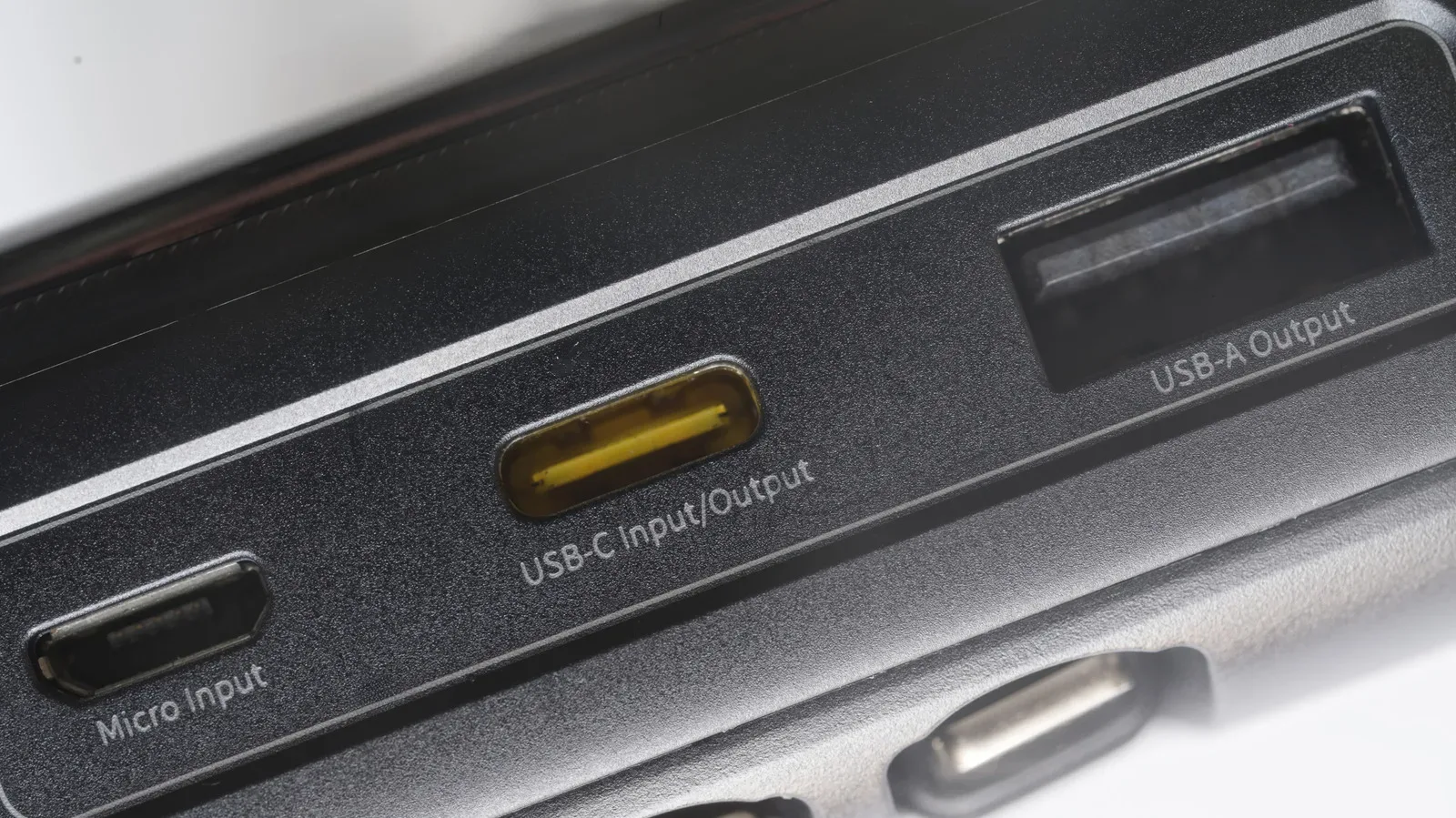
There is another very ordinary explanation: case makers and system builders may put different USB standards at the front and back. A USB-C-shaped connector alone does not state its data speed. Nor does a port’s color or symbol provide a universally reliable answer. The documentation for the exact motherboard or desktop model is the useful reference.
Bandwidth, power and latency: three different things
USB discussions can become confusing because “faster” may refer to several separate characteristics.
Related coverage includes Why Your Desktop’s Front USB Ports May Be Slower Than the Rear Ones.
- Bandwidth is the amount of data a connection can carry over a period of time. It matters for sustained transfers to an external SSD and devices that transmit substantial video data.
- Power delivery concerns how much power a port can provide to a connected device. This can affect charging behavior, although the available power depends on the specific port and system design.
- Latency is delay. For peripherals described as latency-sensitive, a slower or unsuitable connection can be a more consequential problem than merely watching a progress bar take longer.
These factors overlap, but they are not interchangeable. A port that is physically convenient may still be enough for a keyboard while being a poor match for a demanding external drive. Likewise, a phone’s charging speed is not determined by connector shape alone.
USB labels tell part of the story
The familiar USB naming system is not exactly famous for making buyers feel calm and informed. Still, its speed ratings are valuable when comparing ports.
USB 3.2 Gen 1 is rated at up to 5 Gbps, or gigabits per second. USB 3.2 Gen 2 is rated at up to 10 Gbps. USB 3.2 Gen 2x2 is theoretically capable of up to 20 Gbps. Thunderbolt 4 ports can reach up to 40 Gbps.
Those figures are maximum link speeds, not a promise that every connected device will transfer data at that exact rate in all conditions. Device capabilities, the cable and the system’s internal arrangement all matter. But the ratings are still useful for a basic match-up: a device built to take advantage of a higher-speed connection cannot get that full benefit through a lower-speed port.
That distinction is especially relevant to USB-C. USB-C identifies a connector format, not one fixed performance level. Two USB-C ports can look the same while supporting substantially different speeds. A front USB-C port can be excellent, but it must be judged by the specifications of that machine—not by its position or shape.
A motherboard example shows how sharing can matter
The ASUS ROG Maximus Z790 Hero illustrates why a port inventory deserves more than a quick glance at the front panel. Its rear I/O includes two Thunderbolt 4 ports rated at 40 Gbps, six USB 3.2 Gen 2 ports rated at 10 Gbps, and four USB 3.2 Gen 1 ports rated at 5 Gbps.
Its front-panel support is not universally slow. It includes one USB 3.2 Gen 2x2 connection with a theoretical 20 Gbps rate. It also supports four USB 3.2 Gen 1 ports at 5 Gbps through two headers. The point is not that the case-facing connections are useless; it is that their capabilities differ, and the four 5 Gbps ports have shared available speed across connected devices.
For example, on boards arranged this way, two external SSDs connected through the front may have to share a 5 Gbps transfer rate. That can be noticeable when both drives are reading or writing heavily at the same time. Connecting one drive to a higher-speed rear port can avoid treating the front of the case as a tiny rush-hour tunnel.
It is also a reminder that the number printed beside a standard is only one part of the setup. A system can contain fast ports and still route some front-facing ports through a slower, shared connection. The correct question is not “Does my PC have USB 3?” but “Which specific port is connected how, and at what rated speed?”
This is not just a Windows desktop issue
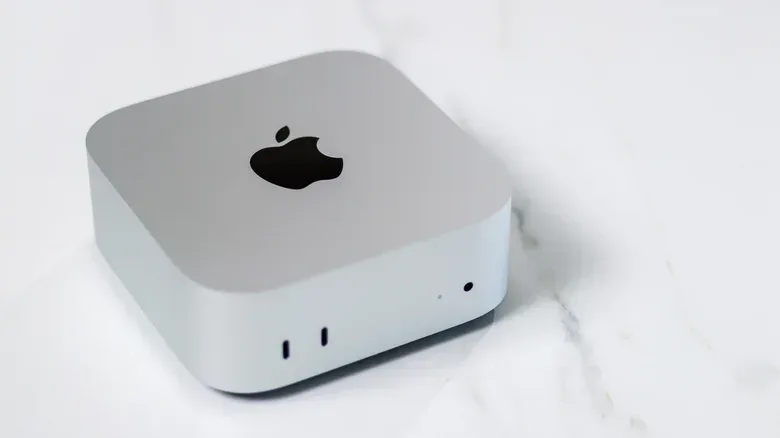
Port placement and port speed differences also appear on compact desktop Macs. The baseline Mac mini with an M6 chip has two front USB-C ports rated at up to 10 Gbps, while its rear Thunderbolt 4 ports can reach up to 40 Gbps. The latest base Mac Studio similarly has two front USB-C ports rated at 10 Gbps, with Thunderbolt ports placed on the rear.
That arrangement is sensible from a convenience perspective: the front ports remain readily available for accessories and shorter tasks. But it also makes the rear connections the obvious candidates when a user needs the higher-speed Thunderbolt capability. Front access and top-tier throughput do not have to be mutually exclusive, but a desktop’s design can deliberately reserve the quickest ports for the back.
What belongs on the front of a gaming PC?
The most reassuring part of this is that the vast majority of routine peripherals have modest needs. Putting these on front ports is generally a practical choice:
- Mice and keyboards
- Headphones and wireless audio receivers
- Game controllers
- Low-demand USB accessories
- Regular USB flash drives used for occasional, smaller transfers
These devices do not normally require high throughput to operate. There is little reason to sacrifice a high-speed rear port merely to connect an everyday input device. Front USB is doing exactly the job it was made for: easy access to routine peripherals.
A flash drive is also fine at the front when it is being used casually. The difference becomes more relevant if it is regularly handling large files or sustained reading and writing. In that case, the rated speed of both the drive and the port becomes worth checking.
When the rear ports deserve priority
Reserve a high-speed rear connection for gear that genuinely needs it. External SSDs are the clearest example. Large game installs, video files, backups and repeated data transfers can expose a bottleneck that a mouse never will. Anyone shifting a sizeable PC game library, or moving files connected to a title such as Void/Breaker, has a reason to care about whether storage is using a 5 Gbps connection, a 10 Gbps connection or a faster Thunderbolt link.
Capture cards are another strong candidate for the fastest compatible port. They deal with significant data demands and are specifically named among the peripherals for which the right connection can make a real difference. VR headsets likewise belong in the category of hardware that can be bandwidth-intensive or latency-sensitive; some may not work properly on slower connections.
That does not mean every rear port is automatically superior to every front one. A modern system can have high-end front I/O, while a rear port may use a lower-speed standard. The practical recommendation is more precise: use the highest-speed compatible port that the device requires, wherever it is located.
A quick port-selection checklist
- Identify the device’s requirement. Check whether it needs a particular USB speed, a Thunderbolt connection, or more power than a basic port provides.
- Find the PC or motherboard specification page or manual. Look for individual port ratings and the front-panel header layout.
- Check for shared front headers. If several front ports are grouped under a shared connection, avoid expecting full rated performance from multiple demanding devices at once.
- Use front ports for daily convenience. Input devices, headset receivers, controllers and occasional flash media are natural fits.
- Use the strongest compatible port for demanding hardware. Prioritize fast rear USB or Thunderbolt ports for external SSDs, capture devices and VR equipment when their requirements call for it.
- Treat colors and icons as hints, not proof. They can help identify a port, but specifications are more dependable because labeling conventions are not always consistent.
The lesson is not to stop using the front of the PC. It is to avoid turning it into the default destination for every device just because it is closer. For low-demand accessories, convenience wins. For high-bandwidth storage, video capture and VR hardware, a minute spent identifying the proper rear port can prevent slower transfers, constrained shared bandwidth and a great deal of unnecessary troubleshooting.