
A desktop PC that wakes itself in the middle of the night can feel like a small haunting: fans spin up, RGB lighting returns, a monitor may flicker to life, and nobody has touched the power button. For a gaming setup in particular, where a sensitive mouse, keyboard, controller dongle, Ethernet connection and background software can all be attached at once, the explanation is often less supernatural and more administrative.
Windows does not necessarily treat sleep as an absolute “do nothing until I return” state. Hardware and software can be granted permission to wake the system for a reason. A mouse movement may count as user input. A network request can be allowed to bring the PC online. Scheduled maintenance, updates, security scans and third-party applications can use wake timers to resume the machine at a chosen time.
The useful approach is not to disable every possible wake feature immediately. Some wake events are genuinely convenient, especially on a PC that shares media across a home network or is expected to complete maintenance during off-hours. Instead, identify what woke the computer, then decide whether that device, task or timer has a job worth keeping. That preserves intentional functions while stopping the 2 a.m. light show.
First, rule out the usual input-device culprit
For many desks, the mouse is the simplest explanation. Gaming mice can be very sensitive. A bump to the desk, cable movement or minor vibration can be interpreted as input, which wakes a PC if Windows has given that device wake permission. Keyboards can do the same, although a keyboard is often a more deliberate and useful way to wake a desktop than a mouse.
To change this, open the Windows power-user menu with Windows + X and select Device Manager. Locate the relevant piece of hardware, right-click it and choose Properties. Under the Power Management tab, clear Allow this device to wake the computer, then select OK.
Repeat that process for an input device that is causing trouble. If the mouse is the obvious offender, disabling its wake permission is usually the sensible first adjustment. It is wise to leave at least one convenient input route able to wake the PC if that suits your routine. The physical power button remains available either way.
What this setting actually changes
This option does not disable the mouse or keyboard. It only removes that device’s authority to resume Windows from sleep. That distinction matters: you can still use the peripheral normally once the PC is awake, but a desk jostle should no longer be enough to revive the entire setup.
Before assuming a peripheral is faulty, consider the broader connection chain. A wired device, hub or port issue can sometimes muddy the picture. For practical checks on connectors and cables, see this guide to spotting USB-C port damage and ruling out cable faults. The important point for unexplained waking, however, is that wake permission is a Windows configuration question, not automatically a hardware failure.
Related coverage includes Why your Windows PC wakes up by itself and how to stop it.
Check whether your network is waking the machine
Another common explanation is Wake-on-LAN, usually shortened to WoL. This feature lets a device on a local network wake a compatible PC when it needs access to it. One practical example is a smart TV requesting content from a media server running on the desktop.
WoL can be useful, but it can also be unnecessary for a gaming PC that is not serving files or media to other devices. To review its settings, return to Device Manager, expand Network adapters, then open the properties for the Wi-Fi adapter, Ethernet adapter or both, depending on how the computer connects to the network. The Power Management tab may offer Allow this device to wake the computer.
There are two reasonable choices:
- Disable the network adapter’s ability to wake the PC if you do not use Wake-on-LAN.
- Leave wake permission enabled but select Only allow a magic packet to wake the computer if you want WoL with less chance of incidental network activity causing a wake event.
A magic packet is a specially formatted network message used for Wake-on-LAN. In plain terms, it is intended as a deliberate wake request rather than ordinary network chatter. Keeping the adapter restricted to magic packets can therefore be a better compromise than turning the feature off outright for someone who occasionally needs remote access or a home media function.
Not every network-related wakeup means the network adapter is wrongly configured. But if the PC wakes when no one is at the desk and no maintenance is expected, network wake permissions are one of the first places worth inspecting.
Understand Automatic Maintenance before disabling it
Windows includes Automatic Maintenance, a feature that can perform tasks such as software updates and security scans during off-hours. It is another possible reason a sleeping computer resumes. Search for “Automatic Maintenance” from the Start menu to find its controls.
If the timing is consistently disruptive, clear Allow scheduled maintenance to wake up my computer at the scheduled time. That prevents scheduled maintenance from waking the system for its allotted run.
There is a trade-off. Maintenance tasks exist to keep software and security work progressing when the PC is not in active use. Rather than blocking them by default, it may be better to select a sensible maintenance time and make sure Windows is configured to sleep after a period of inactivity.
Sleep timing is available under Settings > System > Power & battery > Screen, sleep, & hibernate timeouts. Adjust Make my device sleep after to fit the way the desktop is used. This does not diagnose an unwanted wake event by itself, but it makes the expected behavior clearer: if a maintenance task wakes the PC, the system can return to sleep after it has been idle for the selected interval.
Use Windows’ own commands to find the cause
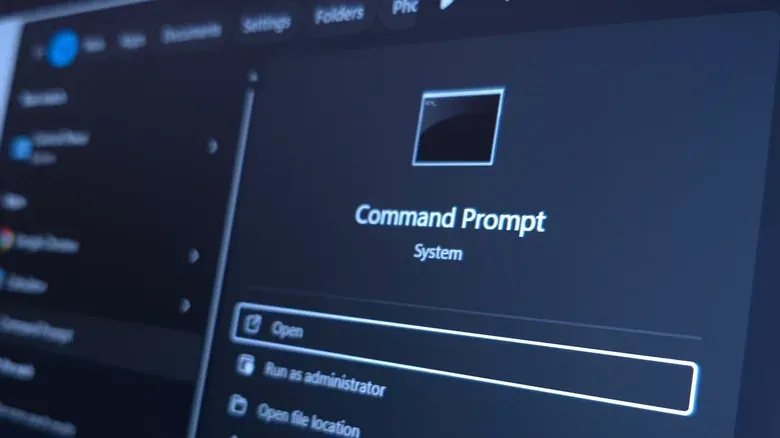
Guesswork is avoidable. Windows includes power-configuration commands that can show the last recorded wake source, upcoming wake timers and devices allowed to wake the system. Open the Start menu, search for terminal, right-click the result and choose Run as administrator. Then run the following commands one at a time:
- powercfg -lastwake — shows what last woke the PC.
- powercfg -waketimers — lists events scheduled to wake the PC in the future.
- powercfg -devicequery wake_armed — lists devices currently allowed to wake Windows.
These commands are diagnostic tools, not fixes on their own. Their value is that they replace “it woke up for no reason” with a specific lead. If powercfg -devicequery wake_armed lists a mouse or network adapter you had not considered, revisit that device in Device Manager. If powercfg -lastwake implicates a particular device, make its wake permission the next setting to review.
Wake timers, explained
A wake timer is a scheduled request that is allowed to bring a sleeping computer back on at a particular time. Windows maintenance can use them, and so can third-party programs. A cloud backup service is one example of software that may schedule activity of its own.
If powercfg -waketimers identifies an application or process, inspect that program’s settings before changing Windows globally. Look for backup schedules, update checks or any setting that permits waking the computer. Also check Task Scheduler for processes set to run at regular intervals. The aim is to remove an unwanted instruction at its source rather than making sleep behavior more restrictive across the whole system.
The stronger option: restrict wake timers at the power-plan level
When individual programs and devices do not explain the issue—or when the goal is simply a stricter overnight sleep policy—Windows can limit wake timers at the power-plan level. Search the Start menu for Edit power plan, select Change advanced power settings, then navigate to Sleep > Allow wake timers.
Available choices include Disable and Important Wake Timers Only. Disabling wake timers is the broadest fix: scheduled software requests will no longer be permitted to wake the PC. It is effective, but it also means tasks that depend on a timer will have to wait until the computer is next awake.
Important Wake Timers Only is a middle ground. Its behavior is not completely broad: it blocks wake events such as antivirus scans while still allowing automatic reboots related to installed Windows updates. For someone who wants fewer surprise wakeups without preventing all update-related activity, that can be the more balanced choice.
A practical order of operations
- Run powercfg -lastwake and powercfg -devicequery wake_armed.
- Remove wake permission from the mouse first if it is overly sensitive or the desk is easily disturbed.
- Review keyboard wake permission, keeping it enabled only if it is useful.
- Inspect Wi-Fi and Ethernet adapter settings, disabling Wake-on-LAN if it serves no purpose or restricting it to magic packets if it does.
- Use powercfg -waketimers, app settings and Task Scheduler to identify scheduled software activity.
- Review Automatic Maintenance and the system’s sleep timeout.
- Only then consider disabling all wake timers or using the important-timers-only setting.
This progression starts with targeted changes that have the smallest side effects. It also makes troubleshooting clearer: change one likely cause, allow the PC to sleep as usual, and see whether the behavior stops. Altering every power option at once may silence the symptom, but it makes it harder to learn what was responsible and can remove useful capabilities unnecessarily.
Why selective permissions are usually the better fix
A desktop waking once in a while is not automatically a sign of danger or a broken PC. It can be the result of security work, updates, a necessary network request or a peripheral that Windows is doing exactly what it was told to trust. The annoyance comes when that trust is too broad for the setup.
For a dedicated gaming machine, disabling mouse wake and reviewing network wake behavior are especially practical starting points. For a PC that doubles as a media server, remote-access device or backup target, more selective choices—such as allowing magic packets or retaining important wake timers—may better fit the job.
The core fix is to treat waking as a permission system. Find the device, timer or task with authority to interrupt sleep. Keep the permissions that support a real use case, and remove the ones that do not. Your PC can still handle the work it needs to do without treating every nudge, network event or scheduled process as an invitation to start the night shift.