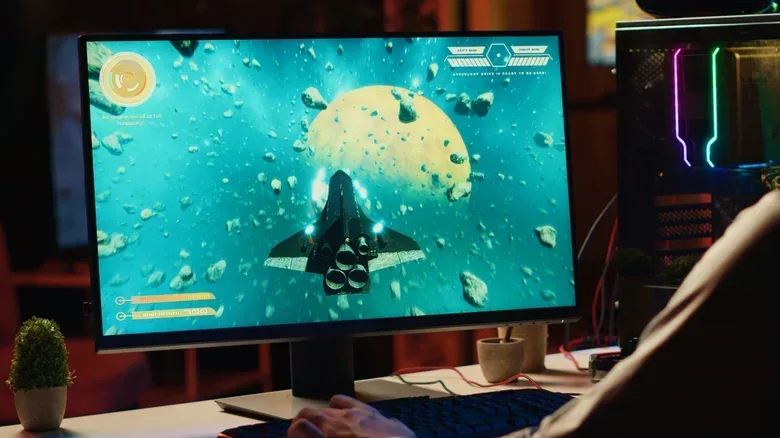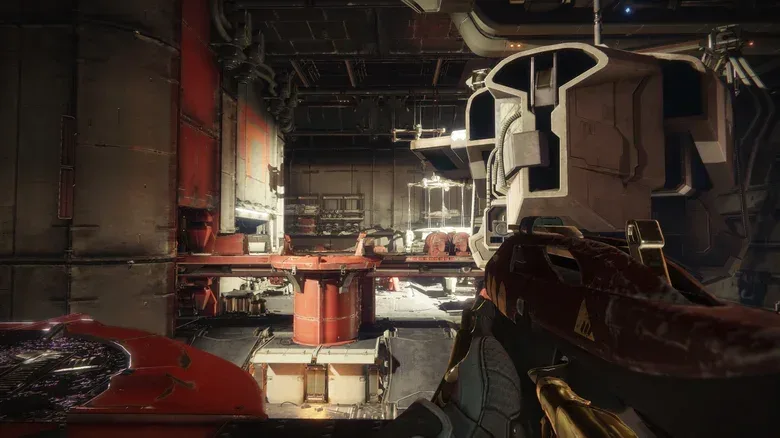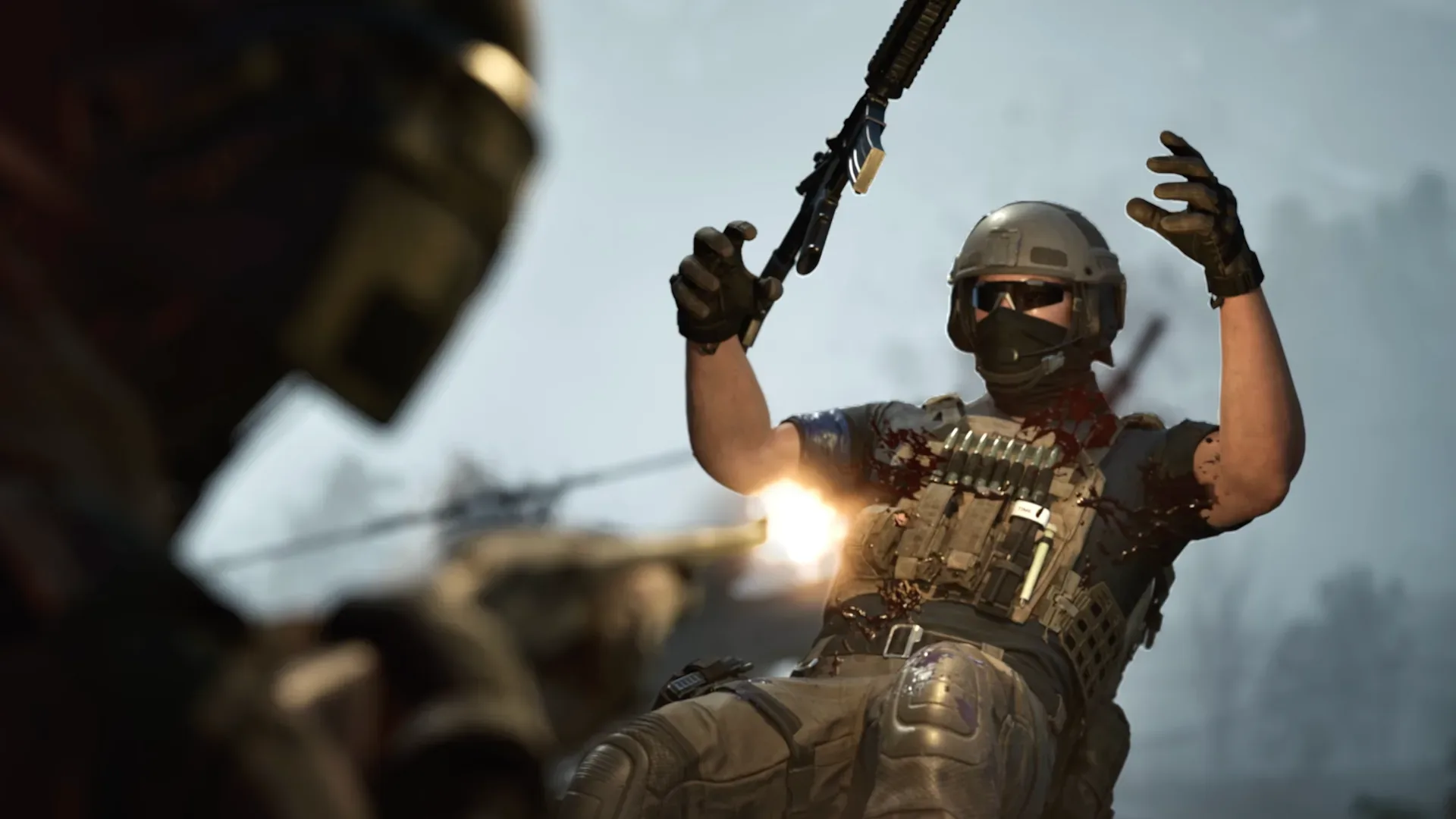
Anti-aliasing is the graphics setting that tries to stop a sleek sci-fi rifle, a distant fence or a curving road from looking as though it was built from tiny stair steps. Its job sounds simple: smooth the rough edges. Choosing the right option is less simple, because the anti-aliasing menu now tends to read like a GPU manufacturer lost a fight with an acronym factory.
SSAA, MSAA, FXAA, SMAA, TAA and DLAA all address aliasing, but they do it at different points in the rendering process and with different compromises. Some demand far more work from the graphics card. Some are designed to be quick. Some use data from earlier frames to stabilize motion, which can improve an image in play while also introducing blur or ghost trails in the wrong circumstances.
The important practical point is that anti-aliasing is not merely a screenshot setting. A mode that looks fine while the camera is still can become distracting as soon as foliage, wire fences, thin power lines or distant scenery begin moving across the screen. The best choice depends on whether a player is pursuing frame rate, still-image sharpness, stability in motion, or a balance among all three.
Why games produce jagged edges in the first place
A PC game ultimately displays its image on a grid of square pixels. Curves and diagonal lines do not naturally fit that grid. When an edge falls awkwardly between pixels, it can appear as a visible series of steps, commonly called “jaggies.”
Aliasing is not limited to the outline of a character model or building. It can be especially noticeable on fine, high-contrast details: railings, fences, leaves, cables and distant objects. During camera movement, these details can appear to crawl, flicker or shimmer. A static screenshot may hide the issue; motion is where it announces itself loudly.
Anti-aliasing attempts to make the transition between an object and its background look more natural. The methods differ in how they collect, interpret or blend image information. That distinction explains why one setting may cost a large amount of performance while another barely affects the frame rate, and why a setting praised for stability can sometimes make fine details look softer.
The traditional approach: render more information
SSAA: supersampling anti-aliasing
Supersampling anti-aliasing, or SSAA, is the forceful solution. It renders the image at a higher resolution than the final output, then downsamples it to the resolution being displayed. The result can look very clean because the process gives the renderer more information to work with before the image is reduced.
Its drawback is equally straightforward: rendering at a higher resolution is extremely demanding for the GPU. That can lower frame rates and create wider performance problems, making SSAA a costly choice even though it is effective visually. It is the option for players who value image quality and have performance room to spare, not a universal setting to max out because the menu permits it.
MSAA: multisample anti-aliasing
Multisample anti-aliasing, or MSAA, is a more targeted method. Rather than supersampling the entire image, it places extra samples around geometry edges. In plain terms, it focuses additional work where the outlines of 3D objects need smoothing most.
The sample multiplier matters. Settings such as 2x, 4x and 8x MSAA indicate increasing sample counts: more samples can create smoother edges, but they also increase GPU load. This is why older PC graphics menus often turned anti-aliasing into a benchmark of a system’s headroom. Higher MSAA settings could look appealing, provided the game did not become a slideshow.
MSAA has an important limitation: it primarily treats geometry edges. Aliasing originating in materials, textures or transparent surfaces can remain. A game can therefore have neatly smoothed hard object outlines while thin foliage or texture-based detail still shimmers.
It is also not guaranteed to be offered in every recent game. Unreal Engine’s current documentation supports MSAA with the forward renderer, but not with its desktop deferred renderer. That rendering-path limitation helps explain why familiar 2x, 4x and 8x options are absent from many newer PC releases. Their absence is not necessarily a sign that the game forgot anti-aliasing; it can reflect the renderer being used.
Post-process options: fast smoothing after the frame
FXAA and SMAA work after the game has rendered the frame. These are known as post-process approaches: instead of asking the GPU to take extra samples while rendering scene geometry, they analyze the completed image and apply smoothing.
FXAA: fast approximate anti-aliasing
FXAA searches for high-contrast edges and softens them. Its major advantage is speed. It is relatively low-cost, so it can be an appealing option when a system is short on GPU performance or when a player wants a basic reduction in jaggies without a heavy frame-rate penalty.
The trade-off is that FXAA can soften image detail beyond the unwanted jagged edge. Depending on the scene, that may make the picture appear less crisp. It is a practical performance-first setting, but it may not suit someone who is especially sensitive to softness in textures or fine detail.
SMAA: subpixel morphological anti-aliasing
SMAA uses more advanced edge and pattern detection than FXAA. The goal is to preserve sharpness more effectively while keeping the performance cost relatively low. That puts it in a useful middle ground: it remains a post-process method, but it seeks a more discerning result than broad edge softening.
Neither FXAA nor SMAA eliminates the need to examine a game in motion. The point of comparison is not just whether the edge of a stationary object looks smooth. Watch distant, narrow and repeating details while moving the camera. That is where the compromises of different methods become clear.
TAA: using earlier frames to calm motion
Temporal anti-aliasing, or TAA, changes the calculation by using information from previous frames. “Temporal” here means time-based: the technique does not judge each frame in isolation. It combines information across frames to reduce jagged edges and curb the crawling or shimmering that can appear during movement.
This makes TAA especially relevant to the details that conventional edge smoothing does not always tame well. Fences, leaves, power lines and objects far from the camera are all examples where temporal stability can matter more than a single frozen frame.
But history can be messy. If information from earlier frames does not line up cleanly with the current frame, TAA can introduce softness or ghosting. Ghosting is the appearance of residual or trailing image information behind moving elements. It is not the same problem as jaggies, but it is part of the visual trade a player may be making for a calmer image in motion.
That is why a paused image is an incomplete test. When comparing anti-aliasing settings, players should move through a scene, pan the camera and look at the very details likely to expose instability. Standing in front of the same wall for half a minute will not reveal much about how distant foliage behaves while traversing a level.
DLAA and native-resolution AI anti-aliasing
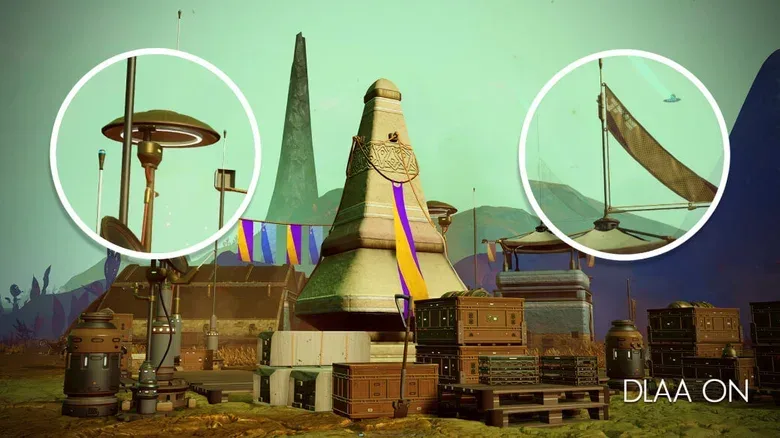
Deep learning anti-aliasing, or DLAA, is NVIDIA’s native-resolution option built using the same Super Resolution technology developed for DLSS. The distinction is crucial: DLAA works at native resolution and is not positioned as a performance boost. Its purpose is image quality rather than gaining frames through a lower-resolution rendering approach.
AMD offers a similar Native AA mode within FSR, while Intel XeSS includes a Native Anti-Aliasing mode that also operates at native resolution. These options belong in the same practical conversation as TAA because they prioritize anti-aliasing at the display’s native resolution, but players should not assume the label itself means extra performance. Native-resolution modes can be attractive when the GPU has sufficient capacity and image cleanliness is the priority.
How to choose an anti-aliasing setting without guessing
There is no setting that wins every category. The sensible approach is to identify the compromise that matters least for the game and the player.
- If GPU performance is the constraint: reducing or disabling anti-aliasing can improve performance. Fast post-process choices such as FXAA can also be worth considering when some smoothing is desired at relatively low cost.
- If a game’s image looks too soft: inspect temporal options carefully, since TAA can create softness. SMAA is designed to retain sharpness while remaining relatively low-cost.
- If motion produces distracting shimmer: test TAA and evaluate it while actually moving. Temporal methods are intended to reduce instability on fine, distant detail.
- If the goal is maximum clean-edge quality and performance is abundant: SSAA can be highly effective, though its GPU demand is substantial. Native-resolution modes such as DLAA, AMD Native AA and XeSS Native Anti-Aliasing are also image-quality-oriented options rather than performance boosts.
- If MSAA is missing: do not treat that as an error automatically. Its availability can be tied to the rendering path, including the difference between forward and desktop deferred rendering in Unreal Engine documentation.
Competitive players may reasonably prioritize frame rate, particularly if their GPU is the limiting component. Yet switching anti-aliasing off entirely is not automatically the smart choice. A small frame-rate gain may not feel worthwhile if thin, distant geometry starts sparkling and shimmering constantly. The useful setting is the one that makes the game legible and comfortable during real play, not the one that wins a still-image argument.
PC graphics options can look like a maze, but the anti-aliasing portion has a simple map. SSAA spends heavily for a cleaner image. MSAA concentrates samples around geometry edges. FXAA and SMAA polish the finished frame, with different sharpness trade-offs. TAA uses earlier frames to stabilize the current one, potentially exchanging shimmer for softness or ghosting. DLAA and similar native-resolution modes put image quality first rather than promising more performance.
For more PC-game coverage, including ongoing changes to a major competitive title, see the latest League of Legends voice chat update.