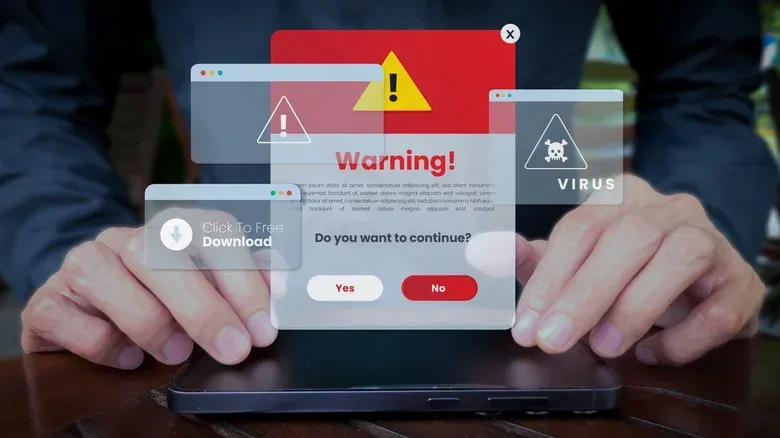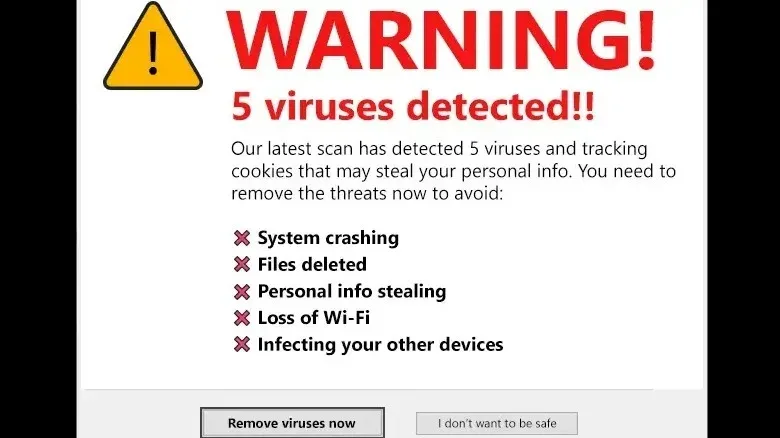
A browser page suddenly blaring that a Windows PC has a “critical” infection is meant to produce one thing: panic. The warning may flash, fill the screen, play an alarm or robotic voice, display an IP address, and borrow the name of Microsoft, Windows Defender or a familiar security brand. None of those theatrical touches proves that the computer has malware. They are often the mechanism of a scam known as scareware.
Scareware is a social-engineering tactic: instead of breaking into a device through a visible technical exploit, it pressures someone into taking the dangerous action themselves. That can mean calling a supposed support line, entering payment details, installing a “security scanner” that is actually malicious, or following a fake CAPTCHA prompt. The threat on screen is frequently fake; the damage can begin only after the user responds to it.
This is not a fringe annoyance. A browser-based scareware strain called CypherLoc has affected more than 2.8 million people since the beginning of 2026, based on research from security firm Barracuda. For people who use a Windows PC for games, work, chat and purchases, the useful response is not to diagnose the flashing screen in the moment. It is to avoid interacting with it, close it safely, then review the browser and system permissions that may have allowed it to appear.
What makes a fake virus alert convincing?
These pages work by making normal browser behavior look like an operating-system emergency. A scam may claim that Windows has detected a severe threat, name a recognizable security product, or show technical-looking information such as an IP address. It may also use bright colors, warning noises and urgent phrases such as “Critical Threat Detected!” The intent is to make a visitor act before asking a basic question: why would a website be delivering this warning?
A web page can imitate the look of a security prompt. It can also attempt to enter full-screen mode, obscure the mouse cursor, or create the impression that closing the tab is impossible. That is unsettling, but it does not turn a page into Windows or give it the authority of a real antivirus result.
In fact, a genuine infection will not necessarily announce itself with the loudest possible browser takeover. Malware can operate quietly, which is why routine security scans matter more than judging a PC’s health by dramatic on-screen warnings. A strong rule of thumb is simple: do not download a program, call a number or pay anyone because a browser tab tells you to.
Two routes fake alerts use on Windows
Not every fake warning arrives in exactly the same way. Understanding the distinction helps identify the correct fix.
1. A hostile or compromised browser page
A user may open an unsafe link, land on a malicious site, or click a compromised advertisement. Rogue advertising can appear even on otherwise legitimate pages. The ad redirects the browser to a false security screen, which then tries to make the visitor believe the machine is locked or infected.
In this case, the alert is tied to the active tab or browser session. The right response is to close the tab or, if needed, terminate the browser process without clicking within the page.
2. Website notifications that resemble system alerts
Smaller notifications in a screen corner can be more confusing because they may appear through Windows’ notification center. Websites can ask for permission to send browser notifications. A deceptive page may phrase the request as “Click Allow to read more,” rather than clearly explaining that it is asking for ongoing permission to push alerts.
Once granted, that permission can let the site send messages even when its tab is not open. The result can look much more official than an ordinary pop-up. It is still a website notification, not necessarily a security finding from Windows.
That distinction is practical: closing one tab may stop a page takeover, while persistent corner alerts may require removing a site from the browser’s notification-permissions list.
What to do the moment a full-screen warning appears
Do not click the warning, its close button, any “scan” control, a phone number or a CAPTCHA-style instruction on the page. A fake close button can be part of the trick. The goal is to exit using browser or Windows controls that are outside the suspicious page.
- Leave browser full-screen mode. Press F11. This may restore the browser’s normal interface and make its own controls accessible.
- Try the browser task manager. The supplied shortcut is Shift + Escape for Chrome, Edge and Firefox. Look for an unusually named tab or process, such as one labeled “Security Alert!”, then use End Task or the X beside that process.
- Force-close the browser if the tab will not yield. Press Ctrl + Shift + Esc to open Windows Task Manager. Select the Processes view, find the browser among active applications, right-click it and choose End task.
- If necessary, use the security screen. Press Ctrl + Alt + Del, then open Task Manager from that menu. Sorting by Name can help put active applications at the top before ending the browser task.
When reopening the browser, do not restore the prior session if it offers to reopen the tabs that were closed. Restoring the session can reload the scam page and bring the cycle right back.
This is an important bit of calm, unglamorous PC maintenance. A web page that makes itself difficult to close is trying to control the user’s decision-making, not proving it controls the entire computer.
After the page is closed: remove the route back in
A closed tab does not automatically remove notification permissions, browser data, extensions or questionable applications that could be connected to continued pop-ups. If warnings return, work through the following checks deliberately.
Clear recent browser data
On Chrome and Edge, Ctrl + Shift + Del opens the controls for clearing recent cookies and other site data. Cookies are small pieces of browser data websites use to remember sessions and preferences; clearing recent data can remove traces associated with a malicious or unwanted site. It is a sensible cleanup step when fake warnings persist.
Audit notification permissions
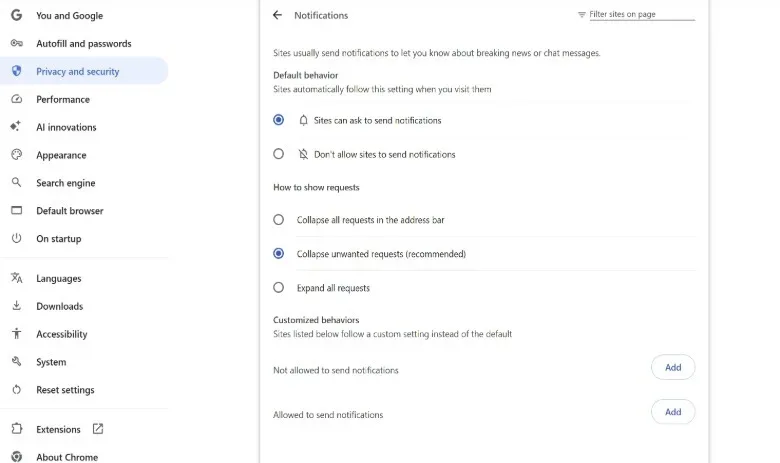
In Chrome, open the three-dot menu in the upper-right corner, then go to Settings > Privacy and security > Site settings > Notifications. Review the sites under “Allowed to send notifications.” For any site that is unfamiliar or does not need permission, use its three-dot menu and select Remove or Block.
For a stricter approach, select Don’t allow sites to send notifications at the top of that section. That eliminates website pings altogether. The trade-off is that legitimate sites will not be able to send browser notifications either, so the best setting depends on whether those alerts are genuinely useful to the person using the PC.
Review browser extensions
Extensions add capabilities to a browser, but unfamiliar extensions can also be a source of unwanted behavior. Select the puzzle-piece icon near the top-right of the browser and choose Manage extensions. Remove extensions that are unknown, unnecessary or long abandoned, then restart the browser.
Only keeping extensions that have a clear purpose makes this review much easier in the future. The point is not that every extension is suspicious; it is that a user should be able to recognize and justify what is installed.
Check installed Windows apps
Unwanted applications may also generate further warnings. Press Win + I to open Windows Settings, then go to Apps > Installed apps. Review the list and uninstall programs that look suspicious.
Take care not to remove an application merely because its name is unfamiliar. The supplied guidance supports removing items that appear shady, rather than treating every unknown component as malware. The more immediate red flags are apps apparently connected to the scare prompt, software installed after being persuaded by a fake security page, or programs that have no recognizable purpose.
Prevention: real protection is quieter than the scam
Windows includes Microsoft Defender, and its built-in protection is described as sufficient for most people. Regular scans are a more reliable way to look for subtle malware than waiting for a browser page to make a claim. Malwarebytes is also available as a free, on-demand scanner for a second opinion.
“On-demand” means the scanner is run when the user chooses, rather than replacing the PC’s existing protection. A second scan can be useful after a scareware incident, particularly if anything was downloaded or installed before the page was closed.
Malwarebytes also offers the Browser Guard extension, intended as another layer against malicious pop-ups while blocking general trackers and intrusive advertising. That is an optional addition, not an excuse to approve every permission request or download. As with any browser extension, it should be installed knowingly and remain visible in the extension list.
The broader lesson is that urgency is a poor security signal. Whether it is a fake virus page or an overconfident automated service, the useful habit is to pause and verify before granting access or acting on a dramatic instruction. That need for informed oversight is also central to the concerns around tools such as Amazon’s AI upgrade.
A short Windows scareware checklist
- Do not click, call, download or pay because of a browser virus alert.
- Press F11 to leave full-screen mode.
- Use Shift + Escape to target the suspicious browser tab, or Ctrl + Shift + Esc to end the browser task.
- Do not restore closed tabs when relaunching the browser.
- Clear recent site data if the issue continues.
- Remove unknown notification permissions and unnecessary extensions.
- Review installed apps through Settings.
- Run Microsoft Defender scans; use Malwarebytes’ free on-demand scanner as a second opinion if desired.
A fake alert’s most effective weapon is the few seconds in which it convinces someone there is no time to think. Closing the browser through Windows controls, reviewing what was granted permission, and relying on actual security scanning turns that manufactured emergency back into a manageable cleanup task.