The old ritual remains undefeated: a game starts stuttering, an app refuses to behave, or Windows has been awake long enough to develop a personality, and somebody says, “Have you tried restarting it?” It sounds like tech support’s version of telling players to check behind the waterfall. Yet a proper reboot can still be a genuinely valuable maintenance move in 2026—particularly on a Windows gaming PC.
That does not mean every desktop needs a ceremonial daily restart, nor that a reboot is a cure for bad hardware, corrupted files, malware, or a broken patch. It means that a restart resets parts of a computer’s working state that accumulate clutter during normal use. For many people, a sensible baseline is restarting a Windows PC around once a week, plus any time an update asks for it or the machine begins acting unusually.
How frequently a system needs that reset varies. The operating system matters, as does available memory, the software running in the background, and whether the device is a roomy desktop or a heat-constrained laptop. Linux systems commonly require fewer restarts. Windows on ARM can generally tolerate extended uptime better than conventional x86 Windows machines, though it still benefits from reboots after updates and when troubleshooting a strange issue.
A restart clears the current session, not just the vibes
While a PC is running, it is continually building a temporary operating environment. Programs load into RAM. Background services remain active. Drivers manage peripherals. Caches store data intended to make future tasks faster. In an ideal world, every application tidies up perfectly when it closes. In the real world, a process may leave memory allocated, a driver may get into an odd state, or a background task may keep working long after it stopped being helpful.
A full restart ends that session and begins a fresh one. Memory is cleared, active programs stop, and Windows reloads its core components and drivers. That is why rebooting can resolve issues that feel unrelated: a controller that no longer connects correctly, audio that has vanished, a launcher that will not open, persistent hitching after several game sessions, or a system that has gradually become less responsive.
For PCs with modest RAM, the result can be more noticeable. A few browser tabs, a voice-chat client, game launchers, recording tools, overlays, RGB utilities, and a game itself can create a crowded desktop. More memory does not eliminate the value of restarting; a powerful machine can also accumulate inefficient processes or memory leaks. It simply means the symptoms may take longer to appear.
Gaming creates an especially good case for keeping the background roster under control. New drivers, anti-cheat components, launchers, overlays, streaming software and game updates all add moving pieces. If a newly patched title starts throwing errors, a restart is a low-risk early troubleshooting step before escalating to reinstalls or deeper configuration changes. That is relevant whenever major updates arrive, including live-event content such as Doom Slayer’s planned Call of Duty: Black Ops 7 appearance during The Haunting.
Shutdown and Restart are not always equivalent in Windows
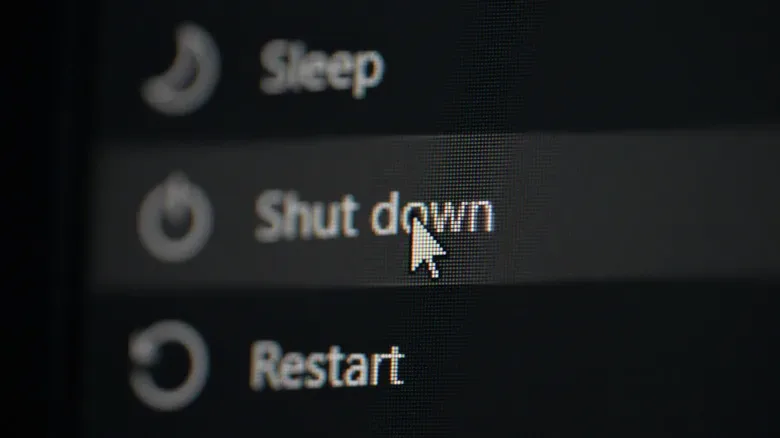
Here is the important Windows wrinkle: clicking Shut down may not give the machine the complete clean slate many users expect. Windows commonly enables Fast Startup by default. With that feature active, a standard shutdown saves part of the operating system’s kernel state into a hibernation file, then restores it at the next boot.
The upside is simple: Windows can return to the desktop more quickly. The downside is equally simple: because the operating system resumes from stored state rather than rebuilding everything from scratch, some problems that a complete reboot would clear can persist. A memory or driver oddity may survive the shut down-and-turn-back-on cycle.
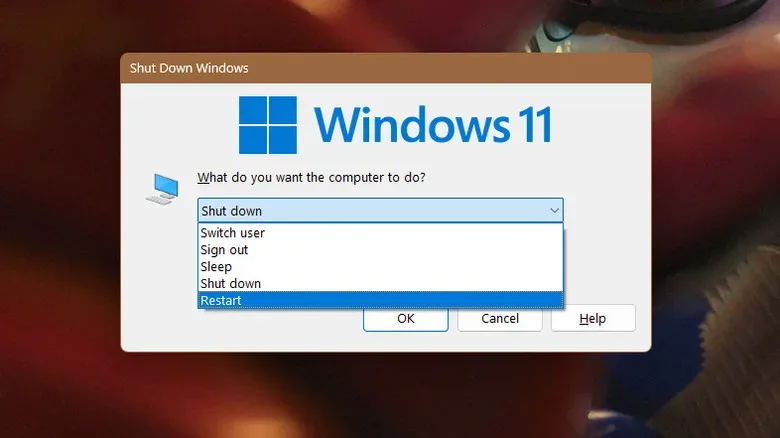
For routine use, Fast Startup can be convenient. For troubleshooting, installing driver changes, or trying to clear a stubborn slowdown, select Restart instead. Windows treats Restart as a true reboot, so it is usually the right choice when somebody recommends power-cycling the PC.
There is also a quick way to request a fuller shutdown without changing the setting permanently: hold Shift while selecting Shut down from the Windows power menu. This can be useful for people who prefer Fast Startup for everyday boots but occasionally need a cleaner reset.
When disabling Fast Startup can make sense
Fast Startup is not inherently a villain, but some setups have practical reasons to turn it off. Its fast resume can make the BIOS or UEFI entry window feel shorter, which is inconvenient when trying to adjust firmware settings. It can also complicate storage access for PCs that dual-boot Windows and Linux, because disk partitions may not be released in the way another operating system expects.
To disable the feature, open Control Panel and go to Power Options. Choose Choose what the power buttons do, select Change settings that are currently unavailable, clear the Fast Startup checkbox, and save the change. That makes shutdowns behave more like a full power-off. It is a configuration choice, not a universal requirement; users satisfied with Fast Startup can leave it enabled and simply use Restart when a genuine reset is needed.
Updates are the non-negotiable reboot moment
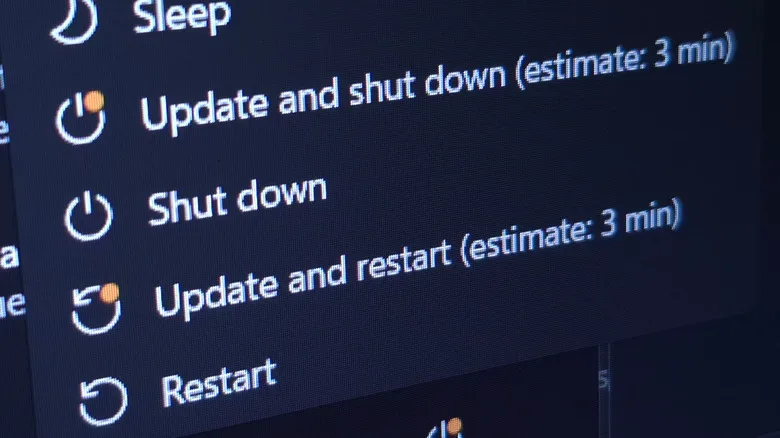
The clearest answer to “when should I restart?” is: when an operating-system update, driver installation, hardware change, or application installer explicitly requires it. A restart may be needed to swap old files for new ones, unload an earlier driver version, complete a patch, or activate system-level changes that cannot happen while the relevant component is in use.
Delaying an OS restart for days after security updates are ready is not a great habit. Security fixes often address known weaknesses, and leaving them uninstalled keeps the computer exposed to problems the patch was meant to close. A reboot by itself is not a security plan; users still need updated software, sensible passwords, security tools, and caution around untrusted downloads. Still, a restart can remove certain threats that exist only in temporary memory, and it allows pending patches to finish their job.
There is one note of caution. Windows updates can occasionally introduce their own bugs, including reports of games crashing or systems locking up. Before installing a major patch immediately before a tournament, a weekend session, or an important work deadline, it is sensible to check for widely reported issues. That is not an argument for ignoring updates forever. It is an argument for choosing the timing thoughtfully and giving the PC time to restart, rather than accepting an update prompt at the exact moment a multiplayer match is loading.
Laptops need a different kind of discipline
A laptop does not need a shutdown every time its lid closes, but it does need safe handling. Sleep is useful because it preserves an active session while consuming little power. The catch is that a sleeping laptop can sometimes wake unexpectedly. If it does so inside a backpack or sleeve, heat can build up in a cramped environment with limited airflow.
For that reason, shut down a laptop—or make absolutely sure it is fully asleep—before packing it away. This is less about chasing performance and more about protecting the machine from becoming an extremely expensive portable hand-warmer. Desktop owners can focus more on rebooting for maintenance; laptop owners should add heat and transport safety to the decision.
Windows on ARM changes the cadence, not the basics
Traditional Windows PCs use x86 processors, while Windows on ARM runs on ARM-based chips. ARM systems are well suited to long-running, low-power workloads, much like the processors common in phones, tablets, and modern Macs with Apple silicon. That helps explain why a phone can remain on for long stretches without demanding the same reboot habits associated with an older-style PC.
Windows on ARM is therefore less likely to need a rigid weekly reboot schedule purely for the sake of uptime. Even so, updates still matter, and unusual behavior still deserves the classic first response: restart the device. The advice is not “never reboot”; it is “do not reboot compulsively when the system is working normally.”
A practical restart routine for PC players
- Restart after Windows, driver, hardware, or major application updates. Let the installation complete rather than stacking pending reboots.
- Use Restart—not ordinary Shut down—when troubleshooting. Fast Startup may make a shutdown less thorough than it appears.
- Consider a weekly restart for a typical x86 Windows desktop. It is a simple way to clear lingering processes and reset memory state.
- Restart when the symptoms fit. Growing sluggishness, unexplained glitches, broken peripherals, missing sound, or a game that suddenly refuses to launch are all reasonable triggers.
- Do not treat rebooting as a substitute for diagnosis. Repeated crashes, overheating, failing storage, and persistent malware warnings deserve proper investigation.
- Shut down or safely sleep laptops before travel. Avoid placing a potentially awake system into an enclosed bag.
Ultimately, the reboot is not an outdated superstition and it is not a daily commandment. It is basic housekeeping: a quick reset that resolves many transient problems, finalizes essential updates, and gives a Windows PC a clean operating session. In PC terms, it is less like blowing on a cartridge and more like clearing a jammed menu—usually worth trying, often effective, and best used with a little understanding of what it actually does.