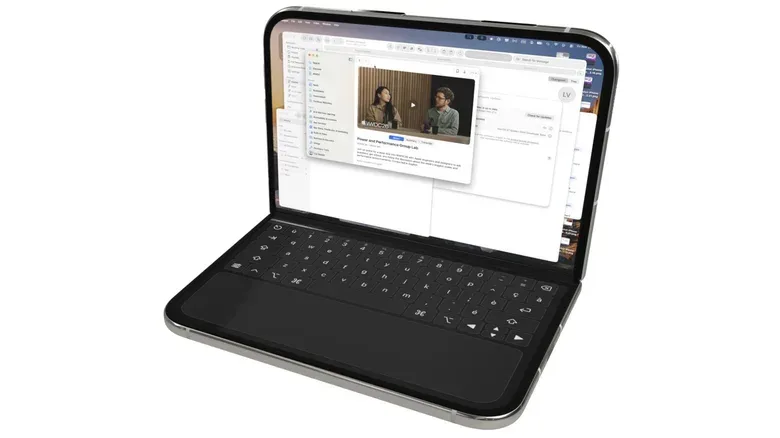
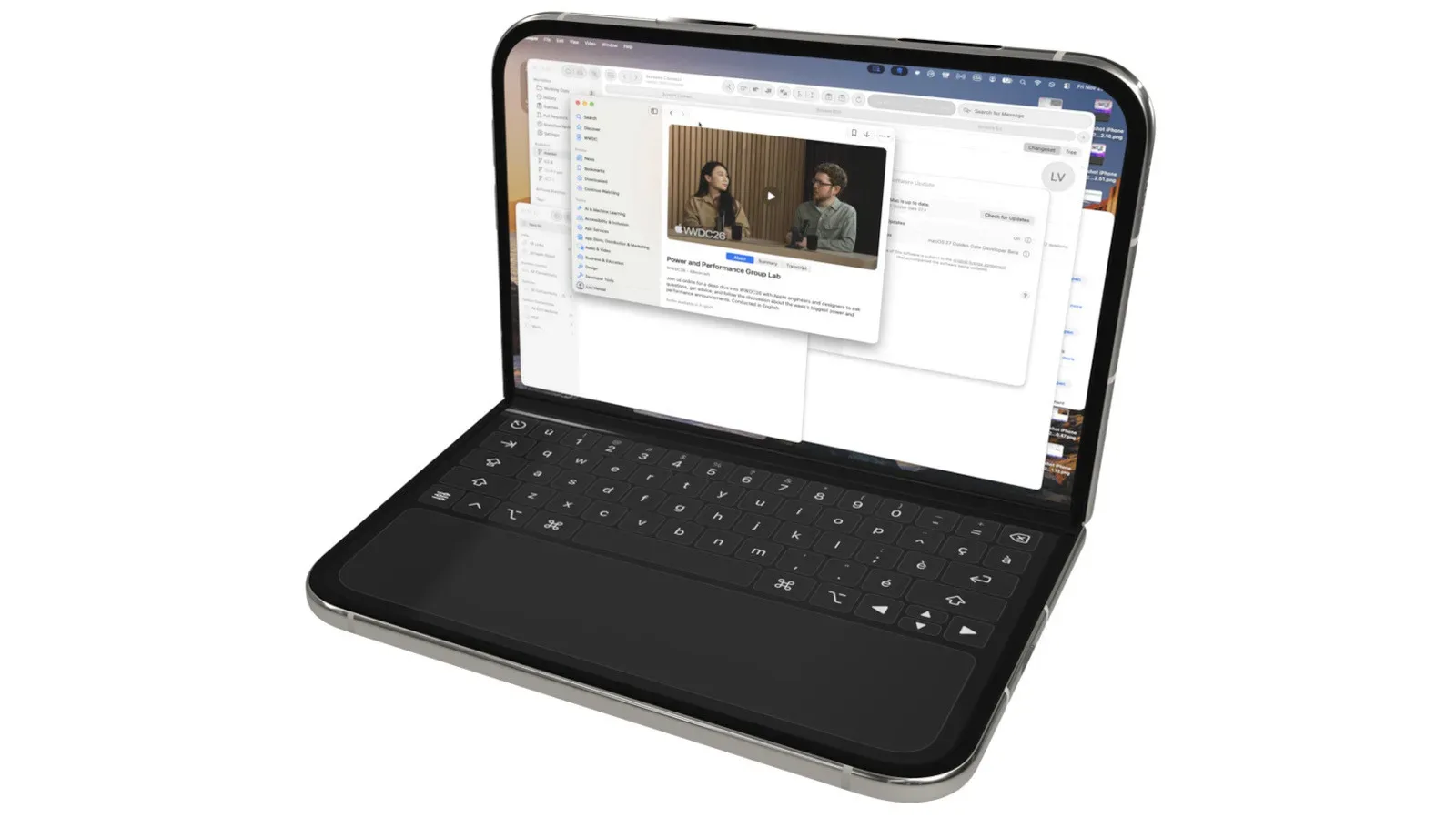
A folded phone is not suddenly going to replace a full-size computer, but a new Screens update makes a convincing argument for treating one as an emergency workstation. Version 5.10.6 of Edovia’s remote-desktop app introduces Laptop Mode for iPhone Duo, using the handset’s partially open clamshell position to mimic a miniature notebook layout.
The concept is straightforward: the remote desktop occupies the upper half of the iPhone Duo display, while the lower half becomes a software keyboard and trackpad. It is a small adjustment in interface terms, but a more purposeful use of a foldable device than simply stretching a conventional phone app across more screen space.
For players and PC users, the important qualifier is that Screens is a remote desktop application. Laptop Mode is not turning the phone into a Mac, nor is it running macOS locally on the handset. Instead, it provides controls and a viewing window for operating a computer from another device. Screens already supports controlling a computer from iPhone, iPad, Mac and Vision Pro; this update tailors that existing capability to the iPhone Duo’s two-part physical layout.
What Laptop Mode changes on iPhone Duo
In Laptop Mode, users fold the iPhone Duo halfway open and position it like a clamshell. Screens then separates the remote-computing experience into two jobs:
- Upper display: the remote desktop view, where apps, files and windows from the connected computer appear.
- Lower display: an on-screen keyboard coupled with a trackpad for pointer input.
That division matters because remote desktop software usually has to negotiate a basic awkwardness on phones: the same limited display must show the desktop while also hosting text entry, pointer controls and touch gestures. Putting typing and pointer tools on the lower half leaves the upper display dedicated to what the user is trying to see and manipulate.
There is no claim that this arrangement matches a conventional laptop for sustained work. A glass keyboard has no physical key travel, and a display-based trackpad cannot provide the tactile boundaries of dedicated hardware. Screens itself positions the feature more realistically: it can be useful when the user is in a pinch, and it may suit people comfortable with touch typing or those who only need to enter short amounts of text.
That restraint is important. The value here is not a promise to write a novel, edit a giant spreadsheet or play a precision-focused PC game entirely through a tiny touchscreen. The value is making quick remote access more manageable when a laptop or separate keyboard is not at hand.
Keyboard languages, alternate characters and gestures
Screens’ new keyboard supports multiple languages. It also uses a familiar touch convention: swiping downward on keys reveals alternate characters, similar to keyboard behavior on iPad. That can reduce the number of visible keys needed at once, which is especially useful on a lower display that is much smaller than an actual laptop deck.
Related coverage includes Screens gives the iPhone Duo a tiny laptop mode.
The trackpad is not merely a place to move a cursor. It supports Screens gestures, meaning the app’s existing gesture controls remain part of the arrangement. In remote-desktop software, gestures are touch inputs that stand in for commands a person might otherwise issue with a mouse, trackpad or keyboard. Their usefulness will depend on the particular action and how accustomed a user is to the app’s gesture system, but retaining them prevents Laptop Mode from becoming a stripped-down view-only layout.
For gaming-adjacent use, the distinction between control types is worth making. A remote desktop interface can be handy for checking a launcher, changing a setting, managing files, responding to a message, or dealing with a computer task away from the desk. It should not be confused with a purpose-built game-streaming control scheme. The information available for this update describes desktop viewing, keyboard entry, trackpad control and Screens gestures; it does not establish game-specific controls, latency characteristics or a replacement for a controller, mouse or physical keyboard.
A foldable form factor gives developers a new layout to solve
The iPhone Duo differs sharply from earlier iPhone designs because its hardware can be used in a partially open position. That physical posture opens a design opportunity: rather than treating the entire display as one flat canvas, an app can assign a distinct role to each half. Screens’ Laptop Mode is a clear example of that approach.
There is a practical lesson beyond remote access. An app made for a traditional phone typically expects the user to hold one slab of glass in portrait or landscape orientation. A foldable clamshell asks different questions: Is the device being held or resting on a surface? Should the two halves mirror one another, extend a single app, or take on separate functions? How should buttons, text, scrolling and media adapt as the angle changes?
Those questions can yield creative interfaces, but they also create extra work. Instagram head Adam Mosseri has said it would be “pretty challenging” to design Instagram in a way that feels great on the device. That is an especially useful reminder that more flexible hardware does not automatically produce better software. Developers need to decide which posture is worth supporting and then build an experience that feels intentional rather than merely compatible.
Screens has picked a use case where the answer is unusually intuitive. A remote computer already comes with the visual language of a laptop: display above, keyboard and trackpad below. The iPhone Duo’s half-open layout maps onto that language immediately. Users do not have to learn an entirely new metaphor; they just understand that the phone’s top half is the screen and its bottom half is the input area.
Who the feature is likely to help
The strongest case for Laptop Mode is a short, focused remote-desktop session. Someone who needs to access a computer and perform a few actions may appreciate being able to prop the phone open rather than continually juggle a desktop view with floating controls.
Potential examples include:
- Entering a short response or command on a remote computer.
- Using a pointer-driven desktop application for a brief task.
- Checking something on a Mac when only the foldable phone is available.
- Making a small adjustment to a PC-related workflow without unpacking a larger device.
Those are use-case illustrations, not guarantees about any particular computer setup. Remote desktop experience also depends on the connection and the host computer, neither of which is detailed here. What Screens 5.10.6 specifically adds is the iPhone Duo interface arrangement, not a newly described networking feature or universal performance claim.
For users who spend time around PC gaming setups, that may still be enough to make the option appealing. A compact remote-access tool can be more useful when it feels quick to open, easy to prop up and less fiddly to operate. The same principle applies to general computer administration: friction is often the reason a convenient feature goes unused.
Small interface ideas can define new hardware
Foldable phones are often discussed in terms of screen size, hinges and portability. Screens’ update instead highlights a less flashy part of the equation: interaction design. A device with a bendable display becomes more interesting when software recognizes not just its pixels, but its posture.
Laptop Mode does not pretend the iPhone Duo has transformed into a full MacBook. It presents a more modest proposition: when the phone is folded halfway, its two halves can make remote desktop access feel more laptop-like than a standard single-screen phone session. That is a sensible claim, and it is rooted in the actual jobs people need from remote access—seeing the desktop, entering text and moving a pointer.
As apps continue to interpret the iPhone Duo’s unusual shape in their own ways, the most successful ideas may be the ones that give each half of the device a clear purpose. Screens has done precisely that with a top-half desktop and bottom-half controls. It is an itty-bitty setup, certainly, but it is also a thoughtful one.
For more on the broader relationship between hardware choices and the way people play, see our guide to picking a gaming screen without getting lost in discount tags.