An external drive that refuses to appear can turn a normal PC session into an unwelcome side quest. For players, it may hold a game library, recorded clips, mod archives, screenshots, save backups or the old installs that never quite fit on an internal SSD. For everyone else, it can mean photos, documents, projects and media that suddenly seem inaccessible.
The key word is seem. A drive failing to open is not proof that the data has vanished, nor is it proof that the drive itself has died. The fault may sit with a loose connection, an unsuitable cable, an underpowered port, a missing drive letter, a format mismatch or a software issue. That is why the safest approach is to begin with simple, non-destructive checks and only escalate when necessary.
Most importantly: do not make reformatting your first response. Reformatting may make a drive usable by a particular operating system, but it wipes the existing data. If the contents matter, exhaust the connection, detection and repair options first.
Start with the physical connection, not the scary software menus
An external drive has to clear several hurdles before files can show up. It must receive enough power, establish a data connection and be recognized by the computer. Any one of those can go wrong while the drive itself remains healthy.
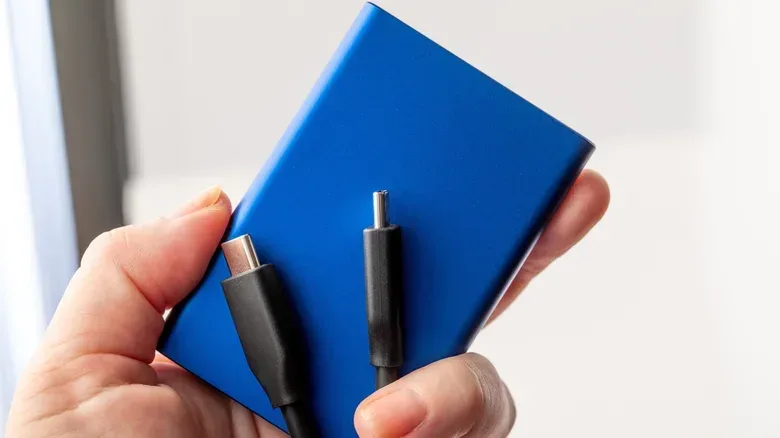
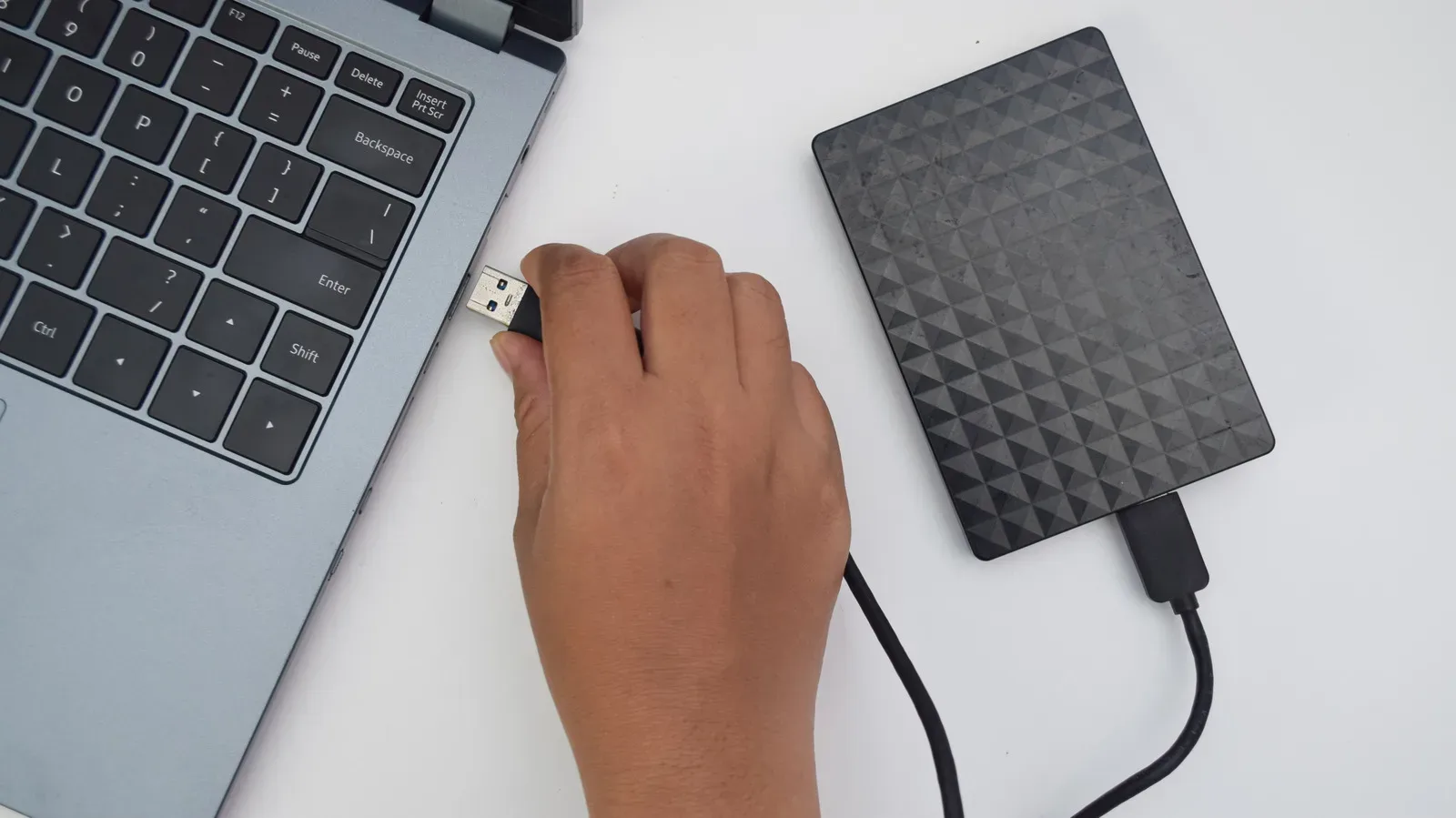
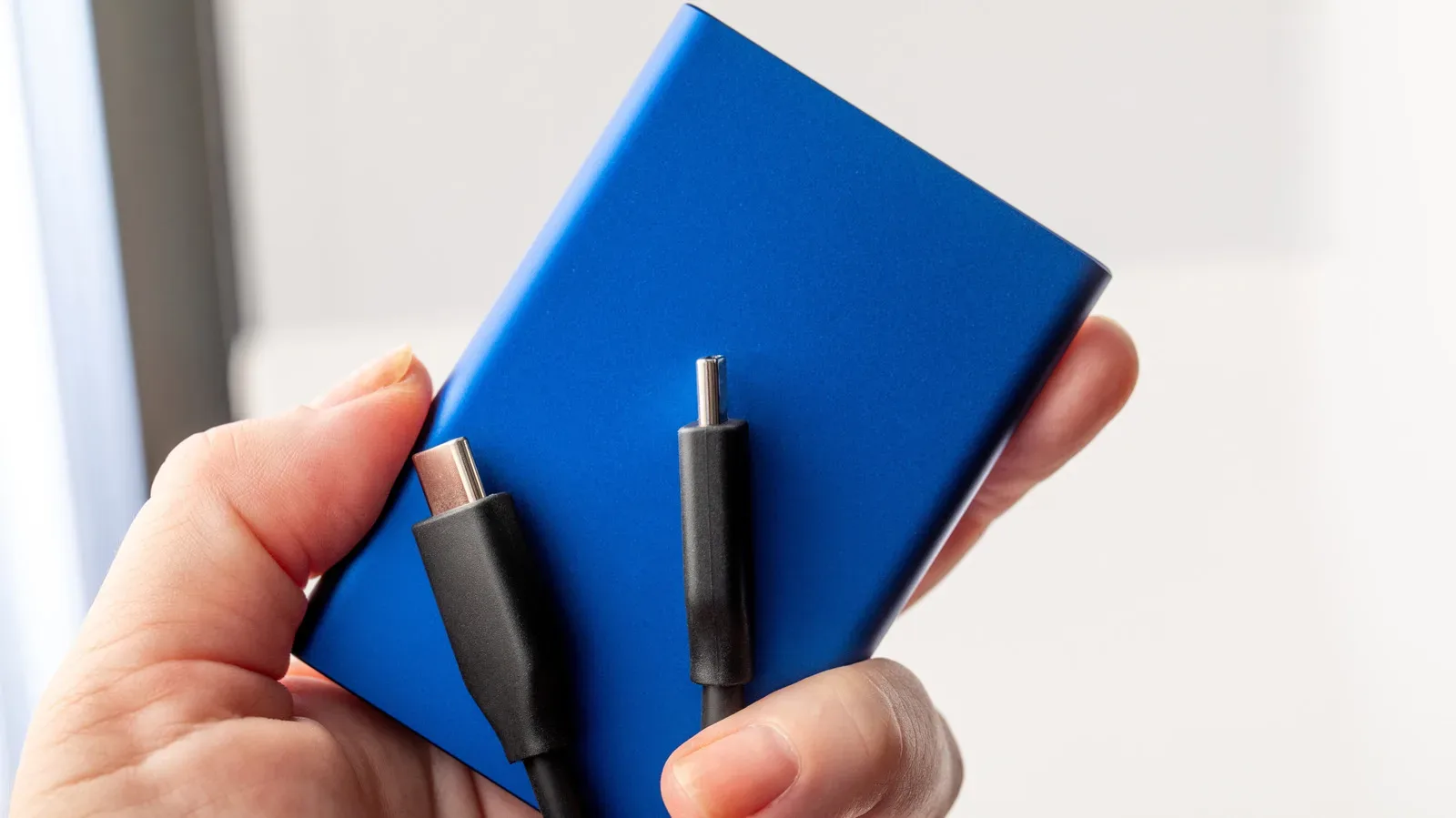
First, move the drive to another compatible port on the same machine. A bad port, or one that is not supplying enough power, can make a perfectly good drive appear dead. Then try another matching USB or Thunderbolt cable. Cables are a more plausible culprit than many people expect, especially when a drive has been repeatedly moved between devices.
Do not treat every physically similar cable as functionally identical. Thunderbolt cables can handle charging, data transfer and video, but the correct cable and port still matter. Use the appropriate connection for the hardware involved rather than assuming a spare lead will provide the same capability.
Power also deserves a direct check. Every external drive needs it, whether it draws power through the USB connection or uses a dedicated AC adapter. A drive with an adapter socket will not get far without that adapter connected. Even bus-powered drives can run into trouble on a port that cannot provide sufficient power.
If possible, connect the drive to a second computer. This is an exceptionally useful divide-and-conquer step. If the drive works on another machine, the original computer's port, cable, drivers or configuration becomes the more likely focus. If it fails in the same way everywhere, the drive or its connection hardware deserves closer suspicion.
Related coverage includes External Drive Not Showing Up? Try These Windows and Mac Fixes First.
What “detected” actually means
A computer can detect a physical disk without being able to show it in the usual file browser. In plain terms, the operating system may know that a storage device exists while lacking the information it needs to present a usable volume.
This distinction is valuable because it changes the next move. A drive that does not appear anywhere calls for cable, port, power and second-computer testing. A drive that appears in system tools but not in File Explorer or Finder may be a formatting, mounting or drive-letter issue instead.
That is good news in relative terms: a system-level listing means there is at least something for the operating system to work with. It does not guarantee an easy fix, but it means there is a reason to investigate without immediately reaching for destructive options.
Windows 11: check Device Manager and Disk Management
In Windows 11, begin by searching the taskbar for Device Manager, then expand Disk drives. Look for the external disk there. If it appears, open its context menu and go to Properties > Volumes > Populate. This can help Windows retrieve information about the disk.
Next, open Disk Management and identify the disk number associated with the drive you just inspected. Disk Management is where Windows presents information about attached disks and their volumes, including whether a drive has an assigned letter.
A drive letter is the letter-and-colon label Windows uses for storage locations, such as a familiar removable-drive entry. If the external drive lacks a letter, Windows may have no simple path for showing it in File Explorer even though the system can see the device. Assigning a letter may restore normal access when that is the only problem.
Formatting is the other important concept. A drive’s file system is the structure used to organize and retrieve files. Windows commonly uses NTFS. If the disk is not formatted in a way Windows can use, reformatting could be required to use it with Windows—but that is the point at which existing data will be erased. Consider it a last-resort setup step, not a repair shortcut for files you are trying to preserve.
Try CHKDSK before erasing a Windows drive
Windows includes CHKDSK, a utility intended to look for disk errors. Before reformatting an accessible drive, open the Terminal app through taskbar search and enter:
chkdsk [drive letter] /r
Replace [drive letter] with the actual letter assigned to the external drive. The /r option tells CHKDSK to attempt error repairs and recover bad sectors. A bad sector is an area of a drive that cannot reliably store or return data. The utility is a sensible recovery attempt because it aims to address errors without treating a wipe as the default answer.
It is not a magical guarantee. A drive with serious hardware failure may remain inaccessible, and valuable files can still require professional recovery help. But CHKDSK belongs earlier in the decision tree than a format when your priority is keeping what is already on the disk.
Update or reinstall the Windows drive software
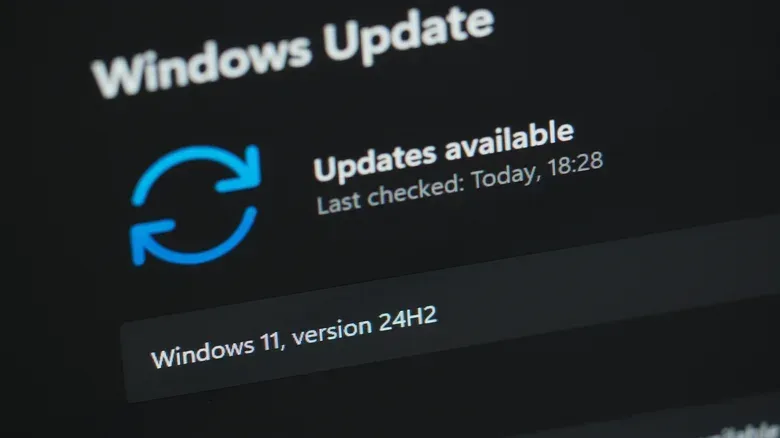
Windows also relies on drivers: software that helps the operating system communicate with connected hardware. Check Settings > Windows Update for available updates first.
If the external disk is visible in Device Manager but continues to misbehave, return to its Properties panel and open the Driver tab. From there, Windows offers options to update or uninstall the driver. Uninstalling it without choosing the option to delete the driver, then restarting the PC, can prompt Windows to reinstall the appropriate software automatically. That may resolve a software-level communication problem.
A restart sounds ordinary, but it has real diagnostic value after an update or driver reinstall. It gives Windows a fresh attempt to recognize the device and load the software it needs. In a troubleshooting sequence, that makes it a reasonable low-risk step, not merely ritual advice.
macOS: use Disk Utility to mount or repair the drive
On a Mac, Disk Utility is the central built-in app for this problem. Open it, choose View > Show All Devices, and look for the external drive. The expanded view matters because it exposes the device structure rather than only the most obvious volume entries.
If the drive is listed, click its indented entry and select Mount at the top of Disk Utility. To mount a drive is to make its file system available to the operating system so it can be used normally. A drive that has not mounted may be present but unavailable in Finder.
If mounting does not solve it, use First Aid. This is Disk Utility’s repair option and may correct errors without deleting data. As with Windows’ built-in tools, it is the sensible route to try before considering an erase.
Disk Utility can also reformat a drive, but the same warning applies: reformatting clears the disk. It may solve compatibility or formatting problems, yet it is not a safe choice when the objective is to recover the files currently on it.
For macOS software updates, check Apple menu > System Settings > General > Software Update. Apple generally includes hardware driver updates with operating-system updates, so keeping macOS current can eliminate an outdated software layer as a factor.
A practical order of operations protects your data
When the drive holds irreplaceable material, order matters more than speed. Start with actions that do not alter the drive, then progress to repairs, and reserve data-erasing steps for a point when you understand the consequence.
- Check the power supply, port and correct matching cable.
- Try another compatible port and, if available, another computer.
- Determine whether Windows or macOS can detect the disk in its system tools.
- On Windows, inspect Device Manager and Disk Management; on Mac, inspect Disk Utility with all devices visible.
- Attempt a drive-letter assignment in Windows or mounting in macOS where applicable.
- Run CHKDSK in Windows or First Aid in Disk Utility before deciding on a reformat.
- Install operating-system updates, and on Windows consider updating or reinstalling the relevant driver.
- Restart after software changes.
This sequence does not promise that every drive will return, but it avoids turning a connection or configuration issue into a permanent data-loss event. It also gives you clearer information if you eventually need help from the drive manufacturer, a repair shop or a data-recovery firm.
When to stop troubleshooting at home
Once the basic hardware swaps, built-in repair tools, updates and restart have failed, it is reasonable to stop treating the situation as a casual DIY fix. A manufacturer may have support steps specific to the drive, while a repair shop can help assess the hardware. When the disk contains especially valuable data, a recovery firm may be the appropriate escalation.
General operating-system recovery tools are another possible avenue, but they are unlikely to achieve something beyond the targeted mounting, repair and driver checks already described. The more urgent question is what matters more: getting a blank drive working again, or preserving the data that may still be trapped on it. Those are different goals, and reformatting only helps with the first one.
For gamers who keep large libraries or backups on portable storage, prevention is much less dramatic than rescue. Retaining multiple copies matters. The 3-2-1 rule means maintaining three copies of data, on two kinds of media, with one copy stored safely at home or away from the workplace. An external drive can be a useful part of that plan, but it should not be the lone keeper of saves, captures or personal files. PC game installations and their storage demands remain a live issue across the platform, as seen when Euro Truck Simulator 2 passed 100,000 concurrent Steam players.
The calmest response to a missing external drive is therefore also the most disciplined: test the easy physical variables, see whether the operating system recognizes the device, use non-destructive repair tools, and protect the data before taking any step that wipes it.