There is a particular kind of PC task that feels too small to warrant a solution—until it happens every day. Opening the same apps, dragging each one back to a preferred corner of the desktop, renaming a pile of screenshots, or reaching for an awkward keyboard shortcut may only consume a minute at a time. Over weeks, though, those tiny bits of desktop housekeeping become a routine tax.
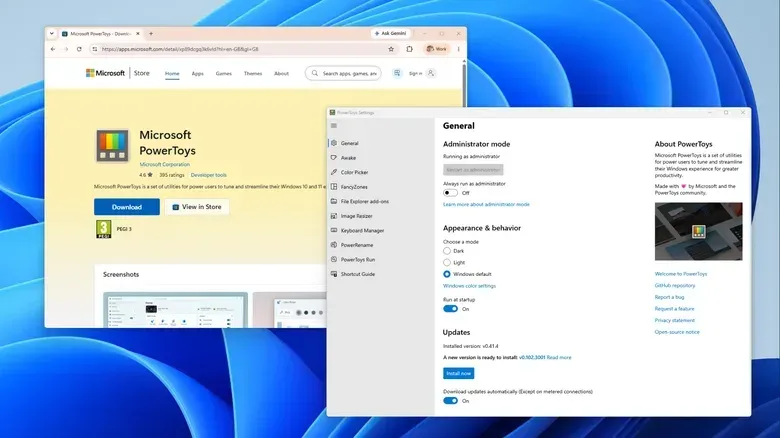
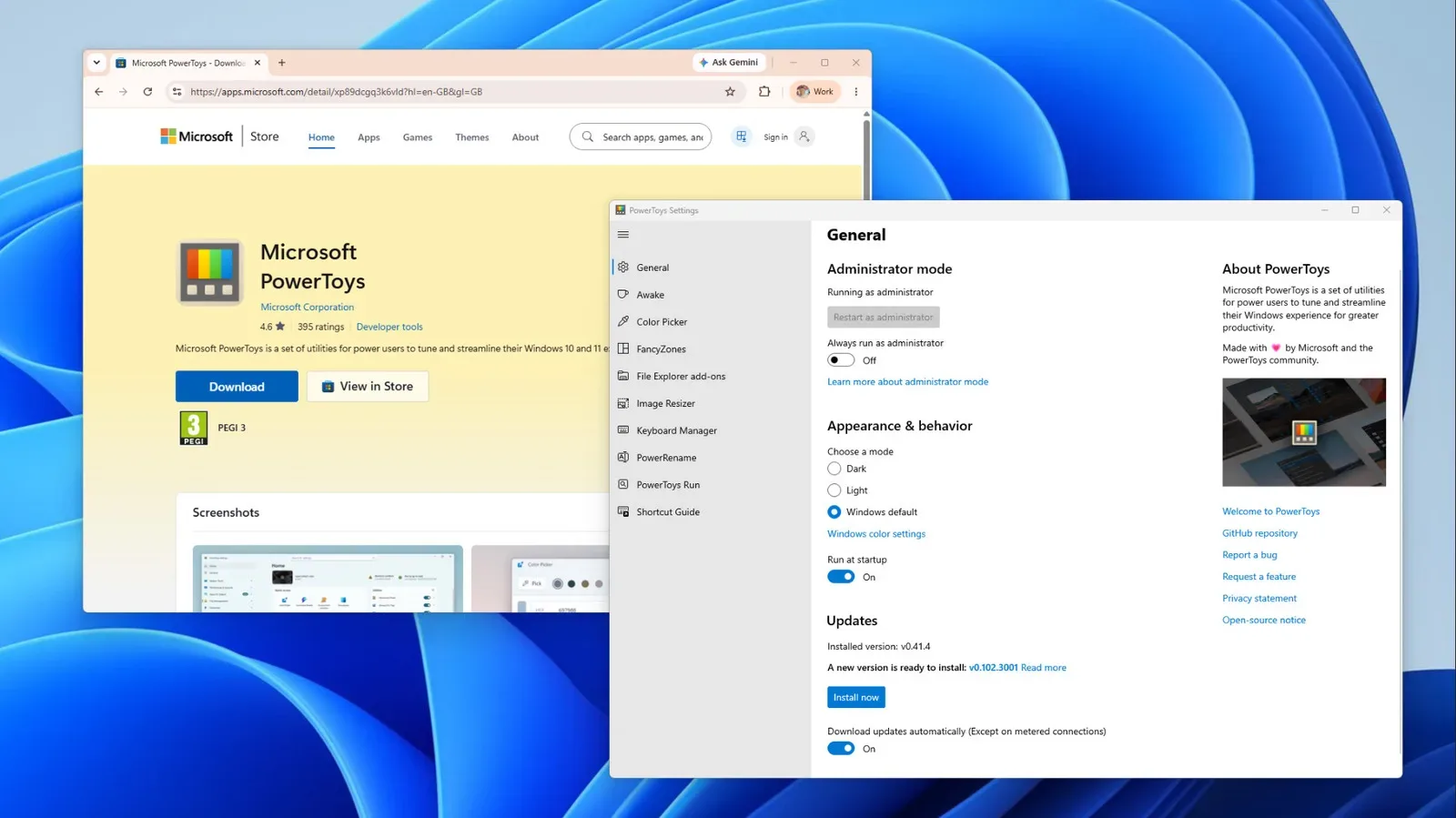
Microsoft’s free PowerToys suite is built around reducing that sort of friction. It is a collection of more than 30 optional Windows utilities, available under the MIT license, and it supports Windows 11 as well as Windows 10 version 2004 and later on x64 and ARM64 hardware. Individual modules can be turned on or off, which is important: PowerToys is most useful when it is treated as a pick-and-choose toolkit rather than a mandate to add another always-on program to a PC.
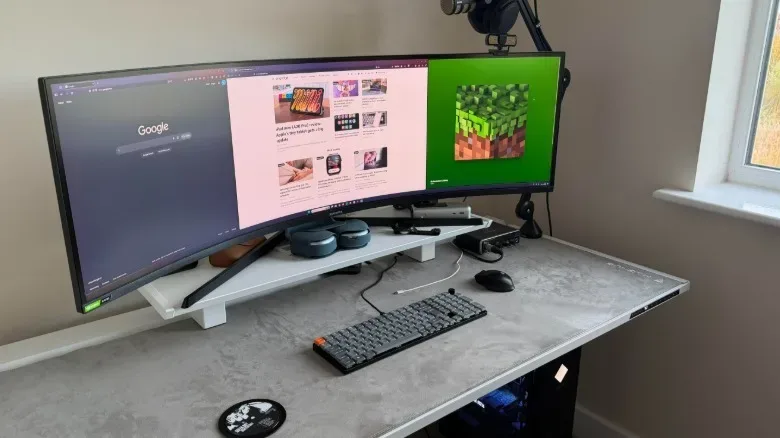
For a gaming PC, streaming setup, or a workstation that shares time with games, the appeal is straightforward. A wide monitor can be organized around a game launcher, browser, chat client, music app, capture tools, guides, and system utilities without manually rebuilding the same desktop every session. The strongest starting points are FancyZones for window placement, PowerRename for batches of files, Keyboard Manager for input changes, and the newer command-line controls for people who want actions to happen automatically.
FancyZones turns a desktop into a reusable layout
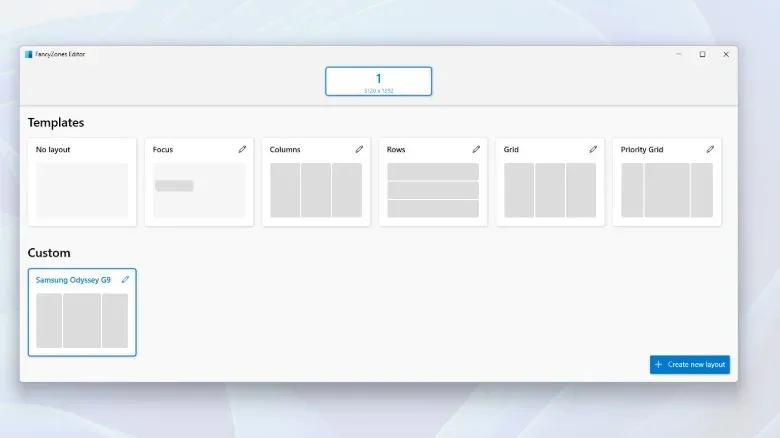
FancyZones is PowerToys’ most immediately useful module for anyone who works with multiple windows. Instead of relying only on Windows’ ordinary snapping behavior, it divides a display into named or custom-sized regions called zones. When a window is assigned to one, it resizes to fit that region.
The layout editor opens with Win + Shift + `, using the backtick key. If that shortcut does not respond, FancyZones may simply need enabling in PowerToys’ Home section. From the editor, users can select a supplied template or build a fresh layout. A Grid layout is formed by splitting and merging zones, while a Canvas layout permits zones to overlap. That distinction matters for unconventional monitor setups: grids suit clean columns and rows, whereas canvas designs allow more deliberately irregular arrangements.
Once a layout is selected, holding Shift while dragging a window displays the zones. Releasing the window over a zone places it there. The practical advantage is less about making the desktop look tidy and more about preserving attention: chat can remain in a narrow side panel, a browser can occupy a large central space, and supporting tools can stay visible without constantly being resized.
PowerToys can also return newly opened windows to the zone where they were last placed. That is especially valuable for programs that are opened and closed repeatedly across a day. Custom layouts can receive a number and be applied with Win + Ctrl + Alt plus that number, offering a quick way to switch a display into a different arrangement.
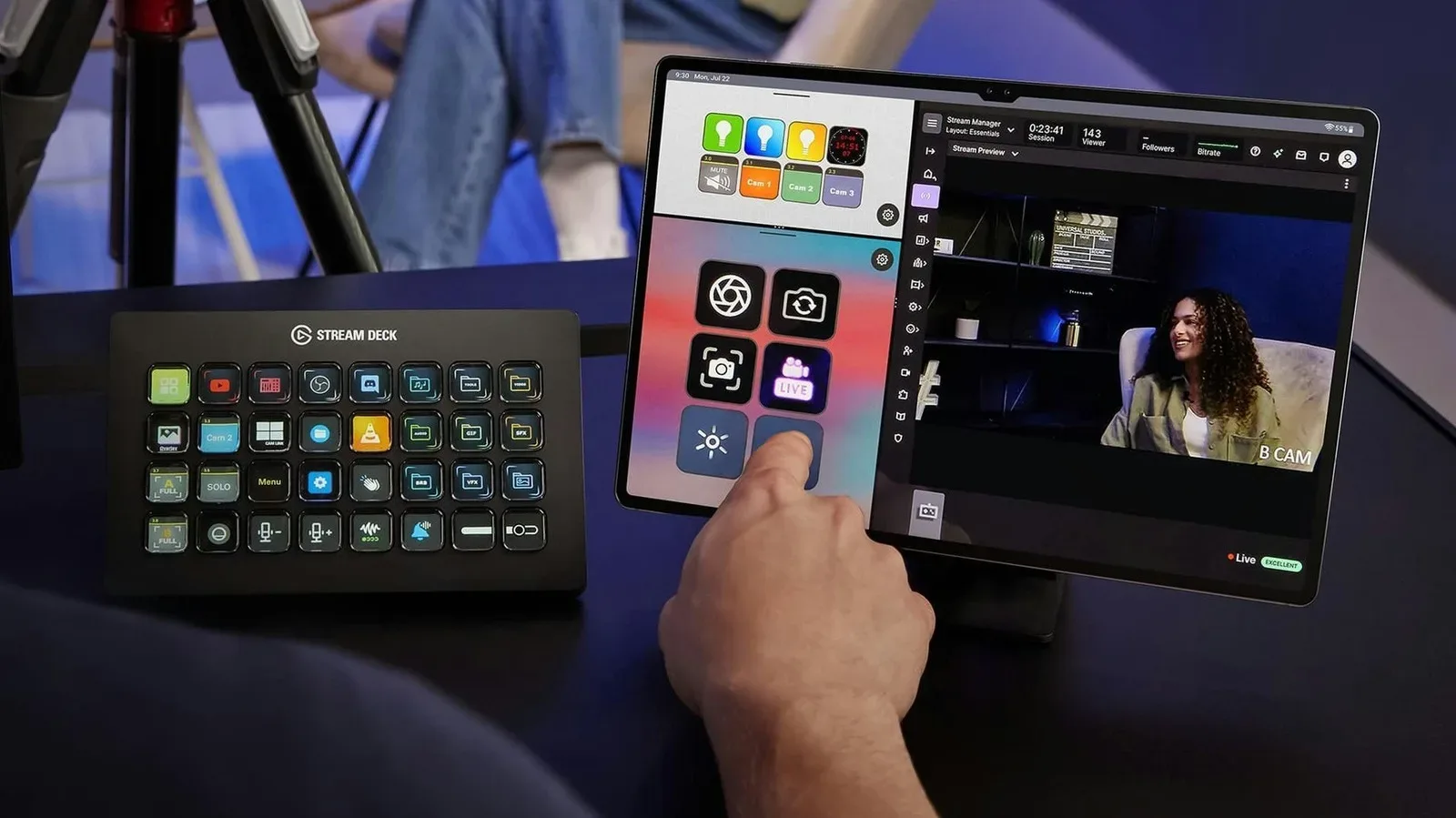
FancyZones is not a performance miracle or a replacement for every full-screen application mode. It is a desktop organization tool. But for people who routinely juggle guides, Discord-like chat, browsers, music, capture utilities and a game launcher, removing repeated resizing can make a busy screen much easier to manage. It also fits naturally alongside other ways to tailor a setup, such as using an older tablet as a Stream Deck-style streaming control panel.
Workspaces can reopen a captured app setup
Workspaces moves beyond placement by capturing a set of open applications and their arrangement. Open its editor with Win + Ctrl + `, enable the utility first if needed, choose Create workspace, arrange the desired applications, then select Capture. The saved setup can include command-line arguments for individual applications and can be saved as a desktop shortcut.
That suggests useful, modest automation rather than a promise of a flawless one-click desktop restore. A workspace could collect the applications commonly used for a particular task, then provide a shortcut to relaunch that group. For users who alternate between a focused work layout and a communication-heavy setup, it reduces the need to remember every app and position from scratch.
There is a limitation worth understanding before setting expectations too high. PowerToys does not instruct applications where to open in the first place. It launches them and then relocates them into the captured positions. As a result, windows may visibly jump into place while the apps load. That behavior is normal for the tool’s approach, not necessarily a sign that the workspace has failed.
PowerRename makes large screenshot folders manageable
Games, capture tools and phones can quickly create directories packed with vaguely named images. PowerRename addresses the tedious part: changing many filenames in one operation while presenting a preview of the proposed results.
Select the files in File Explorer, right-click, and choose the PowerRename option. The tool provides search-and-replace fields, then shows how every selected filename will change before the batch is confirmed. It supports counters beginning from a chosen number, variables that can use a file’s creation date, and regular expressions.
A regular expression, often shortened to regex, is a pattern-based way to search text. It is more flexible than looking for one exact word or sequence, though it can also be more complex. In PowerRename, it gives people dealing with inconsistent filename patterns a more advanced way to identify the portions they want changed. The preview is consequently not a cosmetic extra; it is the safety check to use before committing a mass rename.
For photos, PowerRename can read EXIF metadata. EXIF is information embedded in many image files that may include details such as when an image was taken and which camera created it. The supplied variables can therefore turn generic image names into a scheme based on capture date and camera. If a batch does not turn out as intended, Ctrl + Z can undo the entire rename operation.
This is the module for which a cautious workflow pays off: start with a small selection, inspect the preview, settle on a naming pattern, and then apply it to the larger folder. It is a far better fit for organizing real files than manually editing hundreds of entries one by one.
Keyboard Manager offers remaps with clear boundaries
Keyboard Manager lets users remap individual keys and shortcuts throughout Windows or within a particular application. App-specific rules use a process name, such as msedge.exe for Microsoft Edge. Remaps can also be used to expand text, open a URL, or launch an application.
A useful detail is the availability of tap-alone remaps. These allow a key to do one thing when pressed by itself while preserving its usual behavior as part of a shortcut combination. That can be helpful when adapting a keyboard layout without breaking familiar multi-key commands.
Not every Windows shortcut is eligible. Core combinations including Win + L and Ctrl + Alt + Del cannot be remapped. The remaps also depend on PowerToys continuing to run in the system tray. That is a limitation, but it has a practical upside: closing or disabling PowerToys provides a direct way to stop the remaps when they are unwanted.
Gamers should be particularly selective here. Microsoft warns that Keyboard Manager can affect game performance. If input latency or system overhead matters for a particular title, it is sensible to disable the module rather than assume a remap has no cost. A remap used only for browsing or productivity does not need to remain active during every game session.
Command Palette and terminal tools broaden the automation options
PowerToys includes two different ways to move more quickly through Windows without hunting through menus. Command Palette, introduced in 2025 as the next iteration of PowerToys Run, is opened with Win + Alt + Space. It can launch apps, calculate sums, run a command after a > prefix, and search the web after ??. Favorite commands can be pinned beneath its search field and launched with Alt + 1 through Alt + 9. The older Run utility remains available for those who prefer it.
The more technical development arrived with PowerToys version 0.102, which added command-line tools for Advanced Paste, Light Switch, Peek, PowerDisplay and PowerToys settings. Commands for FancyZones, Image Resizer, File Locksmith and PowerDisplay were also added to the system PATH.
PATH is the list of locations Windows checks when a command is entered in a terminal. Putting an executable on PATH means it can be run from any folder rather than requiring the user to type its full file location. In everyday terms, it makes these PowerToys commands easier to call from scripts and scheduled tasks.
The settings command can switch individual utilities on or off even if PowerToys is not currently running. One example command, PowerToys.FancyZones.CLI.exe s columns --all, applies the columns layout across every monitor. That command can be paired with Windows 11’s built-in Task Scheduler. A scheduled task can point its Start a program action at a PowerToys command and run at logon or on a schedule, allowing a preferred FancyZones layout to be applied whenever the user signs in.
This is where PowerToys shifts from shortcut collection to lightweight automation. It does not mean every player needs to learn terminal commands. It means people with a dependable routine can choose to encode one small part of it—such as restoring a multi-monitor layout—rather than repeating it manually.
Keep only the modules that earn their place
PowerToys is free, but it is not costless in the resource sense. Some modules maintain helper processes in the background so they can respond immediately, which uses memory even when a tool is not actively being used. FancyZones has options that show zones across all monitors while windows are being dragged, and those options may affect performance as well.
The practical answer is not to avoid the entire suite. It is to enable the utilities that solve an actual repeated problem, then disable the rest. FancyZones alone may be enough for one person; another may benefit primarily from PowerRename; a more technical user may add Task Scheduler and terminal commands. That modular approach is the point of the package, and it helps prevent a convenience tool from becoming another background burden on a PC.
For Windows 10 version 2004 or newer and Windows 11 users on x64 or ARM64 systems, PowerToys is available through the Microsoft Store, GitHub, or WinGet. The WinGet command is winget install --id Microsoft.PowerToys --source winget. The best first experiment is usually a single feature with an obvious payoff—then letting the daily routine decide whether the rest belongs.