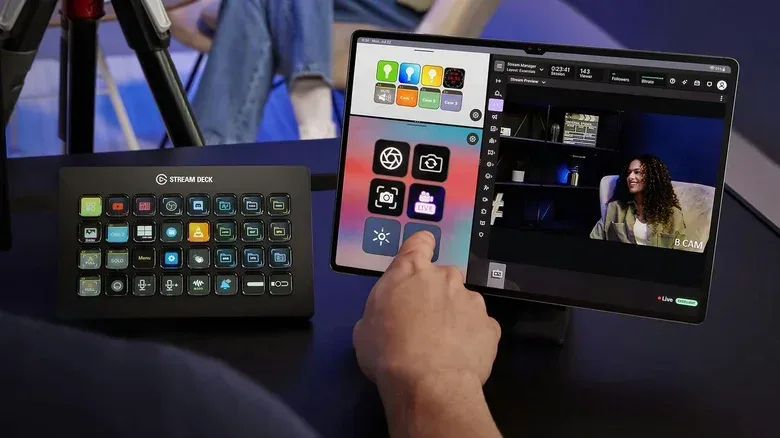
An aging tablet does not have to remain a drawer-bound monument to yesterday’s upgrade cycle. For people who stream games on Twitch or YouTube, an old iPad or Android slate can serve as a touchscreen control panel for a PC or Mac through Elgato’s Stream Deck Mobile app.
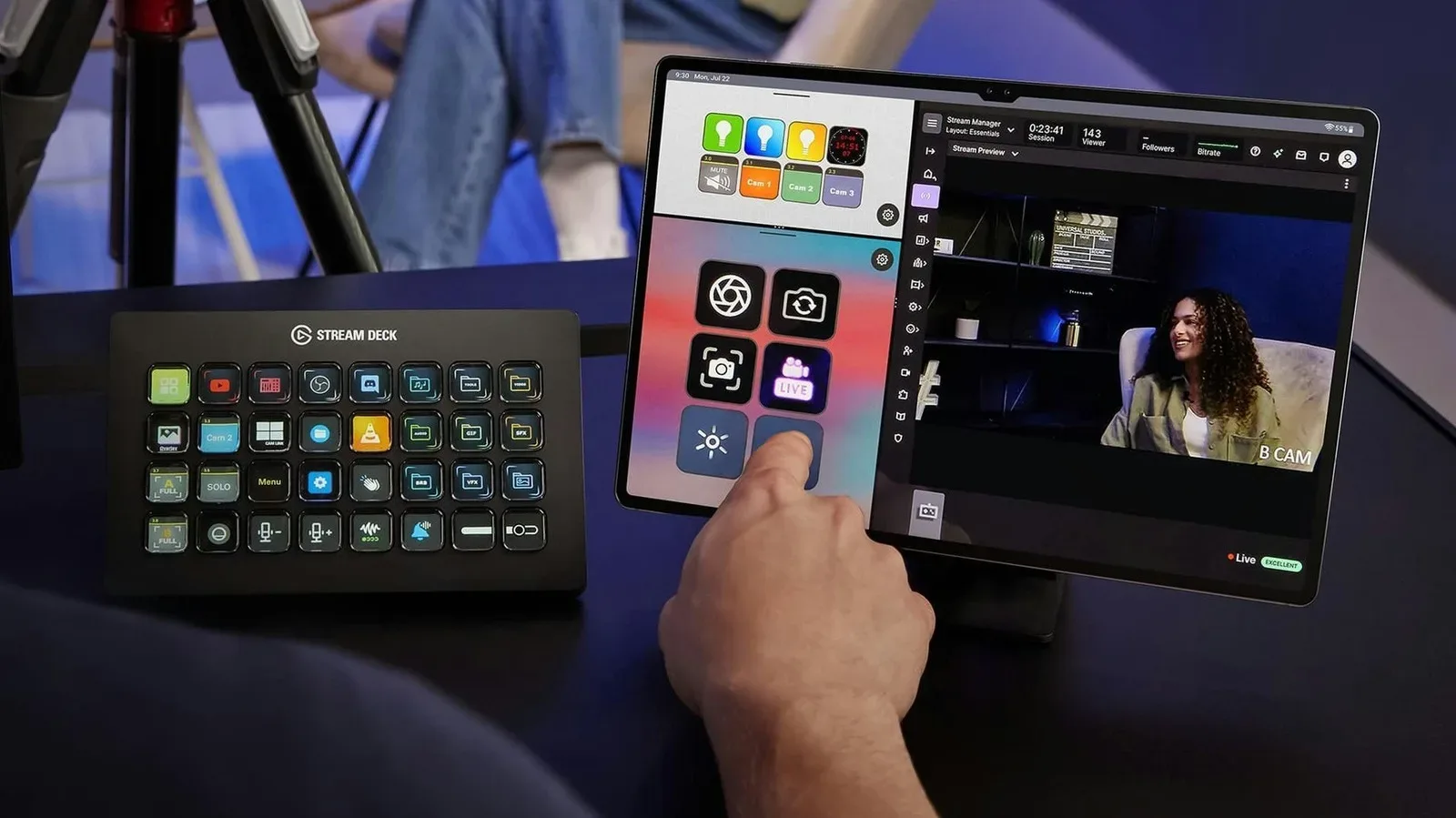
The basic idea is straightforward: Stream Deck is normally a dedicated physical controller with programmable buttons, and each button has its own small display. Those buttons can be assigned actions that would otherwise demand a trip through software menus or a keyboard shortcut. Common examples include muting a microphone, opening an application, beginning a livestream, and changing cameras. Stream Deck Mobile moves that button grid onto a phone or tablet instead of requiring dedicated controller hardware.
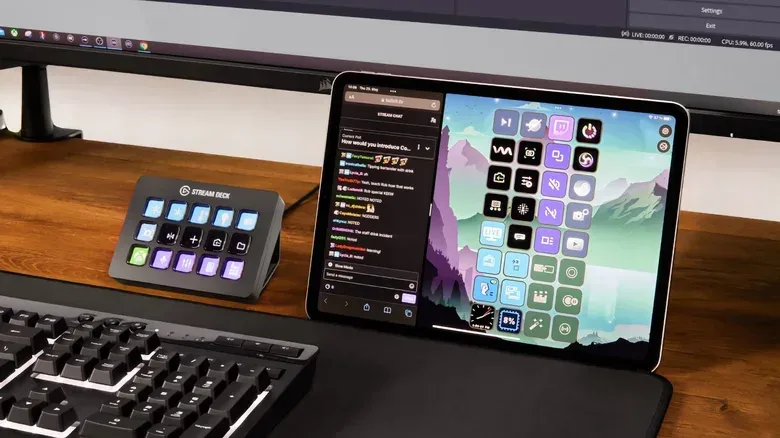
That makes an older tablet potentially useful in a gaming-streaming setup, especially when its main limitation is no longer being the best device for everyday apps. Its screen becomes a visible dashboard beside the display rather than another device competing to run the game itself. It also provides a larger surface than a phone for controls, although the free plan deliberately keeps the usable button count small.
What is a Stream Deck-style dashboard?
A Stream Deck-style setup is best understood as a collection of labelled shortcuts. The individual keys are programmable, meaning the streamer decides which action each one triggers. Rather than remembering a sequence of keyboard commands while playing, a creator can tap a clearly marked control.
That distinction matters during a live broadcast. The tablet is not replacing the streaming computer or the streaming service. The computer remains the place where the broadcast and associated software run. The tablet is the remote input surface: it sends a selected command back to that computer over the local connection.
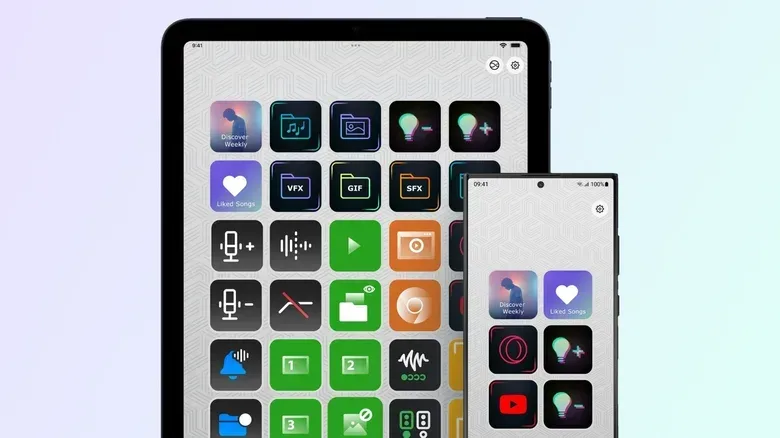
Elgato’s mobile software supports the same general approach as its Stream Deck hardware. Actions can be dragged from the app’s panel onto empty keys, then arranged into a layout that reflects how the stream is operated. Available integrations include OBS Studio, Twitch, YouTube and Spotify, alongside smart-light support for Philips Hue, Nanoleaf and Govee.
For a modest gaming broadcast, a focused control layout is likely more useful than trying to fill every available slot. Starting the stream and muting the mic are two examples covered by the free tier. Streamers who use connected lighting may also want a quick lighting control. The practical goal is to put frequently needed actions in reach, not to mirror every setting offered by every program.
Compatibility: the old tablet still needs to meet a few baselines
The mobile app supports iPads running iPadOS 15 or later and Android tablets running Android 9 or later. That broad compatibility is the central appeal of the reuse idea: many tablets from the past several years should be eligible even if they are no longer a person’s preferred general-purpose device.
Related coverage includes Turn an Old Tablet Into a Live Streaming Control Panel.
The computer-side app requires Windows 10 or later, or macOS 10.15 or later. Both the computer and tablet need the Stream Deck app installed before they can be paired.
There is one requirement that is easy to overlook: the two devices must be on the same local network. A local network means the devices are connected to the same nearby network, usually the same Wi-Fi network. A tablet using 4G or 5G rather than that shared network will not establish this setup. For the control panel to communicate with the computer, it needs that local path.
This is also a useful reminder to think of the tablet as part of the streaming desk, not simply another mobile device. Before going live, check where it is connected. A working pairing can become a confusing non-working one if the tablet has switched away from the shared network.
How to pair the tablet and computer
- Install the official Stream Deck app on the Windows PC or Mac.
- Install Stream Deck Mobile on the iPad or Android tablet through its respective app store.
- Confirm that the computer and tablet are connected to the same local network.
- On the computer app, open the device picker in the upper-left area and choose Add Mobile Device.
- The computer will display a QR code. Scan it with the Stream Deck app on the tablet to complete pairing.
- After pairing, drag desired actions from the computer app’s action panel onto the tablet’s empty keys.
The pairing process is intended to take only a few minutes. Once it is finished, the tablet’s display becomes the dashboard and the computer application is where the layout is configured.
When pairing does not work
A failed connection does not necessarily mean the tablet is too old. First, verify the local-network requirement. Then check whether firewall or antivirus software on the computer is preventing the apps from communicating. Windows users may additionally need to set the computer’s network profile to Private rather than Public.
Those settings matter because the tablet-control arrangement depends on the two devices being allowed to talk over the network. A public network profile can apply more restrictive handling, while security software can block communication it does not recognize. The safest response is not to disable protection indiscriminately, but to inspect the relevant settings and ensure the Stream Deck connection is permitted.
Mac and iPad users have a separate option: their Stream Deck apps can pair over USB instead of Wi-Fi. That removes the dependence on wireless networking for the connection between those two devices. It may also offer lower latency and a more stable link. Latency is the delay between pressing a control and seeing its result; lower latency means the response feels more immediate. For streamers who want a consistent control response, USB is a meaningful advantage where it is available.
Free Stream Deck Mobile: enough for core broadcast controls?
Stream Deck Mobile’s free version supplies up to six buttons and unlimited access to actions, with no trial period. Six buttons matches the button count of the Stream Deck Mini, Elgato’s smallest dedicated controller.
Six keys can cover a pared-back setup. A streamer could reserve them for fundamental jobs such as beginning the livestream and muting the microphone, then assign the remaining keys to the most frequently used actions in their own workflow. The limitation is not the range of actions but the number that can remain immediately visible at once.
That is an important difference on a tablet. The screen itself may be comparatively spacious, yet the free layout uses only six buttons. For someone who wants a simple companion panel rather than a deeply customized broadcast board, that trade-off can be perfectly reasonable. It also lets a creator determine whether a touch-based controller suits their desk and habits before paying for more room.
What the Pro upgrade changes
Stream Deck Mobile Pro increases the maximum to 64 buttons. It also adds grid options and custom backgrounds. On iPad, Split View can display two separate keypads side by side.
For a larger stream workflow, the difference is not merely numerical. More buttons make it possible to keep more categories of action in view rather than repeatedly reshuffling the limited free layout. OBS Studio controls, platform controls, music functions and smart-light actions can each demand space. A 64-key allowance gives the tablet a much more substantial role as a command board.
Pro costs $2.99 per month or $24.99 per year. A lifetime license is available for $49.99. The yearly subscription is the lower-cost paid route for someone trying expanded controls over a shorter period, while the lifetime option is the choice intended for regular long-term use. Whether either is worthwhile comes down to how many controls the stream actually needs. Paying for 64 buttons makes more sense for someone who will actively use a broad layout than for someone whose real needs stop at a few essential commands.
The 64-button ceiling is stated to exceed the Stream Deck + XL. That does not make a tablet identical to physical hardware: a touchscreen and a set of tactile buttons are different interfaces. But it does show the potential scale of the mobile layout for creators who already own a suitable older device.
Keep the repurposed tablet usable during a stream
Physical setup is as important as software setup. A tablet stand keeps the controller within sight and reach, which is useful because the whole point is fast access to its keys. Keeping the tablet plugged in also avoids a dead battery interrupting access to broadcast controls in the middle of a stream.
The display should remain awake. If it sleeps, the visible dashboard and its buttons are no longer immediately available. On iPad, Auto-Lock can be set to Never under Settings > Display & Brightness. Android tablets have a comparable display setting.
The computer running the Stream Deck application remains a part of the setup worth treating carefully, since it is the endpoint for every tablet command. For broader desk maintenance, see guidance on choosing the right approach to cleaning a PC.
Ultimately, repurposing an old tablet this way is most compelling because it is a targeted use for hardware that may otherwise be idle. Install the app on both devices, pair them on the same local network—or use USB on Mac and iPad where available—then begin with only the controls that make a live gaming broadcast easier to manage. The free six-button version provides a clear starting point, while the paid tier is there for setups that genuinely need a larger, more customized control surface.