macOS 27 Golden Gate has arrived with a familiar promise: refinement, performance work and bug fixes. But the update is not simply a coat of polish. Its feature list reaches from Siri and Safari to Photos, Finder, Shortcuts, displays and parental controls, while also drawing a meaningful line under the Intel Mac era.
For players, creators and anyone whose Mac is a daily workstation, Golden Gate looks less like one enormous new destination and more like a collection of small friction removers. Some are immediately visible, such as the new Liquid Glass adjustments and extra-large desktop widgets. Others matter because they reduce repetitive chores: better search ordering in Mail, easier Finder column resizing, file-name suggestions, improved display-resolution support and richer automation triggers.
There are important limits. Siri AI is still in beta, begins in English, and some functions vary by language and region. “Beta” means the software is still being developed and evaluated rather than presented as fully finished behavior. That matters especially for a system-level assistant handling searches, writing and context. Golden Gate’s most ambitious conveniences should be treated as capabilities to explore, not guarantees that every Mac user will receive identical results on day one.
Siri becomes a bigger part of the Mac workflow
The old Siri experience is being replaced by Siri AI, which retains previous conversations in a new Siri app and adds more expressive voices. The direction is clear: the assistant is meant to be a more persistent part of work on the Mac rather than a one-off voice command panel.
Several connected features support that shift. Users can write with Siri in almost any app, create Calendar events from descriptions, make Reminders from natural-language input, and create Shortcuts with natural language. Smart Replies can better match the user’s own style, while a phone-call context feature is also included. Siri can additionally be swapped for ChatGPT.
These are different kinds of assistance, and it is useful not to flatten them into one claim. Natural-language input means describing an intended result in everyday words instead of manually filling every field or assembling an automation step by step. A Shortcut is an automated action or chain of actions. The appeal is obvious for recurring desktop tasks, but the practical value will depend on whether the resulting automation accurately interprets the request and is easy to review before it runs.
For gaming-adjacent setups, that could mean less time organizing captures, preparing a stream workspace or creating reminders around events—though Golden Gate’s listed features do not establish particular game-specific automations. The safer reading is that the operating system is making general Mac chores more conversational and potentially less menu-heavy.
That broader desktop focus is relevant as PC gaming continues to stretch across dedicated hardware, services and companion apps. For another look at how platform plans can remain uncertain even around enormous releases, see our coverage of GTA Online’s expected continuation after GTA 6 and the unresolved PC picture.
Safari gets organization, monitoring and extension tools
Safari receives one of Golden Gate’s most varied batches of changes. Its Start Page can resume a browsing topic, Safari can organize pages, and it can notify users when a page changes. Those additions aim at a common browser problem: useful tabs often become disconnected fragments once research, shopping, planning or troubleshooting takes place over several sessions.
A page-change notification is exactly what it sounds like: a browser alert tied to a page being altered. It may be useful for watching a page that is likely to update, without repeatedly checking it by hand. The supplied details do not specify what kinds of changes trigger alerts, how often checks occur or which pages qualify, so those operational details remain unknown.
Golden Gate also says Safari can build extensions from a description. An extension is a small add-on that changes or expands browser behavior. Creating one through a written description suggests a lower barrier to entry than beginning with code, but no claim can be made from the available information about its output quality, security review or the complexity of extensions it can create. It is an intriguing automation-oriented tool, not a substitute for understanding what an extension is permitted to do in a browser.
Photos is the update’s deepest app overhaul
Photos may be the biggest beneficiary outside the assistant. Golden Gate adds the ability to save a frame from a video as a still photo, reframe images, extend images and more effectively clean them up. It also introduces keywords and star ratings, utility collections, slideshow starts from any album, full-resolution Shared Albums and contributions to Shared Albums from people who do not use Apple devices.
These changes cover both editing and cataloging. Reframing changes the composition or crop of an image. Extending an image expands beyond its original edges. Cleaning up refers to improving or removing unwanted aspects of a photo, though the exact tools and results are not detailed here. Their grouping in one release signals that Apple is treating the library as both a place to browse memories and a working archive that needs quick corrective tools.
Keywords and star ratings are especially practical for people with large libraries. A keyword is a user-applied label that helps identify a subject, project or event. A star rating is a simple prioritization system. Together, they can give users another route to find a favorite screenshot, a reference image, a video clip or an album of event photos without relying only on automatically created groupings.
The sharing updates have clear collaborative implications. Full-resolution Shared Albums address image-quality concerns, while support for contributions from non-Apple users makes an album less dependent on every participant being inside the same hardware ecosystem. The announcement does not describe upload limits, controls or compatibility requirements, so those need to be checked in the final implementation rather than assumed.
Image Playground, Apple’s image-generation tool, gains more styles. Golden Gate also adds new wallpapers, while Apple Notes gains drawing and Freeform gains both drawing and collaborative folders. Freeform is the company’s flexible canvas-style app; collaborative folders point toward easier organization of shared boards and material. For planning a hobby project, building a visual reference board or sorting a group’s ideas, those changes could be more consequential than another cosmetic desktop option.
A Mac that is easier to see, arrange and control
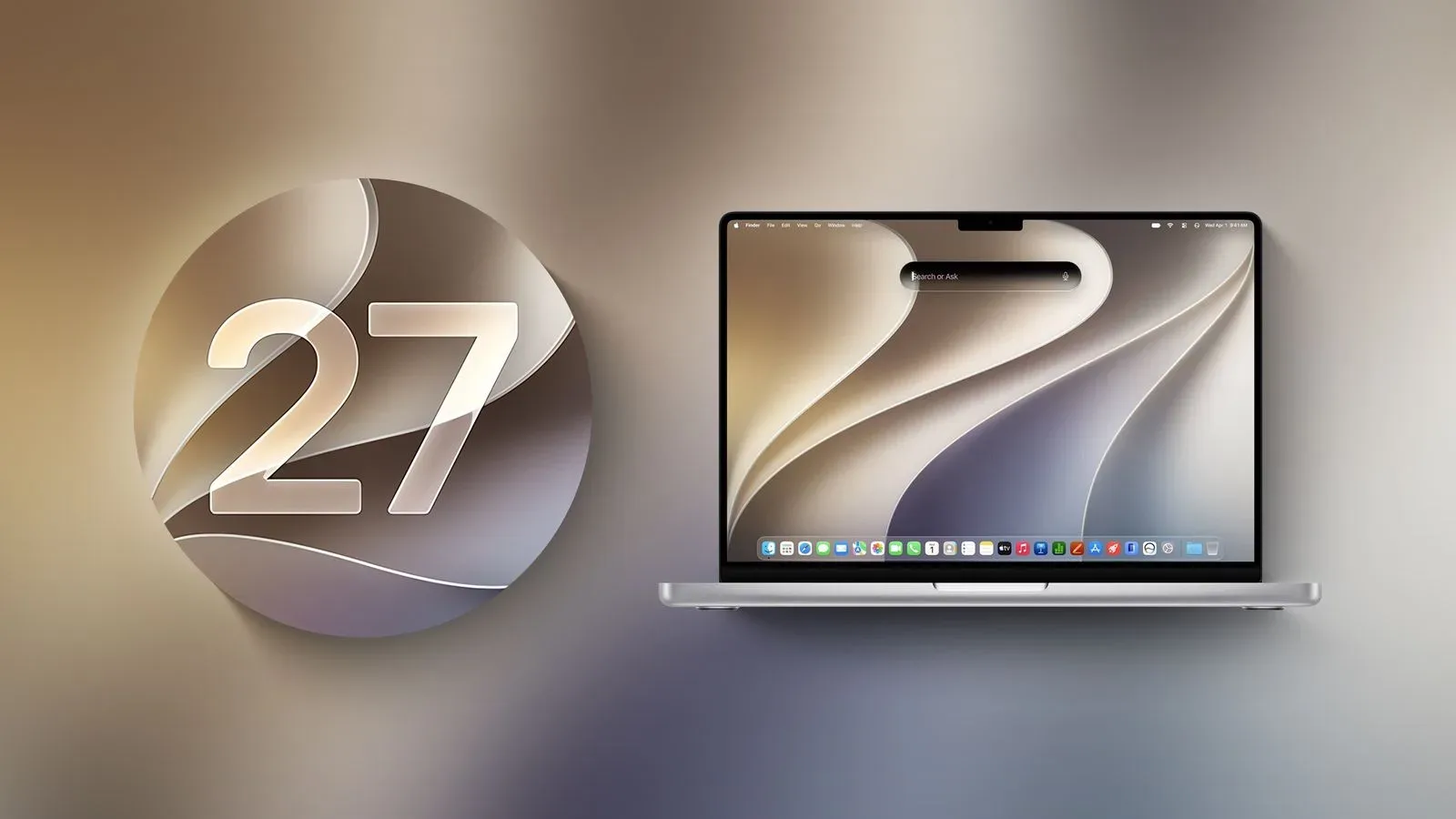
Golden Gate carries its visual design into app icons with more Liquid Glass detail. Liquid Glass is the update’s translucent, layered interface style. The system now includes an adjustable transparency slider, which is a welcome acknowledgement that visual clarity and a striking design are not always the same thing. Users can also make interface boundaries clearer.
That final point sounds minor, but boundaries are what separate buttons, panels, windows and controls on screen. More distinct boundaries can make a busy workspace easier to parse, particularly when several applications overlap. The ability to choose how transparent the interface appears follows the same practical logic: customization is not only an aesthetic preference when it affects legibility.
Desktop widgets can now be extra large and update in real time. Widgets are compact app panels intended to surface information or controls without opening the full app. Real-time updates imply that their contents can change as fresh information arrives, although the announcement does not name the supported apps or refresh behavior.
iPhone Mirroring windows become resizable, giving users more control over how their mirrored phone sits alongside Mac apps. Sidecar now supports direct finger input. Sidecar is Apple’s feature for using an iPad as an additional display for a Mac, and direct finger input means touch becomes more central to that arrangement. External displays also receive better resolution support, another potentially high-value change for users who switch between portable setups, desk monitors and televisions.
The Dock will show active background processes. A background process is work an app continues doing without occupying the foreground window, such as a task that is still running while the user works elsewhere. Making those processes more visible can help explain why an app remains active and offers a clearer picture of what the Mac is currently doing.
Finder, networking and apps tackle routine desktop irritations
Finder gets straightforward but potentially welcome fixes: its columns are easier to size and reset, and macOS can suggest names for files and folders. Finder is the Mac’s file-management app, so column sizing is the sort of repeated physical interface task that becomes disproportionately annoying when it is awkward. Better resetting makes it simpler to recover a usable view after a folder layout gets out of hand.
AirDrop and network browsing are described as faster. AirDrop is Apple’s local sharing feature, while network browsing concerns locating and accessing resources on a network. Neither claim is accompanied by a speed figure or supported conditions, so it is best understood as a stated improvement rather than a measurable promise for every network and every file.
Mail search now places more relevant results first. Weather receives refreshed forecast views. Video podcasts get improved Mac playback. Maps has an enhanced Flyover mode, Apple’s 3D map-viewing feature. A swipe-down-to-refresh gesture is arriving in Mac apps, bringing a familiar touch-style refresh behavior to desktop use. None alone redefines a Mac, but the collection points to a release concerned with making familiar apps feel more current.
Passwords is set to auto-repair weak logins in the future, rather than necessarily at Golden Gate’s launch. The wording matters. A weak login generally means credentials that are easier to compromise, often because a password is reused, predictable or otherwise inadequate. Auto-repair could reduce some security maintenance, but its eventual timing and detailed operation are not established in the information available.
Automation, family tools and the hardware transition
Shortcuts gains screenshot and alert triggers. A trigger is the event that starts an automation. Screenshot triggers could let a captured image initiate a workflow, while alert triggers could begin actions in response to an alert. The source material does not detail the available follow-up actions, but their addition broadens the events that can drive an automated task.
Screen Time receives new controls for parents. Screen Time is Apple’s toolset for monitoring and managing device use. As with the new parental settings, Golden Gate identifies the overall direction without itemizing every control, so parents should avoid assuming particular restrictions or reports until they can inspect the available options.
The most consequential compatibility news is plain: Intel Macs do not get macOS Golden Gate. Rosetta support is also ending. Rosetta is the compatibility technology that enables software made for Intel-based Macs to run on Apple silicon Macs. Its retirement represents a further move away from the prior Intel software environment, with potential significance for users who depend on older applications.
That does not establish whether every individual older app will stop working, nor does it provide a schedule for Rosetta’s end. It does establish the direction of travel. Golden Gate is a feature update, but it is also an ecosystem transition: its newest Siri work, interface changes and app improvements are arriving as the supported Mac base narrows to systems outside the Intel generation.
What is worth checking after the update
Golden Gate’s 50 highlighted additions make the most sense as a checklist rather than a single headline feature. Users interested in AI functions should begin with Siri’s beta status, language availability and the new conversation history, then try writing assistance and natural-language creation carefully. People with large media libraries should investigate Photos’ ratings, keywords, sharing changes and video-frame capture. Multi-device users may prioritize resizable iPhone Mirroring, Sidecar finger input and external-display support.
- For organization: test Safari’s page organization and change alerts, Mail’s revised search ranking, Finder’s column controls and macOS file-name suggestions.
- For visual work: inspect Photos’ reframing, image extension and cleanup tools, plus Notes and Freeform drawing additions.
- For desktop comfort: adjust Liquid Glass transparency, make boundaries clearer, resize widgets and check the Dock’s background-process indicators.
- For automation: explore natural-language Shortcuts alongside screenshot and alert triggers, while reviewing what each automation is set to do.
- For older software: confirm Mac compatibility and consider the approaching end of Rosetta before treating Golden Gate as a routine upgrade.
The strongest theme is not novelty for its own sake. Golden Gate adds assistant-driven creation, more adaptable visual controls and better organization tools while trying to make the everyday Mac less resistant to the way people actually manage windows, files, images and ongoing tasks. The big caveat is equally central: availability can vary, Siri AI is unfinished, and Intel hardware is out of the update. Those details will shape the experience just as much as the lengthy feature list.