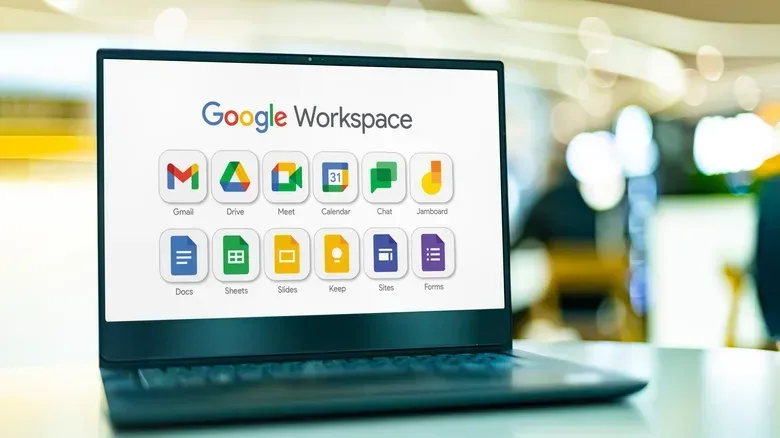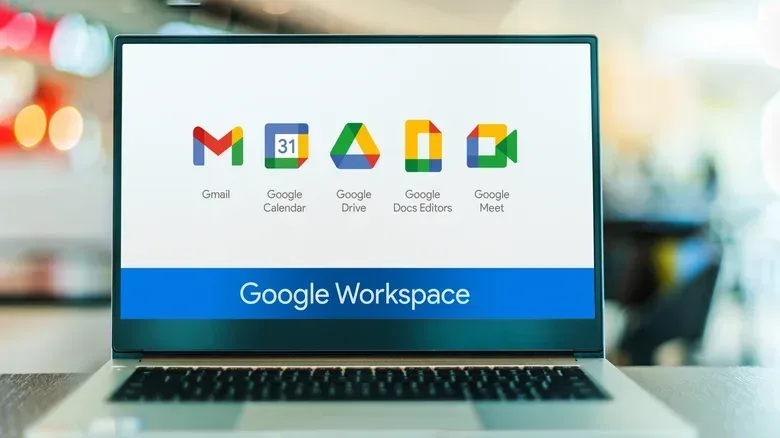
A disruption to Outlook, Teams and Microsoft 365 Copilot has put a familiar workplace thought back on the table: what if the team moved to Google Workspace instead? It is a reasonable option to evaluate, especially because Google provides guidance for organizations bringing their work across. But changing productivity suites is not like swapping one game launcher for another. The documents, automations, mail habits, meeting routines and PC setup around the software can be as important as the apps themselves.
The key point is not that Google Workspace cannot handle email, documents, spreadsheets, slides, chat and meetings. It can. The practical challenge is that it handles several of those jobs with a different model. An organization that treats the move as a like-for-like replacement may discover its sharpest problems after accounts have been created and people are trying to do ordinary work.
Before making the switch, map the workflows that matter rather than merely counting licenses. Find the macro-heavy spreadsheets, files sent to clients in Office formats, protected workbooks, shared inboxes, unreliable-connection use cases, team channels and Windows recovery routines. That inventory reveals whether the change is mostly a training exercise or a more involved redesign of how work gets done.
1. Gmail replaces Outlook habits with labels, filters and browser tabs
For many users, Outlook is an installed desktop application. Gmail is principally used in a web browser, which changes the feel of routine work immediately: the inbox is another browser tab rather than a dedicated application window. That is not automatically a disadvantage, but it does matter for employees who have built their workday around a particular desktop workflow.
The larger adjustment is organizational. Gmail does not use folders in the traditional sense. It uses labels and search filters. A label can be applied to a message in a folder-like way, but one message may have multiple labels at once. That is useful when a single email belongs to more than one project or responsibility. It also means a long-established Outlook folder hierarchy does not translate perfectly in terms of day-to-day behavior.
During migration, Outlook folders and subfolders become labels. Mail that appeared in several Outlook folders is represented as one message with several labels, rather than duplicated messages. Users accustomed to browsing a rigid folder tree may need time and guidance to become comfortable with searching, labeling and filtering.
Several related workflows need their own review:
- Outlook rules become Gmail filters.
- Attachments may be saved to Google Drive rather than locally on the computer.
- A shared mailbox is addressed through delegation or a collaborative inbox instead of being reproduced exactly as it was.
This is the kind of migration detail that can look cosmetic in an IT plan and become consequential for support desks, sales queues or any group sharing responsibility for an inbox. Test representative mail flows before retiring the old arrangement. In particular, verify how messages are assigned, who can see them, and how a team can tell whether somebody has already responded.
Related coverage includes 6 trade-offs of switching from Microsoft 365 to Google Workspace.
2. Excel macros and large datasets are not a simple fit for Sheets
Spreadsheets deserve the most careful pre-migration audit. Google’s guidance identifies macros as unsupported in Docs, Sheets and Slides. In practical terms, Excel automation written in VBA, or Visual Basic for Applications, does not simply run in Google Sheets.
Google’s alternative is Apps Script, its own scripting system. Rebuilding an automation is therefore a development task, not a file-conversion checkbox. Google also provides a Macro Converter add-on for Excel workbooks containing VBA. However, it requires a Google Workspace Enterprise Plus or Education Plus account, some VBA calls cannot be converted, and features including UserForms may need manual recreation.
That distinction matters. A macro can be a small formatting shortcut, but it can also drive repetitive reporting, calculations, imports or internal processes. A team should identify what each macro actually does, who relies on it, and whether the result can be rebuilt, simplified or kept in Excel. Do not assume that a workbook opening successfully means its working behavior survived.
Capacity is another technical difference. An Excel worksheet supports up to 1,048,576 rows and 16,384 columns. Google Sheets uses a different measurement: a file is limited to 20 million cells or 100MB. Cell count means every occupied position in the spreadsheet’s grid. A sheet with 50 columns reaches 20 million cells at 400,000 rows.
That does not make Sheets unsuitable for everyday tables, budgets or shared planning. It does mean that a large operational export may reach its ceiling much sooner than an Excel user expects. The useful action is simple: measure the row and column counts of the largest routinely used files, then account for growth instead of only checking whether today’s version opens.
3. Opening an Office file is not the same as preserving it
Most organizations will continue to receive Word, Excel and PowerPoint files from clients, suppliers and partners even after a Google Workspace move. Google can open and save .docx, .xlsx and .pptx files, but compatibility has limits that can affect a polished deliverable or a structured workbook.
Embedded charts and videos in Word and PowerPoint files become images. SmartArt becomes a Google Drawing. Excel workbooks with linked spreadsheets are not supported. Password-protected .docx, .pptx and .xlsx files can be opened after a password is entered, but that option is not available for older binary formats such as .doc.
Workbook protection is an especially important warning for teams handling templates or controlled data. Cells locked or hidden in an Excel file become visible and editable in Google Sheets. That can change both the usefulness and the safety assumptions behind a workbook. A spreadsheet meant to present a limited editable area should be tested in its destination format before it is distributed.
Compatibility should be validated against real files, including the complicated ones: externally shared presentations, documents with embedded material, workbooks that link to other sheets and files whose layout has to remain exact. If ongoing fidelity to Office formats is essential, retaining an Office-compatible option for that work may make more sense than forcing every file through a conversion path.
Hardware changes call for the same kind of up-front checking. Anyone changing the PC beneath the workflow can use this guide to finish key graphics-card compatibility checks before opening the case; software migrations deserve equally deliberate compatibility testing.
4. Offline work exists, but it is a configured feature rather than a default expectation
Installed Word and Excel applications continue to work without an active connection. Microsoft 365 applications still need to connect to the internet at least every 30 days; otherwise, they enter a reduced mode that allows viewing and printing but not editing.
Google’s browser-led approach can work offline too, but it must be prepared while connected. Offline access requires Chrome or Edge, cannot be used in private browsing, and requires the Google Docs Offline extension to be installed and enabled. Recent files can be made available automatically, while other files can be marked for offline use.
There are administrative and practical limits. Only one account in a browser profile can use offline access, and an administrator can disable offline synchronization entirely. That may be fine for a consistently connected office. It needs more thought for travel, locations with weak internet, shared machines, or workers who routinely operate between networks.
An offline plan should be specific: which browsers are supported, which account is used in each browser profile, what files must be marked in advance, and whether company policy permits offline synchronization. A user learning on a flight or at a job site that a needed spreadsheet was never cached is not a successful migration outcome.
5. Replacing Teams means coordinating several Workspace apps
Microsoft Teams collects chat, meetings and file collaboration in one place. Google Workspace divides the equivalent work across a set of applications. Channel conversations become spaces in Google Chat. Direct and group messages happen in Chat or Gmail. Google Meet handles video meetings, Google Calendar handles scheduling, shared drives hold team files, Google Sites takes the place of wiki-style pages, and Google Cloud Search fills the role of the command-box search.
This is a design difference, not necessarily a missing capability. Still, it adds navigation and policy questions. Users moving from Teams need to know where a conversation should happen, where meeting details belong, which files are personal versus shared, and where to search when something is lost.
Plan availability can also matter. Shared drives require organizational support, while Cloud Search is not available on every plan. External collaboration is possible: Chat spaces can include people outside the organization, and meeting links can be sent to guests. But an internal participant may need to admit those guests to the meeting.
A sensible rollout establishes a small set of conventions before broad adoption. For example, designate which spaces are official team channels, decide when files go into a shared drive, and identify the calendar and meeting process everyone should follow. The goal is not to replicate every Teams screen; it is to prevent vital context from scattering across personal Drives, chat threads and meeting invitations.
6. Leaving Microsoft services does not untangle Windows automatically
Moving productivity work to Google does not erase the Microsoft account relationships built into Windows. Windows Backup is a prominent example. It requires a personal Microsoft account, not a work or school account, and it syncs the Desktop, Documents, Pictures, Videos and Music folders through OneDrive. It also retains a list of installed apps, Wi-Fi networks and passwords, plus settings such as themes and language preferences.
Microsoft describes restoration on a new PC as a sign-in process. A free Microsoft account includes 5GB of OneDrive storage. Removing Microsoft accounts means arranging another backup and device-transition process, potentially using Google Drive for files. But organizations should avoid treating “file sync” and “full Windows recovery convenience” as interchangeable descriptions. The existing Windows Backup process covers more than documents alone.
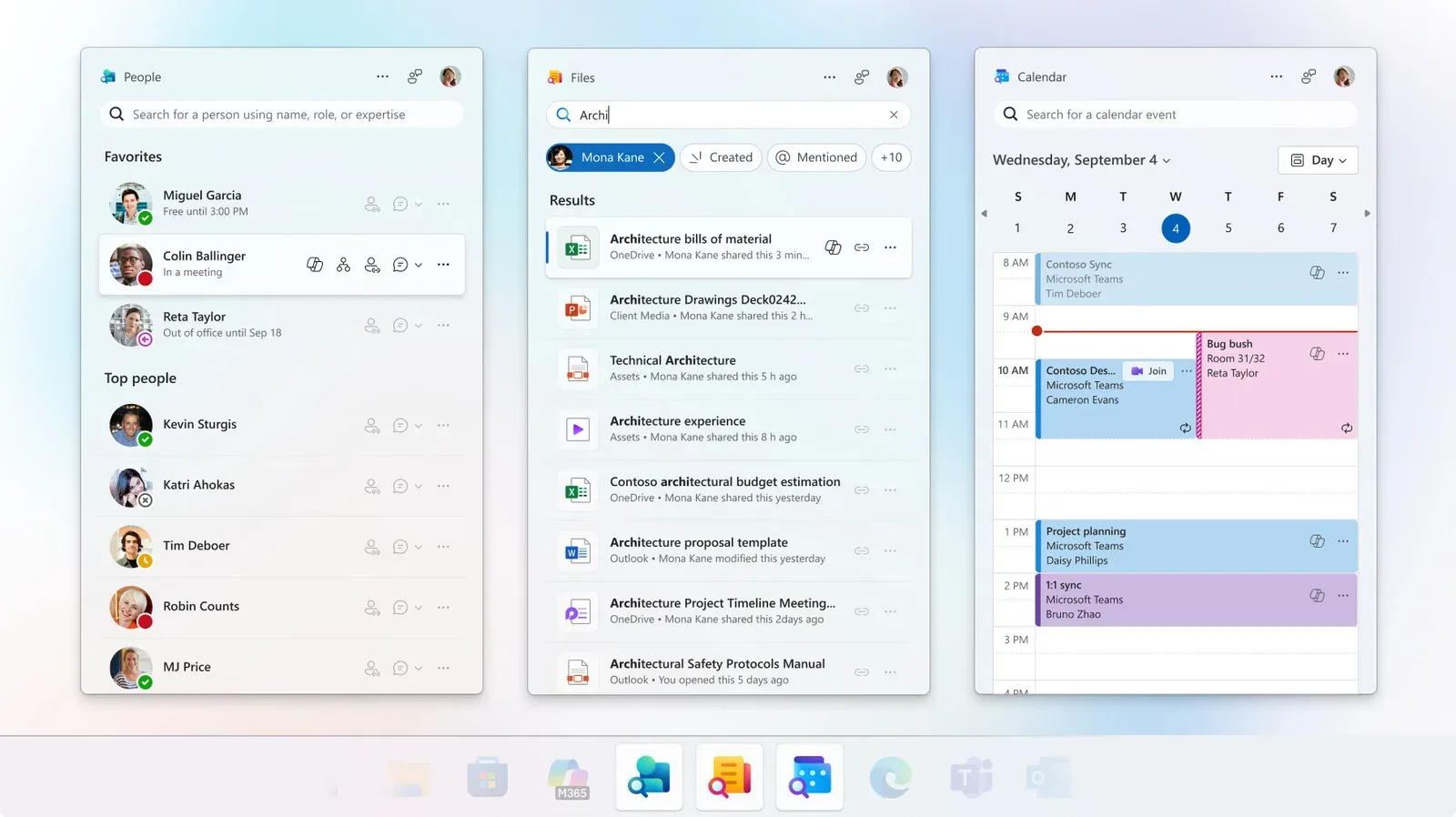
Managed workplace PCs have further dependencies. Microsoft introduced People, Files and Calendar companion apps for employer-managed Windows 11 devices through commercial Microsoft 365 licenses. Those companion apps are set to stop working on December 16, while Outlook, Teams, Windows search and OneDrive can cover the same tasks. The change is a reminder that desktop environments and subscription services can remain connected even where staff have shifted their main collaboration tools.
A practical way to decide whether the switch fits
The best migration decision is based on the exceptions, not the cleanest demo. Gmail labels are a workable alternative to folders once people understand them. Sheets can be excellent for collaborative work. Workspace apps can cover chat, meetings, documents and storage. Yet the difficult cases—automation, oversized sheets, protected workbooks, external Office files, offline staff, shared inboxes and Windows recovery—determine the effort and risk.
- Audit: list high-value mailboxes, spreadsheet automations, largest datasets, protected files, external file exchanges and offline requirements.
- Pilot: use representative files and a small group rather than migrating the whole organization based on basic document tests.
- Check licensing and administration: confirm whether the required Workspace plan supports shared drives, Cloud Search or macro conversion, and determine offline-sync policy.
- Document new habits: explain labels, filters, shared-drive rules, Chat spaces, guest-meeting handling and offline preparation in plain language.
- Keep a recovery plan: decide how PCs, files and user settings are backed up and restored if Microsoft-account-based Windows features are no longer part of the process.
A move from Microsoft to Google can be the right call, but it should be treated as a workflow migration rather than a brand swap. The smoother path is to identify the things that do not convert cleanly, choose how each will be handled, and make those choices before they become urgent support tickets.