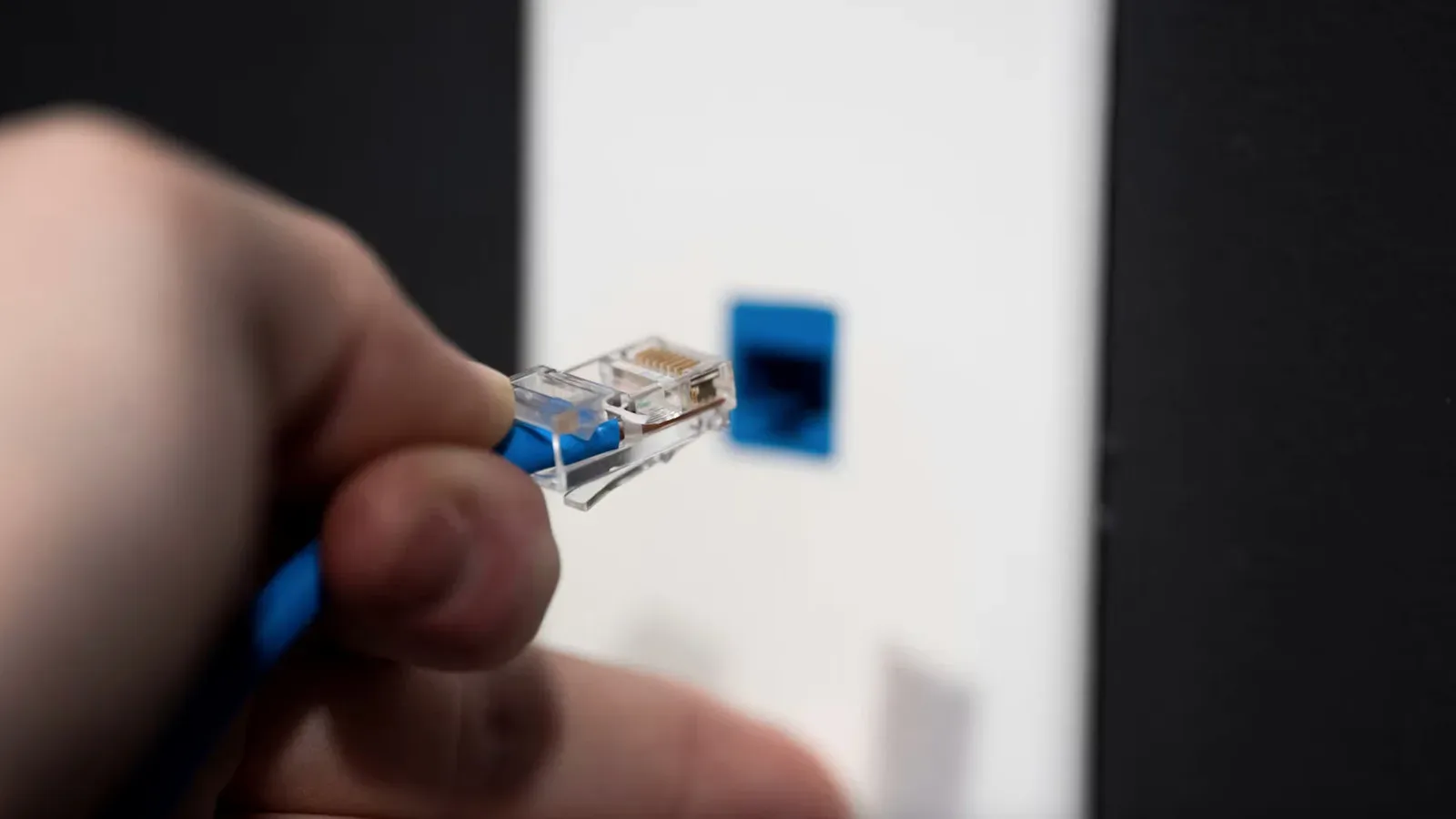
There is an awkward kind of connectivity problem that can make a gaming setup feel personally insulting: the PC is connected directly to the router with Ethernet, yet Wi-Fi turns in the better result. A cable is meant to remove the uncertainty of a wireless link, so it is tempting to assume the speed test is wrong or that the router is having a bizarre day.
It can happen, though, and the useful way to approach it is not to declare Ethernet broken. A wired connection is a chain: the internet service, router, router port, cable, computer port or adapter, drivers and operating-system settings all have to cooperate. Wi-Fi may be quick enough to reveal a weak link elsewhere in that chain, particularly on newer routers using standards such as Wi-Fi 7.
For games, the distinction matters beyond a single download number. Download speed affects installs, patches and game streaming, while a clean, dependable connection matters for online play. This does not mean Wi-Fi is inherently preferable whenever it posts a higher result. It means the wired path deserves diagnosis before it gets written off.
Start by separating the two numbers
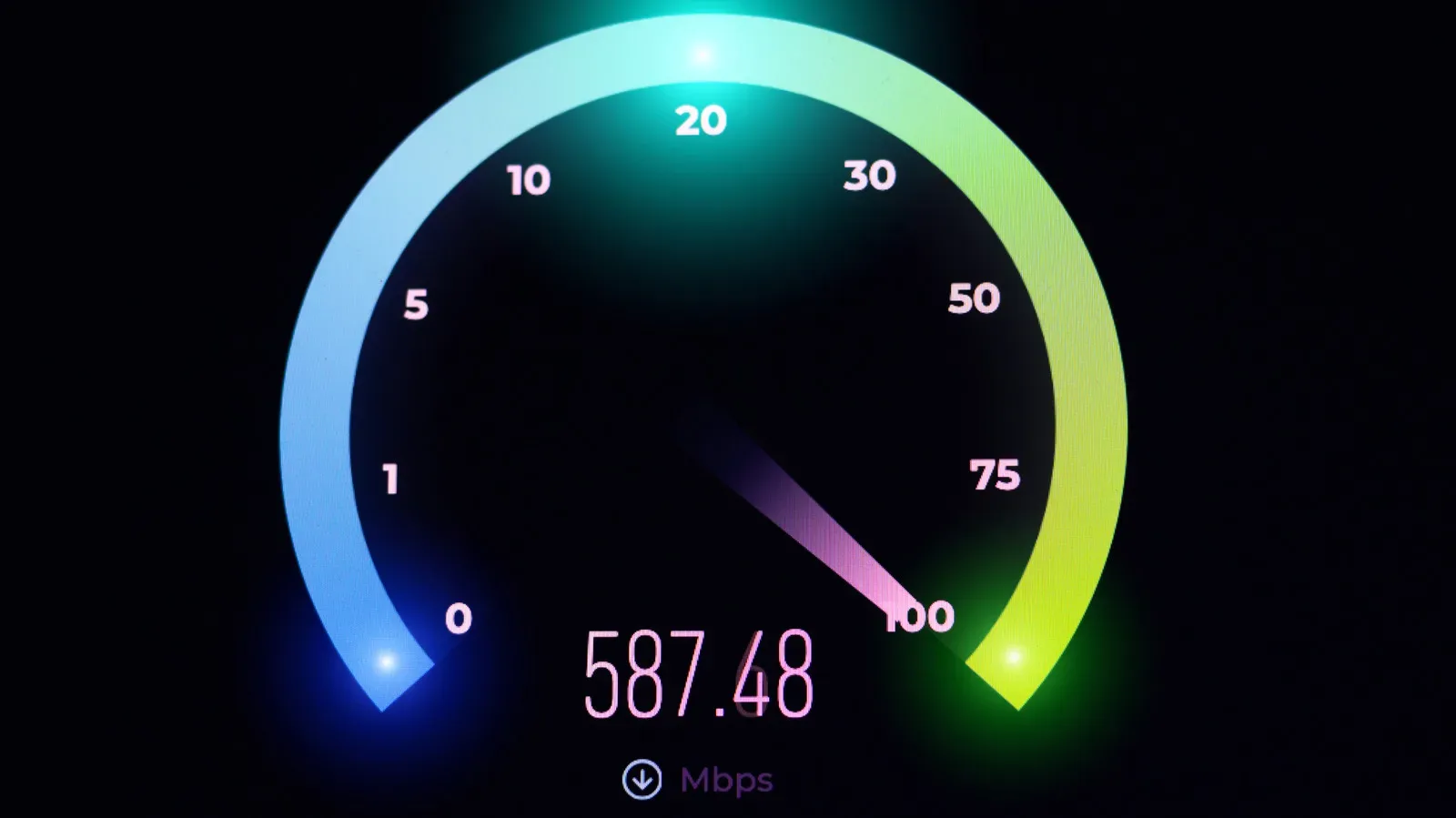
First, run a speed test while connected through Ethernet, then run the same kind of test over Wi-Fi. These are two useful data points, not a complete verdict. If wireless is consistently fast while the wired test is consistently slow, the issue is less likely to be a broad service cap and more likely to sit in the wired equipment or configuration.
There is another number to inspect: link speed. This is the speed negotiated between two local devices, such as a computer’s Ethernet adapter and the router port. It is not automatically the same as the internet speed delivered by an ISP. Still, it is an important clue. A customer paying for 1000Mbps service who sees a 100Mbps wired link has found a clear mismatch worth investigating.
On Windows, the relevant information can be checked in the Network and Internet settings area. On Apple devices, look in the Network page. Check the link speed before changing a pile of settings at once. A low negotiated figure points toward the local wired connection; a healthy local link with a disappointing speed test leaves more possibilities, including the service itself.
The cable is not just a cable
Ethernet has existed for decades, but not every cable in a drawer was made to the same specification or has aged equally well. The category is usually printed in small text along the outer sheath. As a baseline, use a cable marked Cat5 or better. An old, out-of-date cable can impose a ceiling on an otherwise capable setup.
Construction quality matters as well. The material to avoid is copper-clad aluminum, often abbreviated as CCA. These cables use aluminum with a copper coating rather than pure copper. They can deteriorate more readily and break more easily. A pure-copper cable from a manufacturer that identifies certification against TIA/EIA standards is the safer choice when replacing a questionable lead.
Related coverage includes Why Ethernet Can Be Slower Than Wi-Fi and How to Narrow Down the Cause.
That is not an argument for treating the priciest cable as an automatic performance upgrade. It is an argument for removing an obvious weak component. If the cable was bundled with a very old device, is unusually flimsy, has an unclear marking or is visibly worn, a known-good replacement is one of the quickest tests available.
Damage can be subtle
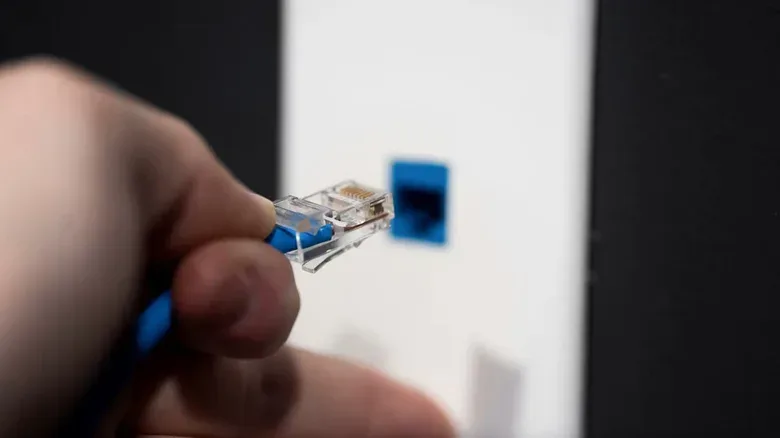
An Ethernet cable generally contains four twisted pairs of wires. Damage to the sheath can eventually affect the wires underneath, and an improperly twisted pair can hurt overall performance. The connector may still click into place and the computer may still report a connection, which is why a merely functioning cable should not be confused with a healthy one.
The fastest practical test is substitution. Plug in another Ethernet cable and repeat the wired speed test. Do not change drivers, power options and router configuration before doing this; otherwise, it becomes much harder to know what actually fixed the problem. If the new cable restores the expected result, the original cable was the useful suspect all along.
Do not overlook the ports
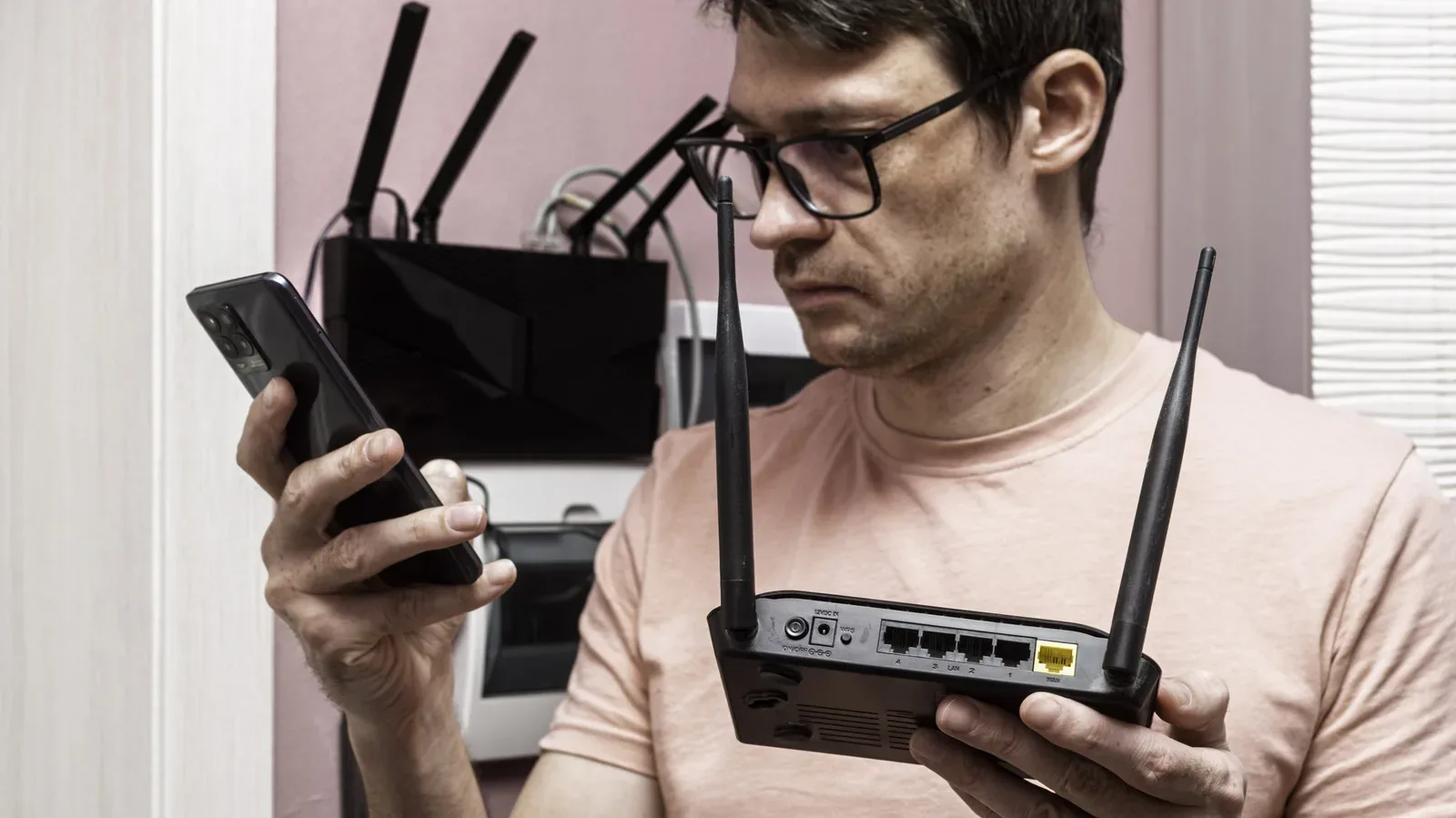
A pristine cable cannot overcome damage in the router’s Ethernet port or in the computer’s port. Internal contacts can be compromised, limiting speed or preventing a usable connection. Routers commonly use a solid or blinking green light at the connection port as a basic indication of activity. No light can point to a problem with the cable or the port, though it is not enough on its own to identify which one.
Work through the available swaps:
- Try the same cable with a different Ethernet port on the router, if one is available.
- Run the wired speed test again.
- Try the cable with another compatible device when possible.
- Compare the results rather than relying on a single failed or successful attempt.
This process narrows the fault without pretending that a router port can be casually replaced. A cable that fails across devices is different evidence from a cable that works in one router port but not another. For a desktop gaming station, this is especially valuable: it can keep someone from spending time tweaking the operating system when the physical port is the actual bottleneck.
Drivers and power-saving settings can undercut a wired link
Software is easy to forget because the cable is sitting right there, looking guilty. Yet old drivers for a router, Ethernet adapter or network card can affect performance. This deserves extra attention after an operating-system update, when an older network component may no longer be behaving as expected.
Update methodically. Begin with the router, proceed to the Ethernet adapter or network card, and check speed after each stage. Testing between changes gives the result meaning. Updating everything at once may solve the problem, but it leaves no clear explanation of whether the router, driver or another adjustment was responsible.
Also examine Energy-Efficient Ethernet. This is a default feature on Mac and Windows systems intended to reduce power use. It is reasonable to turn it off temporarily and see whether wired performance improves. That is diagnosis, not a universal declaration that the feature should remain disabled forever. If there is no change, the setting was probably not the cause; if performance improves, the result is actionable.
Windows users have an additional power-management behavior to check: the system can turn off the network adapter to save power. The Power Management tab provides a place to review that option. It is a small setting with potentially large consequences in a setup that should remain ready for downloads, remote play, multiplayer sessions or other always-connected tasks.
One useful rule is to distinguish a local-link issue from a general network issue. A 100Mbps link reading where a much faster connection is expected is a local clue. Strong link speed but poor throughput shifts attention toward other parts of the setup. Making that distinction avoids the unproductive ritual of repeatedly rebooting equipment without forming a testable theory.
Bandwidth-hungry malware is a real possibility
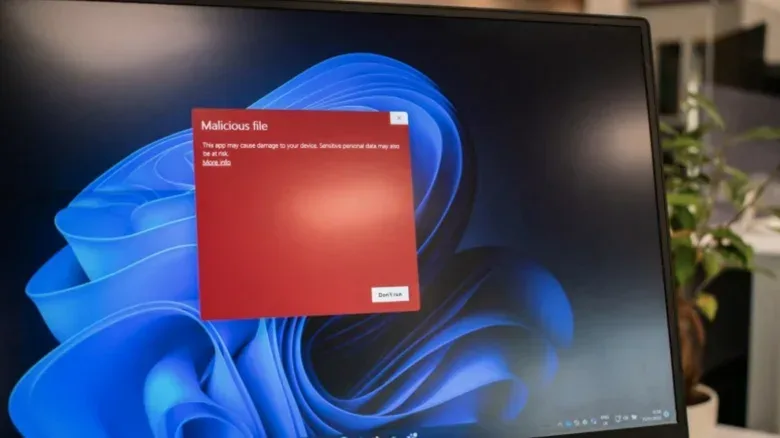
Malware does not have to crash a computer to make a network feel bad. Spyware, trojans and worms can consume bandwidth through concealed background work. Some malicious software can force cryptocurrency mining, while other infections can target the router itself and degrade traffic moving across the network.
The stakes are larger than a slower patch download. A router-level infection can affect every device using the network. VPNFilter, identified in 2018, reached more than 500,000 routers and network-attached storage devices worldwide. It was capable of stealing data and rendering a router unusable. That example is a useful reminder that the router is a computing device, not just a passive box with blinking lights.
Run a scan with reputable security software or the system’s built-in antivirus protection. If it identifies unwanted code, follow the product’s remediation steps. Regular scans are not a magic solution to every bad speed test, but they are a sensible part of eliminating a potentially serious cause. If a wired connection is slow only because an infected device is consuming resources in the background, buying a fresh cable will not solve the underlying problem.
Check the service plan—but interpret it carefully
An internet plan can set a speed or service cap, and promotions may offer a higher rate that later changes. Review the ISP account details and fine print, then compare the stated service with the wired link speed and with repeated test results. Calling the provider is appropriate when the plan and real-world result appear inconsistent.
However, a service cap is not the leading explanation when Wi-Fi performs well and Ethernet alone struggles. Both routes ultimately use the same internet service. In that situation, high wireless performance is evidence that the cable, port, local link, driver or power setting needs closer attention.
This is also why chasing a single broad claim about what is “faster” misses the point. Modern wireless hardware can be very fast; the wired connection should be judged on the condition and configuration of the full route. For players keeping an eye on the wider business side of gaming, it is a similarly useful habit to separate headline claims from the systems behind them, as in the debate around AI game clones ahead of GTA 6.
A sensible troubleshooting order
There is no need to turn a slow Ethernet result into an all-day project. Work from the easiest, least invasive checks toward the less convenient ones:
- Record wired and Wi-Fi speed-test results separately.
- Check the wired link speed in the operating system.
- Read the cable sheath for its category and inspect it for wear.
- Replace it temporarily with a known-good, pure-copper cable.
- Try another router port and, if possible, another device.
- Update router and network-adapter drivers, testing after each change.
- Test Energy-Efficient Ethernet and relevant Windows adapter power-management settings.
- Run a reputable security scan.
- Review the ISP plan and contact the provider if the results do not align with it.
The key is controlled comparison. Change one element, test again, and keep track of what changes. That method turns an irritating “Why is Wi-Fi beating my cable?” mystery into a manageable process of elimination. More often than not, the answer is not that Ethernet has suddenly become obsolete; it is that one physical, software or service-level component is holding its particular connection back.