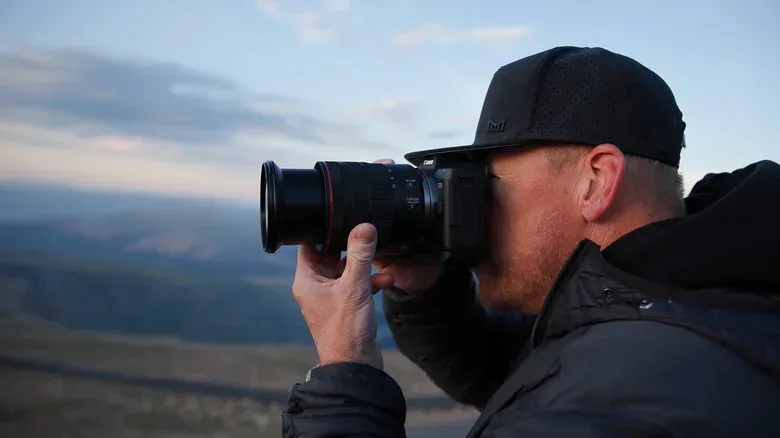

Canon’s Dual Pixel 3D Converter gives certain EOS R owners an unusual route from a single photograph to a usable 3D asset. The software, released in October 2026, uses image data captured by compatible Dual Pixel CMOS AF cameras to generate 3D images and models without dedicated 3D capture hardware. It is a potentially interesting option for creators who want to make digital props, reference material, simple environment details or presentation assets from photographs rather than beginning with an empty 3D scene.
There is an important limitation before anyone plans a workflow around it: compatibility is narrow. The converter does not work with every Canon body, every RF lens, or every Windows PC. The camera and lens need to be on Canon’s supported lists, and the current software requirement is Windows 11 version 2024 or later. In other words, this is not a general photo-to-3D app for any image in a library. It is designed around the distance information produced by a particular Canon imaging system.
That constraint is also the point. Rather than guessing depth from an ordinary flat photo alone, Dual Pixel 3D Converter uses information from the camera sensor. With appropriate capture settings and a suitable subject, the result can be exported as an OBJ, GLB or MP4 file for use beyond the converter itself.
How Dual Pixel 3D works
Canon introduced Dual Pixel CMOS AF in 2013. In this sensor design, each pixel contains two photodiodes. They can work together for a conventional two-dimensional image, or be read separately. The difference between those readings provides phase information, which is normally useful for autofocus. Canon’s conversion software processes that difference through its own algorithm to produce a 3D rendering.
Phase difference is the key technical idea here. In simple terms, the two readings from a pixel provide slightly different views of the subject. Differences in those views can help indicate relative depth. The software turns that camera-recorded information into a model or depth-enhanced output. This is why a compatible body is not enough by itself: the capture must also come from a supported lens and use the appropriate camera setting for the chosen image format.
The approach has practical limits. A single image cannot reveal portions of an object that were never visible to the camera, commonly called blind spots or occluded areas. The capture advice consequently favors simple, thick subjects, an elevated viewpoint and open space around the object. Those are not merely aesthetic preferences; they reduce ambiguity for the conversion process.
Canon EOS R cameras supported by the converter
The earliest compatible body is the EOS R5, released in 2020. Canon’s current list of supported cameras is:
- EOS R5 Mark II
- EOS R5
- EOS R6 Mark III
- EOS R6 Mark II
- EOS R7
- EOS R8 Mark II
- EOS R8
- EOS R10
All of these are part of Canon’s mirrorless EOS R family and use the RF mount. However, owning one of the listed cameras is only the first checkbox. The converter’s supported-lens list matters just as much, so photographers should verify the exact lens mounted for the shot rather than assuming an RF lens will qualify automatically.
Compatible RF lenses
Canon identifies the following RF and RF-S lenses for Dual Pixel 3D Converter use:
- RF24-70mm f/2.8 L IS USM
- RF24-50mm f/4.5-6.3 IS STM
- RF24-105mm f/4 L IS USM
- RF24-105mm f/4-7.1 IS STM
- RF35mm f/1.8 MACRO IS STM
- RF50mm f/1.8 STM
- RF70-200mm f/2.8 L IS USM
- RF70-200mm f/4 L IS USM
- RF85mm f/2 MACRO IS STM
- RF100mm f/2.8 L MACRO IS USM
- RF-S18-45mm f/4.5-6.3 IS STM
- RF-S18-150mm f/3.5-6.3 IS STM
The list includes zooms, primes, macro options and RF-S lenses, providing some latitude in how a subject is framed. But it should not be read as a promise that every focal length or every kind of object will create the same result. Lens compatibility means the system has the data it expects; the scene, exposure and composition still have a major influence on conversion quality.
Capture settings that matter before import
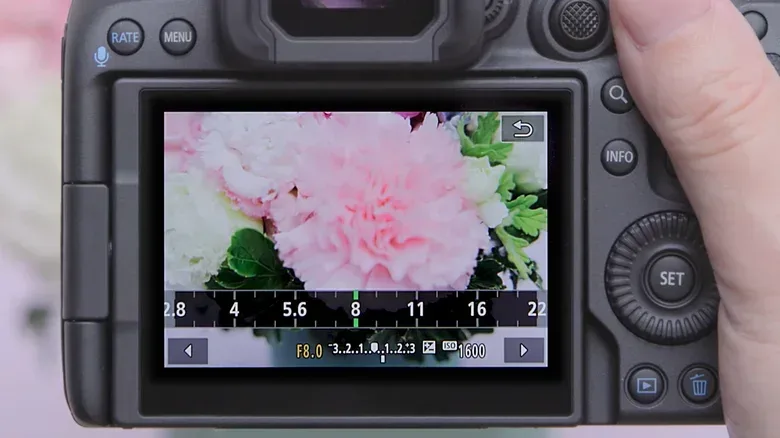
The best time to protect a 3D conversion is when the photo is taken. Canon advises an aperture between f/5.6 and f/8. Aperture is the lens setting that affects how much of a scene appears acceptably sharp. Within that suggested range, the subject is more likely to retain useful depth detail while avoiding blur that could complicate the conversion.
ISO also has a firm role in the workflow. Canon recommends ISO 1600 or below to reduce image noise, and says models cannot be generated from images shot above ISO 3200. ISO is a camera sensitivity setting; raising it can help in dim conditions, but it can also introduce visual noise. In a normal photo that noise may be tolerable. In a depth-dependent conversion process, it can become one more source of uncertainty.
Users must enable the setting that preserves the relevant information in their selected file type:
- For RAW images, enable Dual Pixel RAW.
- For JPEG images, enable Add Distance to JPEGs.
RAW and JPEG refer to different kinds of image file. RAW is generally a camera-captured file format containing more original image data for editing, while JPEG is a commonly shared, compressed image format. The essential point for this tool is not which format is universally better; it is that the appropriate distance-data option must be enabled for the format being captured.
Pick objects the software can interpret
Dual Pixel 3D Converter is best suited to objects with matte surfaces and thick, straightforward forms. Canon’s suggested examples include flowers with rounded petals, low-gloss leaves and plants, ceramic objects, shallow plates, and rounded food. These subjects offer recognizable boundaries and modest surface reflections.
Reflective, very thin, heavily blurred or visually obstructed objects are less favorable. Strong reflections can disguise an object’s actual surface, while slender details may not provide the kind of shape information the converter handles most reliably. Blind spots are particularly relevant: if major areas are hidden from the camera’s angle, the software has less information with which to represent them.
This has a straightforward implication for game-adjacent art workflows. A clean, rounded desk prop or a simple piece of pottery is a more realistic early project than a shiny, intricate object with narrow protrusions. The converter can be part of asset preparation, but it is not a substitute for inspecting and refining an exported model in a dedicated 3D package.
Composition and lighting guidance
Center the subject and leave generous room around it. Canon also recommends photographing from a slightly elevated position to reduce blind spots. Keep the subject at a distance of five to 10 times the focal length. If the object is dark, use the camera flash or external lighting.
These directions work together. Open space makes the main object easier to isolate visually. A somewhat elevated angle can expose more of its surfaces. Sufficient light supports lower ISO settings, which in turn helps keep noise down. None of this guarantees a perfect 3D result, but it gives the conversion a more useful starting image.
From photo to export
After installing the program, import the supported photo into Dual Pixel 3D Converter. The application presents image thumbnails in a browser on the left side of the interface. The 3D Model Settings tab is where users adjust the generation process before creating the result.
The three cited export options serve different purposes:
- OBJ is a widely used 3D model format, commonly carried into other 3D editing tools.
- GLB is a compact binary form of glTF, a format used for delivering 3D scenes and models.
- MP4 is a video format, useful when the desired deliverable is a moving visual rather than an editable 3D asset.
For creators moving between a camera workflow and PC tools, it is worth ensuring the computer side is stable before beginning longer conversion or editing sessions. The same basic care applies as it does to any peripheral-heavy desktop setup: connection order and troubleshooting can save time. For a separate PC workflow reference, see this safe troubleshooting order for USB gaming gear on MacBook.
Free now, but terms may change
Canon currently offers Dual Pixel 3D Converter free of charge. Its release language, however, says that availability is initially free and that specifications and terms of use may change. That leaves open the possibility that the software’s cost or conditions could be revised later. Anyone considering it for an ongoing pipeline should treat the present free access as current status, not a permanent guarantee.
For now, the practical checklist is clear: use Windows 11 version 2024 or later; match a listed EOS R body with a listed RF lens; enable Dual Pixel RAW or Add Distance to JPEGs as appropriate; stay at ISO 3200 or lower, preferably ISO 1600 or lower; and start with an evenly lit, matte, simple object photographed with a little extra room around it. That combination gives Canon’s depth-aware converter the kind of material it is built to process.