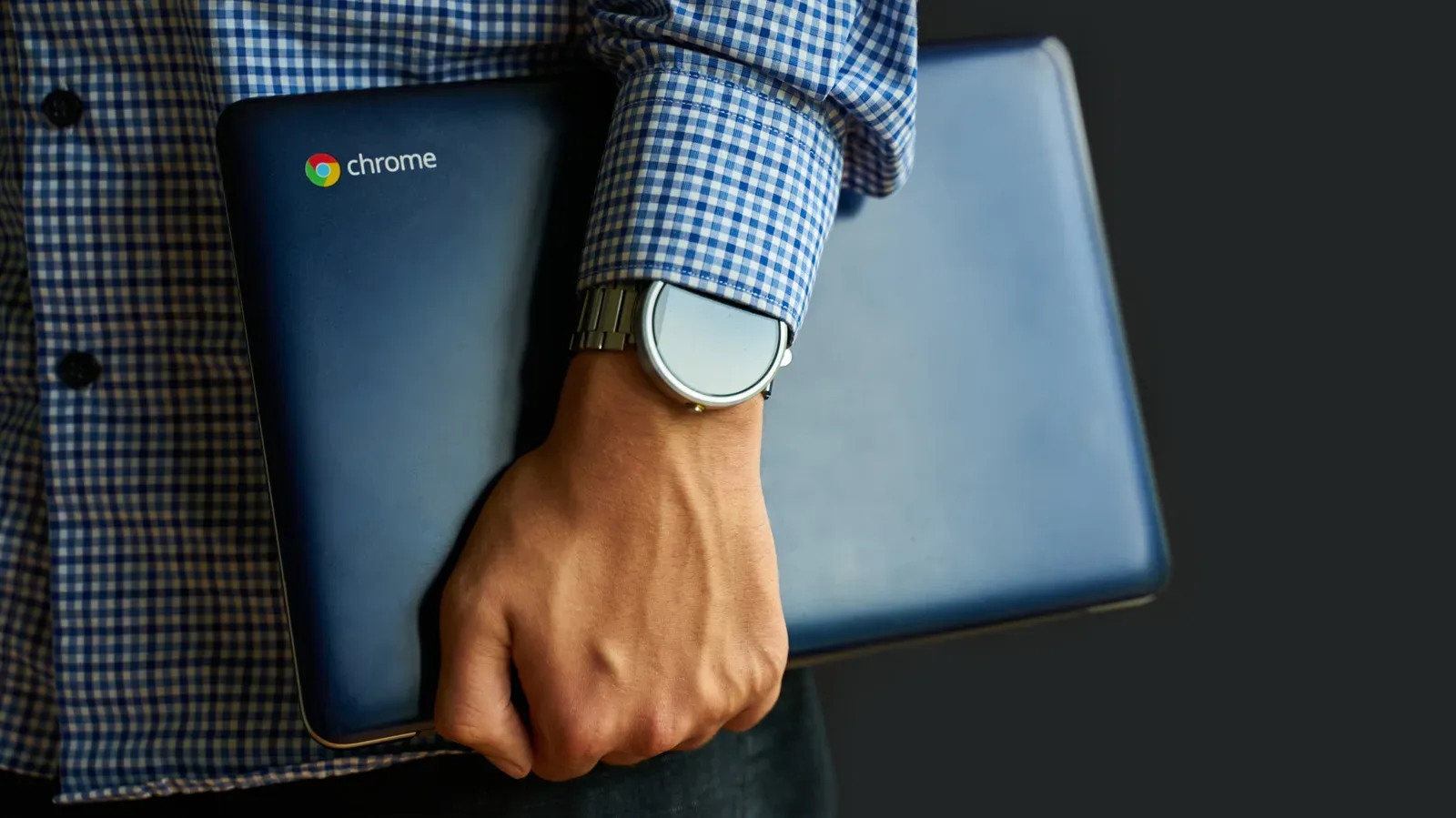
A Chromebook can look like the sensible answer to the everyday-computer question: it is usually light enough to toss in a bag, quick to wake up, simple to navigate, and often far less expensive than a conventional Windows laptop or Mac. For students, web-first workers, families, and players whose gaming habits lean toward Android titles or cloud services, that formula has genuine appeal.
But calling a Chromebook an everyday PC comes with an important asterisk. ChromeOS is deliberately streamlined, and that simplicity is both its superpower and its boundary line. The device can be excellent when the work, entertainment, and games someone wants fit within browser tabs, Google Workspace, supported Android apps, and streaming services. It becomes a much tougher recommendation when a person's day depends on specialized desktop software, local files, demanding creative tasks, particular printers, or a traditional PC gaming library.
Chromebooks have evolved considerably since the product category arrived in 2011. There is also discussion of upcoming “Googlebooks” intended to bring Android and ChromeOS closer together in one package, though that prospective direction does not change what buyers need from current machines. The right question is not whether ChromeOS is universally better or worse than Windows or macOS. It is whether its carefully limited approach matches the jobs an everyday computer must do for you.
Why the Chromebook pitch still makes sense
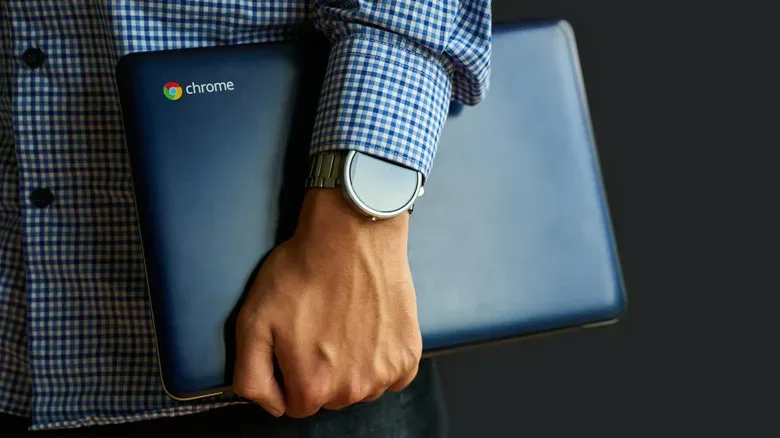
The hardware experience is the first point in ChromeOS’s favor. Many Chromebooks are lighter than typical laptops, while also being built to take more everyday knocks. Combined with battery life that can exceed 10 hours on a charge on many models, they make a compelling travel, school, sofa, and coffee-shop computer. A machine that is easy to carry and not constantly hunting for a wall outlet removes a surprising amount of friction from ordinary computing.
ChromeOS also asks less of a new user than a full desktop operating system. Its browser-centered design will feel recognizable to anyone accustomed to living in Chrome already. Email, documents, calendars, web research, video, and cloud storage are close at hand rather than buried behind a complicated system of installers and maintenance chores. The operating system can boot in seconds, reinforcing the feeling that the laptop is an appliance ready to do a task rather than a project waiting to happen.
For many households, security is another substantial attraction. ChromeOS is designed with multiple protections working together:
- Read-only system design: users work with their own files and cloud storage rather than freely altering core system files, which makes it more difficult for malicious software to damage the operating system.
- Verified boot: at startup, the Chromebook checks for suspicious system changes and can restore a prior version if it detects a problem.
- Sandboxing: webpages and applications operate in separated environments, helping prevent one compromised item from spreading into other parts of the device.
Those measures do not make a Chromebook invincible. A bad extension, a harmful Play Store app, a phishing message, or an easily guessed password can still cause real trouble. Sensible account security and skepticism toward unexpected links remain essential. Still, ChromeOS generally exposes fewer avenues of attack than a typical Windows computer, an advantage for people who want their daily laptop to demand less security administration.
There is an escape hatch for tinkerers, though it has consequences. Developer Mode can open fuller system access, including Linux installation and a terminal. That flexibility may appeal to technically inclined owners, but it means accepting the loss of many of the platform’s default security benefits. It should not be treated as a casual checkbox for someone whose main reason for buying a Chromebook was a locked-down, low-maintenance setup.
Related coverage includes Should a Chromebook Be Your Everyday Computer?.
The budget advantage is real, but not unlimited
Price remains one of the clearest reasons to consider the category. Premium Chromebooks can rise above $700, approaching standard laptop territory, yet many models cost far less. The Acer Chromebook Plus 514, a prominent 2026 recommendation, is listed at about $400 depending on the retailer. That is a meaningful figure for a backup computer, a student laptop, or a straightforward machine for browsing, writing, and communication.
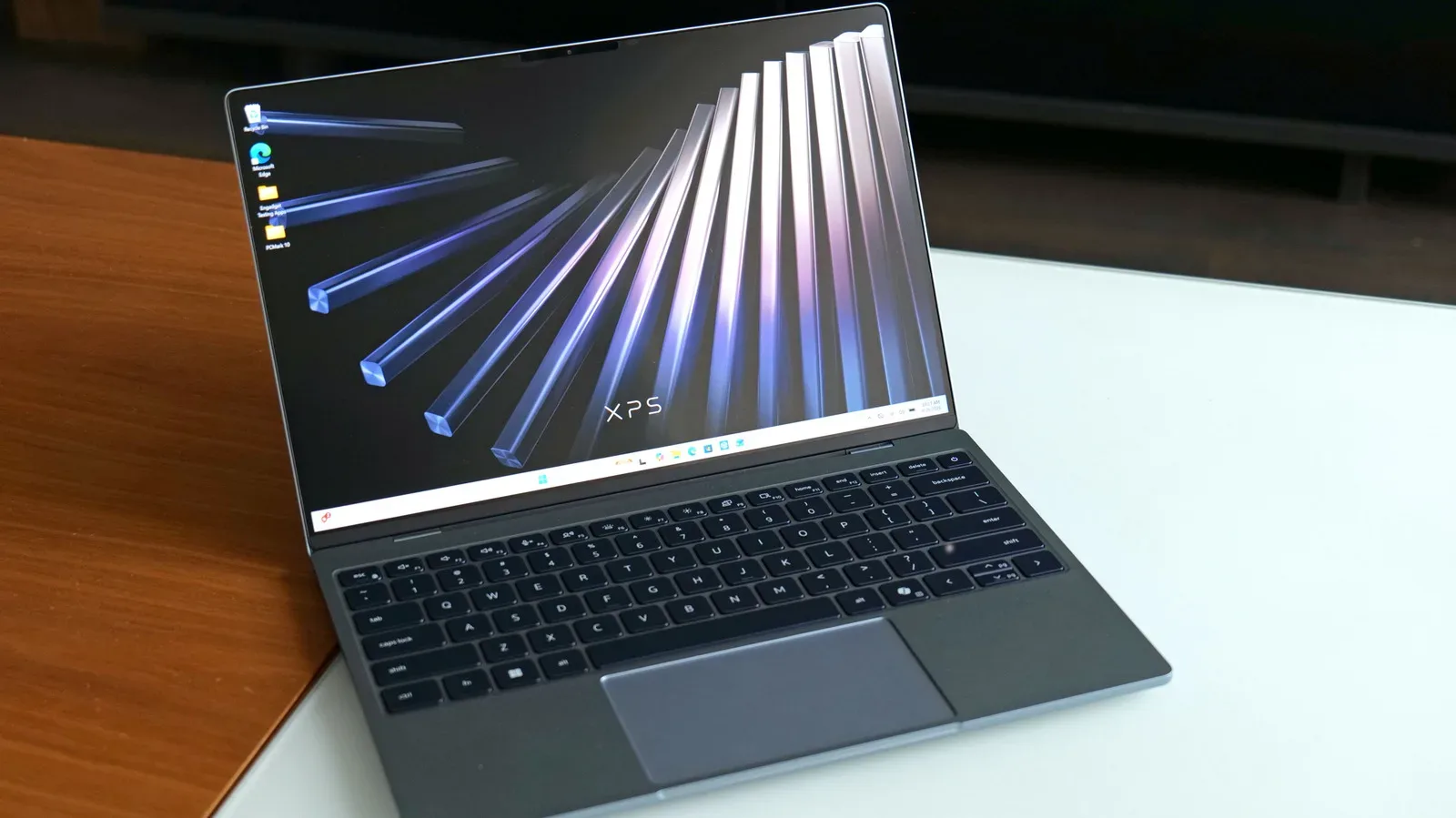
The catch is that a low price is partly enabled by lighter specifications. Chromebooks commonly offer less RAM, CPU power, and storage than a similarly positioned conventional laptop. For browser work, that trade can be perfectly reasonable. For large local media files, intensive multitasking, rendering, or heavy processing, it can quickly become restrictive. Higher-spec Chromebook options exist, but the more their price rises, the more important it becomes to compare them directly with capable standard laptops.
That is particularly relevant for gaming-minded buyers. A cheap Chromebook may be a smart way to access a cloud library, but it is not automatically a cheap gaming PC. Value depends on the games and services a player already uses, the quality and reliability of their internet connection, and whether they can accept streaming as the main way to play.
Offline use has improved, yet the cloud is still central
Early Chromebooks were notably poor companions when disconnected from the internet. The situation is better now. Much of Google Workspace, including Docs and Sheets, can function offline, and Gmail has offline support. Netflix and YouTube also offer offline video downloads in supported circumstances; readers weighing that particular feature can see what YouTube offline downloads allow and where their limits are.
Even with those improvements, ChromeOS remains a cloud-dependent platform. Offline capability is helpful rather than comprehensive, and the selection of things that work well without a connection is narrower than on a conventional PC. Anyone who commutes through unreliable coverage, travels frequently, or needs guaranteed access to a broad set of local applications should treat this as a serious buying consideration rather than a minor inconvenience.
Gaming is possible, but it is not PC gaming as usual
For games outside Google Play, ChromeOS is largely shaped around streaming. Services such as Nvidia GeForce Now and Xbox Cloud Gaming can bring larger games to the device without asking its modest internal hardware to run them locally. This can be a genuinely convenient lane for someone who already subscribes, has strong internet, and mainly wants to jump into a game without installing massive files.
However, streaming also inherits the cloud’s weaknesses: connection quality matters, and offline play is not the point. Downloaded Android games provide a local alternative, but that is a different ecosystem from the usual Windows PC catalog. Steam is not presented as a ChromeOS option here, leaving a major compatibility gap for players who have built a library around it. A Chromebook should therefore be viewed as a cloud-gaming endpoint or Android-game machine, not as a substitute for a gaming laptop.
Software compatibility extends far beyond games. Adobe Creative Cloud and numerous legacy enterprise tools, including software used in areas such as healthcare, may not run on ChromeOS. Browser-based substitutes can cover certain needs, but they may not keep pace with heavier rendering or processing work, especially on lower-powered hardware. If a job or course requires a named desktop application, the buyer should confirm support before buying anything. “There’s probably a web version” is not a reliable plan for required professional software.
Small compatibility checks prevent large regrets
Printers are one final example of the Chromebook’s practical limits. Google Cloud Print was discontinued in 2020, and ChromeOS compatibility is not universal across every printer. Many newer Wi-Fi models should work, but “should” is not the same as a guarantee. Checking official Chromebook printer compatibility before purchase is the sensible move, especially for a home office, school assignment workflow, or small business.
A Chromebook works best as an everyday computer for a person who values portability, long battery life, low cost, browser-first productivity, and default security more than broad local-software freedom. It can be an especially tidy fit for email, spreadsheets, documents, web research, streaming, and cloud gaming. It is a poor fit for buyers who need Steam-based PC gaming, Adobe’s full creative suite, legacy workplace applications, assured peripheral support, or serious local processing power. The lightweight laptop is not trying to be every kind of PC—and knowing that before checkout is exactly what makes it either a bargain or a bottleneck.