Android gaming no longer has to remain a thumb-on-glass-only affair. Windows users who would rather play on a large monitor, use a physical keyboard and mouse, or move a mobile game into their existing desk setup have two broadly different routes: run the game inside a full Android emulator, or use Google Play Games for PC where a title is supported.
The distinction matters. Both can put an Android game on a Windows screen, but they do not offer the same catalog, flexibility or degree of isolation from the rest of the PC. For players, the attraction is straightforward: a mobile title may offer mouse-and-keyboard support and, depending on the game and PC hardware, fewer handheld-device limits around visual settings or frame rate. For everyone else, Android-on-Windows can also fill gaps left by apps that have no worthwhile desktop counterpart.
It is not a universal upgrade, though. Game availability is inconsistent, an emulator still draws on the host PC’s resources, and running an Android app locally is not the same thing as simply viewing a phone screen on a monitor. Choosing the right route starts with knowing what each one actually does.
There are two main ways to put Android software on a PC
Full Android emulators: the broadest option
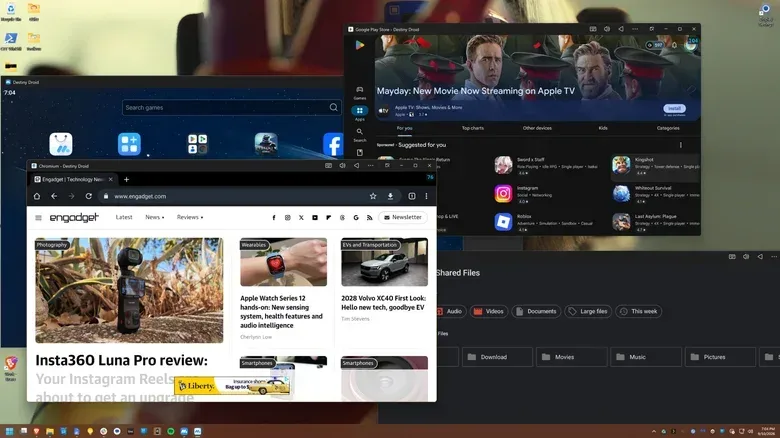
An emulator is software that creates a virtual version of another device environment. In this case, it creates virtual Android devices inside Windows. A person can set up an emulated phone, sign in, and install apps from the Play Store or from elsewhere in much the same way they would on an Android handset.
BlueStacks and MuMuPlayer are two established examples. They are not just game launchers: their purpose is to provide a fuller Android environment, which makes them the more versatile option for someone who needs more than a narrow, approved games catalog.
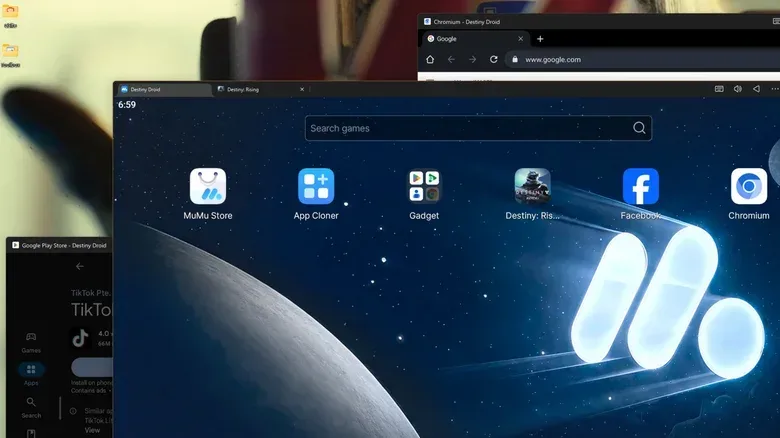
That versatility comes with practical differences. BlueStacks is a legitimate option, but its interface is heavily populated with advertising. MuMuPlayer is free and also includes ads, although they are more limited to certain loading screens. MuMuPlayer is developed by NetEase, the company behind Marvel Rivals and Destiny: Rising, and functions in part as a PC-facing route into NetEase’s mobile ecosystem. It has also received an Android 15 update.
For a player, the important point is not which program has the most polished branding. It is whether the desired game runs properly, accepts preferred controls, and is available through the intended installation method. A full emulator is generally the better fit when a game is absent from Google’s PC offering, or when the same setup needs to run non-game Android apps as well.
Google Play Games for PC: narrower, more focused
Google Play Games for PC takes a more limited approach. It runs opted-in Android games through a lightweight virtual machine rather than opening the door to Android software as a whole. A virtual machine is an isolated software environment that behaves like a computer within the computer, using the PC’s resources while remaining distinct from the primary Windows session.
Related coverage includes How to Run Android Apps on a Windows PC.
The benefit is focus: it is built for games rather than for replicating a general Android phone. The limitation is equally clear: only titles whose developers have joined the program can appear there. Its supported selection includes recognizable names such as Genshin Impact, Clash of Clans and the mobile version of Disco Elysium. Destiny: Rising is not included.
That makes Google Play Games for PC a sensible first stop for someone with one supported game in mind, but not a replacement for a general-purpose Android emulator. The question is less “which platform is best?” than “where can this particular game be played?”
Phone Link is display-and-control, not local Android execution
Windows 11’s Phone Link provides a third experience that can look similar at a glance: it can wirelessly cast an Android phone’s screen or individual apps to the desktop. But it is fundamentally different. The app is still executing on the phone; the PC is displaying and interacting with that phone session.
This can be useful if an app is already installed and configured on a handset, particularly for quick access from a desk. It does not deliver the same local-PC arrangement as an emulator or Google Play Games for PC, and it does not turn the Android app into native Windows software. Players seeking a desktop-first game setup should keep that distinction in mind.
Why mobile games are the obvious use case
Mobile games are often designed around touch first, but that does not mean a phone is the preferred place to play them. Larger displays can make interface-heavy games easier to read, while keyboard and mouse input can feel more natural in titles that support those control methods. The physical arrangement also lets a player keep their phone free rather than tying it up during a lengthy session.
Performance settings are another motivation. Even very capable Android tablets can be subject to decisions made by the game developer about which graphics presets and frame-rate limits are available on mobile hardware. Destiny: Rising, for example, can be capped at 60 frames per second on a Samsung Galaxy Tab S10 Ultra when its graphics settings are pushed high. Through MuMuPlayer on a PC equipped with an Nvidia RTX 4070 Ti Super, it can be run with substantially stronger visual output.
This does not mean emulation automatically improves every game, or that a powerful graphics card removes every bottleneck. It means the PC can offer a different performance envelope from a phone or tablet, provided the emulator and the game can use it effectively. The game itself may still impose limits, and compatibility is never guaranteed merely because the hardware is fast.
Players should also separate Android app emulation from emulating old dedicated consoles. The latter can raise legal questions depending on what software and game files are being used. Running an Android game obtained through its normal storefront inside an Android environment on a PC is a different use case from sourcing console games and console emulators.
Android-on-Windows is also an app-gap solution
The appeal extends beyond games because desktop versions of apps are not always equivalent to their mobile versions. Some services have no dedicated Windows program at all. Others put features in their Android app that never reach the browser or desktop client.
Examples include social apps such as Instagram and TikTok, messaging tools such as Snapchat, and device-management apps for smart-home equipment. An emulator can make these phone-oriented programs accessible at a workstation without requiring the user to pick up a handset for every task.
There is also a lower-spec-PC angle. A computer unable to run heavyweight professional creative programs may still be able to run a lighter Android edition. That is not an argument that mobile software can always replace a professional desktop package; its feature set may be substantially reduced. But where the Android app has the needed function, it can be a workable alternative.
For developers, emulation has an even more direct role: testing. An app maker needs a way to observe how software behaves in an Android environment without relying on a single physical phone. Creating virtual devices makes that process more flexible and helps keep test work separate from a daily-use handset.
Parallel instances can be useful—and require discipline
Some Android emulators can run parallel instances, meaning multiple separate virtual Android devices operate at once. This is more than opening several windows of the same program. Each instance can function as its own emulated device environment.
For mobile-game players, that capability can be used to manage accounts or to farm in-game resources. For creators and community managers, it can help maintain distinct social-media accounts. More broadly, it can create a boundary between personal and work logins.
That boundary is useful but should not be mistaken for free capacity. Every active Android instance uses local processing power and memory, so opening several at once can affect the responsiveness of Windows and anything else running on the machine. A cautious approach is to begin with one instance, confirm that the game or app works as expected, and only then add more if there is a genuine workflow reason.
Isolation can be valuable for organization, but it is not a substitute for account hygiene. Separate instances make it easier to avoid mixing logins; they do not eliminate the need to know which account is active before posting, purchasing or altering a game profile.
How to choose without overcomplicating it
A simple decision tree covers most cases:
- Choose Google Play Games for PC when the only goal is a game that appears in its supported catalog and a focused game solution is preferable.
- Choose a full Android emulator when the wanted game is not in Google Play Games for PC, when non-game Android apps are required, or when multiple virtual devices would be useful.
- Choose Phone Link when the app should remain on the physical phone and the main need is convenient desktop casting rather than locally running Android on Windows.
Before installing anything, it is worth checking the game or app’s availability on the intended platform rather than assuming a popular mobile release will be there. Catalog gaps are the central practical constraint of Google’s gaming route, while a full emulator is more flexible but brings its own interface, advertising and system-resource considerations.
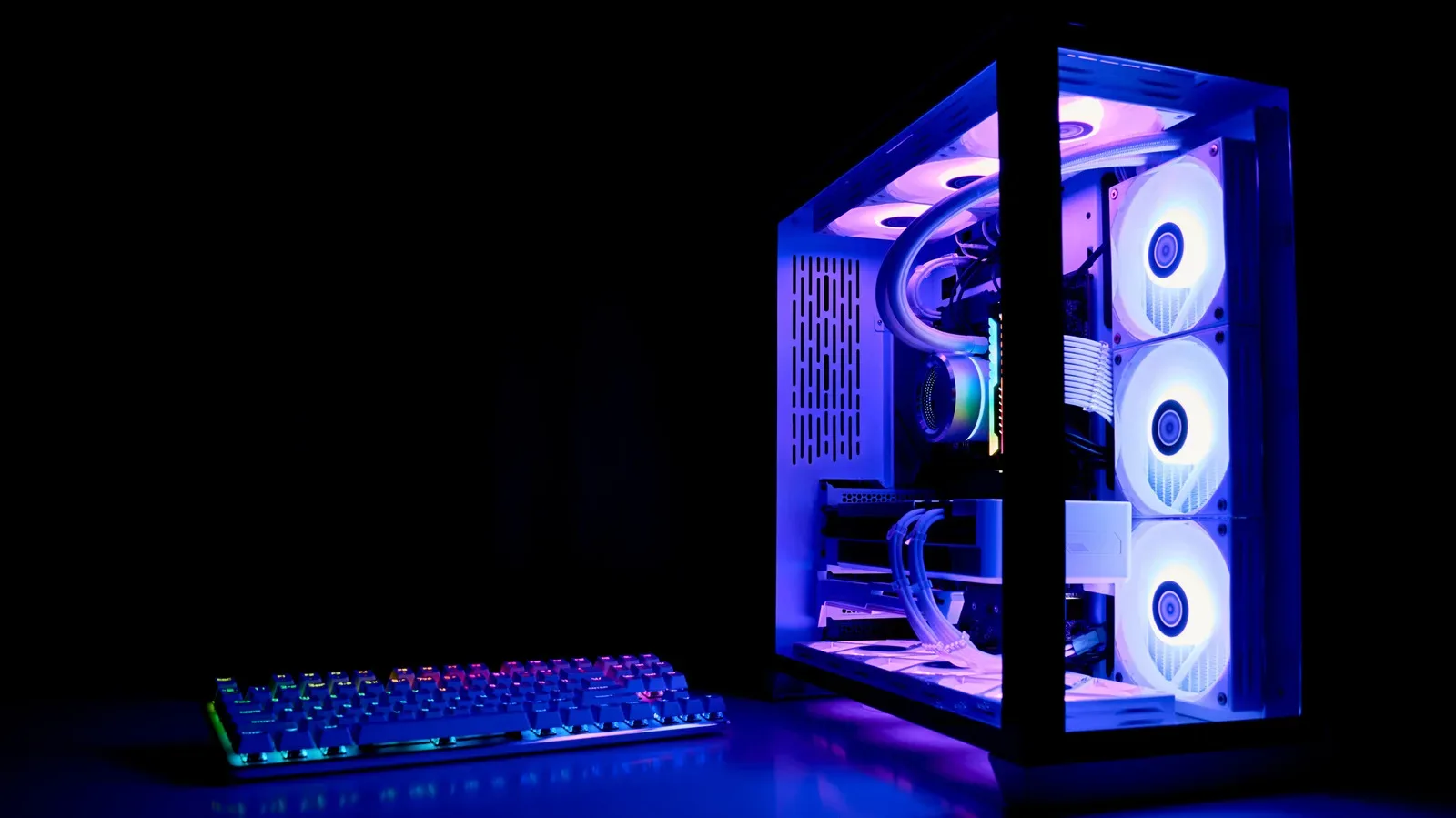
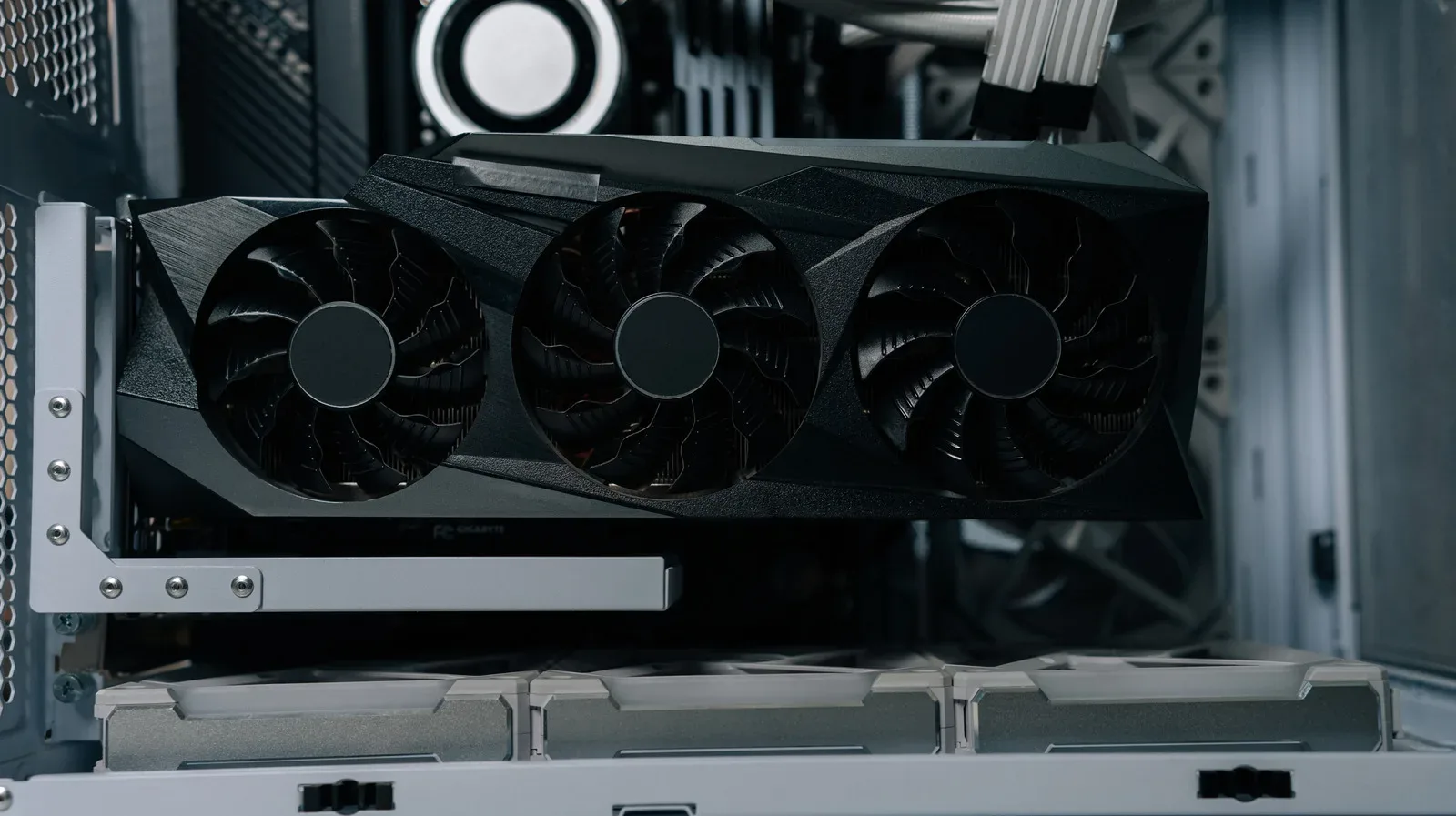
The physical PC setup still matters, too. Emulation will not help much if a machine is poorly placed, clogged with dust or prone to overheating under sustained load. For a desktop used as a long-session game machine, the basics remain important; placement and protection for a gaming PC can be as relevant as the software selected to run on it.
Windows no longer supplies the Android layer itself
Microsoft had previously planned native-style Android app compatibility for Windows 11 through the Windows Subsystem for Android. That support was dropped in 2024. Windows retained its subsystem for Linux, but the Android route did not continue.
As a result, people looking to use Android apps on Windows now need to make an explicit choice among the available tools rather than relying on an integrated Windows feature. That is slightly less seamless, but it also makes the trade-offs visible: a broad emulator for flexibility, Google’s game-specific option for its supported catalog, or phone casting when the actual Android device should remain in charge.
For mobile players in particular, the payoff can be meaningful. A game designed for a pocket-sized screen can become a keyboard-and-mouse experience on a conventional PC setup. Just verify the title’s compatibility first, keep expectations realistic about performance, and treat multiple-instance setups as a resource-intensive tool rather than a no-cost convenience.