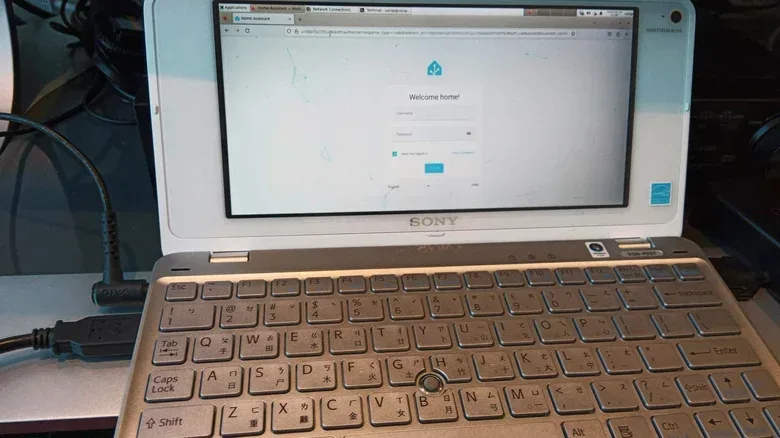
That retired laptop in a drawer may be more useful than it looks. Rather than buying a Raspberry Pi or mini PC immediately, it can serve as the always-on machine behind a Home Assistant setup: a local control point intended to bring smart-home devices and services from different brands into one place.
It is not automatically the ideal permanent server. An aging laptop can consume more electricity than smaller modern hardware, needs sensible battery handling, and must be set up so it never unexpectedly sleeps. But it is a low-upfront-cost way to find out whether Home Assistant suits a household before committing to dedicated equipment.
The key distinction is between a laptop that is merely old and one that is genuinely available. A machine used for work, travel, or nightly shutdowns is a poor hub candidate. Home Assistant needs to remain reachable because the rules it runs—such as changing lights or responding to sensors—depend on its host remaining powered on and connected.
Why a single hub can help with a mixed smart home
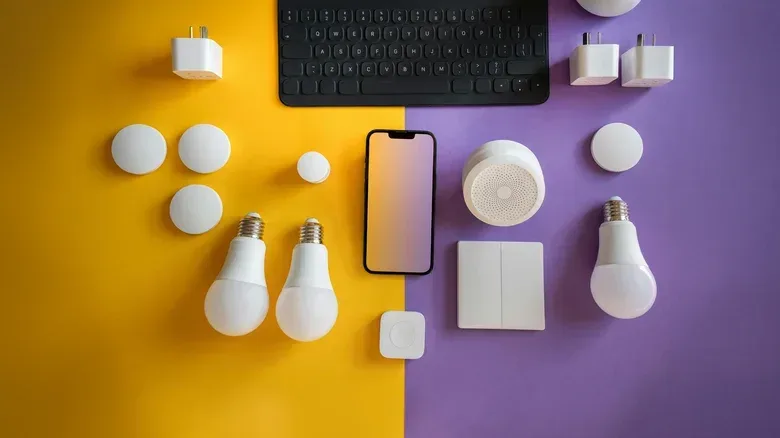
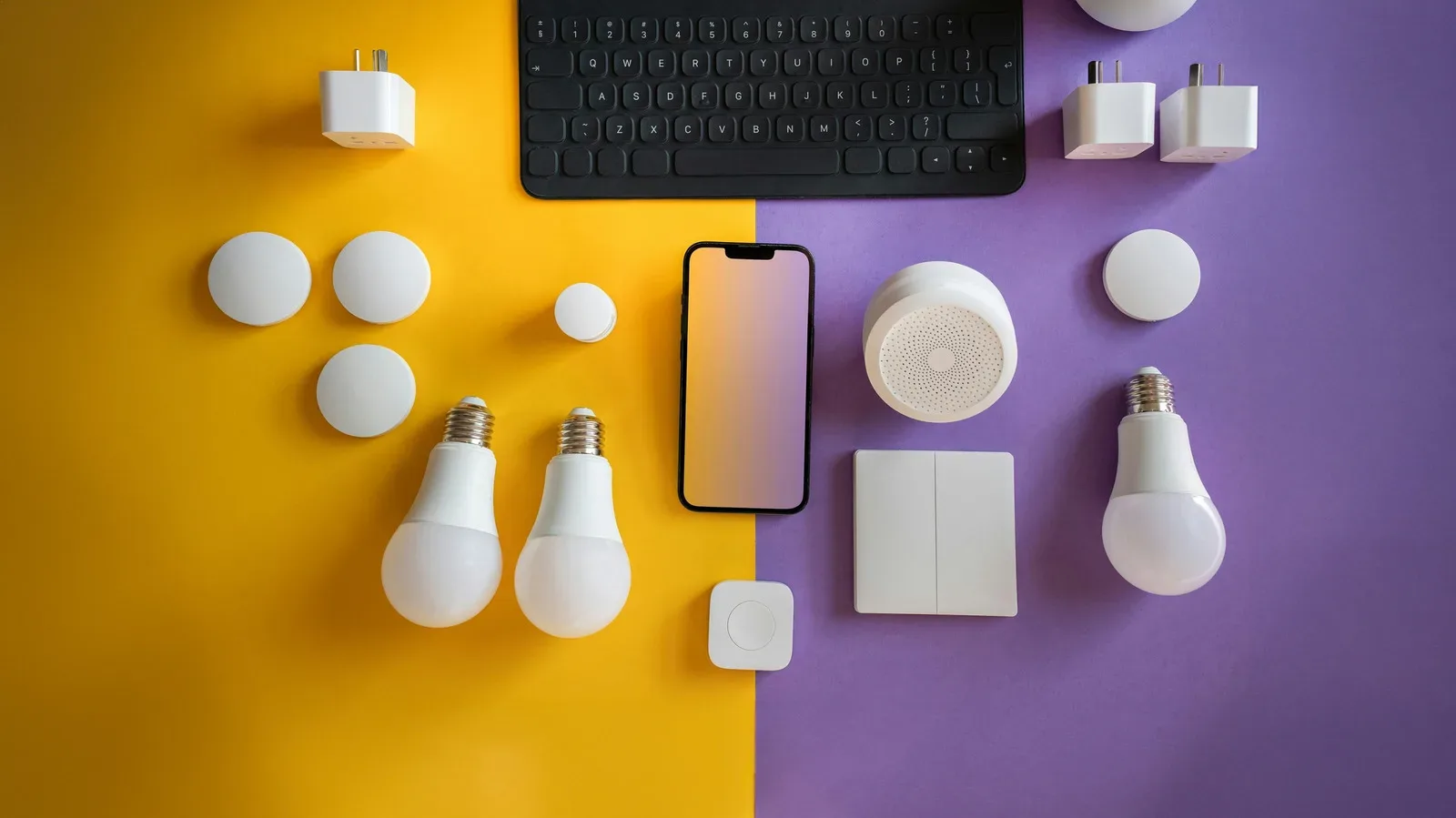
Smart homes can become fragmented quickly. A household may have lighting from one company, a thermostat from another, speakers from a third, and security products controlled through their own apps. Matter and Thread are standards intended to reduce some of that friction, but they have not eliminated the broader problem of products and ecosystems that do not neatly cooperate.
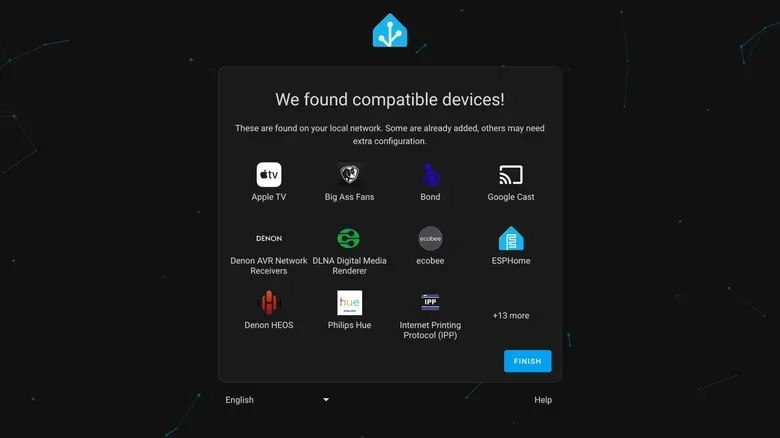
Home Assistant is open-source software designed to act as a central control layer. It has integrations for services including Philips Hue, Google Nest, Ring, Sonos and Ecobee. In plain terms, an integration is the connection that lets Home Assistant communicate with a particular product family or online service.
That can make it possible to coordinate devices that would otherwise be managed in separate companion apps. Its tools include:
- Automations: rules that trigger an action when a condition is met.
- Scenes: saved combinations of device states, such as selected lighting and locked doors for a movie.
- Scripts: reusable sequences of actions.
A household with compatible equipment could, for example, create a rule around dismissing a morning alarm and a coffee maker, or a movie-start routine that dims lights and locks doors. The exact possibilities depend on the devices already installed; Home Assistant cannot supply missing smart-home capabilities by itself.
Another appeal is control. Some integrations still rely on manufacturer accounts or cloud services, while others can operate locally without routing those actions through a company server. That does not mean every device becomes cloud-free simply because it is added to Home Assistant. It means the setup can reduce dependence on individual vendor apps in some cases, while the details remain integration-specific.
Related coverage includes Turn an Old Laptop Into a Home Assistant Smart Home Hub.
There is a trade-off: Home Assistant is not presented as a frictionless, beginner-first experience. It has a learning curve, and some device connections will need manual configuration. It makes most sense for someone who wants to tinker or who has a real interoperability problem to solve—not necessarily for a home whose existing apps and routines already work well.
What makes an old laptop suitable
Home Assistant does not demand gaming-PC-class performance. A laptop that feels too slow for current everyday applications may still be capable of receiving sensor updates and switching devices on and off. The more important question is whether it can be left in one stable location, powered continuously, for the foreseeable future.
An Ethernet connection near the router is the preferred route for stability. Wi-Fi can work, but it is more exposed to interference, signal loss and other connection disruptions. A reliable network matters because a hub with no network link is unable to coordinate networked smart devices in the way the household expects.
Storage is less of a barrier than many people might assume. A solid-state drive can improve boot times and responsiveness, but an older mechanical hard drive can still be usable. The laptop does not need to be repurposed because it is fast; it is being repurposed because its workload can be modest.
It is also worth treating the laptop as an appliance, not a computer in regular rotation. Put it in an appropriate spot near the router, turn its display off, and adjust power settings so closing the lid does not put it to sleep. When using a virtual machine, the host operating system’s sleep settings require the same attention. A perfectly configured Home Assistant installation is of little help if the host suspends itself overnight.
Battery condition is a safety question, not a minor maintenance issue
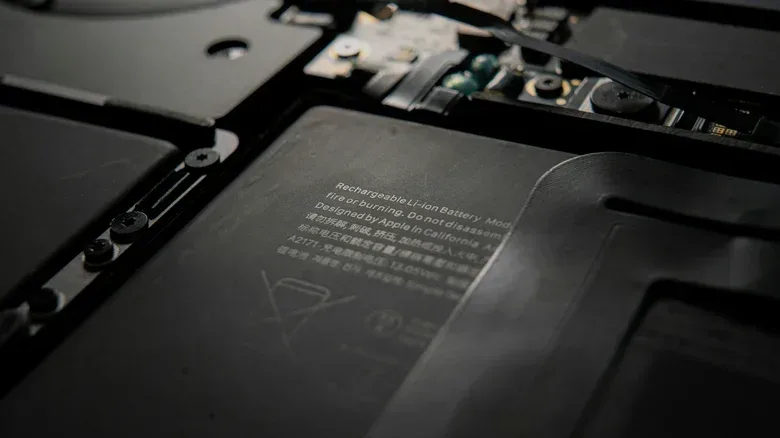
A laptop running around the clock deserves a battery inspection before it takes on hub duty. A healthy battery can provide limited protection against a short power outage, although that protection has little practical value if the router and other needed networking gear lose power at the same time.
A battery with reduced capacity is not necessarily disqualifying. A swollen, leaking, or otherwise damaged battery is different: stop using it and follow the manufacturer’s instructions for replacement or removal. Do not leave a visibly damaged battery charging continuously in a tucked-away corner simply because the laptop still turns on.
If the battery is removable and the laptop is intended to run from its power adapter alone, first confirm that the model supports normal operation without the battery installed. Some laptops offer a maximum-charge limit through manufacturer software or the BIOS—the low-level system settings available before the main operating system loads. Where available, a charge cap is useful because keeping a lithium-ion battery at 100 percent for long periods can accelerate degradation.
The power setup deserves the same level of attention as the software. Use suitable, undamaged power equipment and avoid assuming that a connector is interchangeable simply because it fits. The same basic care applies to console accessories and household electronics alike; this guide to PS5 figure-8 power-cord compatibility and safer replacements is a useful reminder that correct cable specifications matter.
Two ways to run Home Assistant
There are two practical routes for an old laptop, and they suit different levels of commitment.
Start with a virtual machine
A virtual machine, often shortened to VM, is software that lets one computer run an additional operating system in an isolated virtual environment. With this approach, the laptop keeps its existing Windows, macOS or Linux installation while Home Assistant OS, or HAOS, runs inside the VM.
This is a sensible trial path because it does not require erasing the laptop. Free VM options include VirtualBox for Windows, macOS and Linux; VMware Workstation Pro for Windows and Linux; and VMware Fusion Pro for macOS. Home Assistant offers VM images and setup directions for several common platforms.
The downside is overhead: the original operating system and the VM both consume resources. A particularly weak laptop may struggle. The stated VM baseline is at least 2GB of RAM and two virtual CPUs. A virtual CPU is a portion of processor capacity assigned to the VM, rather than a separate physical chip.
For someone still deciding whether the platform’s interface and setup demands are worthwhile, that compromise is often acceptable. It keeps the test reversible and avoids turning a usable laptop into a dedicated appliance prematurely.
Install Home Assistant OS directly
A direct HAOS installation is the more permanent route. It replaces the laptop’s existing operating system, removes the VM layer, and can be a cleaner option for an underpowered computer with little capacity to spare. Before taking that step, confirm that the laptop meets Home Assistant’s x86-64 requirements and make sure anything important on the existing installation has been preserved elsewhere.
Direct installation has an obvious practical consequence: the laptop becomes dedicated infrastructure. That is ideal only if its owner is comfortable leaving it in place and treating it as the household’s quiet background service. After initial setup, Home Assistant can be managed from a different device through a web browser or mobile app, so the host laptop itself does not need to remain open on a desk.
Start narrow rather than automating the whole house
The best early project is usually a small one. Connect a few lights, a few smart plugs, or the devices in one room. Then recreate a task already performed manually or through a manufacturer app. This approach makes it easier to identify which device connections work smoothly, which need manual configuration, and whether the platform’s interface is tolerable for the people who will actually use it.
Some devices may be discovered automatically, while others will not. That is normal for a system designed to bridge varied product ecosystems. Documentation is available for when a setup stalls, but prospective users should budget time rather than expecting a one-click household conversion.
There is value in proving everyday usefulness before building elaborate routines. If a modest set of devices behaves reliably and the automation solves an actual recurring annoyance, expanding later is more defensible. If the setup mostly creates another dashboard to maintain, stopping at the trial stage is also a valid result.
The long-term question is electricity use
Reusing the laptop avoids an initial hardware purchase, but it does not make the hub free to run. An older laptop left on 24 hours a day may consume more power than a current Raspberry Pi or compact mini PC. A plug-in power meter can provide the actual draw instead of relying on assumptions about a particular old model.
That measurement can inform the eventual decision. The laptop may remain the right choice if its energy use is acceptable and it is stable. Or it may be best viewed as a proving ground for Home Assistant, with a smaller, more power-efficient machine taking over later.
That migration does not necessarily mean rebuilding everything. Home Assistant’s backup and restore tools can carry settings and automations to a new device, allowing the owner to preserve the work already done. In that sense, the old laptop’s most valuable role may be reducing the risk of experimentation: it lets a household learn whether a more independent, cross-brand smart-home setup is useful before purchasing the hardware designed to run it indefinitely.