There is a particular kind of household betrayal that arrives right as an online match starts: the game begins to lag, a download slows to a crawl, or voice chat turns robotic because somebody else has started moving a large video file, streaming, or waking up an army of connected gadgets.
The immediate instinct is to blame the internet plan. Sometimes that is the culprit. But a home Wi-Fi network has its own traffic problem to manage, independent of the speed coming into the house. The router has a finite amount of wireless capacity, a limited number of channels on each radio band, and a practical limit on how many active devices it can juggle at once. A network can therefore feel congested even where the broadband connection itself is not the only constraint.
For players, the important point is that Wi-Fi trouble is not solely about a raw speed-test number. Games, downloads, game streaming, video calls, camera uploads and smart-home accessories can all be asking the router for attention at the same time. Understanding the difference between those demands makes it easier to choose a useful fix instead of simply buying the newest router and hoping it performs a miracle.
Your router is handling more than internet traffic
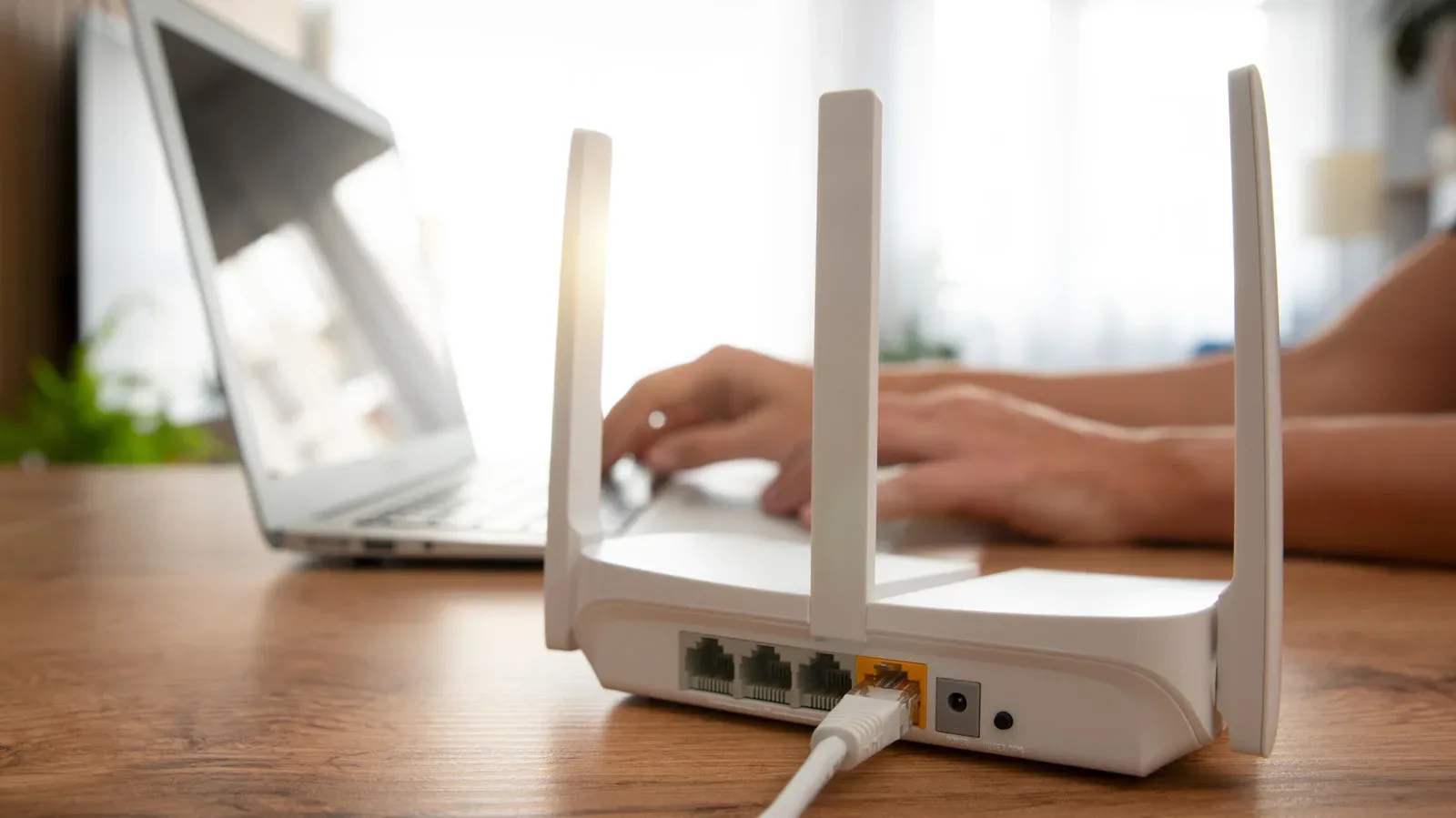
Think of a router as the coordinator for wireless traffic in a home. It manages devices reaching the internet, but it can also carry data between devices on the local network. That local traffic matters.
For example, transferring several dozen gigabytes of video from a camera to a laptop can place a temporary heavy load on Wi-Fi. The data may never leave the home, yet it still occupies wireless capacity. If another person is gaming, downloading a large update, or trying to stream at the same time, the router has more simultaneous work to schedule.
This distinction helps explain why an apparently fast internet plan does not automatically mean a consistently calm Wi-Fi experience. An internet plan describes the connection to the outside world. Wi-Fi is the local radio link between a device and the router. Both parts have to cope with what the household is doing.
It also explains why the number of connected objects now matters more than it did when a typical setup might have included only a PC and a console. Phones, watches, tablets, speakers, lamps and other smart-home gear may all be online alongside the more obvious bandwidth users. A device does not need to be actively streaming a film to count toward the router’s workload; maintaining connections and handling activity across many devices still takes network resources.
Bandwidth is shared, not reserved for one device
Bandwidth is the amount of data a connection can carry over time. It is often measured in gigabits per second, or Gbps. A router’s rated ceiling describes total wireless capacity available across its connections, rather than a private lane permanently assigned to one console, laptop or phone.
Related coverage includes Why Wi-Fi Slows Down as More Devices Join Your Home Network.
Wi-Fi 6 and Wi-Fi 6E routers can reach a theoretical maximum of 9.6Gbps, while Wi-Fi 7 raises that ceiling to 46Gbps. Those figures should not be read as a guarantee that a single device will see that speed in ordinary use. They are maximum protocol figures, and many home internet plans fall well below even the Wi-Fi 6 and 6E ceiling. They are still useful for illustrating the core issue: available wireless capacity is shared.
In practical terms, the router is dividing its attention among all the devices that are active. A large local transfer can contend with a cloud backup. A game patch can contend with several gadgets seeking network access. The result might be lower throughput for a download, but it can also be delay, which is often the more noticeable problem during online play.
Gaming does not necessarily require the same sustained data rate as a huge download. It does, however, benefit from traffic arriving reliably and promptly. When the network is crowded, those delays can turn a smooth session into stutter, delayed inputs or unstable voice chat. That is why a household can be able to browse normally while a game still feels rough.
Wi-Fi bands are separate pieces of the traffic puzzle
Home Wi-Fi uses radio bands: ranges of frequencies through which a router and devices communicate. Wi-Fi 6 supports the 2.4GHz and 5GHz bands. Wi-Fi 6E and Wi-Fi 7 add 6GHz.
Each band has only a certain number of channels. A channel is a slice of radio spectrum used for communication. If too many connections are competing in the same band and its available channels, data can be delayed. Where a device and router both support an alternative band, the device may be moved over, but that is not guaranteed to solve everything. Devices also need to support the relevant band, and the network’s configuration matters.
The 2.4GHz band is particularly easy to crowd. It has only three non-overlapping channels, and many lower-power accessories use it because they do not support 5GHz or 6GHz. That can make it a busy destination for smart bulbs and similar gear, even before phones, consoles or computers enter the picture.
By contrast, 5GHz and 6GHz can offer faster connections and less congestion for compatible devices. The trade-off is range: those higher-frequency bands do not reach as far as 2.4GHz. In a larger home or at the edge of coverage, the theoretically cleaner band is not automatically the best choice if the signal is too weak.
For a console or gaming PC close enough to the router, shifting it to 5GHz or 6GHz can be a sensible way to avoid adding another demanding device to an already busy 2.4GHz band. It is not an instruction to abandon 2.4GHz entirely. Low-power devices that lack higher-band support still need it. The useful strategy is to put compatible, performance-sensitive hardware on the higher bands when the router permits it.
Older Wi-Fi hardware can hit a device wall
Capacity is not only about speed and channels. Routers also have an effective limit on simultaneous active connections. This is especially significant for Wi-Fi 5 hardware. Depending on the router, Wi-Fi 5 may support as few as 10 to 25 active devices. Once the limit is reached, older connections can be dropped to make room for newer ones.
That is a more disruptive outcome than a merely slow download. A device can lose its connection altogether because the router is out of room to sustain every active participant. In a house full of smart-home equipment, handheld devices, PCs and consoles, a device count that once sounded generous can disappear quickly.
For that reason, replacing a Wi-Fi 5 router is a stronger priority than replacing a more recent Wi-Fi 6 or Wi-Fi 6E model solely because a newer standard exists. The upgrade is about reducing an obvious connection-capacity bottleneck, not chasing a number on a box.
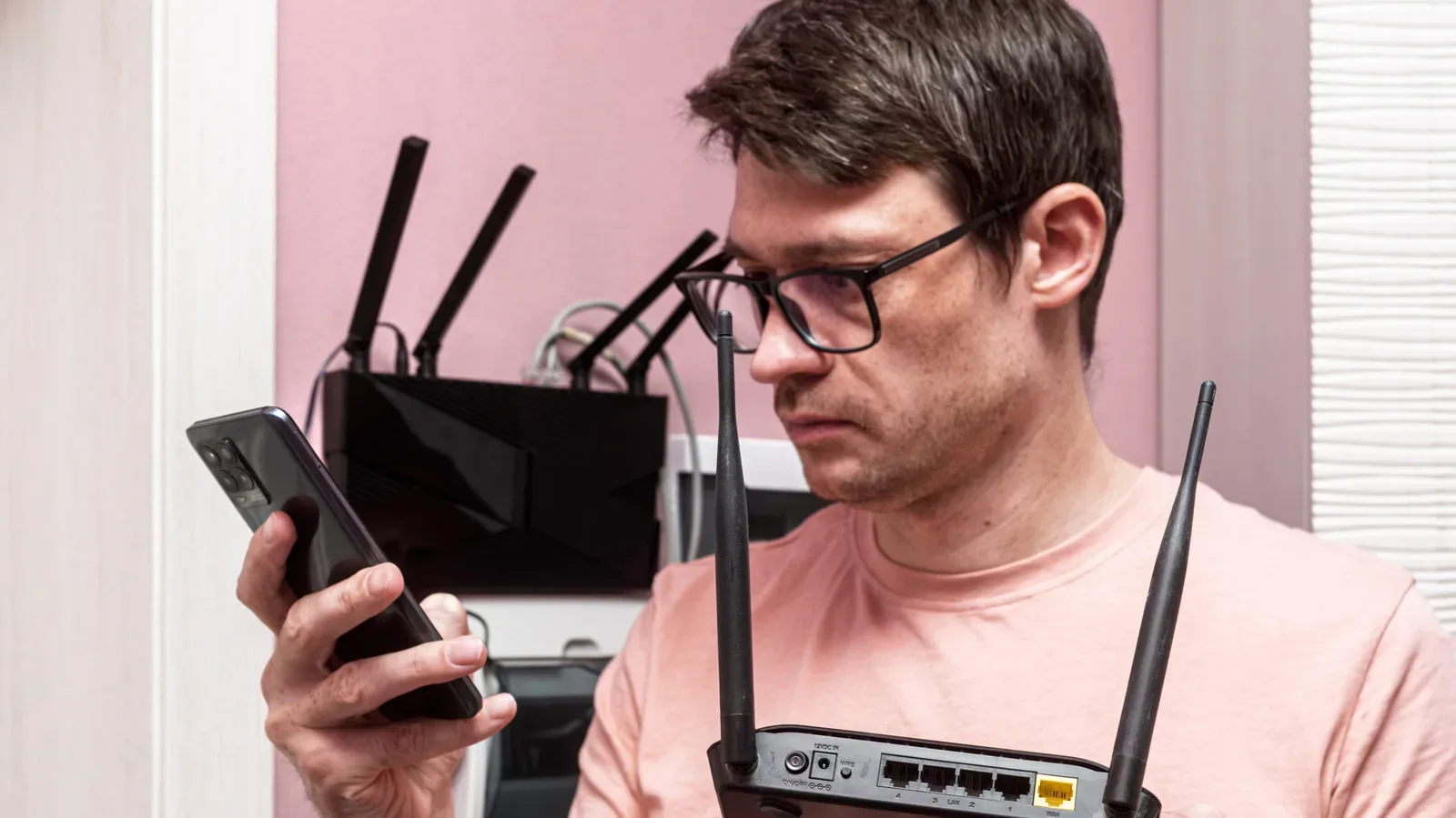
If the issue is confined to one device, it can also be worth separating router congestion from a device-specific problem. Knowing a device’s local network details can make basic troubleshooting less mysterious; this guide explains how to find public and private IP addresses on Windows, Mac, iPhone and Android.
What Wi-Fi 7 can improve — and what it cannot
Wi-Fi 7 has a substantially higher theoretical bandwidth ceiling than Wi-Fi 6 and 6E, so it may help in homes with growing numbers of demanding devices. But a new router is not a universal cure for congestion.
One Wi-Fi 7 feature is preamble puncturing. In simple terms, it can allow a channel affected by interference to exclude the troubled portion and continue using its remaining usable bandwidth. That can make a channel more resilient when only part of it is compromised.
There is an important compatibility catch: both the router and the connected device need support for Wi-Fi 7 features in order to use them. A household can install a Wi-Fi 7 router while most of its phones, consoles, PCs and accessories remain Wi-Fi 6 or Wi-Fi 6E devices. The new router may still be worthwhile, but it cannot grant every older device capabilities it does not have.
Nor does Wi-Fi 7 remove the finite nature of radio bands. A band can still be overloaded. The most effective approach is usually to identify the specific kind of congestion involved: too many active devices, a crowded band, a large local transfer, or an older router that is struggling with the household’s connection count.
Practical ways to reduce the crunch
Start with the changes that alter how traffic is distributed rather than assuming the only answer is to disconnect everything.
- Use 5GHz or 6GHz for compatible gaming devices where coverage is strong. If a router allows separate network names or logins for its bands, moving suitable devices off 2.4GHz can reduce pressure on the band often used by lower-power accessories.
- Remember the range trade-off. Higher bands are faster and can be less congested, but their shorter reach matters. A device far from the router may not benefit from being forced onto a higher band.
- Pause unnecessary devices during an important transfer or download. Router apps may offer controls to pause connected products. This can be useful when a time-sensitive upload, download or game update needs a clearer path.
- Pay attention to local transfers. Moving a large camera file to a laptop can affect the whole Wi-Fi environment even though it is not an internet download. Schedule that kind of task away from busy gaming or streaming periods when possible.
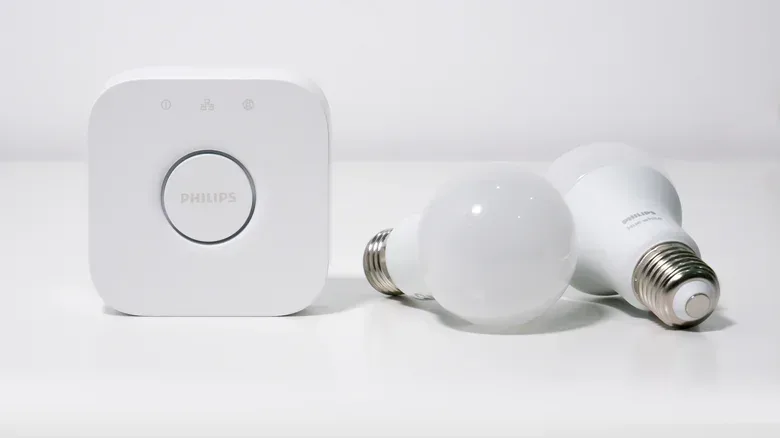
- Consider hub-based smart-home setups. Standalone Wi-Fi bulbs are straightforward to set up, but every one competes for Wi-Fi channels. A hub using Thread or Zigbee can connect dozens of compatible products while the hub itself requires just one Wi-Fi connection.
- Prioritize replacement if the router is Wi-Fi 5. A limited simultaneous-device capacity can become a direct reliability problem in a modern connected home.
Mesh systems require a different route to relief
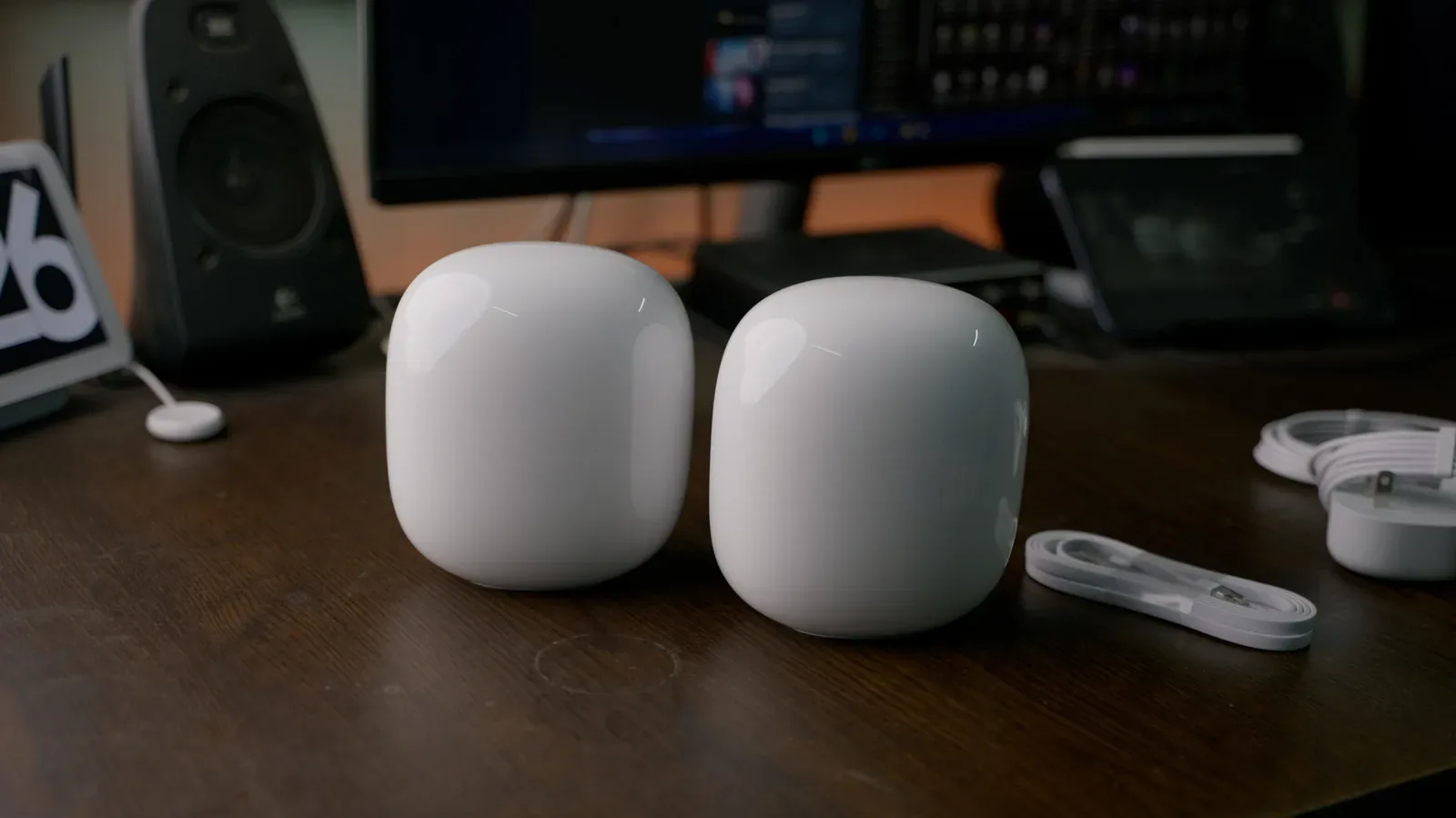
Creating separate logins for the 2.4GHz, 5GHz and 6GHz bands can be a useful steering tool on routers that expose those options. Mesh routers do not offer that option in the same way, so the practical levers can be different.
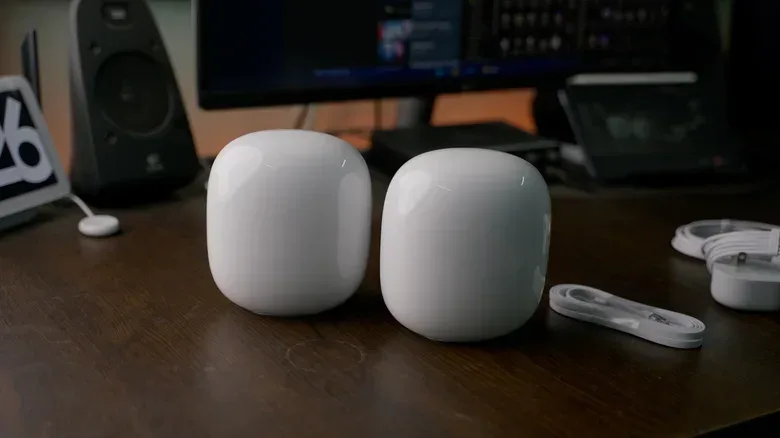
For a mesh setup, pausing nonessential devices through the router app becomes more relevant when a crucial upload or download is taking place. So does reducing the number of Wi-Fi-only smart accessories over time by moving compatible products to a hub-based system. The goal is not necessarily to make every device disappear from the network. It is to avoid having every bulb and accessory independently contend for the same Wi-Fi resource when a single hub connection can coordinate many of them.
The broader lesson is that a growing device count changes home-network planning. The answer is not simply “more speed.” It is a combination of a router appropriate for the number of active devices, sensible use of the available bands, awareness that local transfers consume wireless capacity, and a willingness to move suitable smart-home products off direct Wi-Fi connections.
That is less glamorous than treating a router upgrade like a legendary loot drop, but it is more likely to solve the actual problem: too much traffic arriving at the same wireless station at once.